


If a Slack or Microsoft Teams channel doesn’t appear when you’re setting up an automation, it’s usually related to channel permissions, app access, or how the integration was configured:
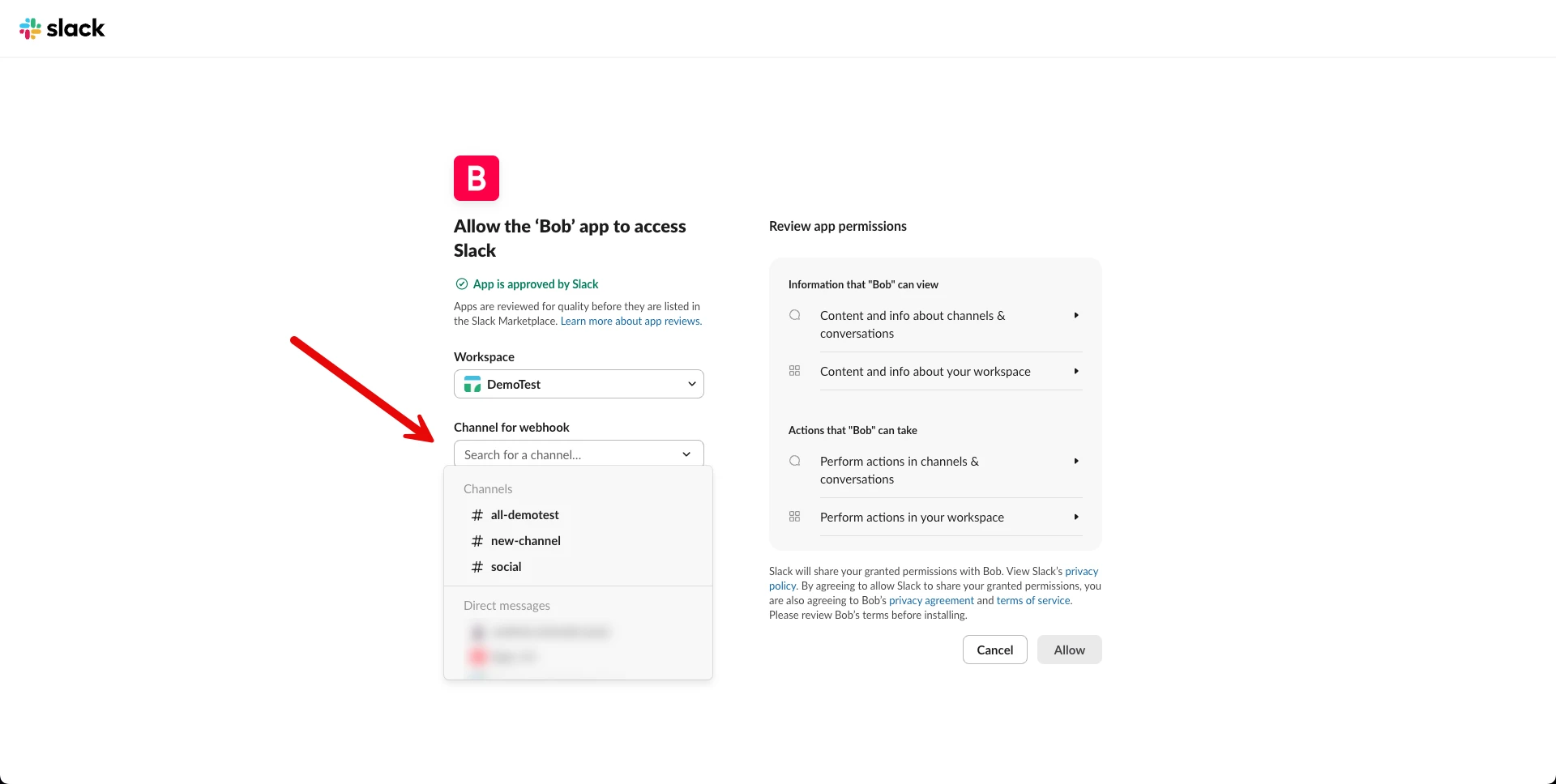
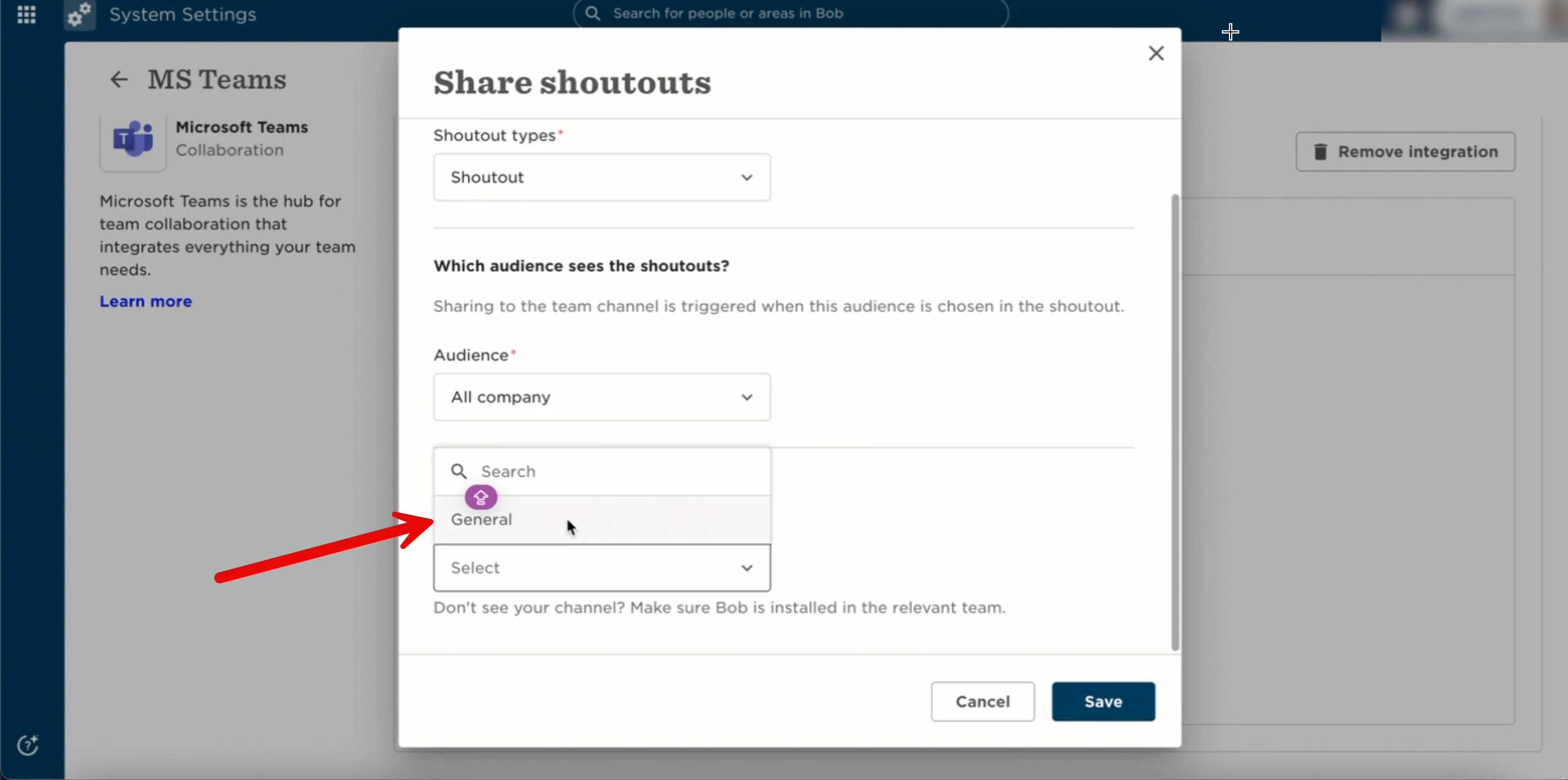
First, check whether the channel you’re trying to use is public. Bob can only post messages to public channels in Slack and Microsoft Teams. Private channels won’t appear in the channel picker and can’t be used for automations.
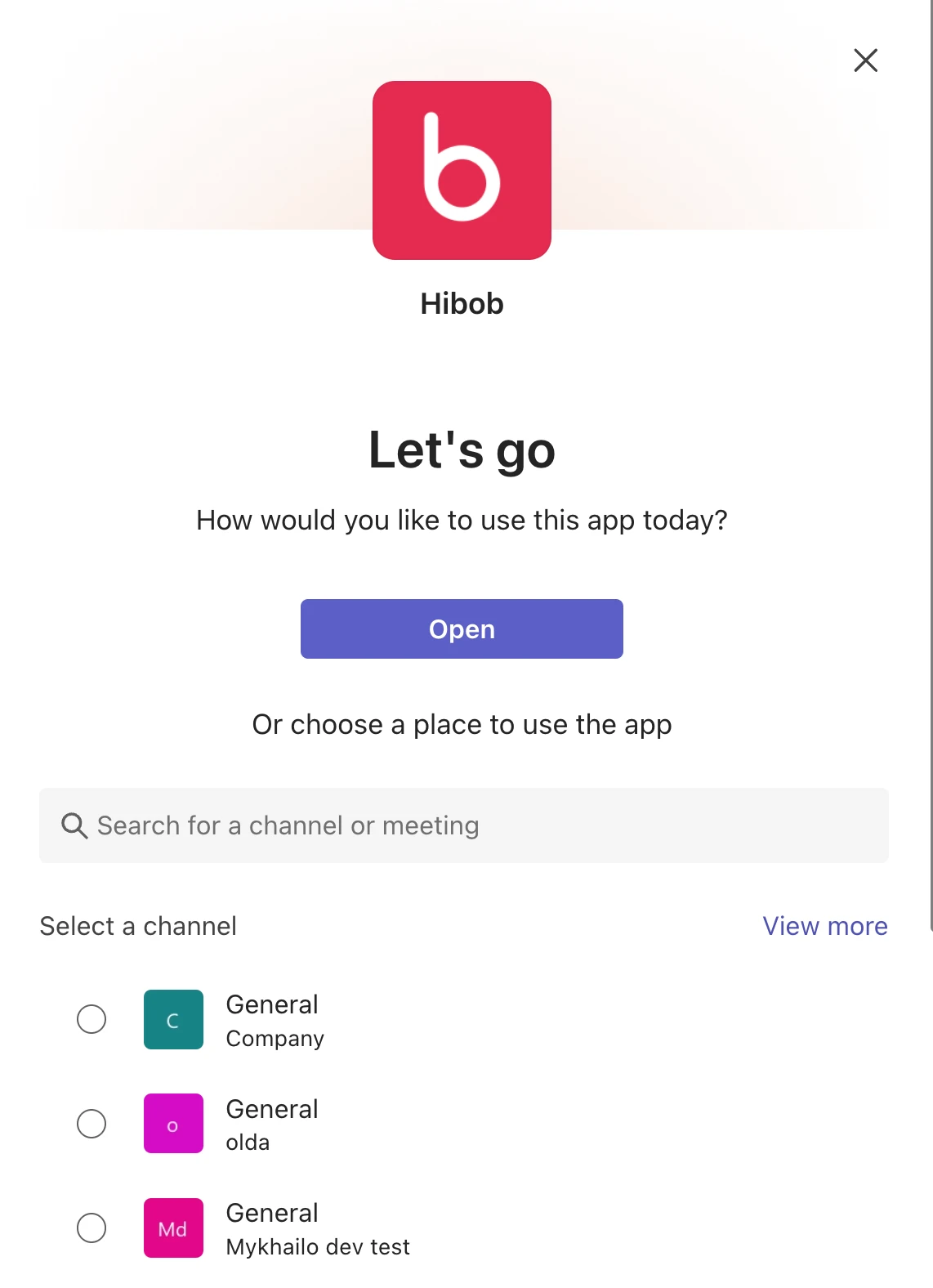
Next, make sure the HiBob app is added to the specific channel you want to post in. This step is required for Microsoft Teams only. Even if the integration is connected, Bob won’t be able to post unless the HiBob app has been explicitly added to each public channel where messages should appear.
Another common reason is an audience mismatch. The audience defined in Bob must match the audience selected during the Slack or Microsoft Teams integration setup. If these audiences don’t align, channels may not show up as expected. This article walks through that setup in detail:
https://heartcorehr.hibob.com/integrations-188/sharing-shoutouts-via-slack-or-ms-teams-4867
If you’ve confirmed all of the above and the channel still can’t be found, the integration connection itself may not have completed successfully. In this case, try reconnecting the integration, preferably using the Office 365 Admin Center instead, and then attempt the automation setup again.