

If you can’t find the pay cycle you’re looking for, it’s usually related to the page filters, grouping, date range, or pagination settings.
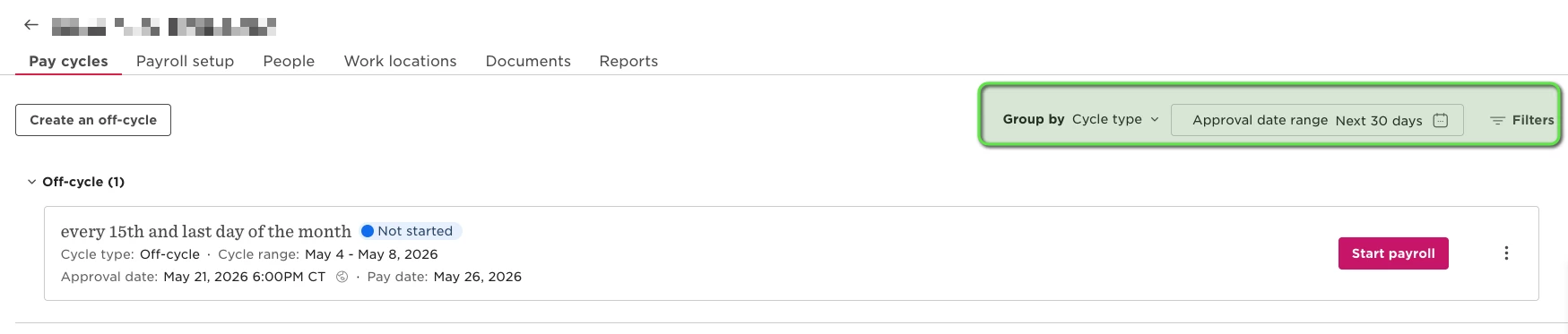
By default, the Pay cycles page is separated into two sections:
-
Off-cycle pay cycles appear at the top of the page
-
Regular pay cycles appear below them
Depending on your page settings and filters, some pay cycles may not appear immediately.
Understand Pay Cycle Statuses
Pay cycles can appear with different statuses depending on where they are in the payroll process.
Not started
The pay cycle has been created, but payroll processing has not started yet.
In progress
Payroll processing has started for the pay cycle, but it has not been finalized yet.
Approved
The pay cycle has been approved and finalized for payroll processing.
Closed
The pay cycle is complete and no further payroll actions can be taken for that cycle.
Check the Approval Date Range
By default, the page is filtered to show pay cycles with an approval date in the Next 30 days.
If the pay cycle you need falls outside that range, update the filter.
You can choose from preset ranges, including:
-
Today
-
This week
-
Last week
-
Next week
-
This month
-
Last month
-
Next month
-
Last quarter
-
Next 30 days
-
Last 30 days
You can also switch from Preset to Month range to select a custom month range.
After selecting a new range, click Apply.
Review Grouping Settings
The page can be grouped in different ways:
-
Cycle type — separates Regular and Off-cycle pay cycles
-
Status — groups pay cycles by statuses such as Not started, In progress, Approved, or Closed
Changing the grouping can affect where the pay cycle appears on the page.
Use Filters to Narrow Results
Select Filters to narrow the results further.
You can filter by:
Pay cycle status
-
Not started
-
In progress
-
Approved
-
Closed
Pay schedule name
Use this filter to display pay cycles from specific pay schedules only.
If a filter is selected, pay cycles that don’t match the criteria won’t appear.
Check the Items Per Page Setting
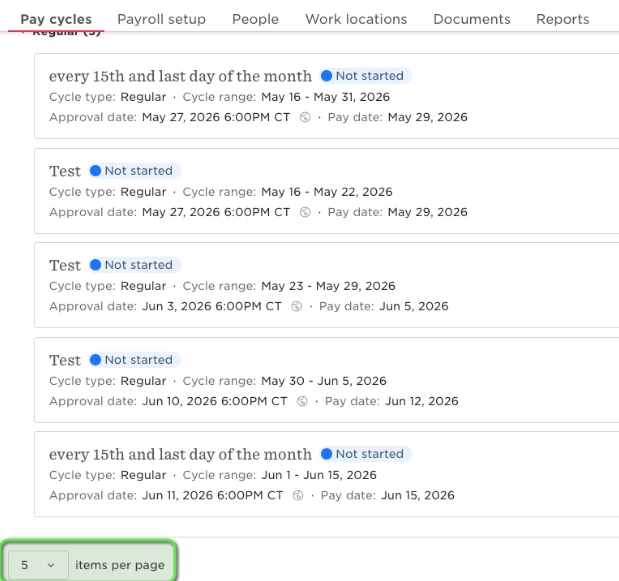
The Items per page setting controls how many pay cycles appear on each page.
{placeholder_for_items_per_page_screenshot}
If there are more pay cycles than the selected limit, additional cycles appear on the next page.
Use the pagination controls at the bottom-right of the page to move between pages.