

If an employee’s bank account is syncing but they still appear as Check in payroll, it’s usually due to how the bank account information was entered or formatting and allocation rules in the employee’s bank account setup. Let’s review the key requirements to ensure everything is configured correctly.
Financial Table vs. Financial Fields
First, confirm that the employee's bank information was entered in the Financial table on their employee profile.
Only entries added to the Financial table flow correctly into US Payroll. If bank details are entered in the Financial fields instead of the table, payroll may not detect them and can default the employee's payment method to Check for that pay date.
To update the bank details:
Bob → Employee profile → Financial → Pencil icon (Edit) → Add row → Enter bank account details → Add/Save
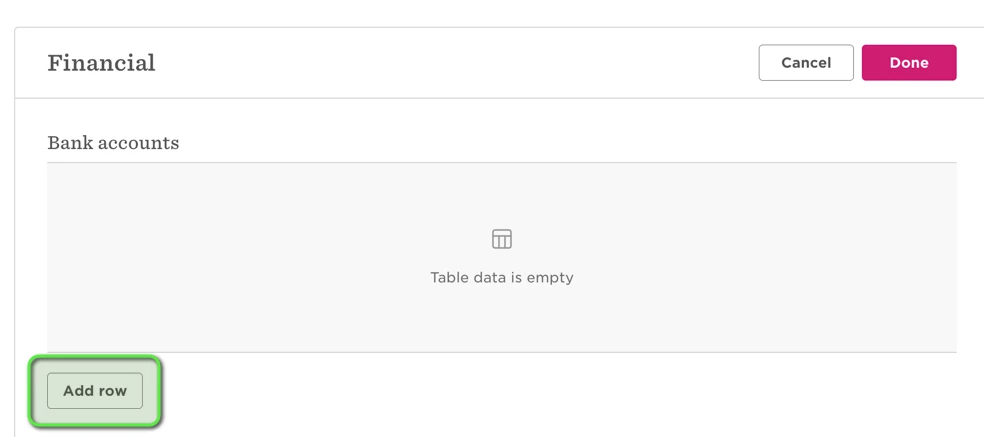
If needed, an admin can also enter the bank details on the employee's behalf using the same steps.
Allocation Rules
The allocation setup must follow one of the supported formats:
$ allocation + Remaining → Supported
% allocation + Remaining → Not supported
Example of a valid setup:
Account 1: $500
Account 2: Remaining
Example of an invalid setup:
Account 1: 50%
Account 2: Remaining
If percentages are used with Remaining, the payroll sync may complete but the employee can still appear as Check.
Allocation percentages must be whole numbers. Decimal percentages aren’t supported.
For example, you can’t allocate 1.7% to one account and 98.3% to another. Instead, the allocations must use whole percentages, such as 2% and 98%.
Routing Number Requirements
The routing number must contain exactly 9 digits. Only numbers are supported. Any routing number with fewer or more than 9 digits will cause issues with the bank account setup.
Example:
✔️ 021000021
✖️ 02100002
Account Number Formatting
The account number must contain numbers only. Do not include dashes, spaces, or special characters.
Example:
✔️ 123456789
✖️ 123-456-789
If unsupported characters are used, the account may sync but payroll may still treat the employee as Check.
What to Check if the Employee Still Shows as Check
If the bank account appears to sync but the employee is still listed as Check, review the employee's bank account setup and confirm:
- The bank details were entered in the Financial table and not in the Financial fields
- The routing number has exactly 9 digits
- The account number does not contain dashes or symbols
- The allocation uses $ + Remaining and not % + Remaining
- If using percentage allocations, the percentages are whole numbers and do not include decimals
Correcting these fields and re-syncing the employee record should resolve the issue and ensure a smooth payroll process.