

If you need to change the expiration date for days carried over from a previous cycle that’s already locked, you won’t be able to do it manually from the employee’s profile.
Instead, use the Update Historical Time Off Starting Balances import, which allows you to override carryover settings, including the expiration date.
When to use this
This method can be useful especially when:
-
A carryover expiration date was entered incorrectly
-
Policy rules were updated after a cycle was locked
-
Your organization allows multi-year carryovers (common in Nordic countries)
⚠️ You cannot edit expiry dates manually from the Time Off section once the cycle is locked. This import is the only supported method for adjustments.
What to do
-
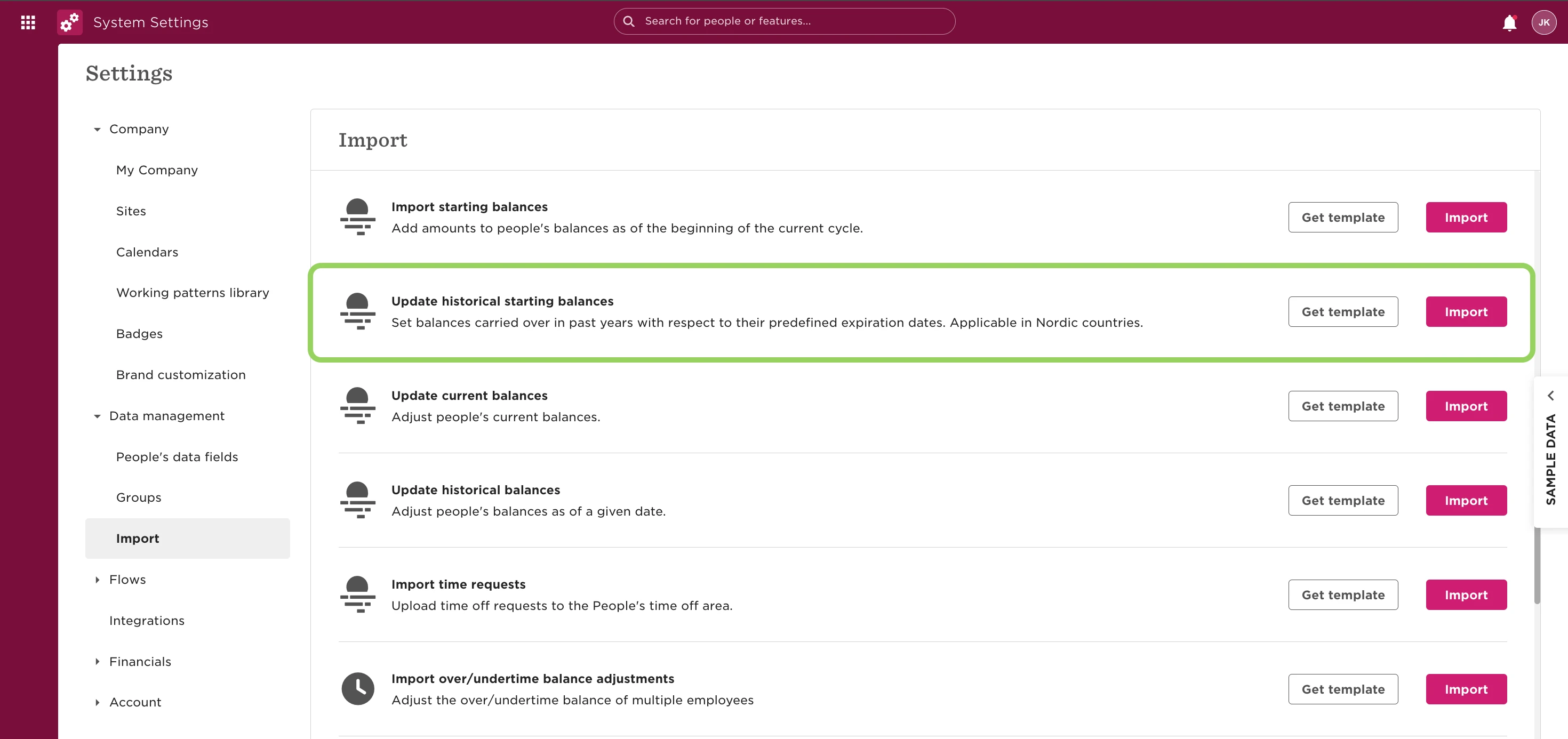
Go to System settings > Data management > Import
-
Under Update historical starting balances, click Get template
-
Open the downloaded file and fill out the required fields:
-
Column A – Employee Identifier (email, ID, or full name)
-
Column B – Policy name (e.g., Holiday)
-
Column C – Number of carried-over days
-
Column D – Carryover grant date (e.g., 01/04/2023)
-
Column E – Expiration date (e.g., 01/04/2026)
-
Column F – Optional comments
-
-
Return to System settings > Import
-
Select Update historical starting balances > Import
-
Upload your completed file
-
Validate the data and confirm the import
🔄 This will override any existing carryover values for the current cycle, including previous expirations.
Notes
-
This import only affects the current cycle
-
No need to use Import starting balances separately—this file replaces it
-
Your uploaded file will be saved in the Import Drive for future reference
-
Expiry dates will appear in the Balance activity tab under Starting balance