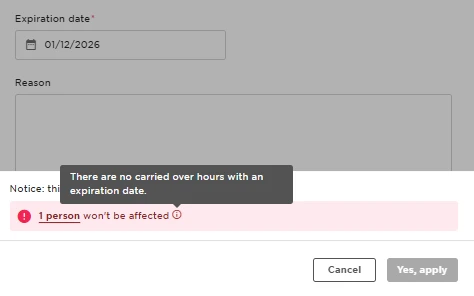
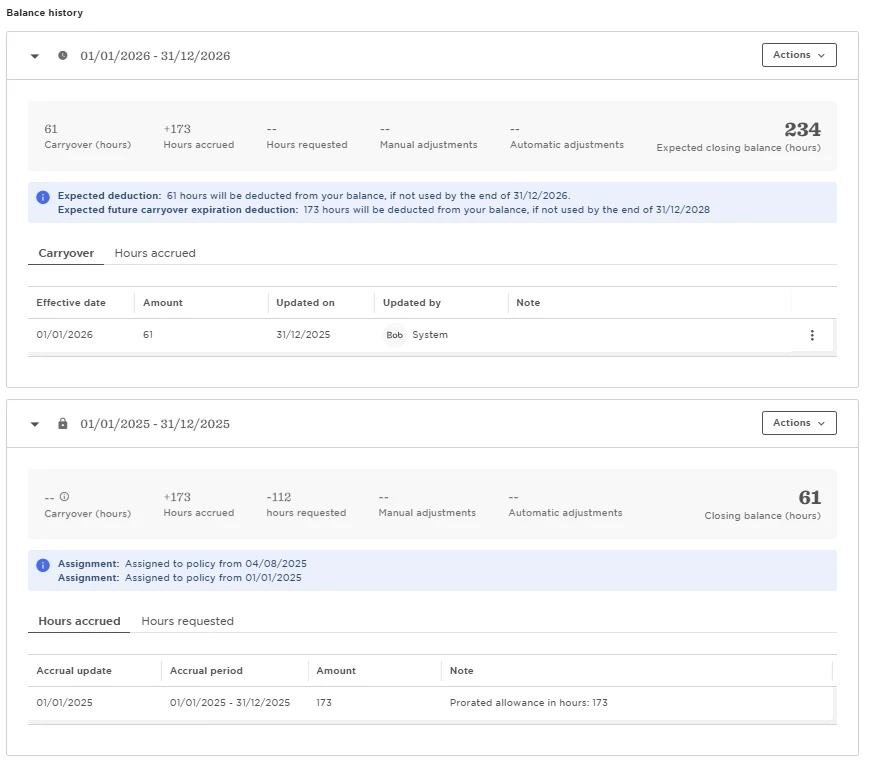
If you need to extend the carryover expiration date for a single employee, you can update it directly from the policy balances page without affecting anyone else.
To update the carryover expiration for one employee:
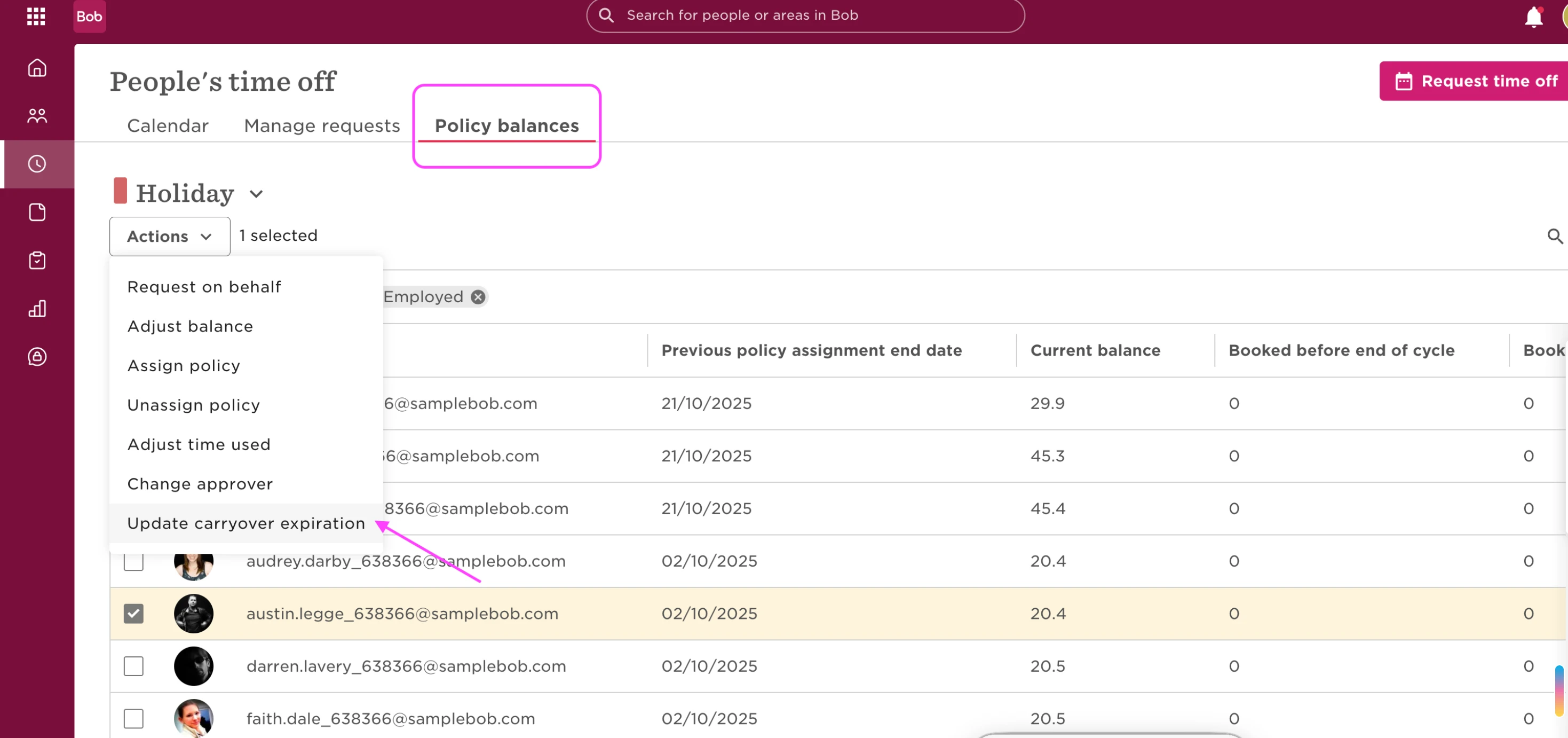
1. Go to Time > People's time off > Policy balances.
2. Select the relevant policy type.
3. Find and select the specific employee.
4. Click Actions.
5. Choose Update carryover expiration.
6. Set the new expiration date.
7. Click Save.
This change only affects the carryover balance from the previous cycle for that employee. It does not impact their current year allocation and does not affect other employees assigned to the same policy.
You can review the updated expiration date in the employee’s Balance activity tab under Starting balance.