


You can stop or reduce an employee’s Time Off accrual while they’re on leave, whether you manage their leave through a Lifecycle leave or a Time Off policy.
The setting you use depends on how you manage the employee’s leave in Bob.
If you manage the leave through Lifecycle
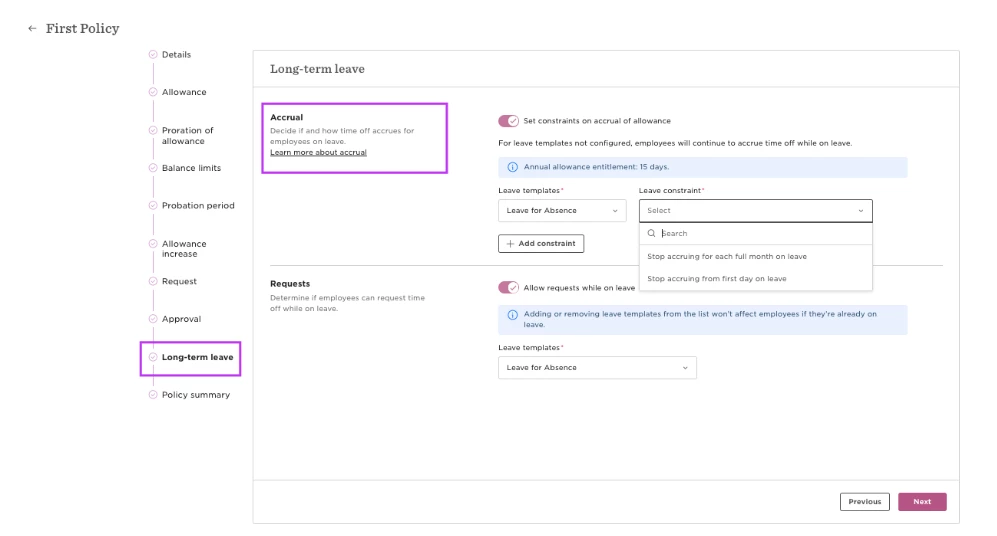
When an employee is placed on leave using Actions > Change work status > Place on leave, you can configure their Time Off policy to stop accruing allowance based on their Lifecycle leave.
- Go to Time > Time off settings > Policies.
- Find the policy whose allowance should stop accruing, such as your Vacation policy.
- Click Actions > Edit.
- Go to Long-term leave > Accrual.
- Enable Set constraints on accrual allowance.
- Select the relevant leave flow template.
- Choose how accrual should be handled:
- Stop accruing from first day on leave: No allowance accrues during the leave period.
- Stop accruing for each full month on leave: Accrual stops for full months of leave. If the employee works at least one day during a month, accrual continues for that month.
- Apply and save your changes.
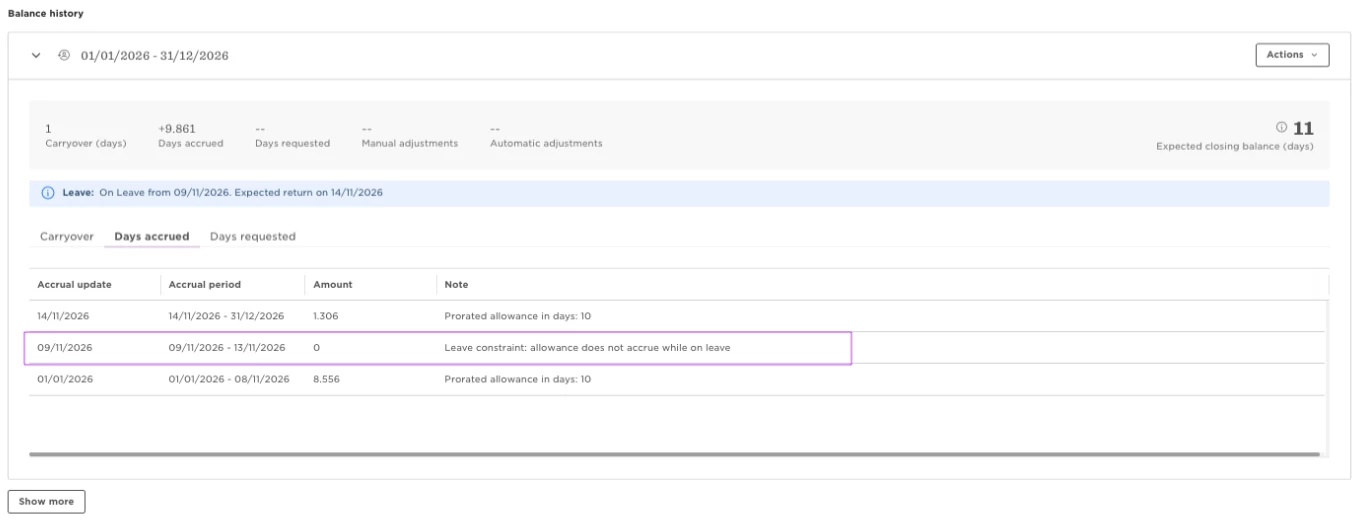
In the employee’s balance activity, Bob separates the accrual periods before, during, and after the leave. The constrained leave period shows zero accrual.
Note: The Long-term leave accrual setting isn’t available for policies with an Unlimited allowance. The constraint also won’t apply if the employee was assigned to the policy after their leave started.
If you manage the leave through Time Off
If the employee remains active in Lifecycle and their leave is recorded using a Time Off policy, you can exclude those absence days from another policy’s allowance calculation.
For example, if an employee books Unpaid Parental Leave, you can exclude those days from their Vacation allowance calculation.
- Go to Time > Time off settings > Policies.
- Find the policy whose allowance should be adjusted, such as your Vacation policy.
- Click Actions > Edit.
- Go to Proration of allowance > More settings.
- Under Days to exclude from allowance, enable Excludes certain days.
- Select the relevant paid or unpaid Time Off policies to exclude.
- Apply and save your changes.
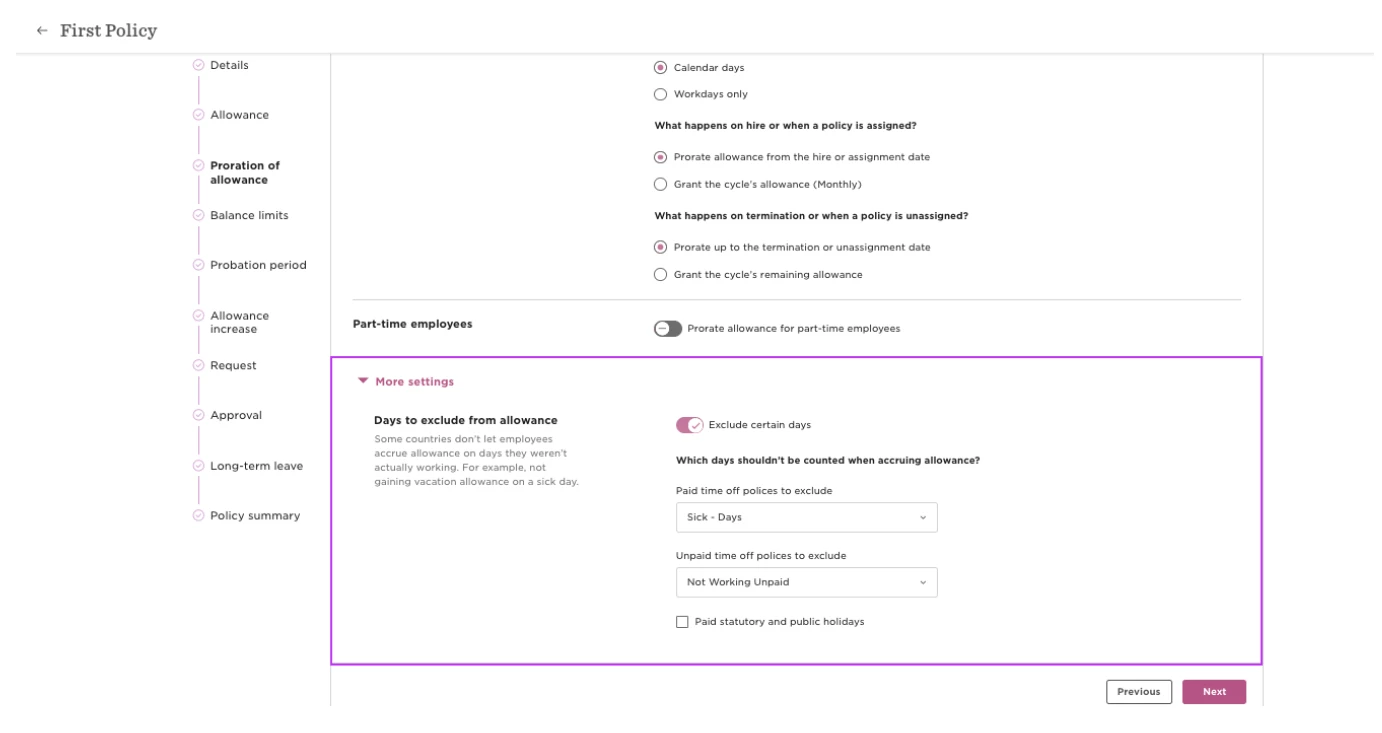
Instead of creating a separate zero-accrual period, Bob excludes the selected Time Off days from the days used to calculate the employee’s allowance.
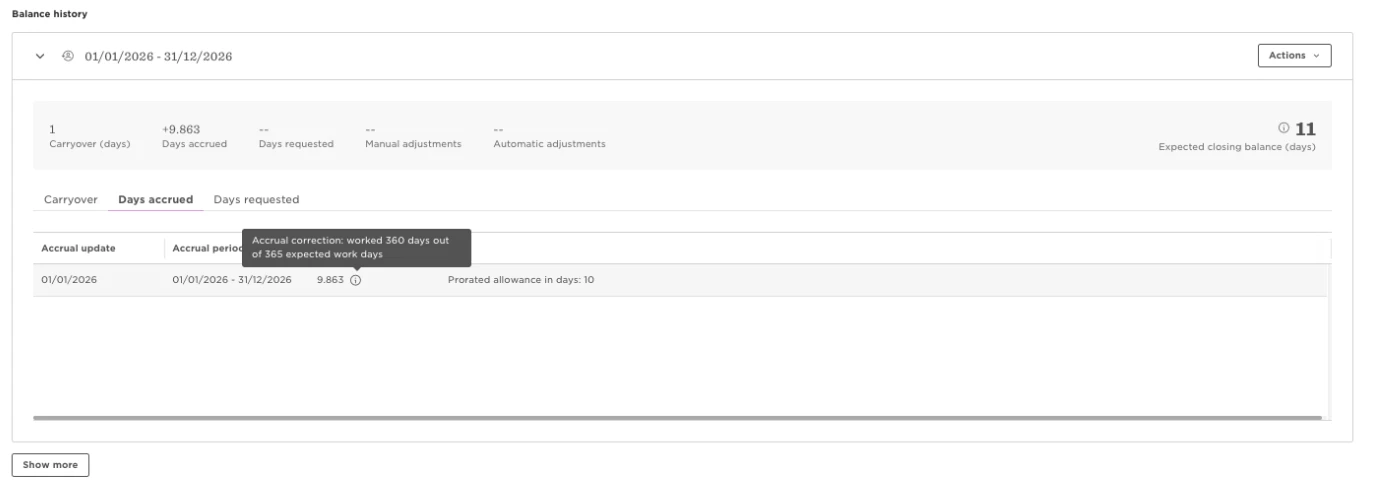
You can see the adjusted calculation in the employee’s balance activity, including how many days were counted toward their accrual.
Note: The Proration of allowance step isn’t available for Unlimited balance or Ratio of hours worked policies.
Changes to these settings recalculate existing leave, so the updated constraint is reflected in the employee’s allowance calculation.