This manual was prepared as a guideline for all HiBob clients who wish to display their employees who are now in reserve on the Homepage widget, for all employees:

After using the following guidelines to set your Reserve duty policy type and policy:
The request will show up on the homepage only once the request is submitted and approved in the system with the following Policy settings:
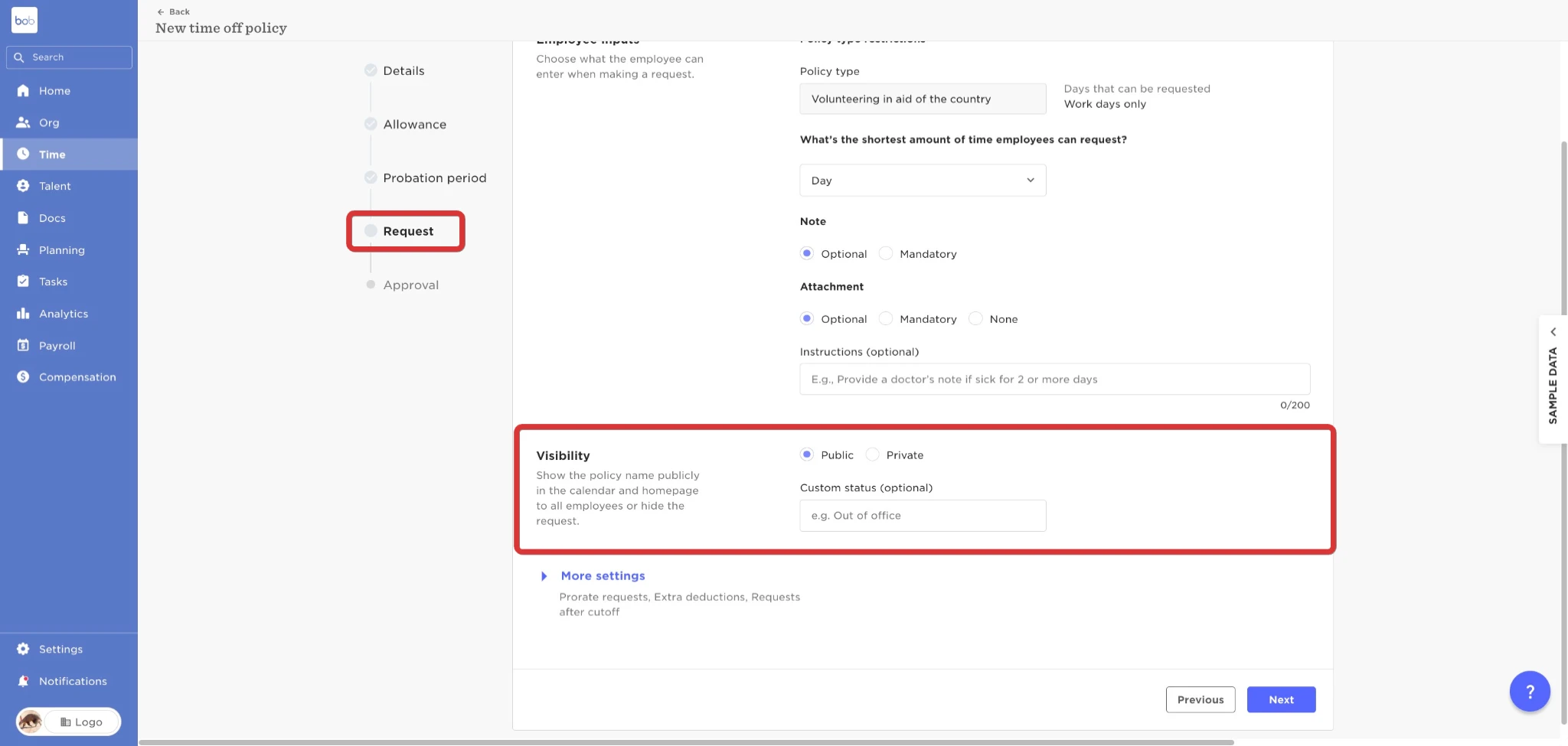
Request Visibility - Set to Public.

**If the policy settings were changed after the request was already submitted the changes will not apply on this request.
If you would like the requests to change from "private" to "public" you will need to export the requests, delete them on the system, and then reimport them while the policy settings are public. This will ensure the requests are then submitted to the system as public.
You can export the relevant request thorough our Analytics Module;
Analytics → Reports → Create New → Use a template → All requests

You can use the advanced filters to only display data relevant to a specific Policy, and export it to a spreadsheet.

After exporting all relevant data, delete these requests from the system through:
Time → People time off → Manage requests → Mark all relevant requests → Actions → delete:

After deleted, you can use the article below to import the data back to the system. Since the policy settings were changed, the request will carry the new visibility settings:
Import time off requests
Employees Volunteering to aid the country policy
Another way to make the most of our time-off policy is by engaging in volunteering activities. This can become a regular part of our employees' routines, allowing them to contribute to the ongoing efforts of rebuilding their communities and assist their family and friends in this time of trouble.
Using a time off policy for these cases will increase the visibility for employees absences as well as to provide an outlet for employees needs to aid the country and community should they choose to do so.
This is how you can do it:
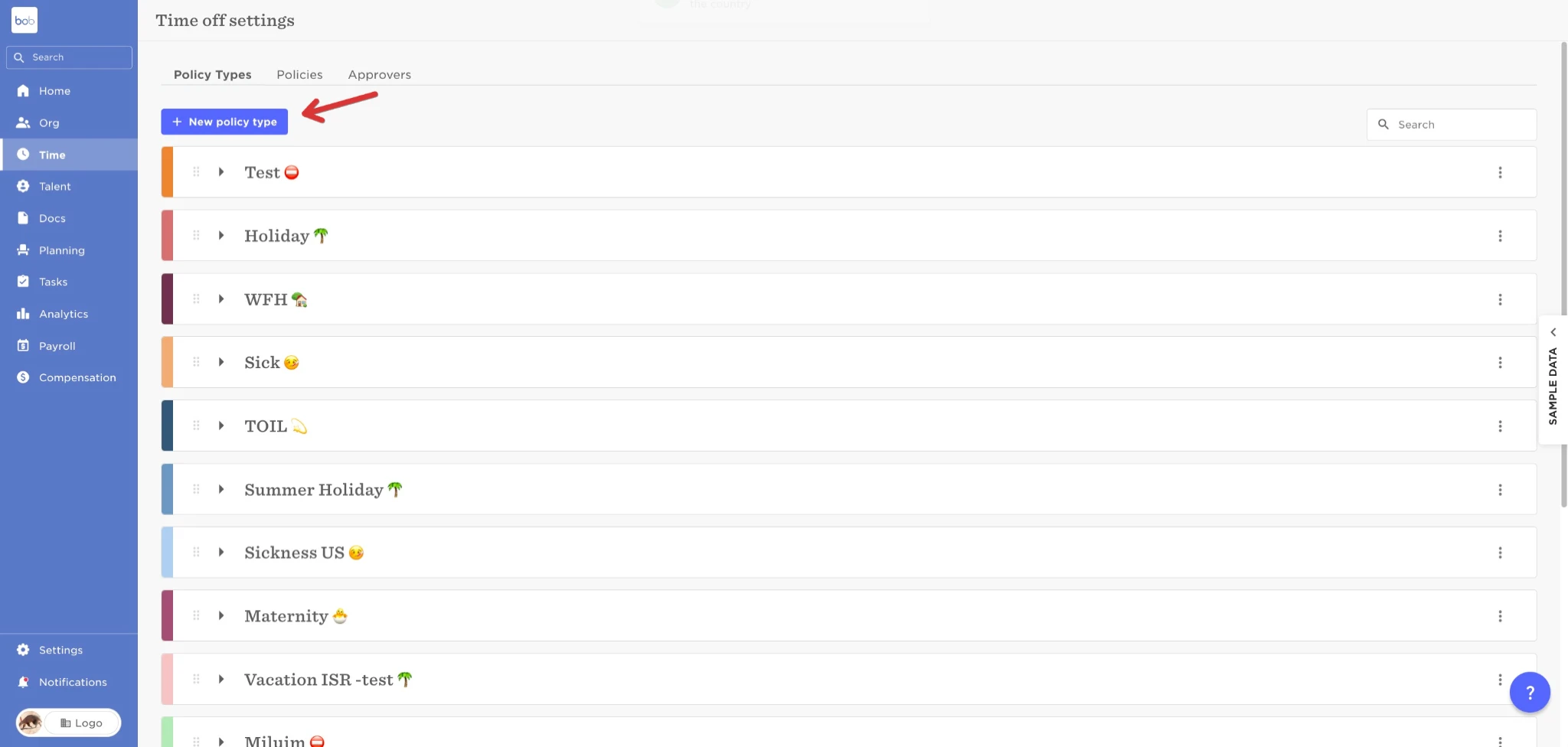
Open a Policy type in hours (To give your employees the most flexibility)
Use the following Manual to help you in the process:
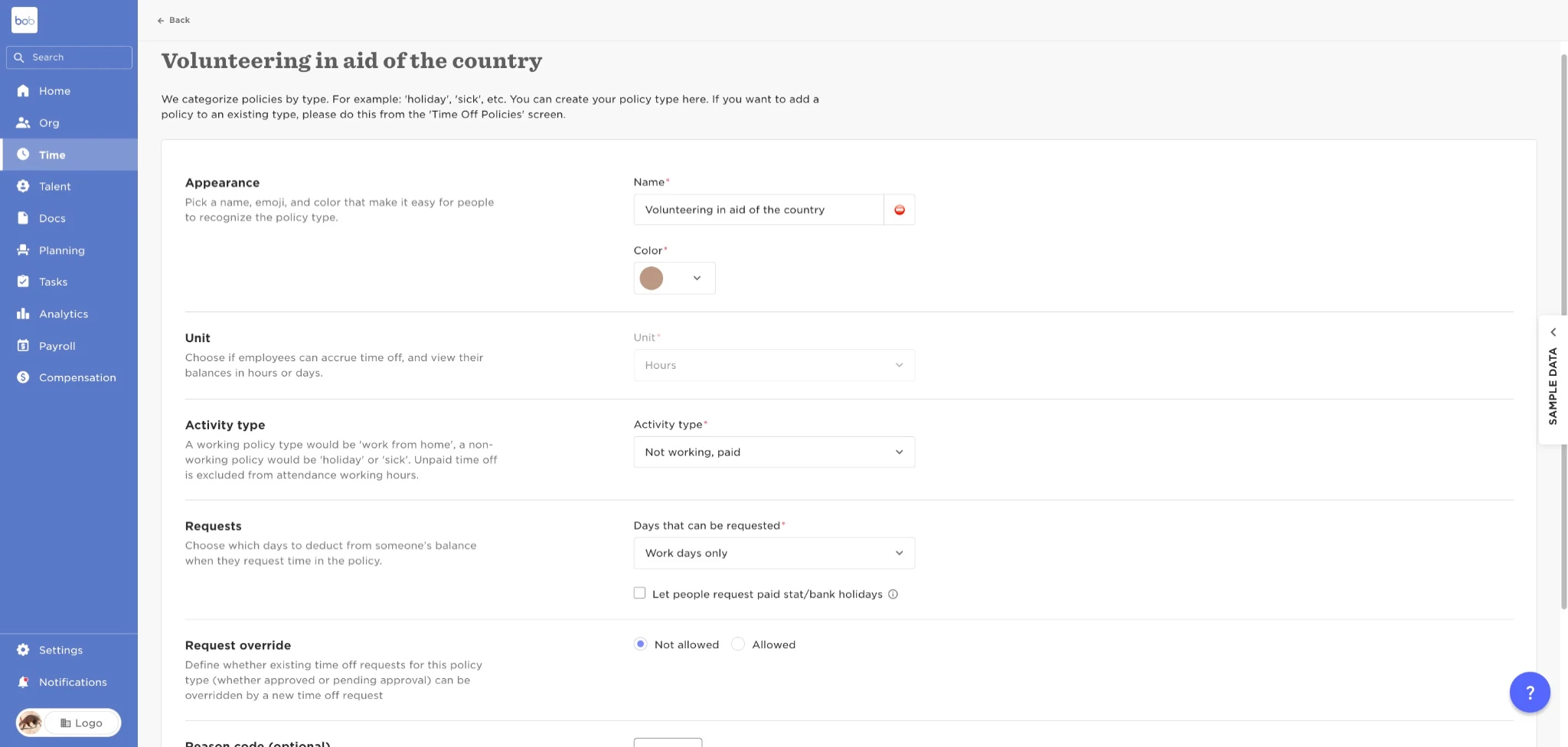
Once the Policy type is set, you can set up an assign a policy to it.
Use the following Guide to assist you in the process:
** There aren’t any regulations or compliance laws that state what is the allowance that should be given to employees in these situations, but since this is a matter of National emergency, we advise you to use an unlimited allowance, but it’s pending to each company’s decisions.
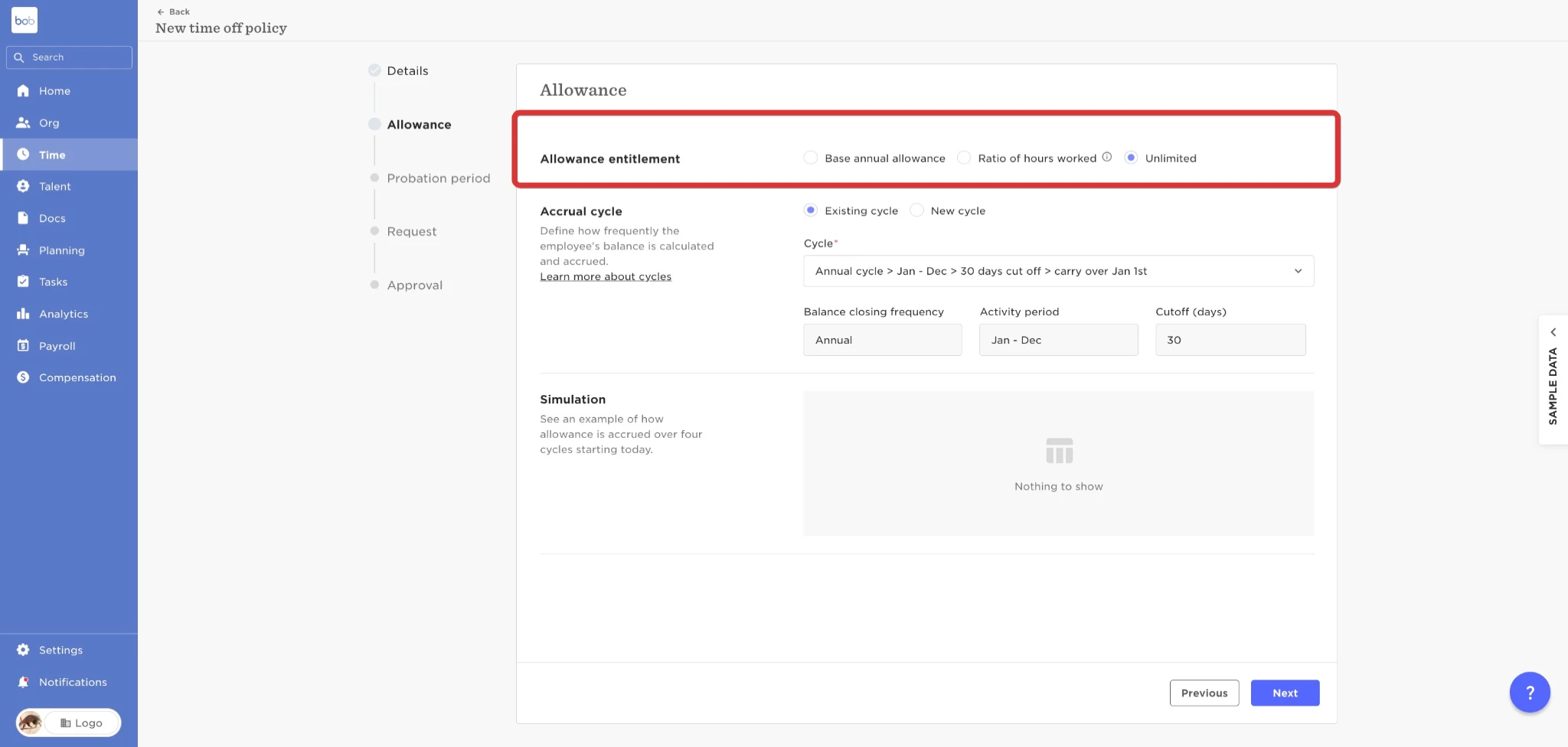
Give this policy a Public visibility to have each employees request using this policy to also encourage other employees to volunteer, this will boost the company’s moral and will create a unique culture that will also contribute to the feeling of beeing united with your colleagues.
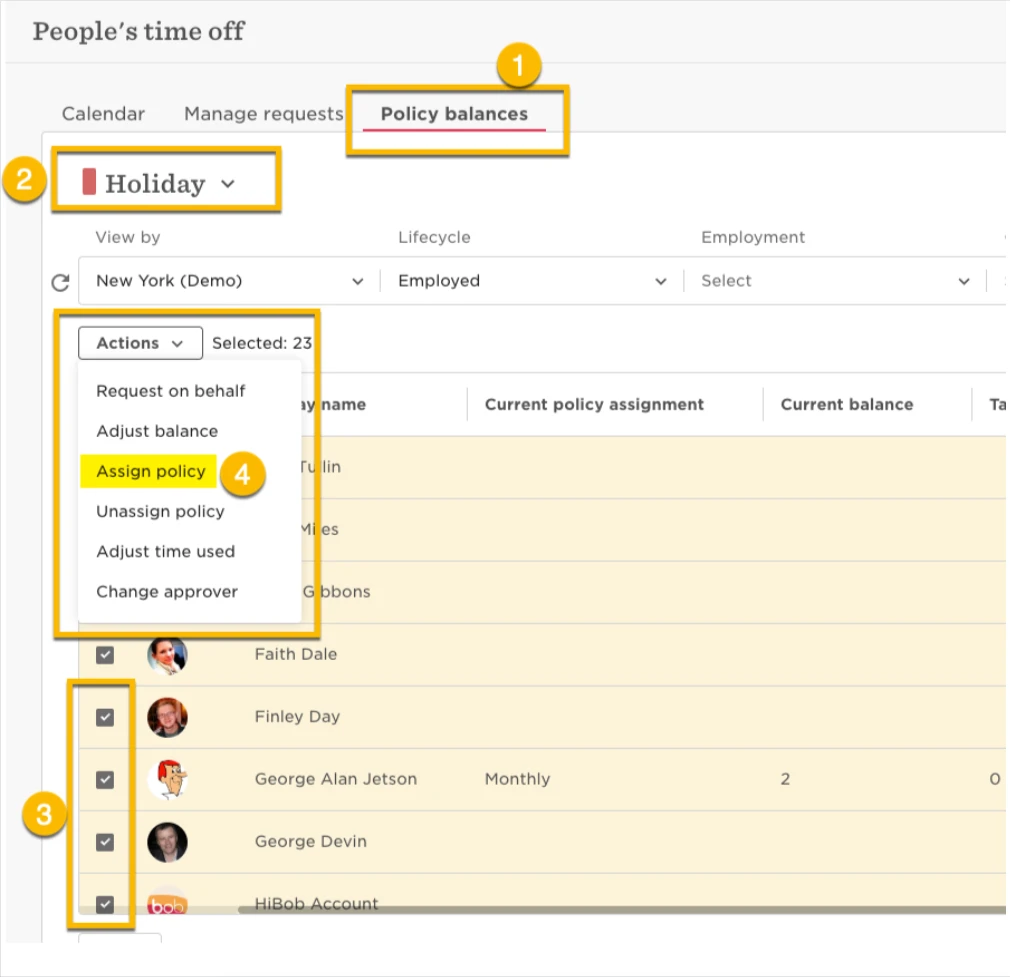
Once finished, assign it to all employees in the relevant sites through:
Time --> People's time off --> Policy Balances --> Select the policy --> Select the employees --> Actions --> Assign policy.