


Use report formulas to monitor when employees reach a specific amount of time off taken or when usage falls below a target percentage.
Bob doesn’t currently send a native notification when an employee reaches a specific sick leave or time off usage threshold. As a workaround, you can use report formulas to flag employees who meet your conditions, then review the report regularly.
For a simple threshold, create a formula like:
IF(Time off days taken > 5,"Reached Limit","Not Reached")
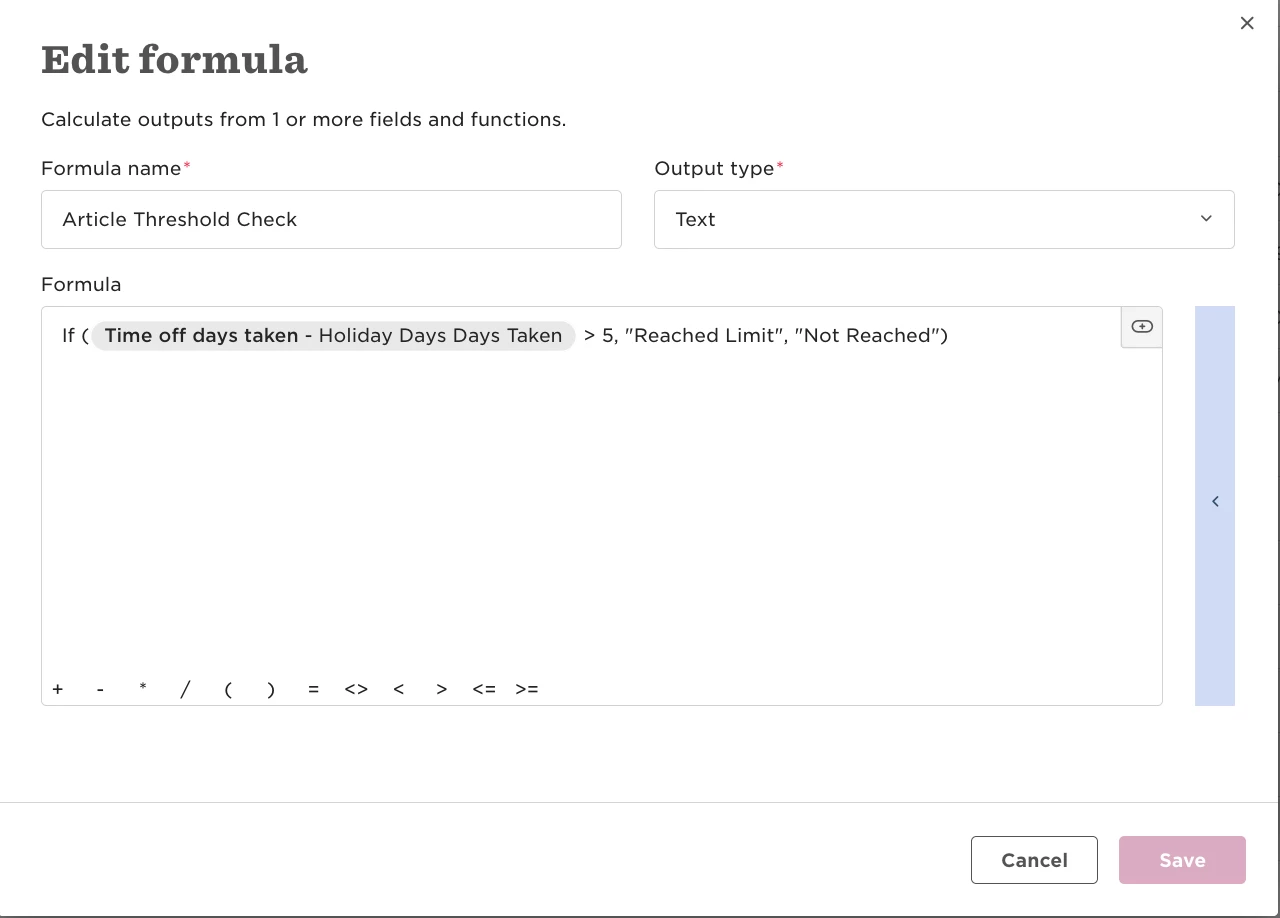
This example returns Reached Limit when the number of time off days taken is greater than 5.
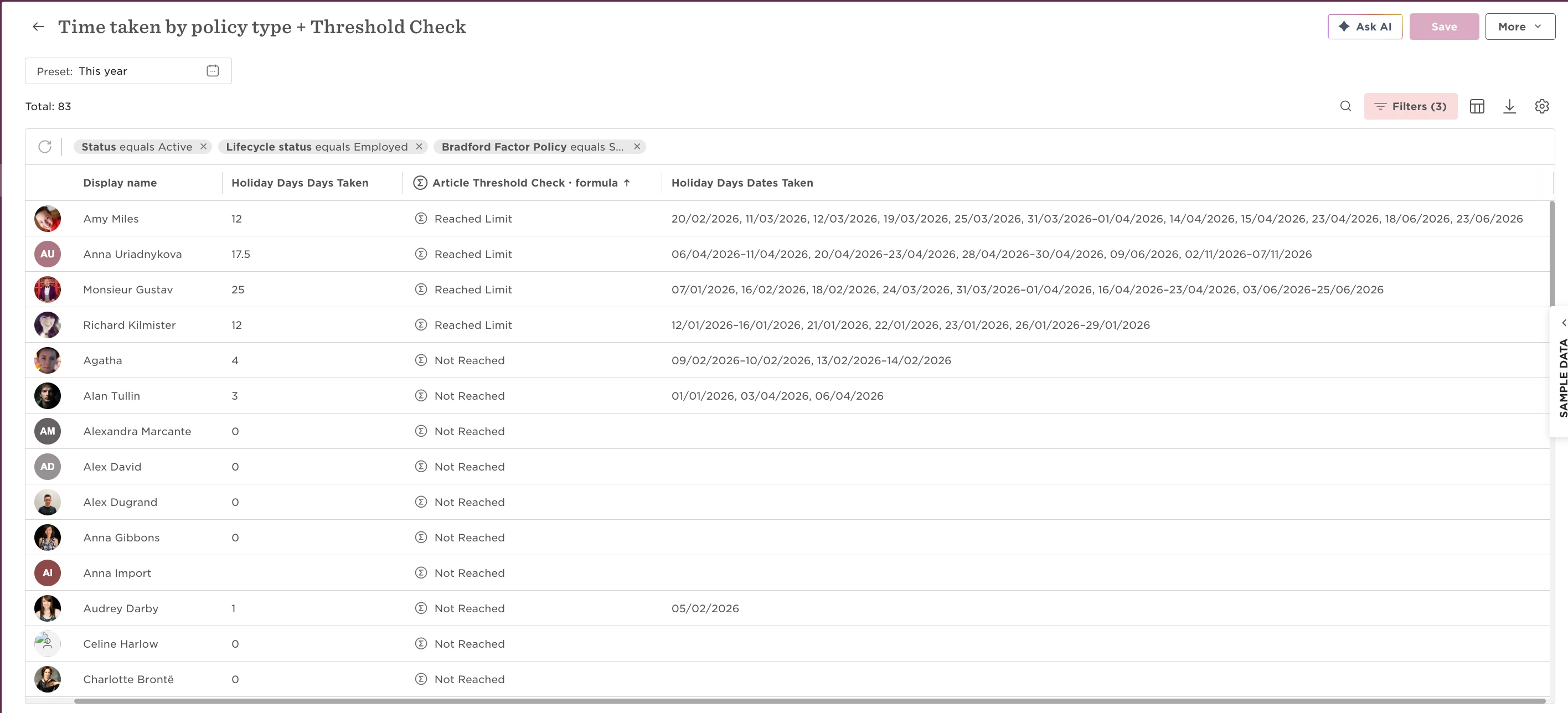
You can use this type of formula in the Time Taken by Policy Type report to monitor usage for a specific policy, such as sick leave.
You can build on this approach by adding additional conditions and results. For example, a formula could:
-
Flag employees who have reached an initial threshold
-
Highlight employees who have reached a higher threshold requiring review
-
Apply different thresholds based on a specific site, entity, department, or policy type
-
Return different statuses for different groups of employees within the same report
For example:
IF(Time off days taken > =8,"Notify HR - Review Future Sick Time",IF( Time off days taken >=5,"Notify Employee & Manager","No Action Required"))
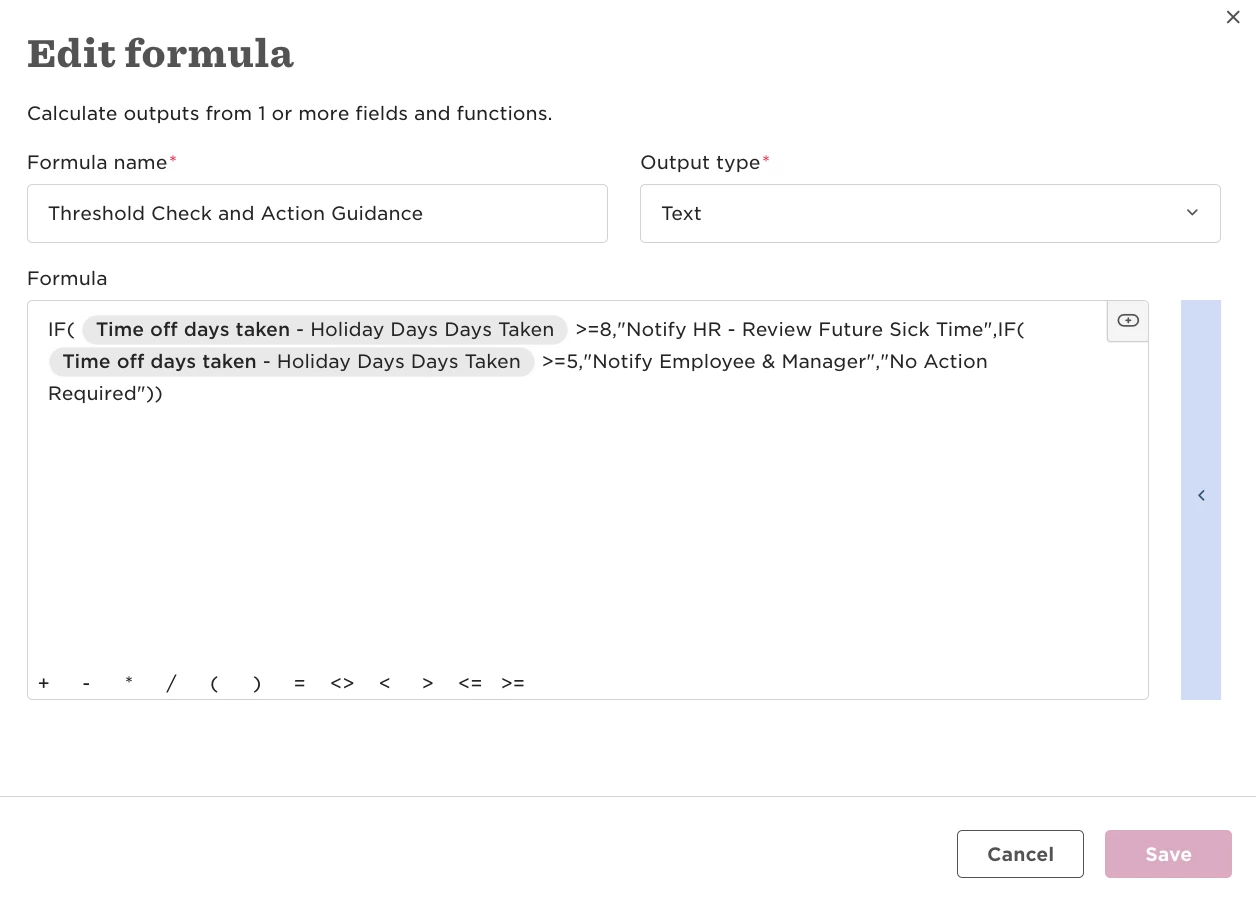
This formula returns different statuses based on the number of time off days taken, making it easier to identify employees who may require follow-up. In more advanced use cases, you can combine IF, AND, and OR functions to apply different thresholds and statuses for specific sites, entities, departments, or policy types. This allows a single report to visually highlight different employee groups based on your organisation's requirements.
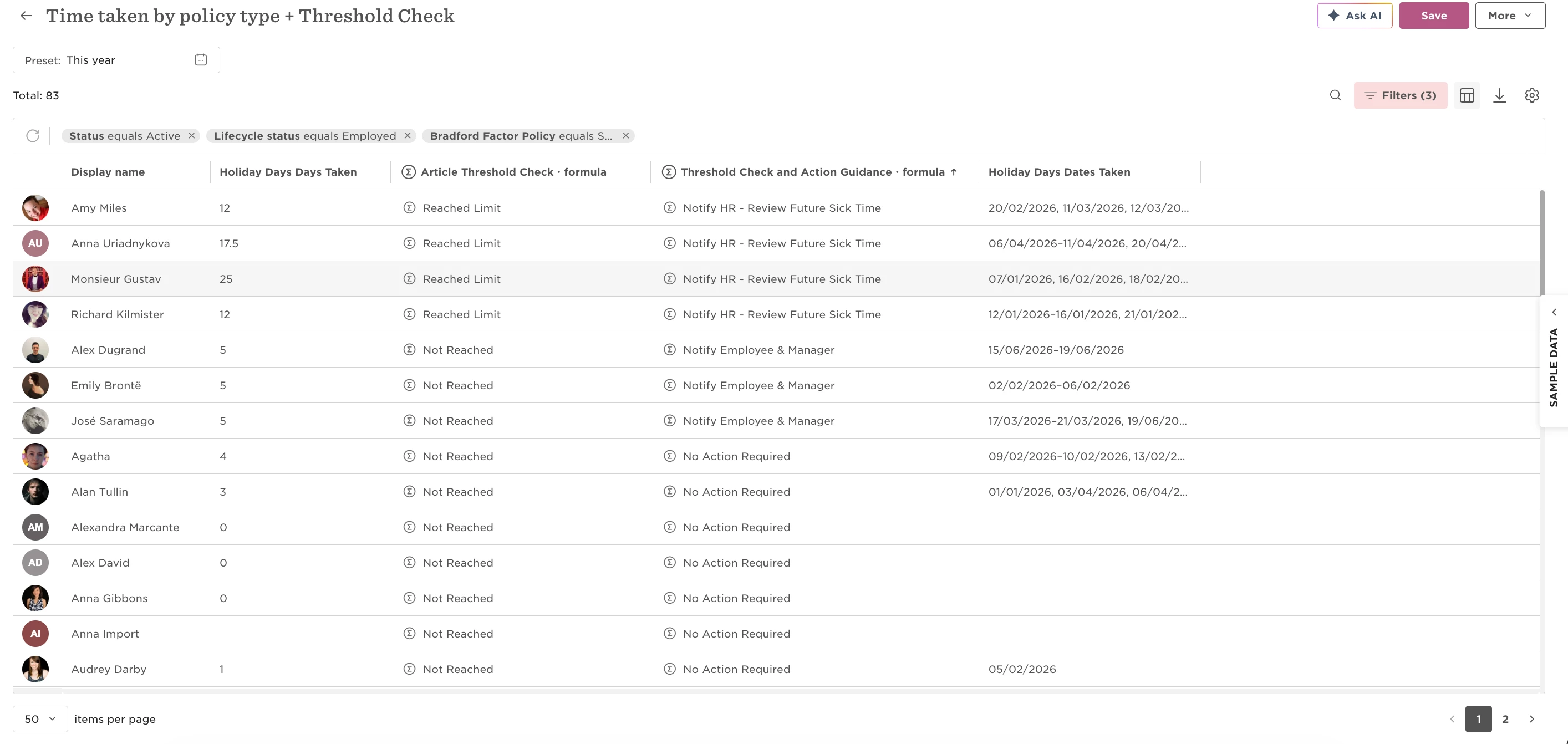
To add the formula to your report:
-
Go to the relevant report.
-
Open the Column Picker.
-
Select Formulas.
-
Add the saved formula to the report.
Important to know
This setup works best with the Time Taken by Policy Type report, as it combines the time off days taken and policy information needed for the formula.
Be mindful of the date range selected in the report. Formula results are calculated based on the data included in the selected period. For example, if you're monitoring annual sick leave usage, make sure the report date range covers the relevant year. Choosing a different date range may result in lower or higher totals than expected.