


Attendance approvers are configured at the attendance policy level, so you can’t change the approver for just one employee within their existing policy. Instead, create a copy of the policy, set the required approver, and assign that policy only to the relevant employee.
- Go to Time and attendance settings and locate the employee’s current attendance policy.
- Duplicate the policy to create a separate copy for the employee.
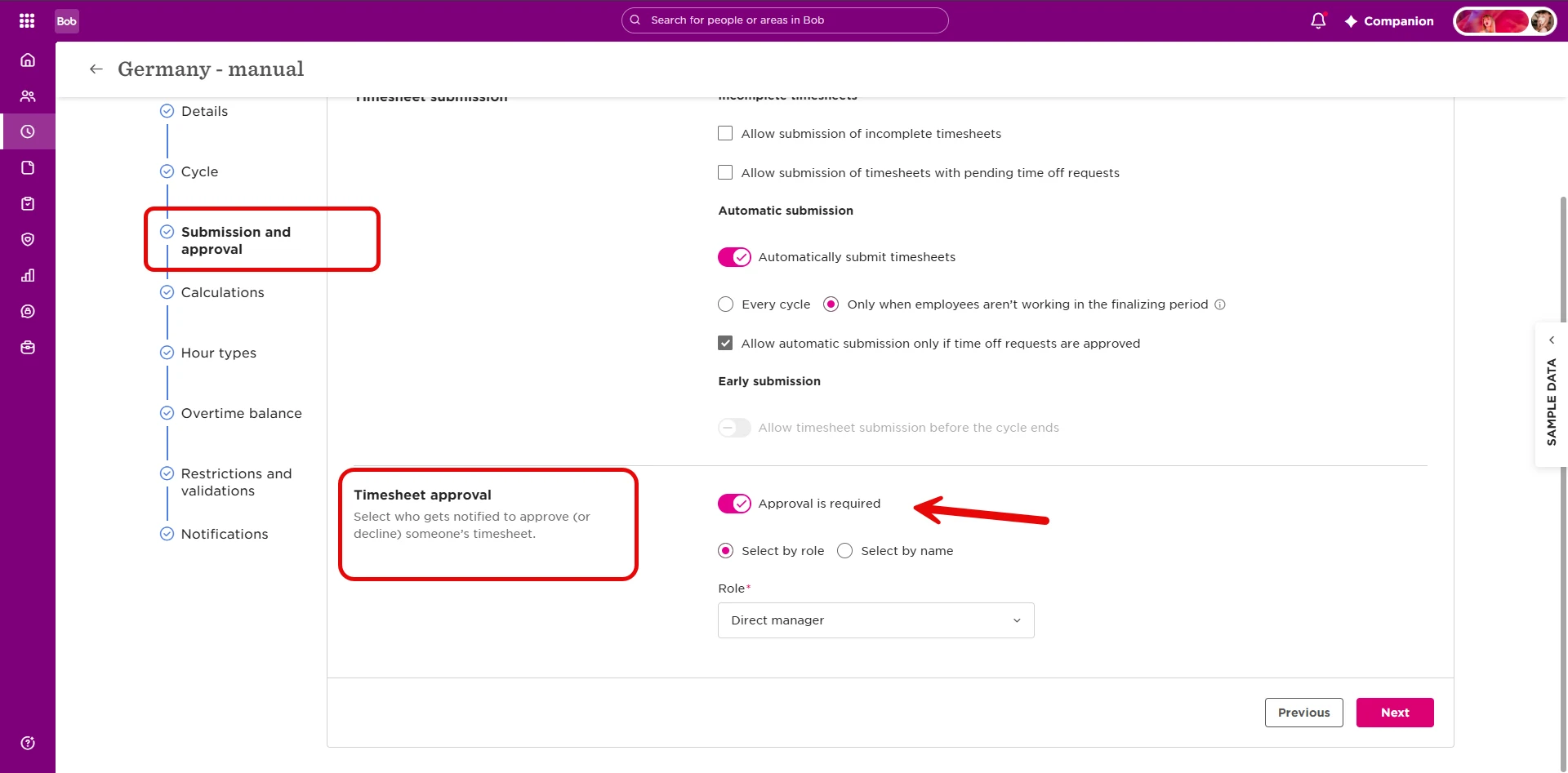
- Open the duplicated policy and go to Submission and approval.
- Under Timesheet approval, make sure Approval is required is enabled.
- Select Select by name instead of Select by role.
- Select the person who should approve this employee’s timesheet.
- Save the policy.
Next, assign the new policy to the employee:
- Go to People’s attendance and find the relevant employee.
- Open Policy assignments.
- Select Actions and assign the newly created attendance policy.
- Set the assignment to start from the current cycle’s start date.
The employee will now use the dedicated attendance policy with the selected approver, while everyone assigned to the original policy will keep their existing approval setup.