

Need to update the time unit or cycle settings in a time off policy and hitting a roadblock? Here's how to work around those locked fields and smoothly move employees between policies.
Some fields in Time Off Policies and Policy Types can't be edited directly.
Here's what you can and can't change:
-
Blocked in Policy Types: Time unit
-
Blocked in Policies: Policy Type and cycle settings
You can think of Policy Types as categories that group policies together, like "Holiday" or "Sickness".
Each employee can only be assigned to one policy per policy type. Policies from different types run separately and don't share data.
Need to change the time unit?
That’s controlled at the Policy Type level, so you'll need to:
-
(Optional) Rename the old Policy Type to avoid confusion—e.g., "Holiday" → "Holiday (delete)"
-
Create a new Policy Type with the updated settings
-
Recreate the related policies under the new type (see next section)
-
Reassign employees
Need to update the policy’s cycle or Policy Type?
You’ll need to recreate or duplicate the policy:
-
(Optional) Rename the old policy to distinguish it
-
Create a new policy from scratch or duplicate the old one*
-
Update the cycle, title, or policy type
-
Reassign employees
-
If they stay under the same Policy Type → see next section
-
If they’re moving to a different Policy Type → skip to the final section
-
*How to duplicate a policy:
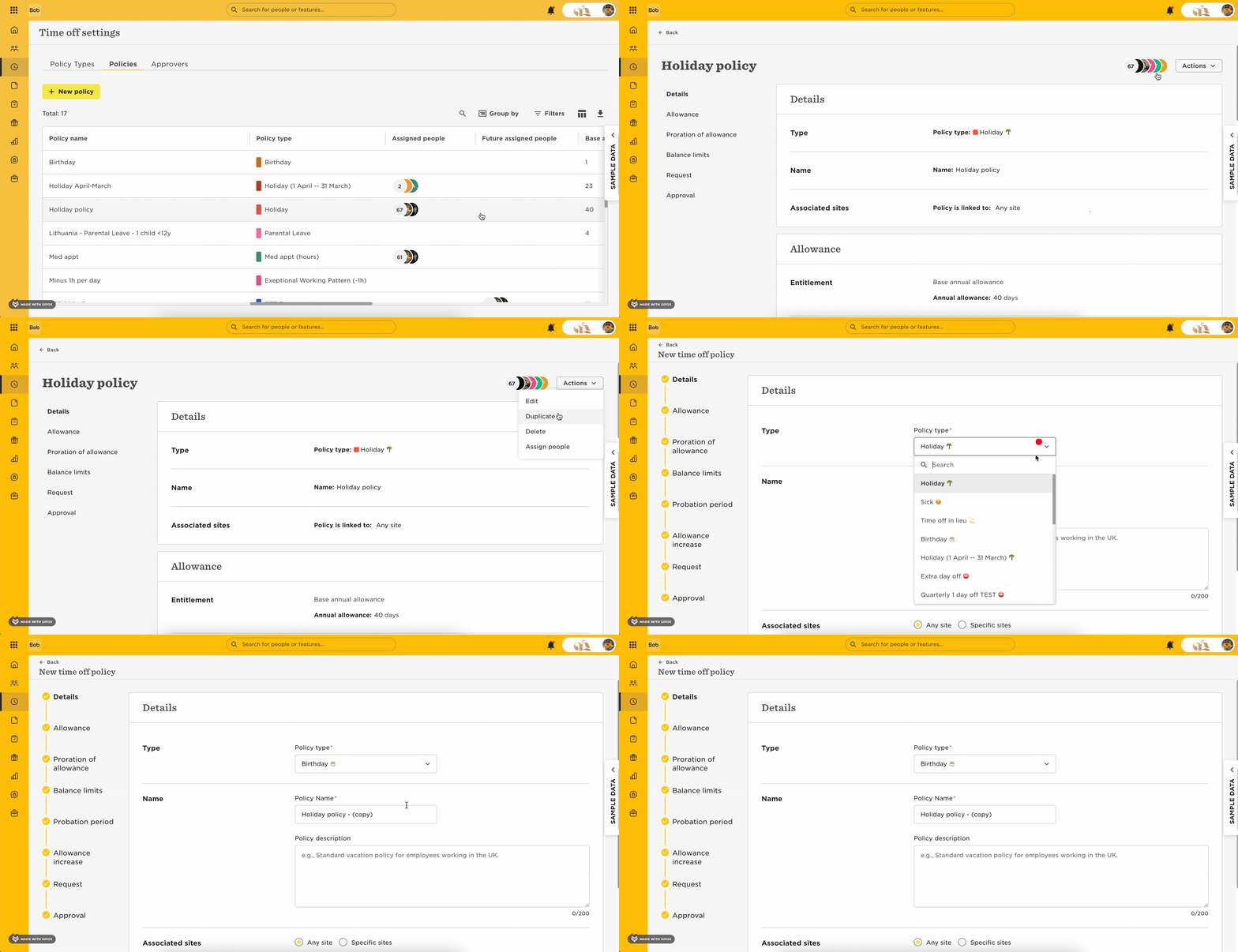
Moving employees between policies under the same Policy Type
All time off requests transfer automatically—easy! You can assign people in one of three ways:
-
Go to Time Off > People's Time Off > Policy Balance, choose a policy type, select people > Actions > Assign policy
-
Or go to Time Off > Time Off Settings > Policies, open the policy > Actions > Assign people
-
Or from the employee’s profile > Time Off > Actions > Assign policy
Moving employees between different Policy Types
Requests won’t transfer automatically—here’s how to do it manually:
-
Download the import template from Import time off requests
-
Generate the Approved requests summary report, filtered by the old policy
-
Cancel or delete old requests:
Go to Time > People's Time Off > Manage requests, filter by the policy > tick the boxes > Actions > Delete -
Fill out the import template using the report, then import to the new policy