

Want to keep track of just a few specific team members’ annual leave? You can filter Bob’s Time Off calendar and sync that personalized view straight to your Google Calendar.
In Bob:
-
Go to Time > People’s Time Off calendar.
-
Use filters to find the people you want to track:
-
Filter by Department, Employment Status, etc.
-
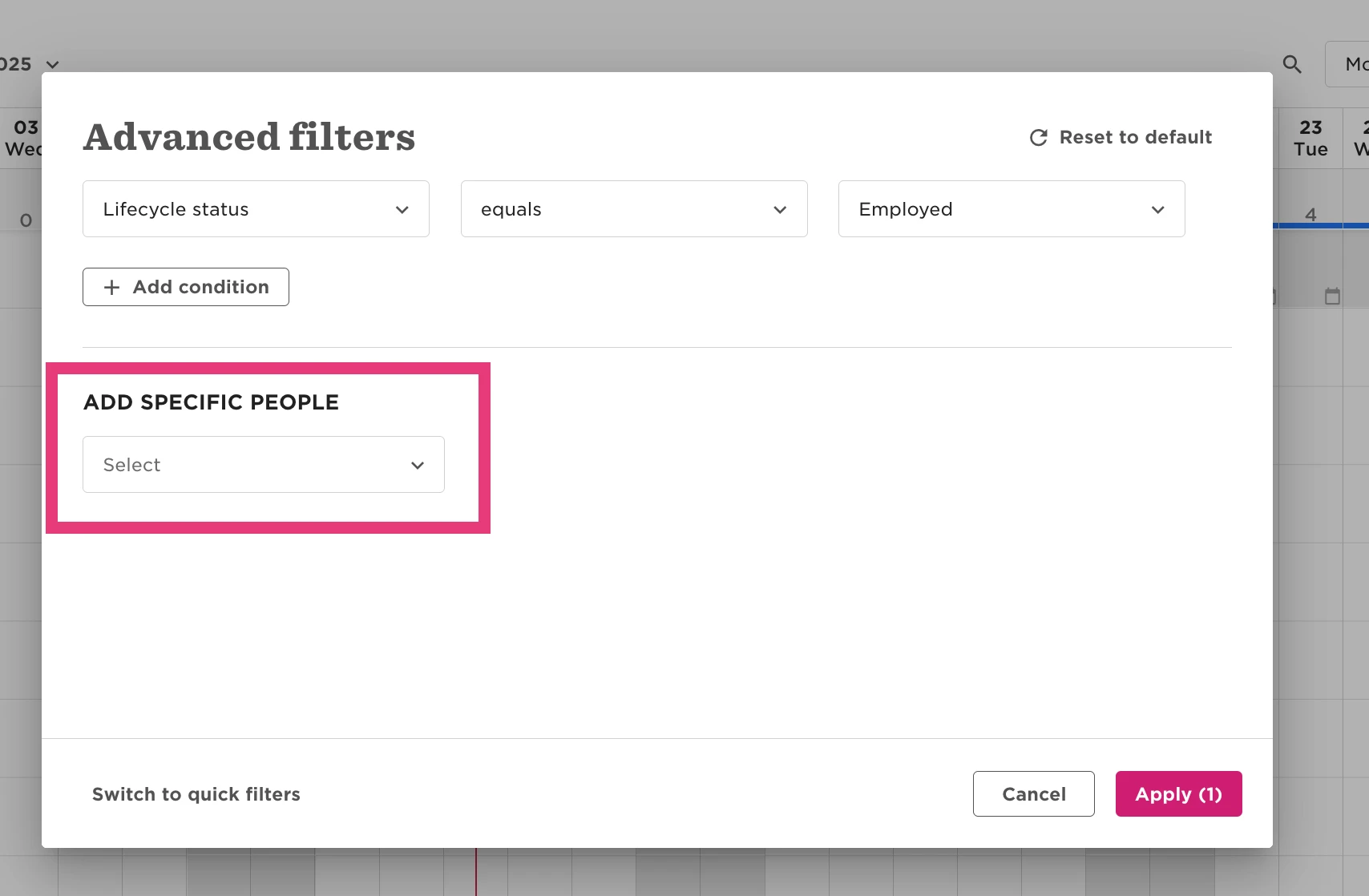
Switch to Advanced Filters and use Add specific people to include individuals outside your filters.
-
-
-
Once your calendar view shows only the right people, click the three dots in the top-right corner.
-
Select Sync with external calendar.
-
Click Update link to refresh the calendar feed based on your current view.
-
Copy the generated link.
In Google Calendar:
-
Click the + next to Other calendars.
-
Choose From URL.
-
Paste the link and click Add Calendar.
🕐 The sync can take up to 24 hours to appear in your Google Calendar.
Troubleshooting tips:
-
If someone’s missing, make sure you’ve added them using Add specific people, not just department filters.
-
After changing your filters, always click Update link to refresh the feed.
-
If you’re mixing a group filter (like a department) with selected individuals, use a “trick filter” (e.g., Name equals 12345) to clear the default view so only your selected people appear.