

This article explains how to temporarily adjust a part-time employee’s working days for a specific week, so their attendance timesheet shows the correct working and non-working days—without changing company policies.
Sometimes a part-time employee needs to swap their usual working days for a single week. For example, an employee who normally works Monday–Thursday may need to work Tuesday–Friday instead. In Bob, the easiest way to handle this is by creating a one-time working pattern and assigning it to the employee for that specific period.
Start by creating a new working pattern that reflects the employee’s adjusted schedule. Go to Bob > System Settings > Company > Working patterns and select Add working pattern. Set up the working and non-working days to match how the employee will work during that specific week.
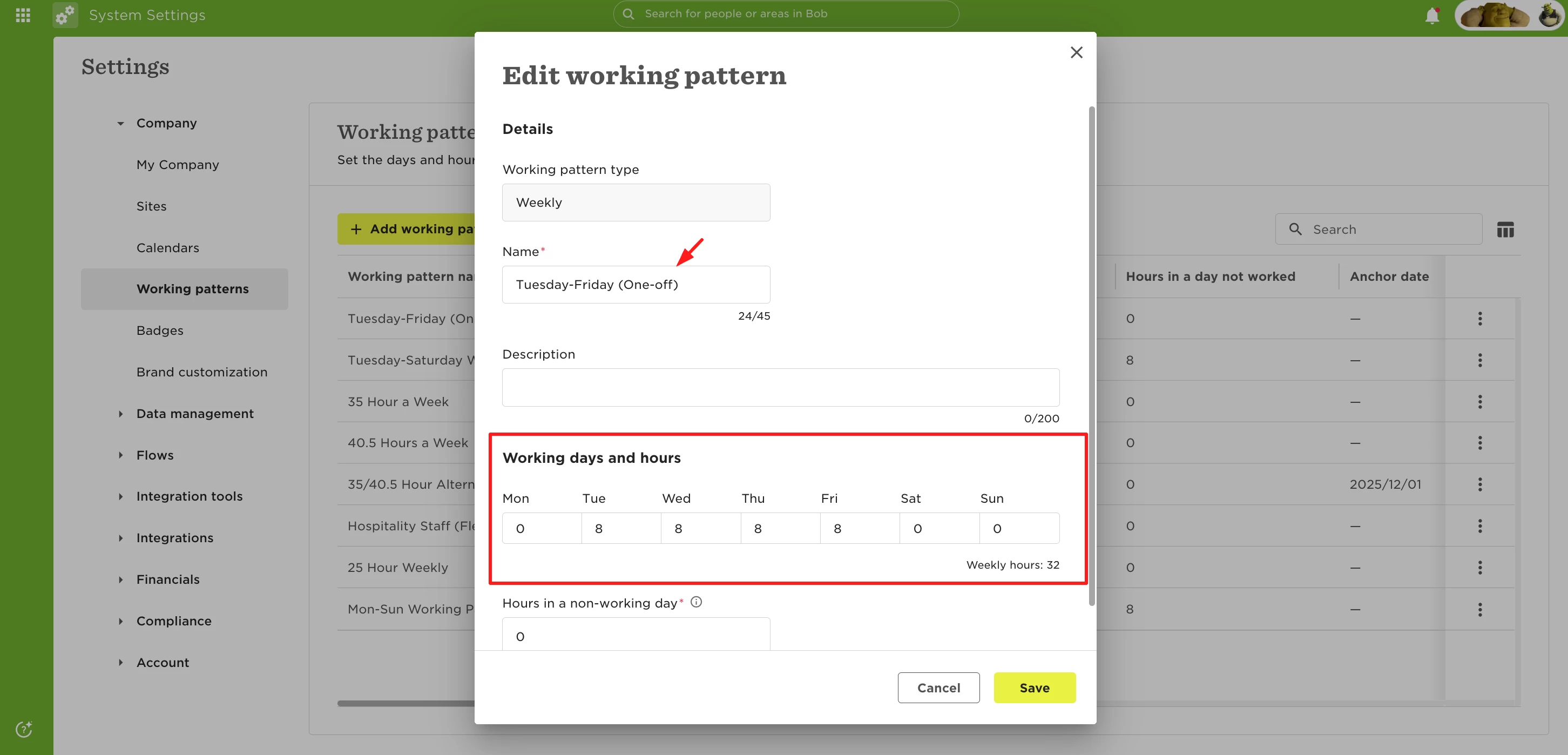
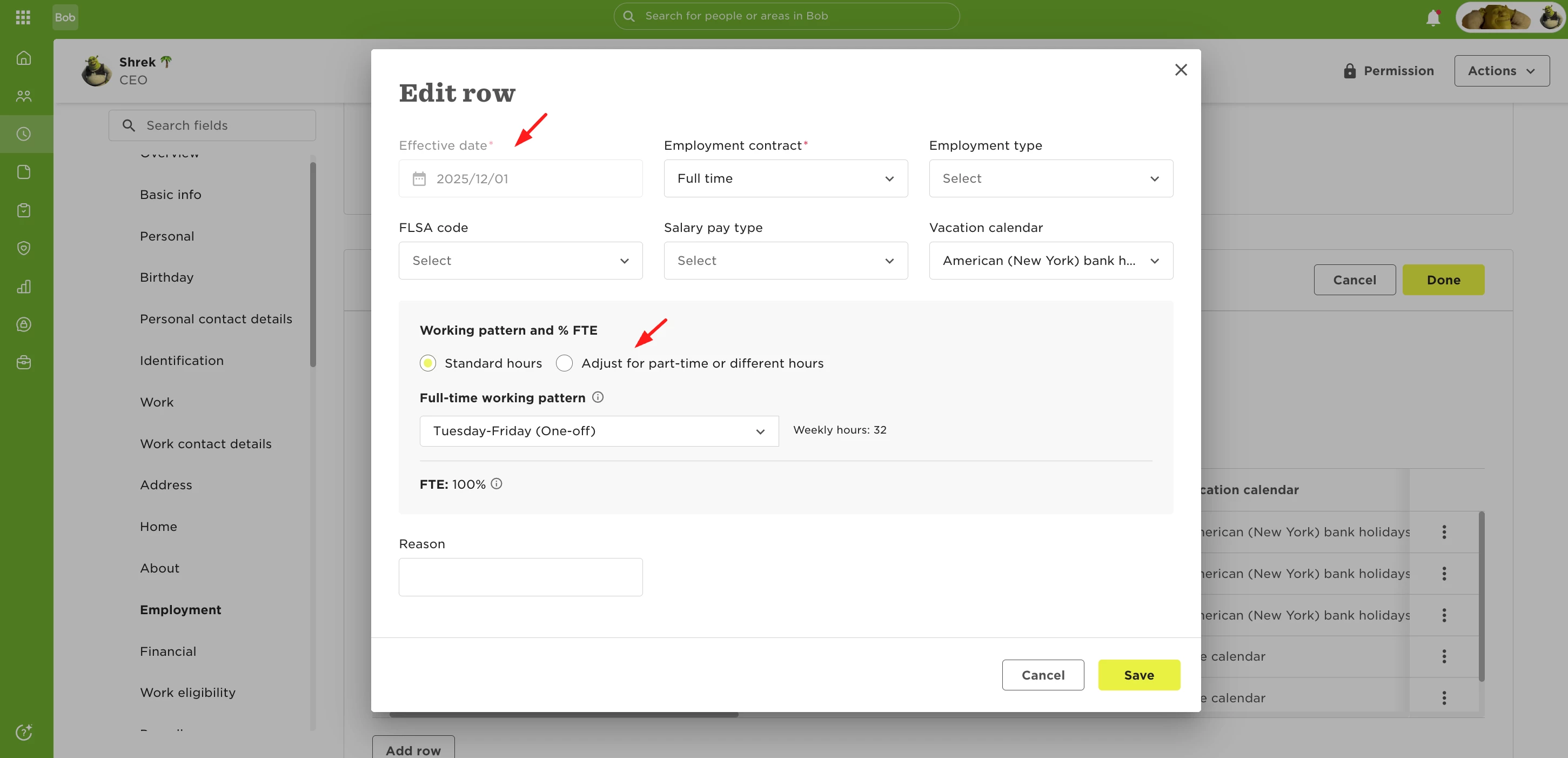
Once the working pattern is ready, assign it to the employee. Open the employee profile and go to Employment category. Add a new row and set the effective date to the first day of the week when the employee will follow the temporary schedule. Select the working pattern you just created.
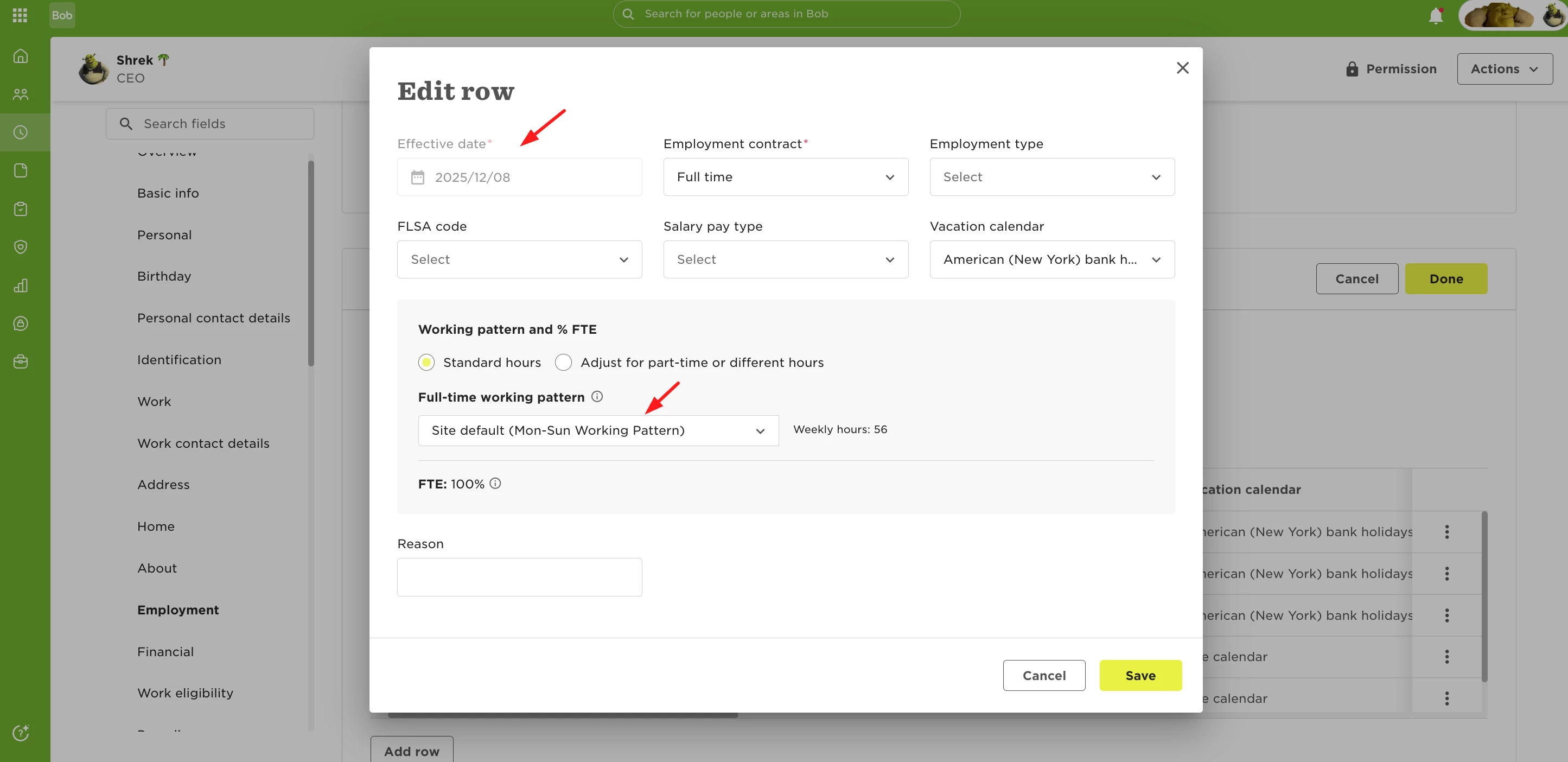
To make sure the employee automatically returns to their regular schedule, add another row in the Employment category. Set the effective date to the day the employee goes back to their normal working pattern and select the original working pattern.
After saving these changes, the employee’s attendance timesheet will correctly reflect the swapped working and non-working days for that week only. This approach lets you handle one-off schedule changes for individual employees without updating attendance policies or affecting other employees.