

If you see a “missing signers” error in your New hire flow, it usually means a required recipient field in the eSign template isn’t populated in the employee profile.
For example, if one of the template recipients is set as the HRBP, and the HRBP reference field is currently empty in that employee's profile, you will not be able to proceed.
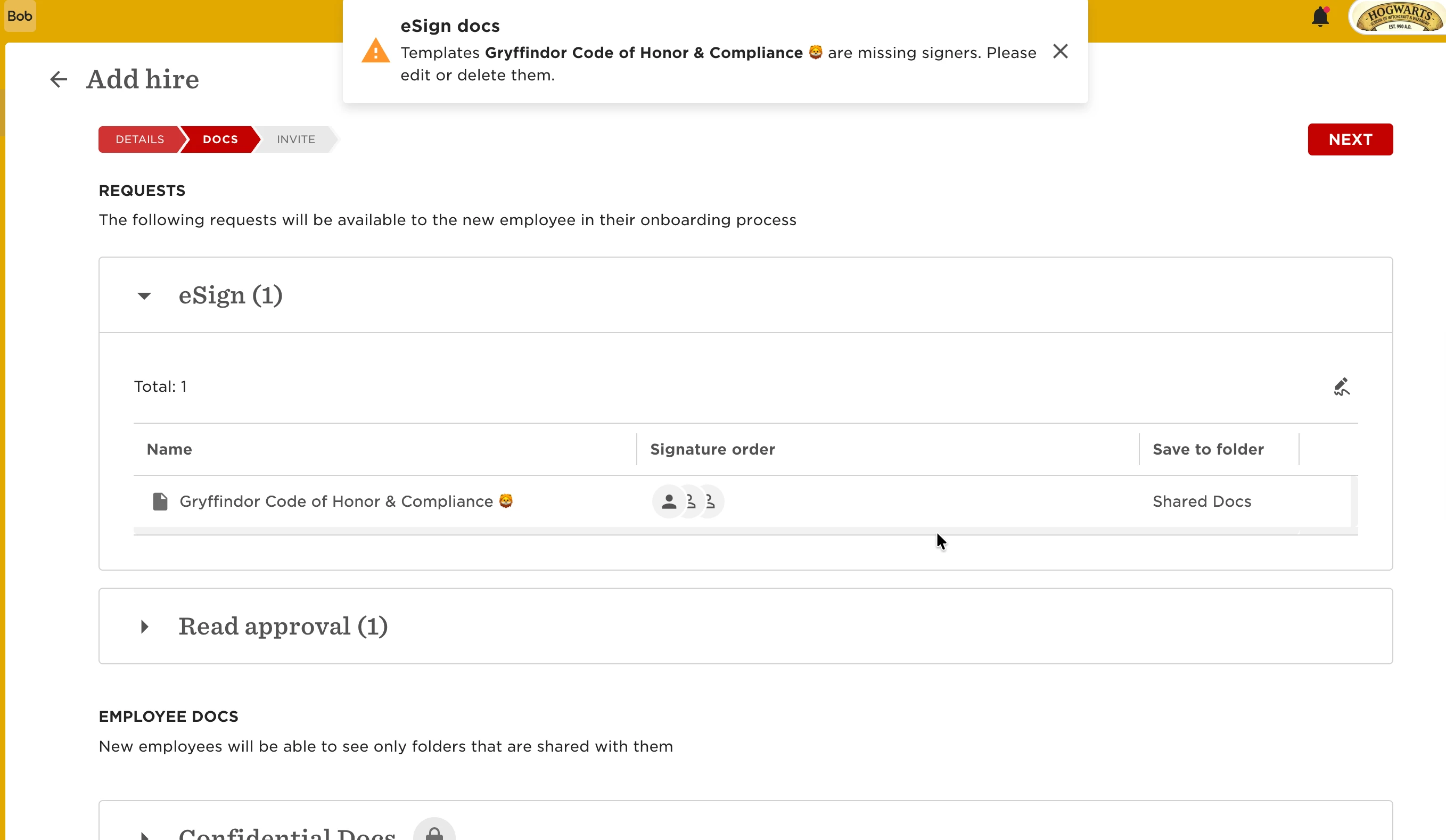
When this happens, you won’t be able to move past the Docs stage.
You’ve got two ways to move forward:
Option 1: Continue without the document:
- Remove the eSign doc from the flow
- Complete the New hire setup
- Update the missing reference fields in the employee profile
- Send the document later via Manage docs > Request signature
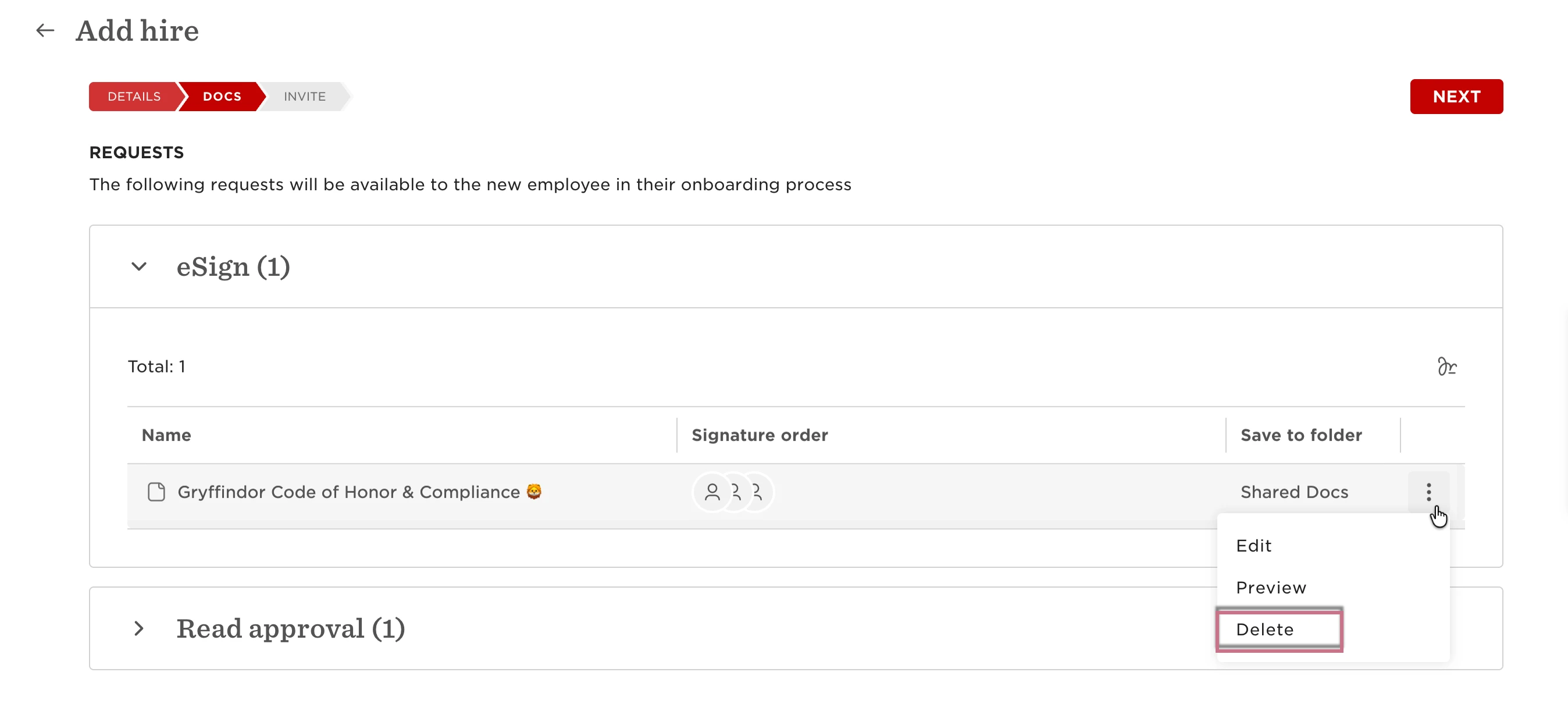
If the employee is still in the pre-onboarding state and hasn’t completed the onboarding flow yet, the eSign request will be added to it once they go through the onboarding process.
Option 2: Fix the missing field and continue:
1. Keep the New hire flow open
2. In a new tab, open the employee’s profile
3. Fill in the missing reference field(s) (based on the recipients defined in the eSign template)
4. Go back to the flow and refresh the page
You should now be able to proceed.
To prevent this going forward, make sure any fields used as eSign recipients (like HR or manager references) are included and set as mandatory in the first step of your new hire flow. This ensures everything is populated before you reach the Docs stage.