


You can terminate an employee while they’re on Leave or Parental leave, but make sure the leave and termination dates don’t create conflicting lifecycle entries.
- Go to the employee’s Profile.
- Select Actions > Change status > Terminate employee > Termination, or select your custom termination flow.
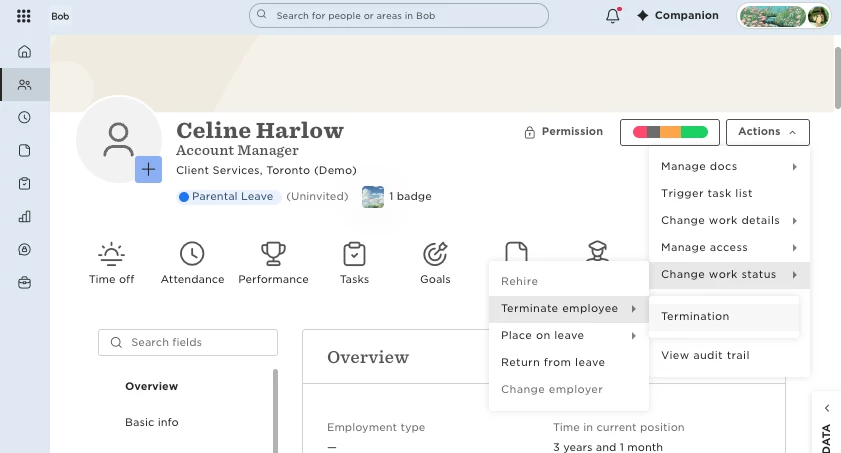
- Enter the Termination date, Last day of work, Termination reason, and any other required fields.
- Continue through the termination flow, then review the summary.
- Type APPROVE, then click Done.
The termination will be scheduled or triggered according to the termination date.
Keep in mind that the employee can have both a leave entry and a termination entry in the Lifecycle table. These entries may overlap, depending on the dates you enter.
For example, an employee can be terminated without first being returned from Parental leave. You don’t need to create an additional Return from leave entry just to process the termination. Instead, enter the appropriate termination and last day of work dates in the termination flow.
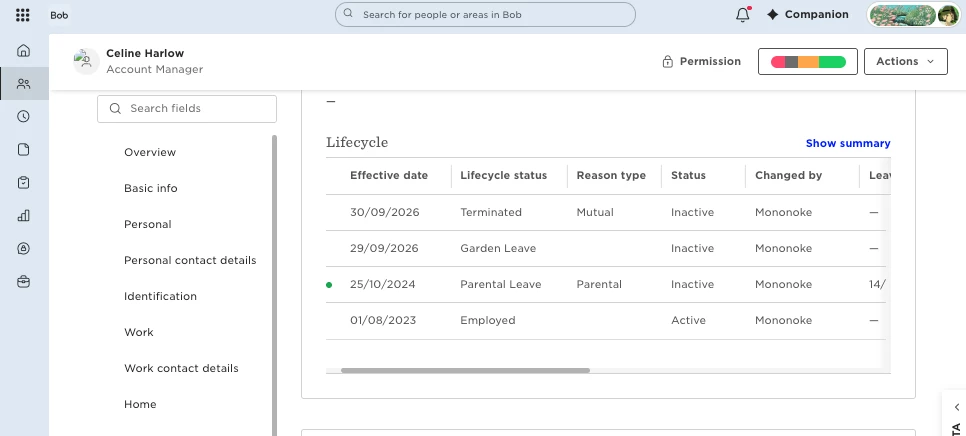
In the example above, the employee was on Parental leave before moving to Garden Leave and then Terminated, without a Return from leave entry in between.
If Bob displays an error related to the Termination date or Last day of work, check the employee’s Lifecycle table for an entry with an effective date that conflicts with the termination.
Review the existing lifecycle entries and their effective dates before changing the termination dates.