

The Garden Leave status is a lifecycle status based on the difference between Termination date and the last day of work - both are updated on the termination flow.
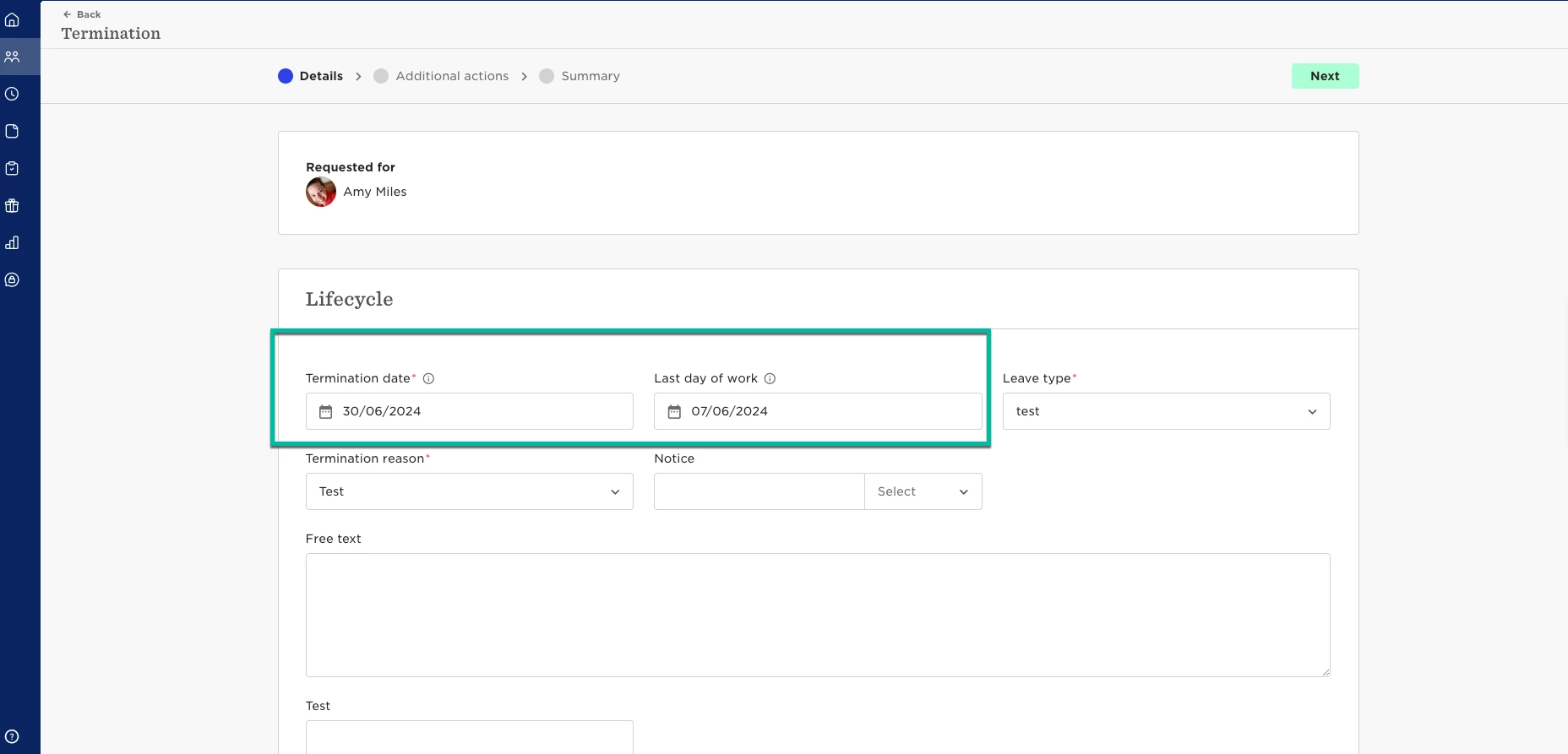
Therefore bob's leading practice is to create a new termination flow named Garden Leave and link a task list to it.
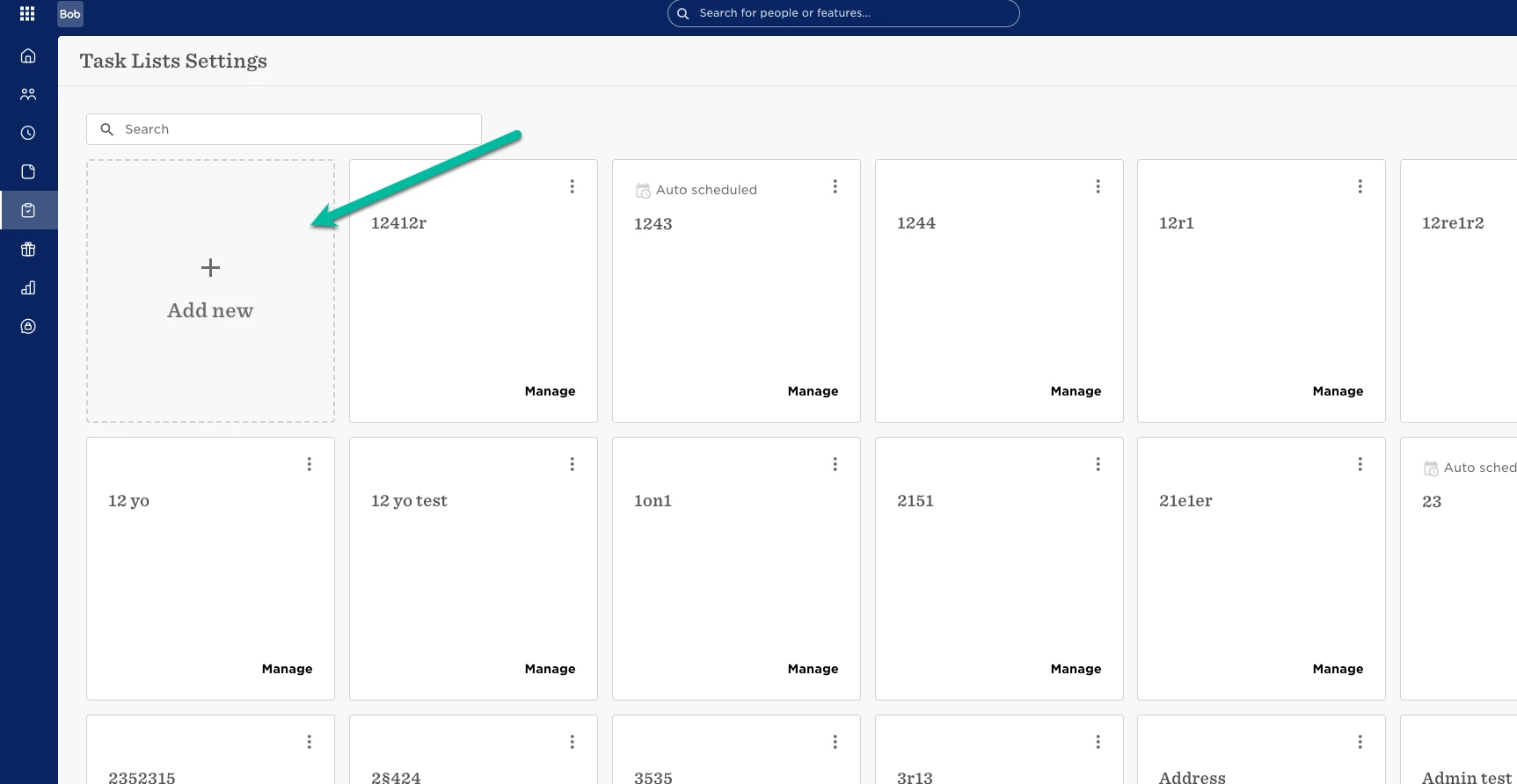
This can be done via Tasks --> Task lists settings - - > click on Add new:
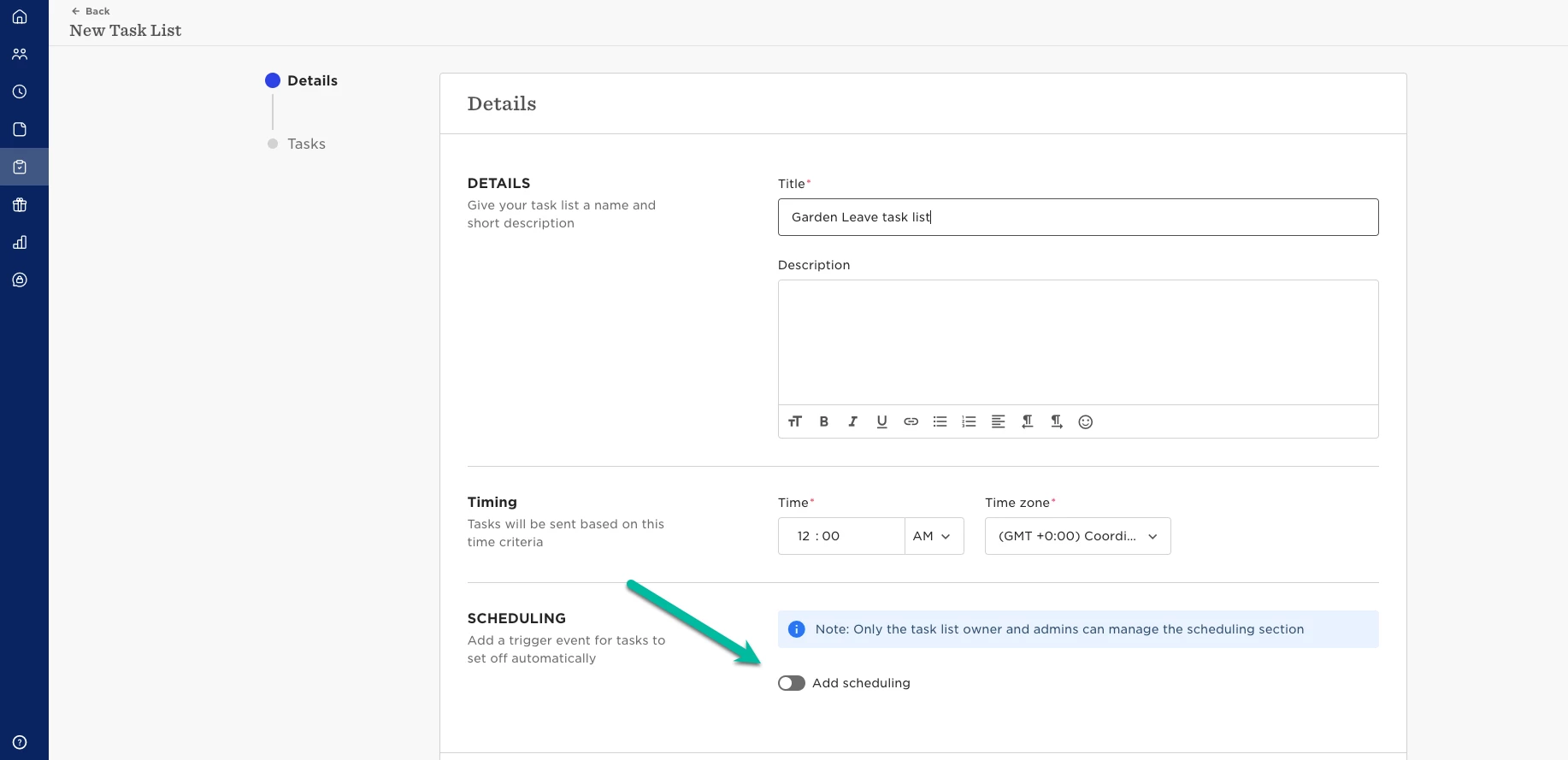
Give a meaningful name, and make sure the Add scheduling toggle is OFF:
Here you can learn more about task list setup.
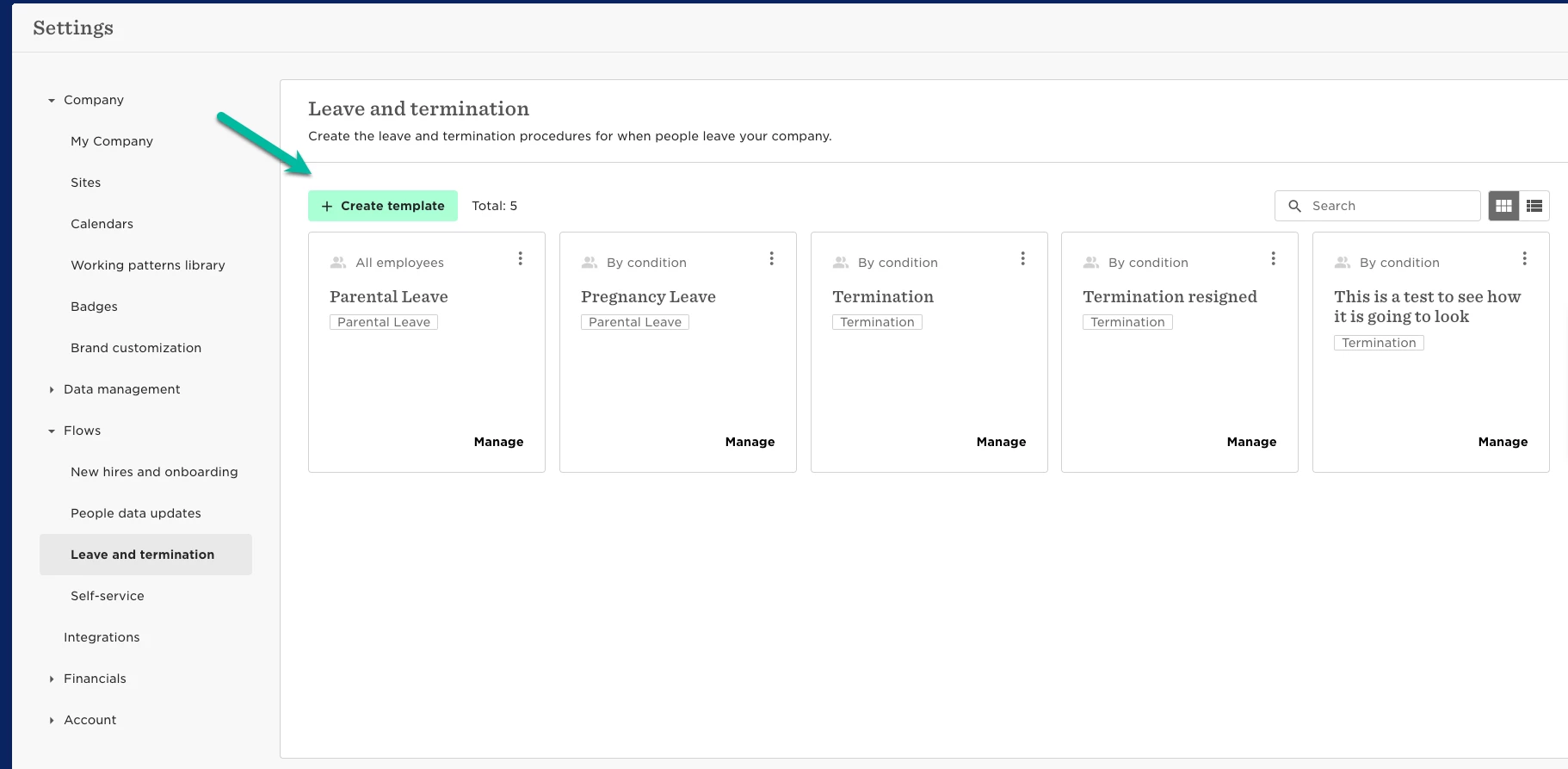
The next step is to create the Garden leave flow.
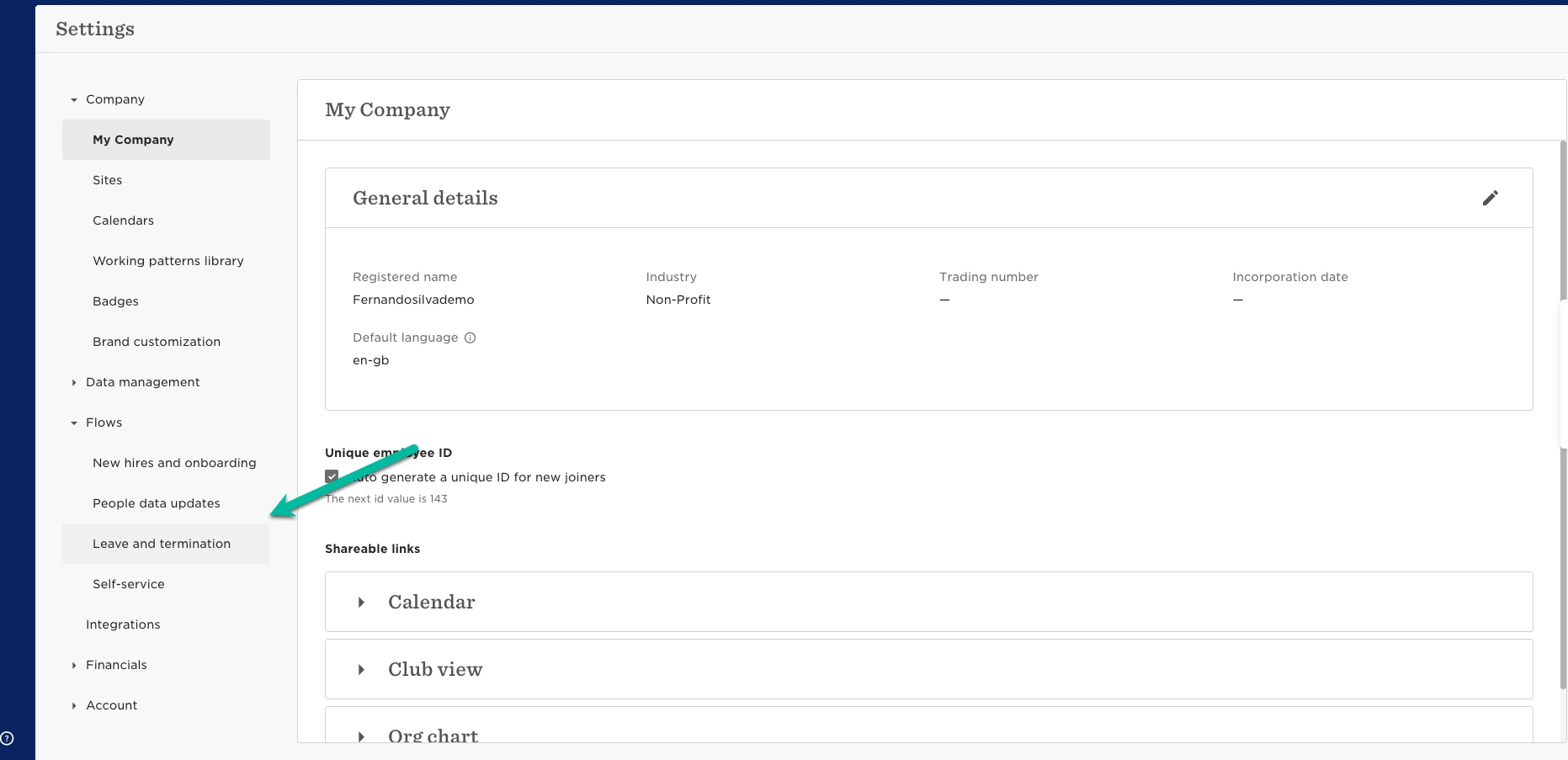
This can be done via Settings --> Flows --> click on Leave and Termination --> click on Add new
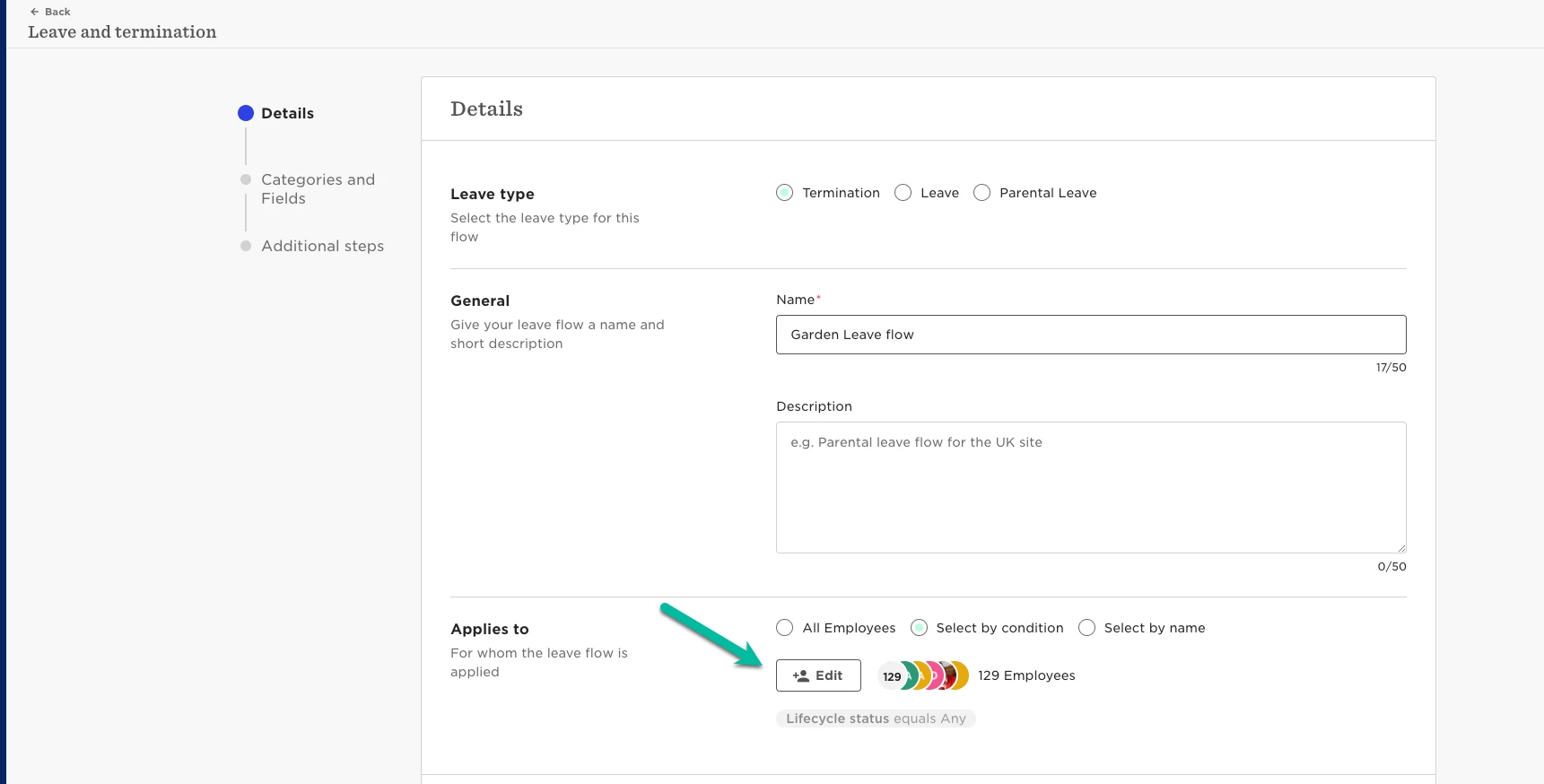
Give a meaningful name and define your 'applies to' population:
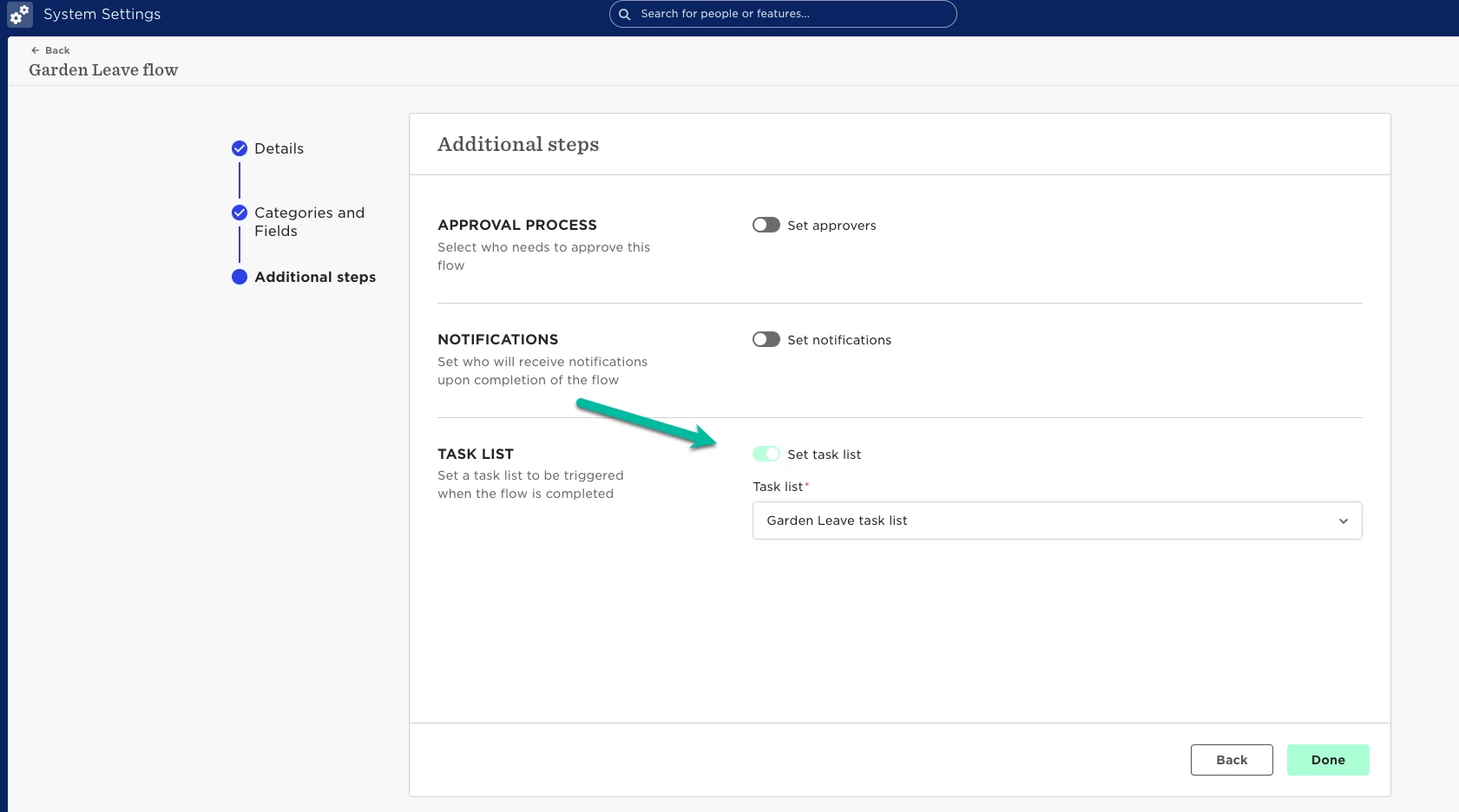
On Additional steps - link the Garden leave task list you have just created.
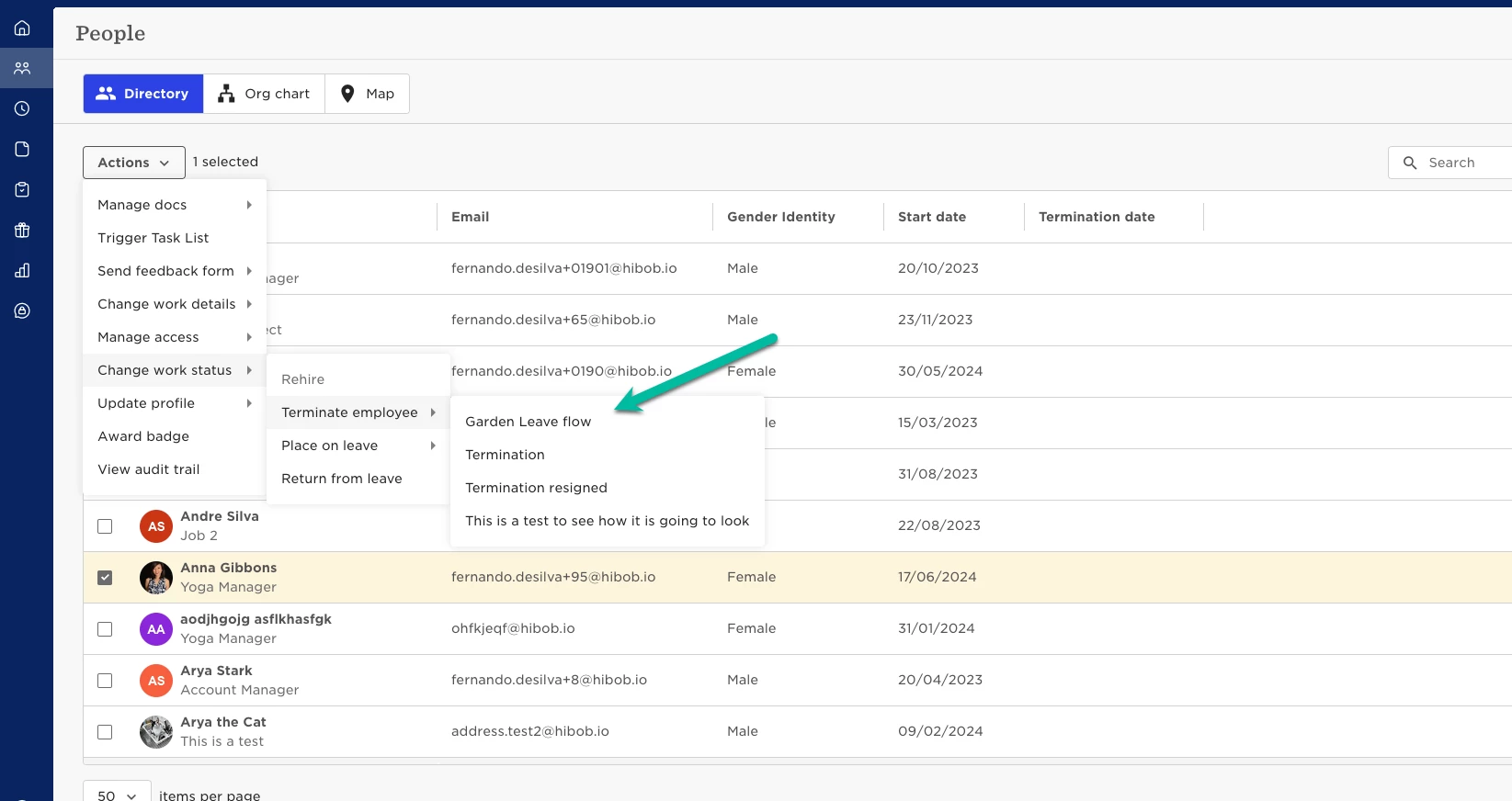
Once you put an employee on garden leave via the Actions button, you will have the option to trigger the task list based on the garden leave date:
On Additional actions of your new Garden Leave flow, please choose the Future date option and type the Last day of work. This will be the anchor date of all tasks on the task list to be triggered based on.
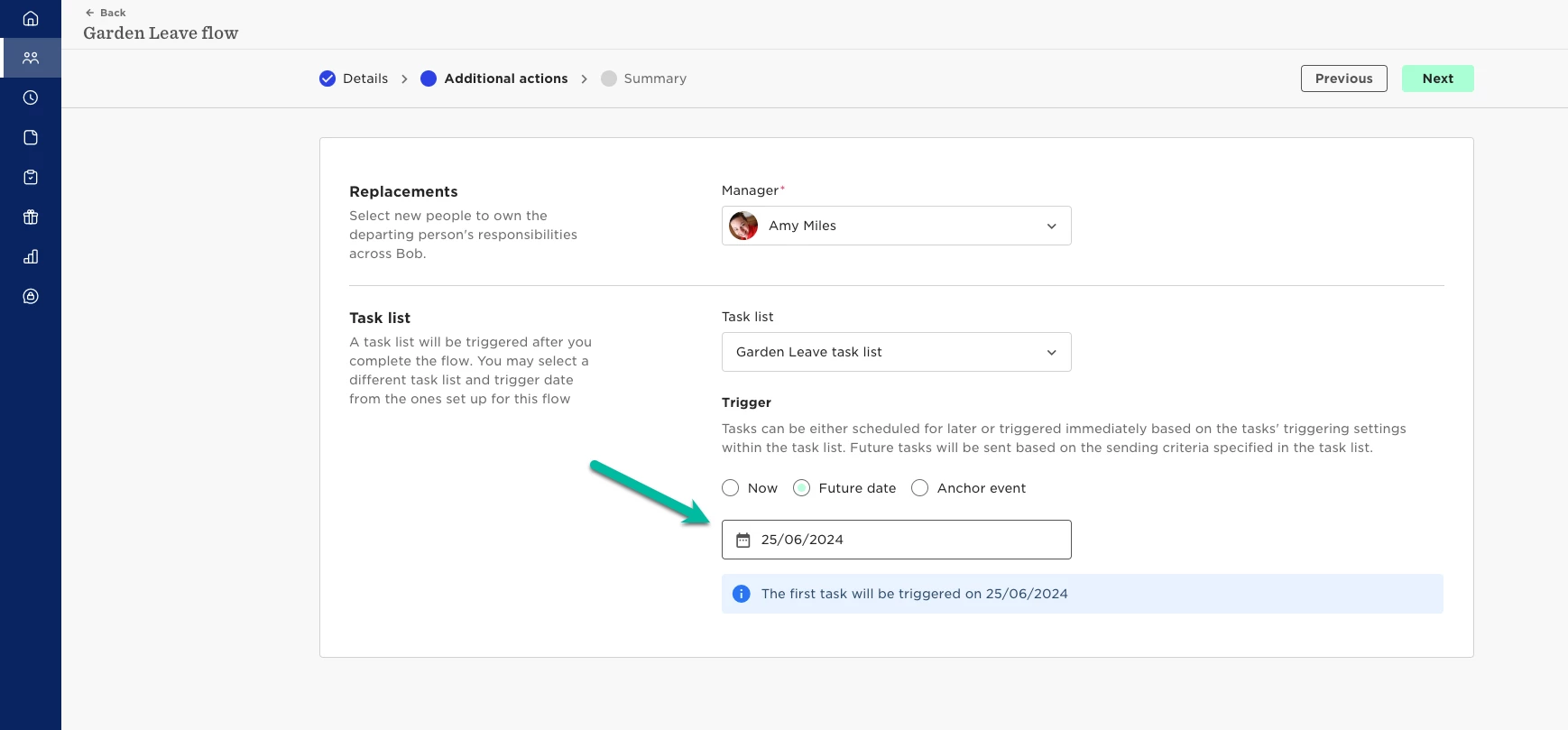
Please note that additional actions step with the task list will be available only with the right permissions of triggering task list.
We welcome you to visit our help centre and read more on how to Set up a Leave flow and on garden leave flow.