

This article explains which permissions non-admin employees need to create and manage eSign request tasks in task lists.
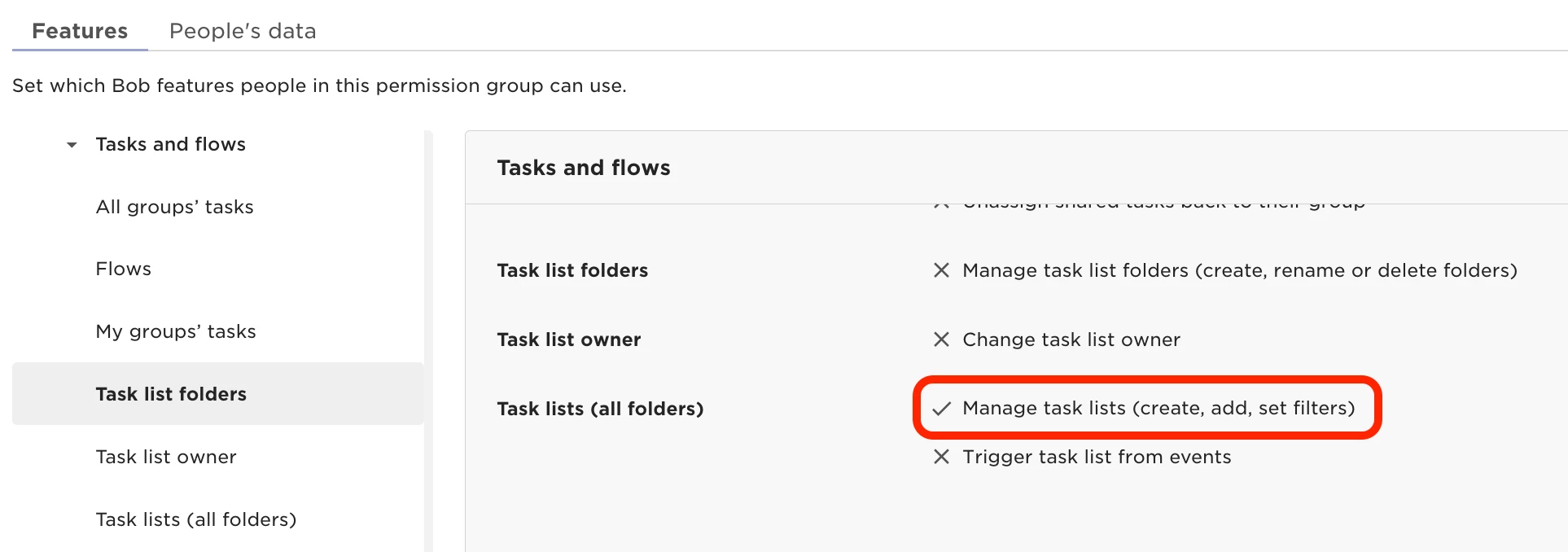
To access Task List settings and create tasks, the user must have the "Manage task lists (create, add, set filters)" permission. Without it, they won’t be able to open task list settings at all.
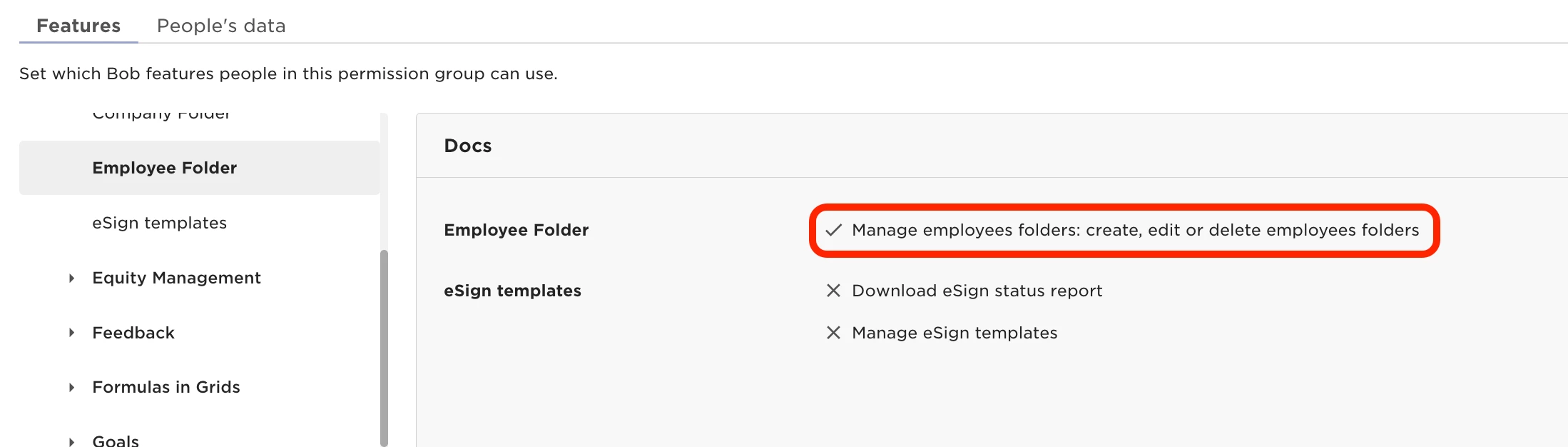
For the eSign request task type to appear as an option, the permission "Manage employees folders: create, edit or delete employees folders" is also required.
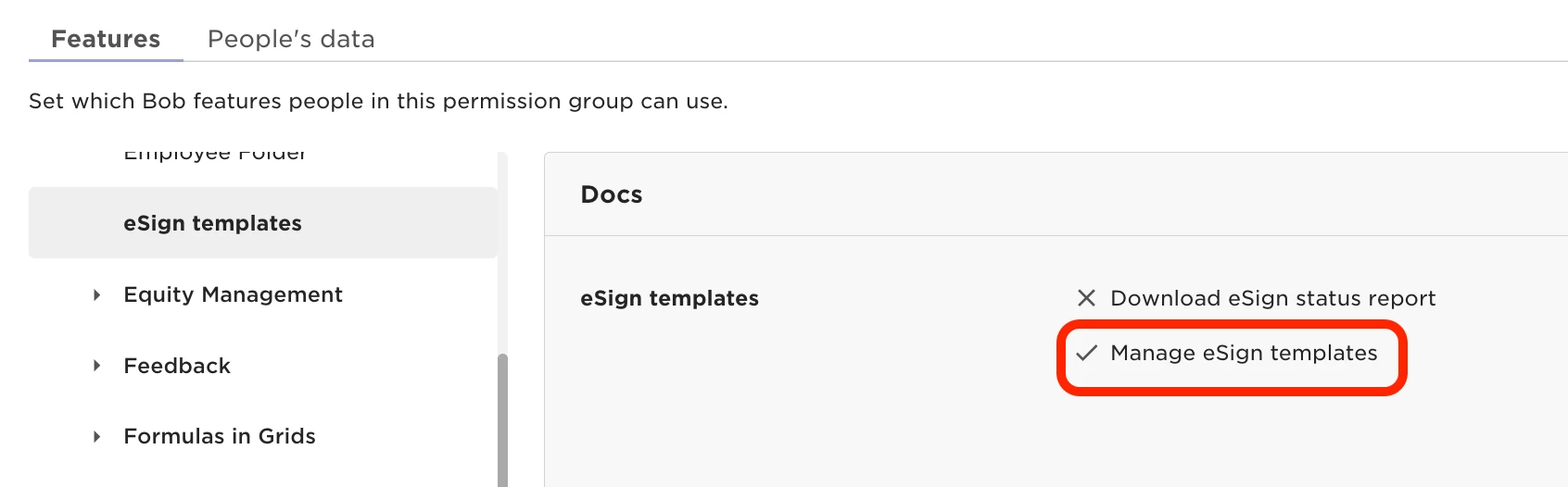
The user also needs "Manage eSign templates" permission for the relevant folder. If this permission is missing, the template and destination folder fields won’t appear, and saving the task may trigger the error: “Error: Number value expected”.
Only templates marked as Active in Docs > eSign templates page will be available in the Task list. In case no eSign templates are Active, users will see the message: “You don’t have the necessary permissions to perform actions on this task.”

Tip: We recommend assigning an Admin as the Task List owner. Admins have full permissions, which helps avoid triggering issues that can happen when non-admin owners are missing one of the required permissions.