Bob doesn’t currently send automatic notifications when employees upload documents directly to one of their folders. However, there is a workaround to do this:
Set up notifications using a Self-Service flow
You can use a Self-Service flow to let employees upload documents to document type field on their profile and automatically notify designated recipients.
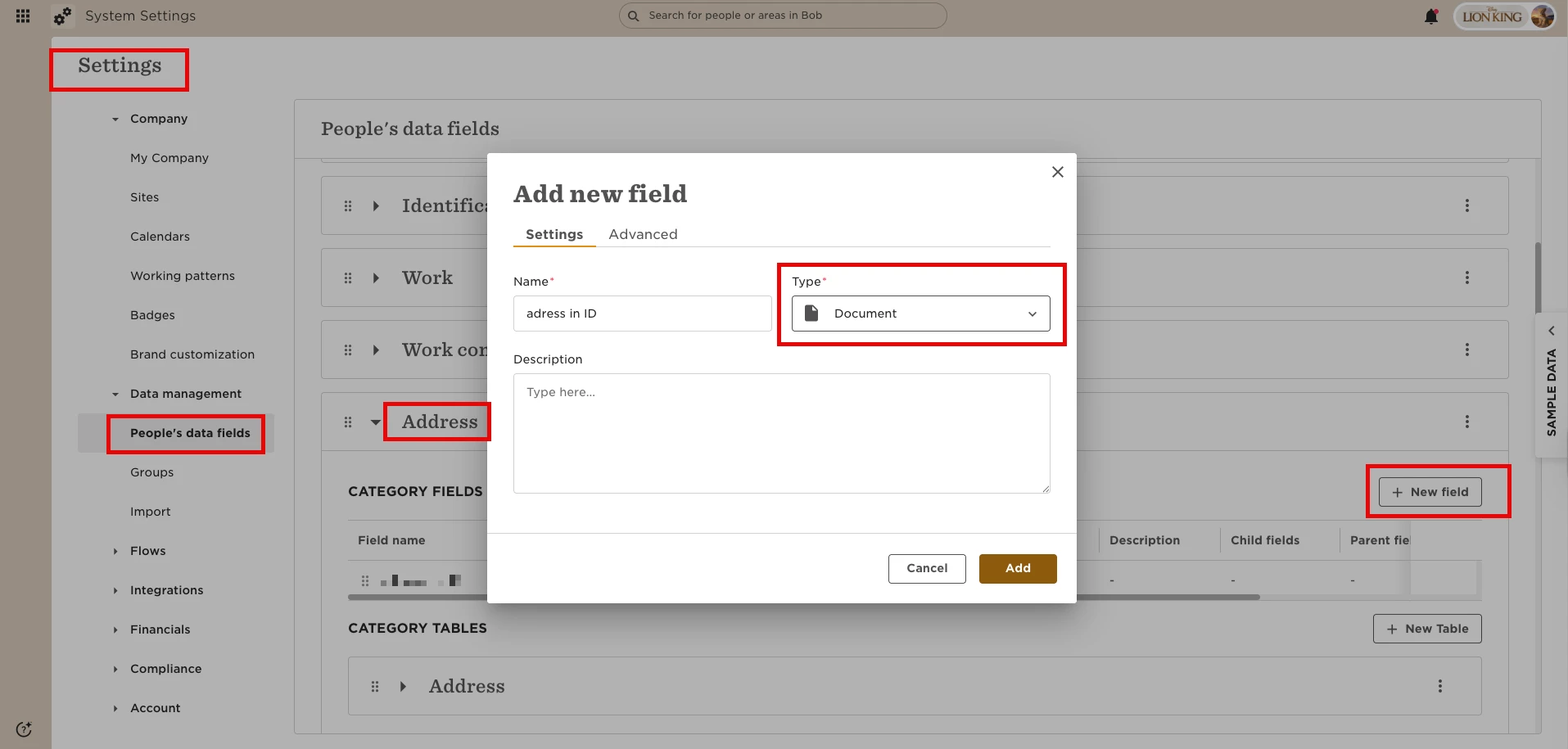
1. Go to Settings → Data Management → People’s Data Fields
Create a new custom field for document uploads.
Set the Field Type to Document.
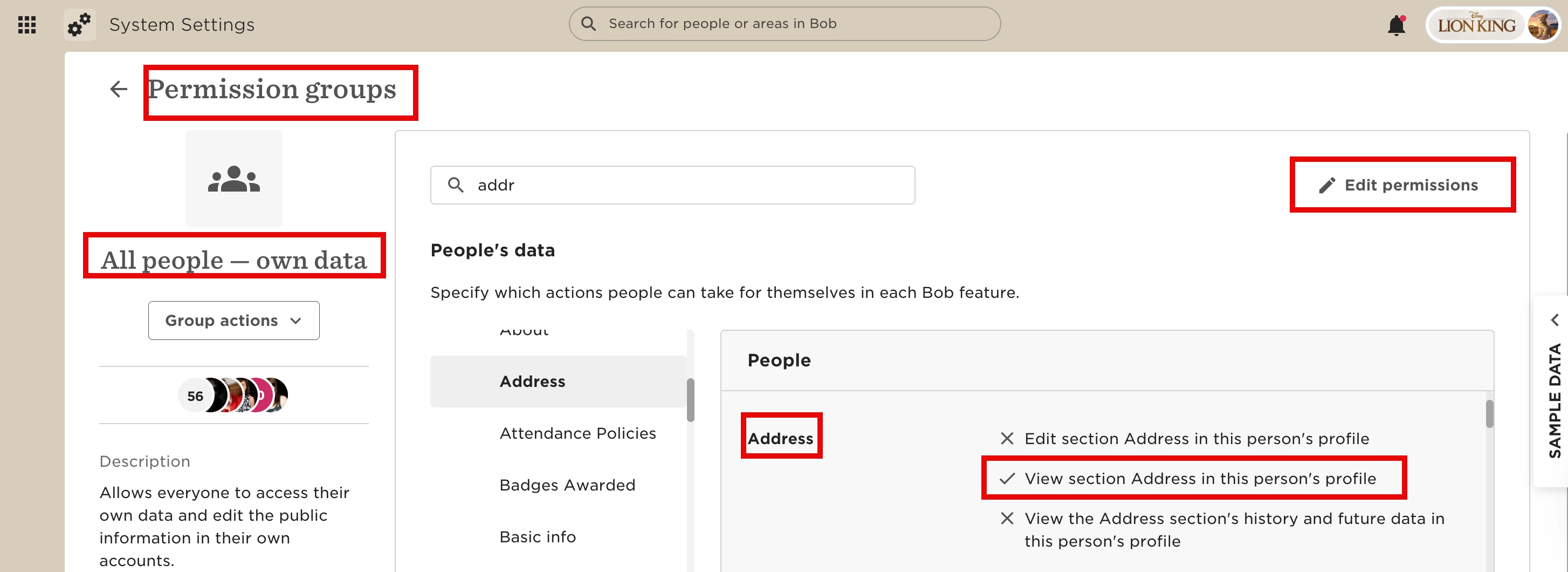
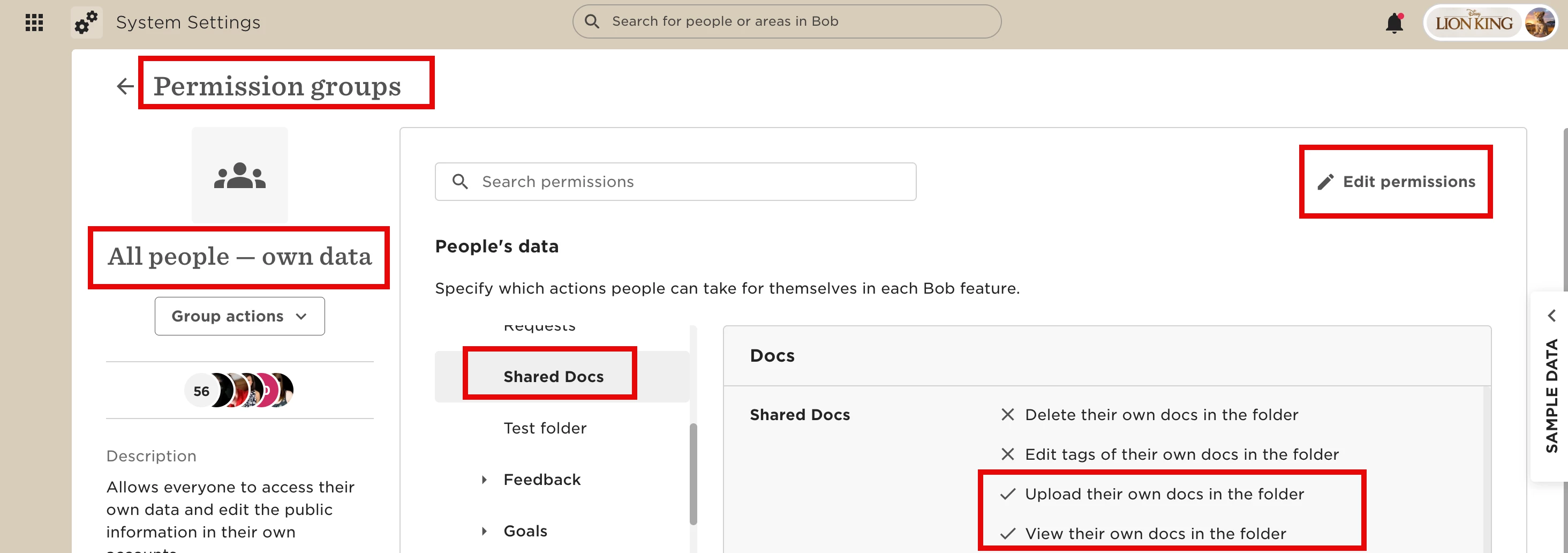
2. Go to Settings → Permission Groups → Own Data
Make sure employees have permission to upload documents to the relevant folders and view the category the document field located in.
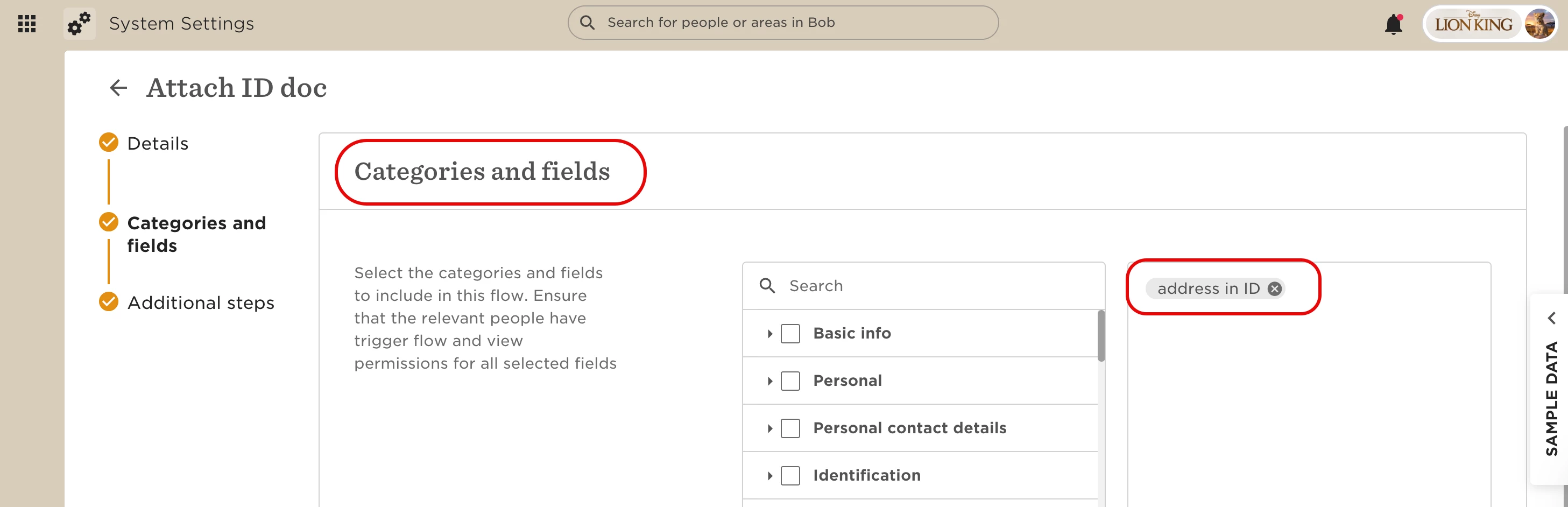
3. Go to Settings → Flows → Self-Service
Click + New flow.
Name and describe your flow.
Select Document upload as the category.
4. Under Access, add the people who should be notified when a document is uploaded.
Optional: Add an approval process if needed.
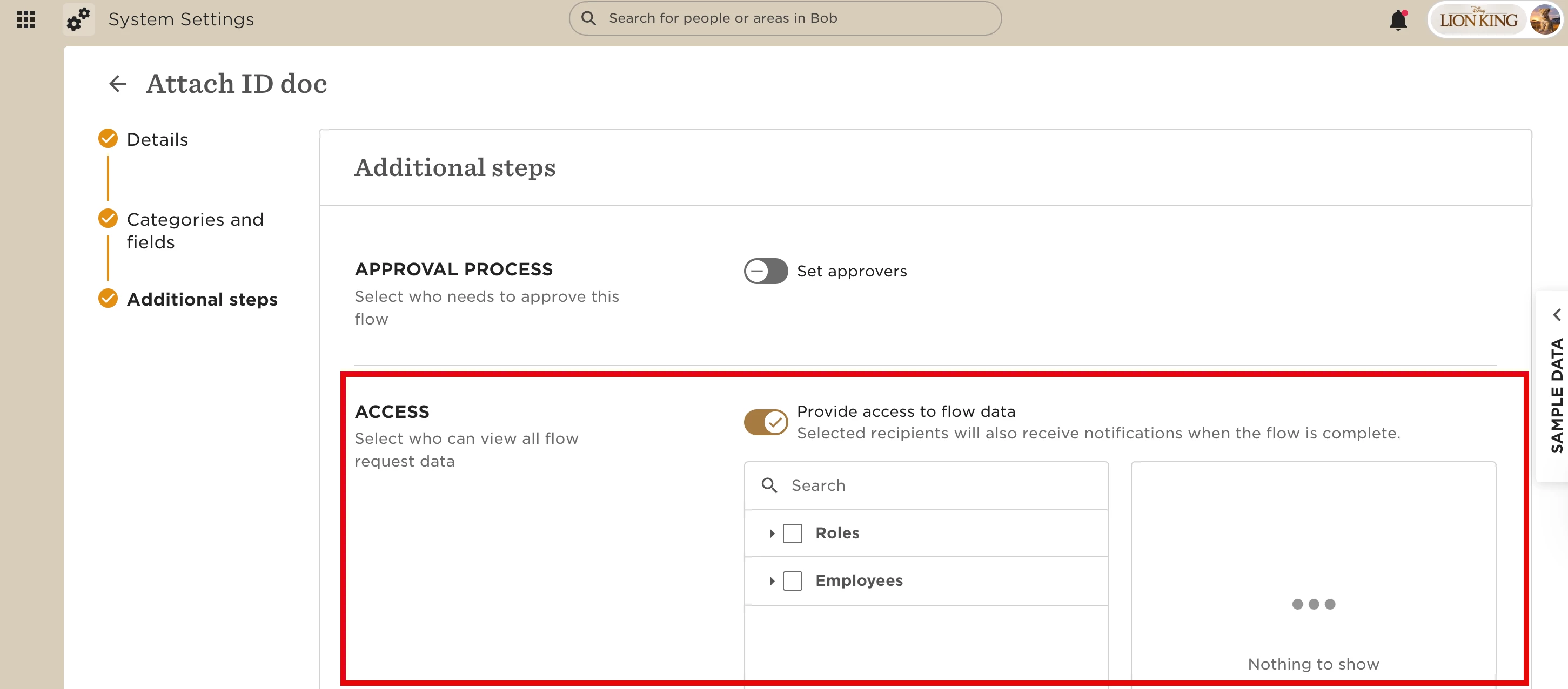
5. Save and publish your flow.
6. Configure who can submit the flow (all employees or specific groups) by Account > Permission groups > All people - own data > give the permission to trigger the flow for themselves
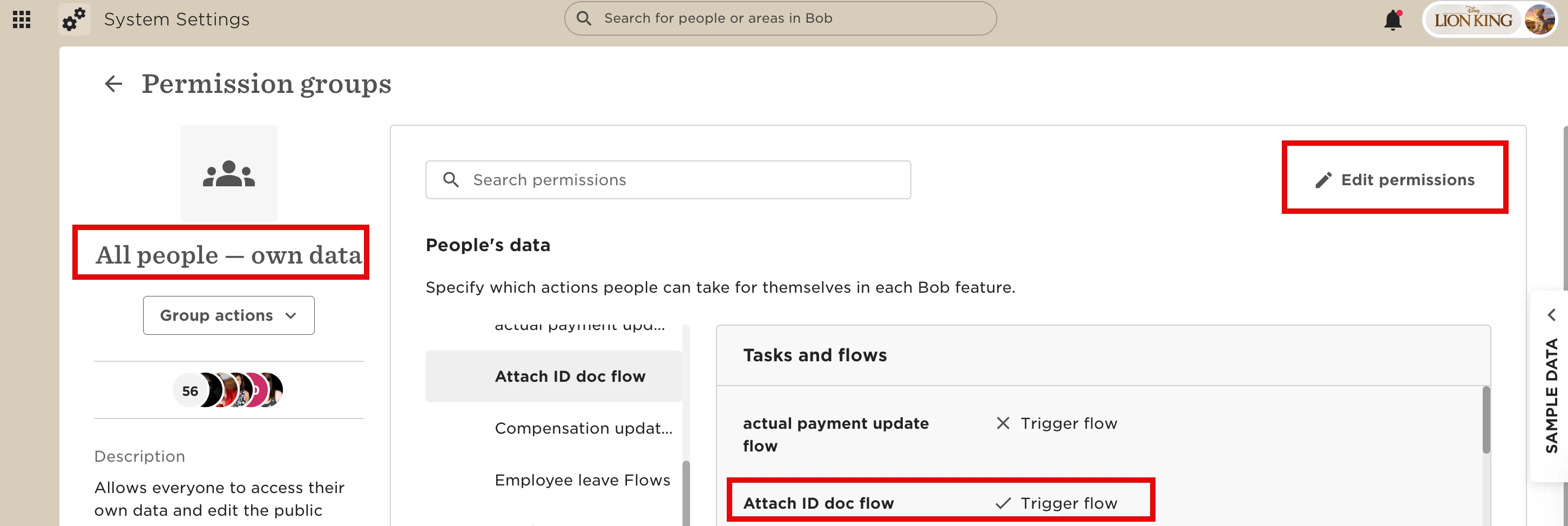
Employees will now upload documents through the self-service flow on their profile instead of directly to folders.
You’ll automatically receive notifications when employees submit documents using this process.
For more details, see these step-by-step guides from our Help Center:
Set up a people data update flow with approvals