

If a non-admin can manage tasks and eSign templates but doesn’t see the option to add an eSign request to a task list or can’t edit an existing eSign request, it’s likely due to missing folder permissions.
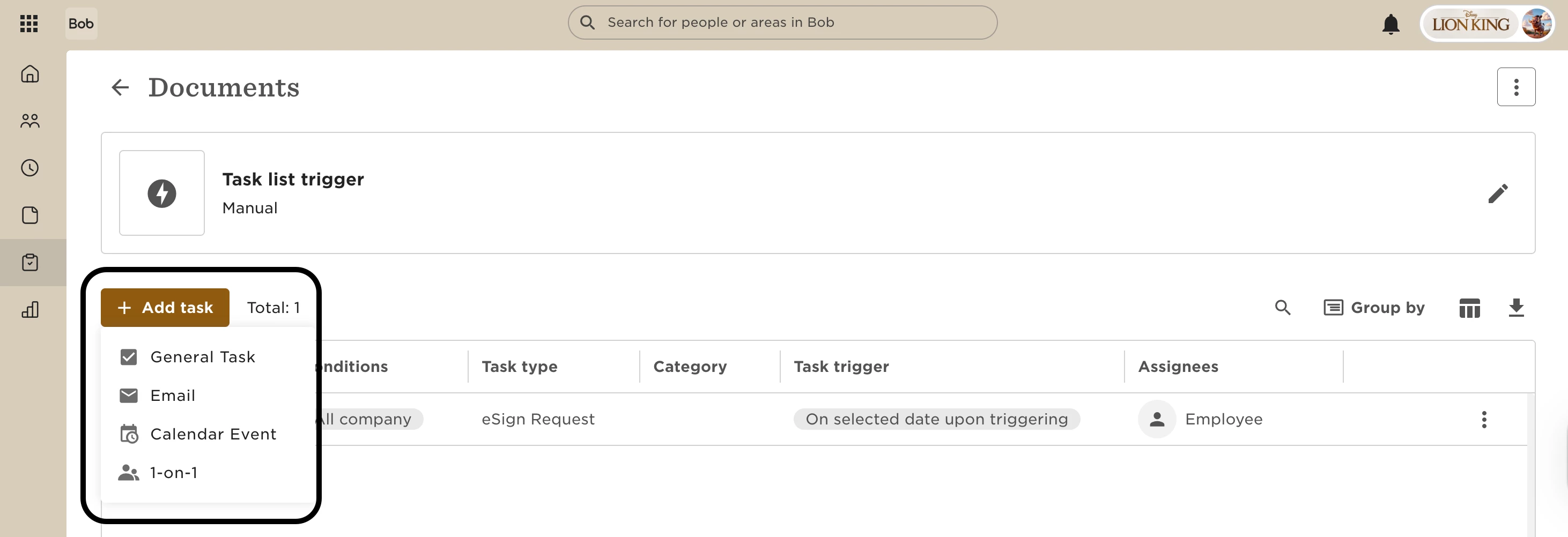
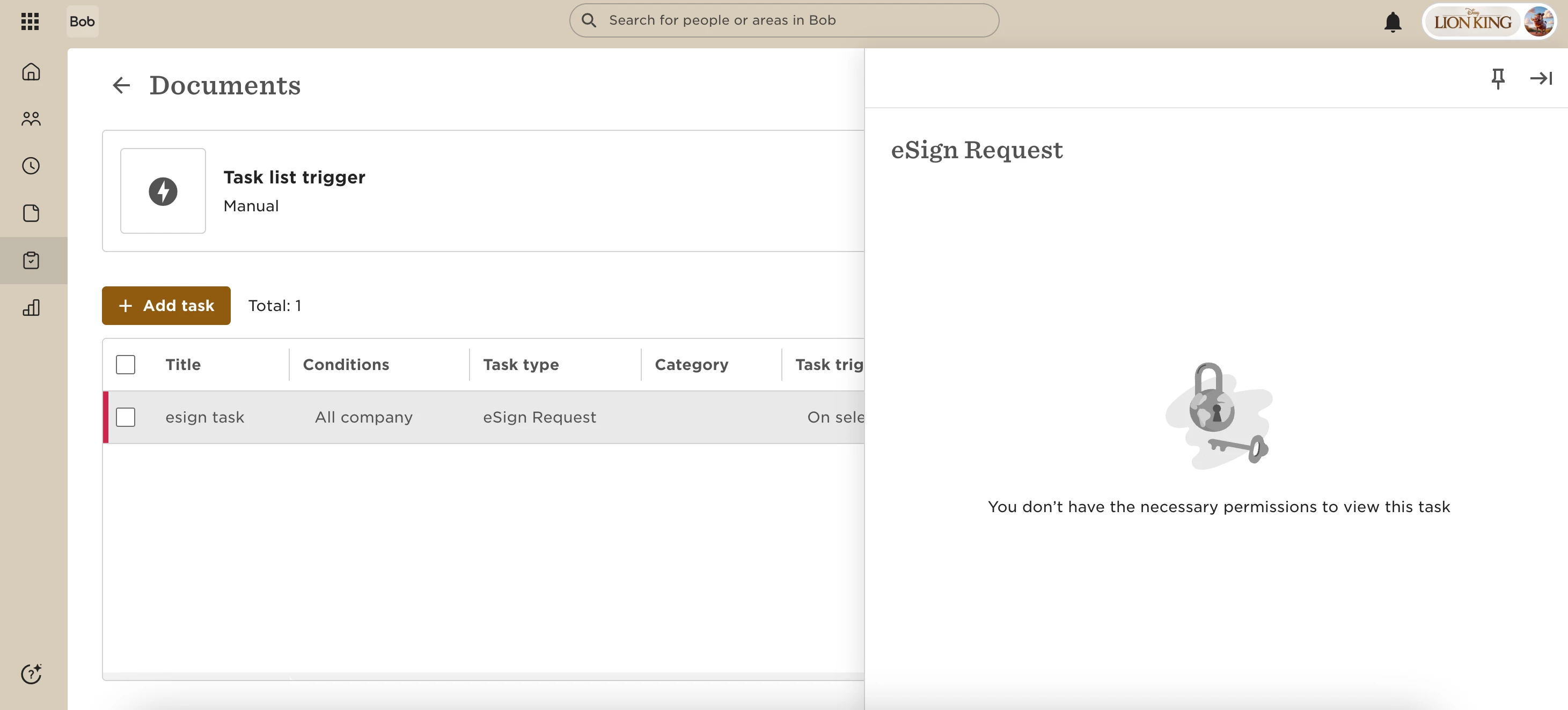
To create or edit a task with an eSign request, users need access to the employee folders where signed documents are stored.
How to Fix the Permission Issue:
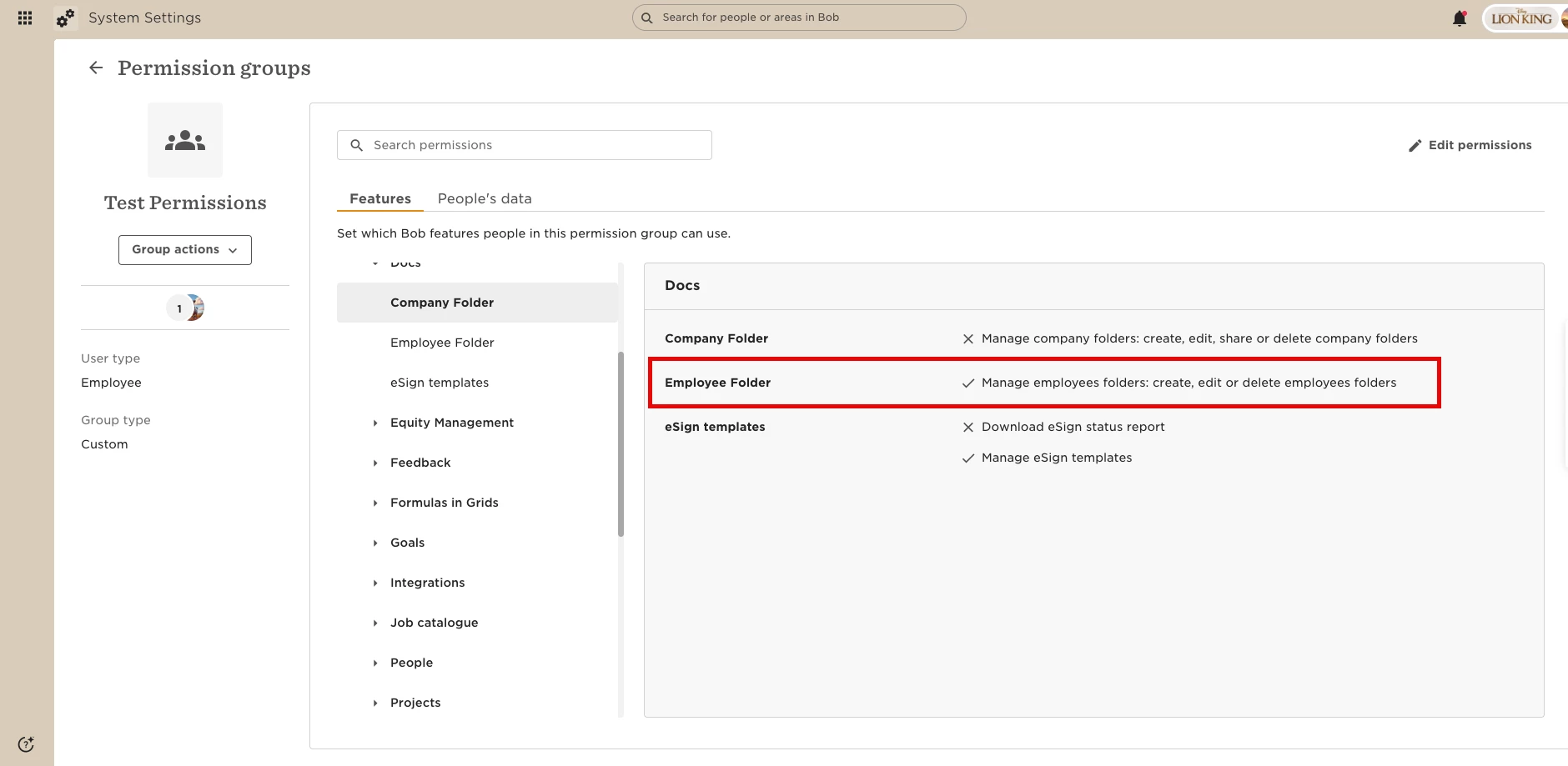
Go to Settings > Account > Permission Groups and open the relevant permission group.
Under Features > Docs > Employee Folder, enable:
Manage employees folders: create, edit, or delete employees folders
Save your changes and refresh Bob.
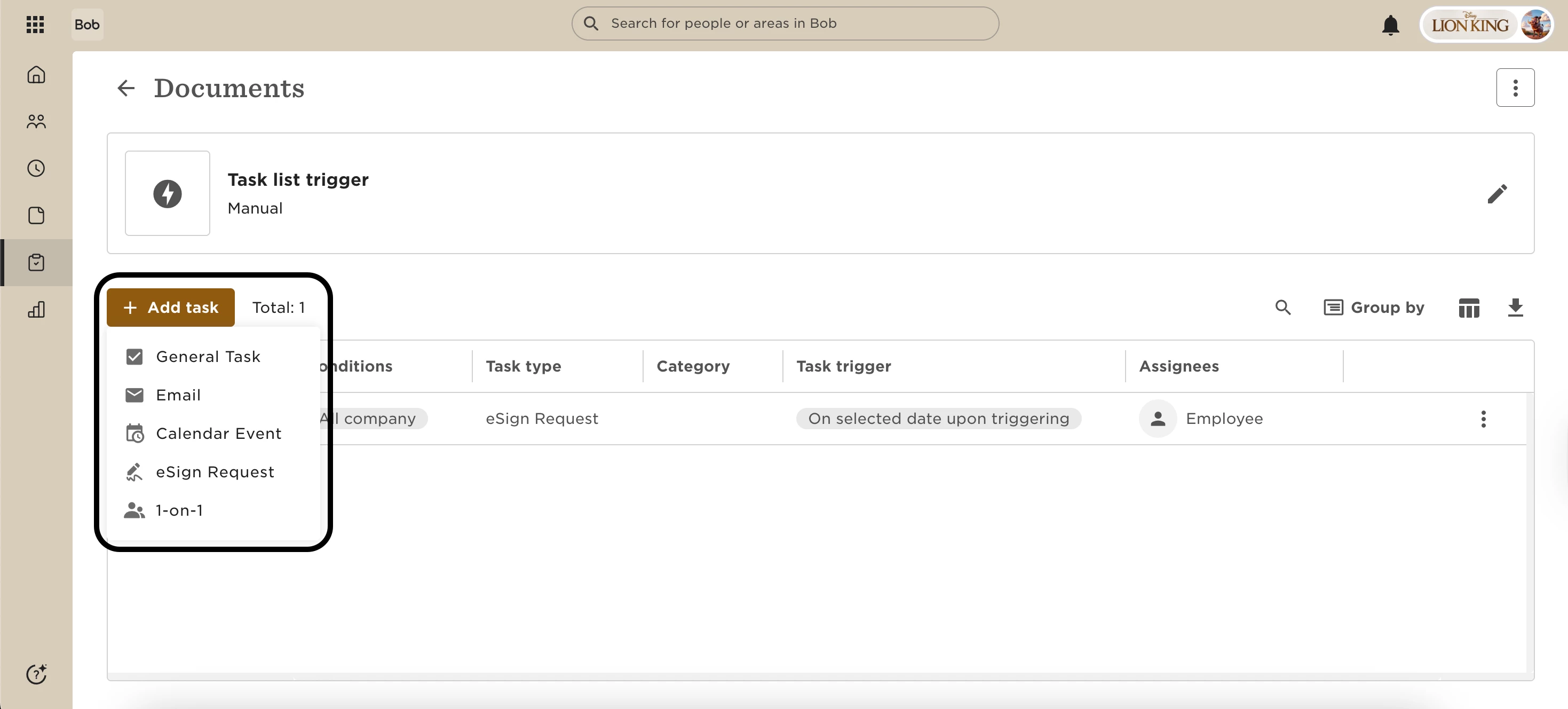
Once this permission is granted, the Add eSign request option will appear when creating or editing a task in a task list.
Why This Permission Is Required.
When a task includes an eSign request, the signed document is automatically stored in the employee’s folder.
That’s why access to manage employee folders is required — even if the user already has rights to manage eSign templates and task lists.