

The How Changes Are Applied setting controls how approved changes reach the employee’s profile:
Manual: Proposed changes are not automatically applied to the employee’s profile. An employee with the relevant permissions must apply them manually.
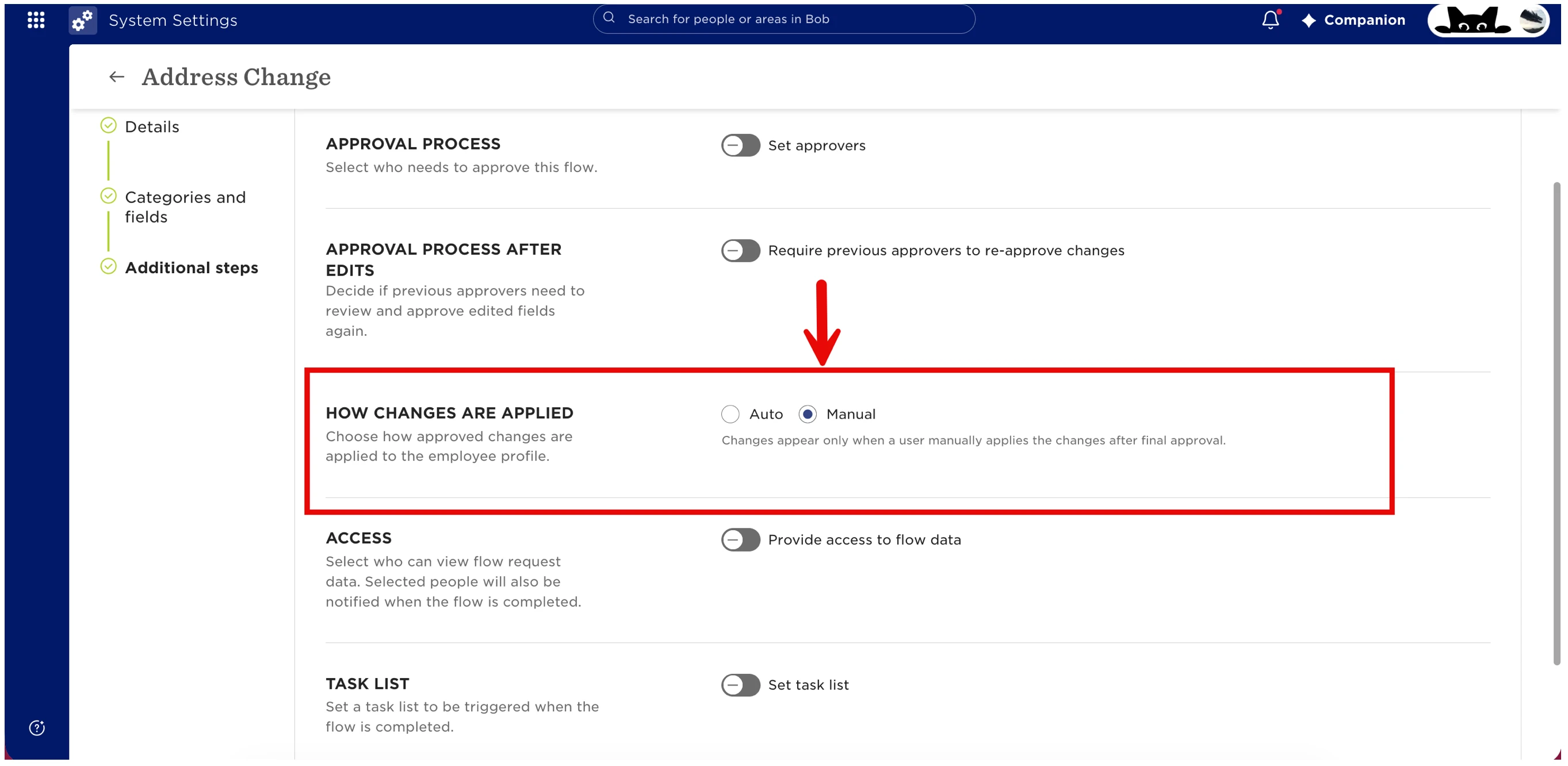
Auto: Changes are applied automatically once the configured approval process is complete.
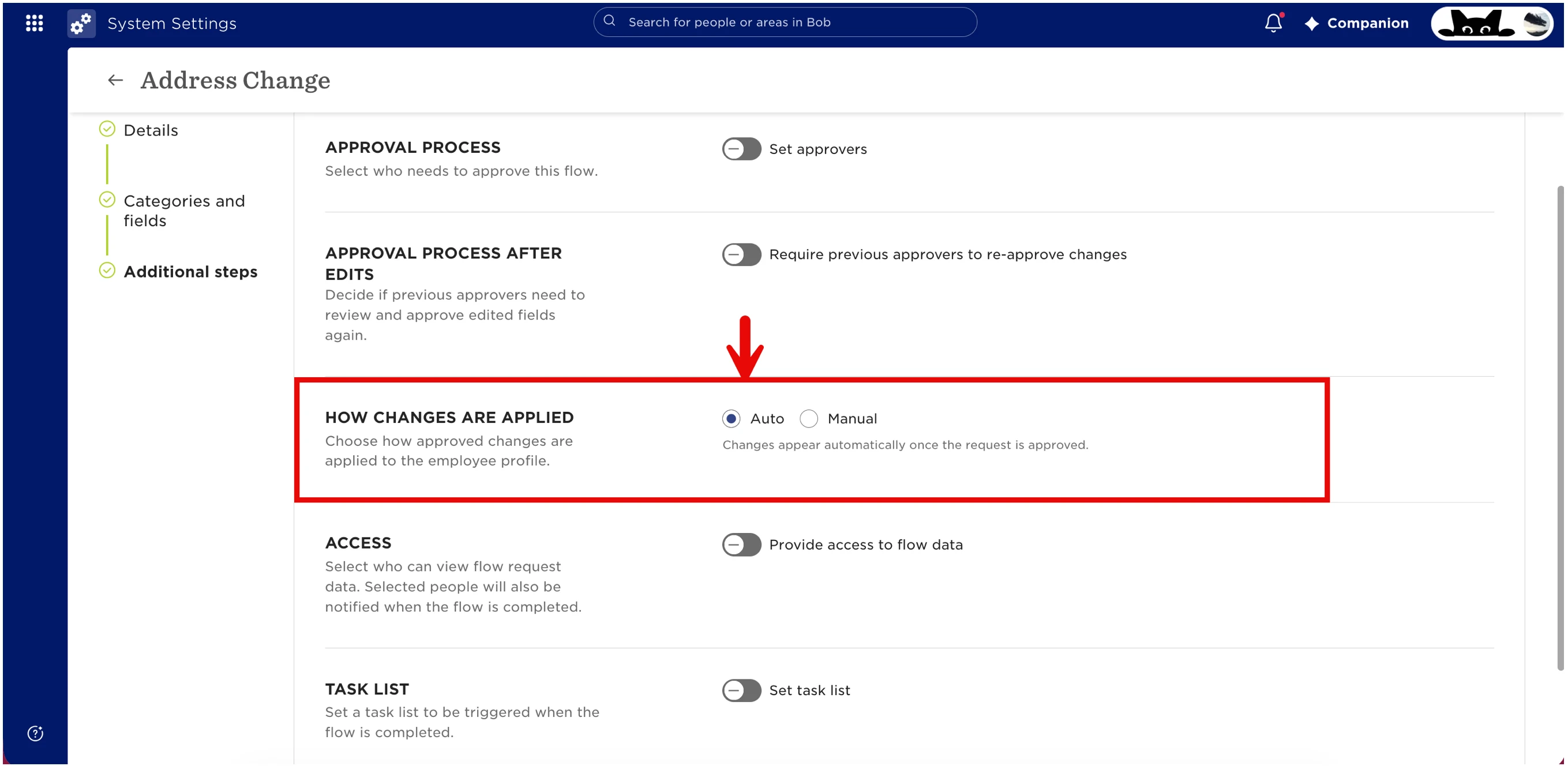
Selecting Manual does not replace an approval process or automatically assign the work to HR. To ensure HR reviews every request, add the relevant HR Admin as an approver.
For a flow choose the setup that matches your process:
• HR approval followed by automatic application: Add HR as an approver and select Auto. HR reviews the request before the changes are applied automatically.
• HR approval followed by a separate manual action: Add HR as an approver and select Manual. After approval, an employee with the relevant permissions must apply the changes.
- Open the Flow: Go to Settings > Flows > Employee Update and open your contract variation flow.
- Check Managers’ Permissions: Under Settings > Account > Permission Groups, confirm that the relevant managers have permission to trigger the flow.
- Add HR Approval: Add an approval step and select the relevant HR Admin as the approver.
- Choose How Changes Are Applied: Under Additional Steps → How Changes Are Applied, select Auto or Manual, depending on whether a separate action is needed after HR approval.
- Configure Notifications and Follow-Up: For a Manual flow, agree who will apply the approved changes. Add the relevant HR colleagues as notification recipients or configure a linked task list to make the required follow-up clear.
In demo testing, the last approver received an email indicating that the flow was approved but still required action. This does not mean the work is automatically assigned to HR.