Making Bob your Single Source of Truth - People data update flows

  • December 4, 2024
  • 10 replies
  • 1077 views


If you require any sort of approval within your organisation, which needs to be tracked, monitored, and audited, then People data update flows are for you! It’s also an excellent way of advancing your expertise with Bob, allowing it to be a single source of truth within your business, and is a perfect example of just how customisable our Employee Fields are.

Examples of these approval flows could be for:

  1. Expenses,
  2. Training Certificate/Renewals,
  3. Work from Anywhere Requests,
  4. TOIL/Overtime
  5. And many more.

Setting these up is a lot easier than you may think.

In this guide, I will talk you through how to Set-up a People data update flow, and then how to report on it too.

Setting up a People data update

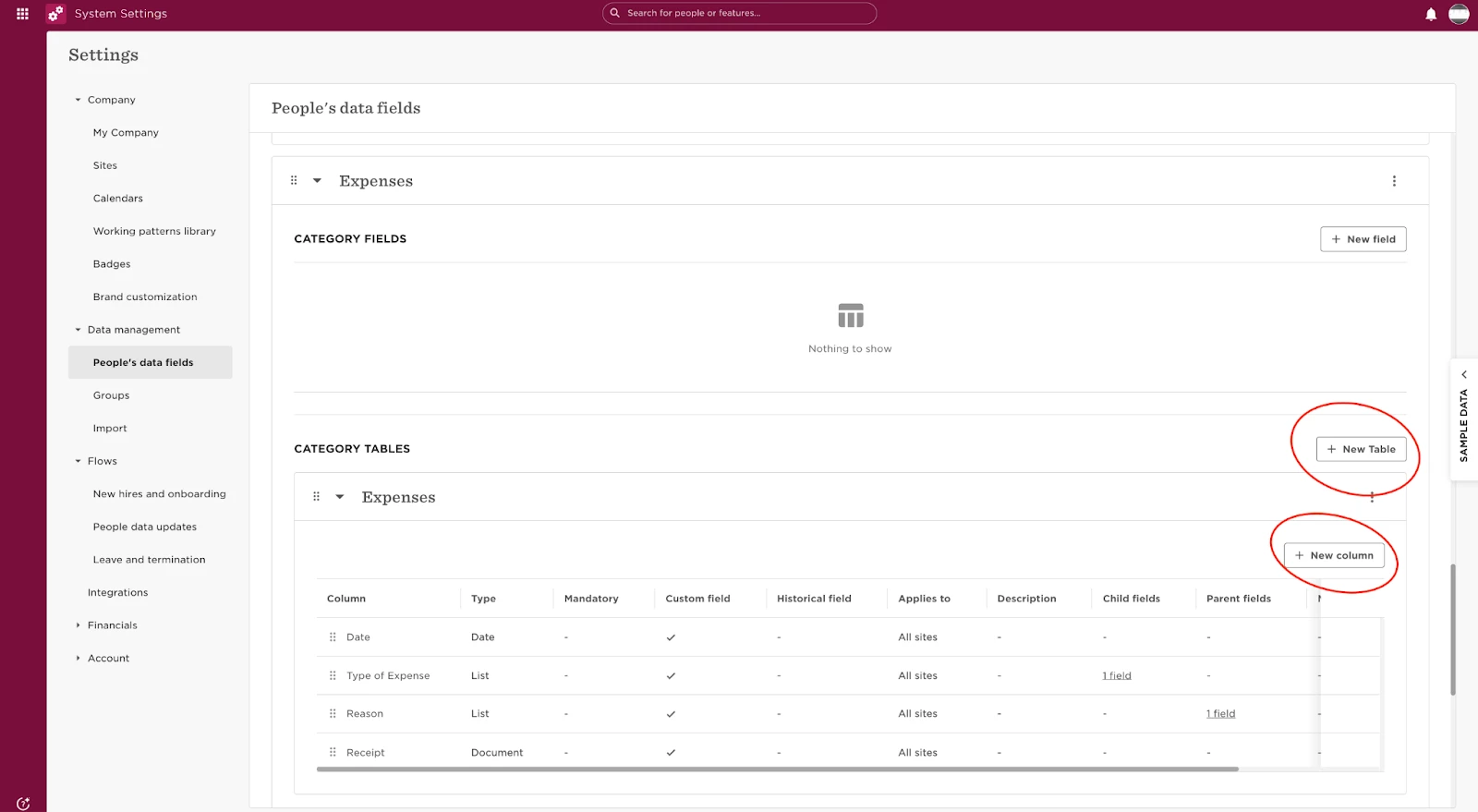
Firstly, we need to create Custom Fields/tables by navigating to:

  •  Settings> Data Management> People's data fields:

AD_4nXetehKSlWJlu38tfB37o3S6eVD9SFvK9liwwxdKsb6XUvYRdLo-0kZy1aNqENS0o2LWqVLIMKUI1SsUcKJbglJe1o63GtKtQTetAGhTzwhW1nfn5i95HVF0fj0BvhxsUZc_HyuA?key=tX9I84KQDoLYG14282ODy57H

Please note: when you create a custom field, it is automatically hidden from all in Permission Settings, so you will need to make this viewable, in order to add it to a People data update flow. 

I will be using Training Requests for my example of a self service flow.AD_4nXcja2wIF9e-iAMdcImWGGHny3sTm3i0hO961WvmgzpBLADoUszMI8u_gVacOOs35ebpPJajofV6gF9ARH7VibdbcLO7cwEzbVhb4wUvL7lWV5VW2HUH_MtlNSt6NHNN7dZ85m2WxA?key=tX9I84KQDoLYG14282ODy57H

Here is also an example for Expenses:

  •  In this case it's a table as it allows the employees to keep adding expenses and have a log of all their expenses:

AD_4nXf78x4YJJ_6CDEopdNJYFDrqiL_X9MqIes3jj9tKEMVz3l_8kswbRa7YF92qja_NTj4aJhKaGP1SLSaSIPMF_le3Sk1nUoBqJys83jOaw9Ww-4Y3LOtiJPGsjieu2vZZhQQrJ2M8w?key=tX9I84KQDoLYG14282ODy57H

Create the new fields, which will then be subject to approval, as seen above. I would recommend adding as many fields as needed, and making relevant fields mandatory if it is required for the approval.

Once you are happy, it's time to define the permissions, navigate to:

  • Settings > Account > Permission groups > All people-own data > People 
  • Select your new category's name
  • Allow it to be viewable, but not editable

The next step involves creating the People update flow, to do this, click into:

  •  Settings > Flows > People data updates 
  • Next Create template 
  • Add a name for your flow and set who the flow should be available to

AD_4nXdDXHUFFoLKAJyZN5wtYJiCUTIWJPc_WkpFW7CNcH8VkUf2EjdIHAhniHi00-la1lFHX0KfmitQawZ93UVocSKd3yWGtSAsO3xxP-MuaOT3yFx4OFJsJmTzq8hJ7zngcWa0gw2kLg?key=tX9I84KQDoLYG14282ODy57H

  • Click Next 
  • select the new custom category you have created

AD_4nXcBamT05ceKxf9NEpf1PSJgF_K7Z4Ywk_ABWbSY6EOkpdTx6gOBRgecqrs5--e8ntdj_upKSHYE5HryXb9YjdX75s5X-EFD9wUC6V-dsrH1zRUSw2z4Z7TOmeFQ_M6xmcY7V4ny?key=tX9I84KQDoLYG14282ODy57H

On the final page make sure you assign:

  •  ApproversNotifiers
  • Associated task list to trigger based on the completion of the approvalAD_4nXebqTnLXN_haQOlXpYvG8Hev057KIG83-9Df-vU954ixVkIcmXSbD_6voa0suebz5NrQE11bSUHOjdDpJGhEYFM3SIlOSKd7MabLXNsfXblsB9vugpOdhU4eS1ak2FWsYl9q3GuNA?key=tX9I84KQDoLYG14282ODy57H

We would recommend adding a number of roles to the notifications, especially if numerous team members are involved. 

Once you are happy with the above, and have assigned a task list (or toggle it off and create a new one after, then add it into the flow), press ‘Done’.

The final step is to grant employees the permission to trigger this flow for themselves.

 You can do this by heading to:

  •  Settings > Account > Permission Groups > All people — own data > Tasks and flows > Toggle on the permission for the specific flow:

AD_4nXcokkFEbRrdX2wfHzXAJIizjEHq4tb-mybqrZYR16O3qlw-rpF0PhyIAnNX4xqbaSX9Ta0DkULOOCJe13gG_8obhyge3CleZC3tg6E2vUdReR_1QFkRIhbzMHN39zQiIPIzA3FR9A?key=tX9I84KQDoLYG14282ODy57H

After this, the flow is up and running and employees will be able to request it!

It’s always best to test out the new flow you can do this by logging in as another employee:

  • click into their profile 
  • Actions > Update profile 
  • And select the flow you just created:

AD_4nXc0SfhZF8NKrlmek2uSJBAPY3H1Fzs5JFgc5kCf2K7vkHxzWGyiTYYNdGT3HX9ySBS1UIsGR8b5fYDqFEv6fDOUC0H7r6RthBIOa_hLGkW1z83rfLu0mc05fIK8rOBvdTfpnZOs?key=tX9I84KQDoLYG14282ODy57H

Then fill in all the necessary details and press next:

AD_4nXd1NUyFzXemmvzXjyL8Dr6feD7Ga-NXhX5XCVnDMelA_A68bR3OZtTu49cWqfTSXVFCYnPceDce4HGYvYWo3MjDngxzawg3eylb2gTVcU3o0buy2yq5kb7gdpFrQJlwamH_n2OzeQ?key=tX9I84KQDoLYG14282ODy57H

You will see the summary of the changes and you can press Done:

AD_4nXfihG_TrAZopHVP8L4BQe5jlDVaulfz-Qdy8B2HqWO6S5tEV1aDkSKNx--iIcjvvZTHdY6CcIZBRRMbkFCzI26s6z9wp51kQTZHDdZ57bgHTAqgrArph8Yv0El9EKT-9HYxbOxJ1w?key=tX9I84KQDoLYG14282ODy57H

After this, the employee will have a banner at the top of their profile mentioning there are approvals pending:

AD_4nXd_HGzNFC8yTGcGZhUFRGIpxbK9HQKnDJVgOEjk44uySlqv0V414bk2Us9EL5daA1cy8zrCbw_NjS9ki0qNxghM45-7QNc4EioNid38xb9u9XRaFBuJQBw7acUKeCcJtNCB49q7Vw?key=tX9I84KQDoLYG14282ODy57H

If they click "View approval flow", they will see their request and its status:

AD_4nXfJYaWoSeY8qwHGlcjsq5Lty8zHpfEs23evzIAGXjOAWoFQFj__07uGELkgUdW3fdwjZ1UZyr5iDzScb99k5Ujy3qDJ1jCLL0hONLtDnH6sQ4vJHMjSO4bX2wn5-t8nxRWPxK5kdQ?key=tX9I84KQDoLYG14282ODy57H

You can also log in as the approver and reject or approve, by heading to:

  •  Org > My pending approvals > and clicking the request:

AD_4nXeCUAZ1T5wt5euwNdfL7kqOaQeggU_x7clamxUwig2Sa8PinNHfOEJqMBV2gDp8UgKll89yyp7P7RoXWJCI-Vy3YwnDEaZxfPKFBAbdDTtox75N40mUwM_W62vbLGJhK1yq61CWMg?key=tX9I84KQDoLYG14282ODy57H

Reporting on a self-service flow


As mentioned previously, the ability to set-up People update flows can really advance and automate approval processes. 

However, it's crucial that as a business you can report on, and audit this.

We suggest creating a Change-tracking report for such cases.

You can then, add in your additional custom fields as trackable fields.

You could then schedule this as a weekly report sent to the HR Team/Departmental Leads.

😄
 

10 replies

@Mike Bingold 


This is really well explained – thank you!

I just had a quick question around the process for flexible working requests. At the moment, employees can trigger the approval flow and the second approver can confirm, but for the process to be fully automated, we’d ideally need the following:

  • A signed document from the employee confirming acceptance of any salary or contractual changes following final approval

  • Once that document is in place, updates to the employment and payroll sections to reflect new working hours and the prorated salary

I believe the first step could be handled via eSign – I’m just not sure how that would be best set up.
As for the second, I’m wondering if there’s a way to link fields across categories – for example, if an employee selects 36 hours/week in the flexible working section, could that feed directly into the employment section once approved?

I know salary and payroll adjustments can't yet be automated, which is totally fine, we can do it manually.


Hi ​@Pedro Catarino, the images above cant be loaded, and I would like to see the image for expenses please:


Thank you!


Netta Brodsky
Bobber

Hi ​@Marina Petrovska - I’m attaching the image here for you as requested. 🙂
On our side, the images are loading correctly on the page, so if they still don’t appear for you, it might be worth checking if there’s something blocking image loading on your end. Maybe your IT team could help with that.

Hope this helps!


Thank you ​@Netta Brodsky!

I see it now.


Hi! 

Is there a way at all to set this up, so once a training request is made and approved, it stores the “current data” in the training category fields.

But when another self-service flow training request is made for the same employee, and that is approved, it can update the “current data” in the category fields and store the historical data in a table under the same category? 


  • October 19, 2025

Hi all,

This page has been really helpful! I used this guideline to create a Training Request for a language scholarship program, and everything worked smoothly.

However, I’ve noticed an issue when trying to reapply for training. When the employee edits this field, the approval flow doesn’t seem to trigger during reapplications, which means I don’t receive any notification or approval prompt.

Has anyone else experienced this or found a workaround for reapplying the requests?


@Pedro Catarino Are there any recommendations you could give on how to handle managers submitting promotions or bulk manager change requests?

Ideally, we’d like managers to submit promotions directly in HiBob, but this has been challenging due to the number of fields that would open up for them to edit.

The same applies to bulk manager change requests. While we’d prefer managers submit these themselves, if they have multiple changes (e.g., 10 employees), they would need to complete the data update individually for each request.

Are there any work arounds you’ve seen? Thanks so much!


We are setting up flows, and it seems that not all fields in the Employment section are sent in an approval flow. So, if an employee is changed from flexible hours and 80% FTE to flexible hours and 60%, then I only get the star date and the change from “flexible” to “flexible”, but not the change to the FTE. Is there somewhere to add the FTE and/or the scheduled weekly hours?


Hi Community!

Could you pls clarify if it is possible to implement the following process:

  1. Employee submits a new record via a flow to a Deduction table
  2. HRBP reviews and approves it
  3. HR Admin edits the record if needed and sends an e-sign document
  4. Finance completes their part outside of HiBob
  5. At a later stage, the Treasury team should receive a notification from HiBob, including sensitive data from the Deduction table

Key requirement / limitation:

  • We do NOT want to notify Treasury immediately after the record is created or approved
  • We also cannot use a fixed delay (e.g. “send after X days”)
  • We need a reliable trigger-based notification, sent only after all prior steps (including external Finance actions) are completed
  • The notification must include sensitive data from the Deduction table

Could you please advise:

  • Whether such a trigger-based notification is possible within HiBob flows
  • If not, what would be the recommended workaround or best practice to implement this logic?

Thank you in advance for your support.