


If you’re scheduling, for example, onboarding meetings in Bob and want to include a Microsoft Teams link, here’s what you need to know and how to handle it:
While Bob offers a Microsoft Teams integration, it’s designed for communication features like sending notifications to Teams channels. It doesn’t automatically generate Teams meeting links inside calendar invites. The same applies to the Outlook Calendar integration — it won’t create a Teams link for you.
As a workaround, you can manually add the Teams link to your calendar task so participants receive it with the invite.
Here’s how:
- Go to Task lists and create your onboarding meeting using a Calendar task.
- In Microsoft Teams, create a new meeting and generate the Teams meeting link.
- Copy the Teams link and paste it into the description (or meeting details) field of the calendar task in Bob.
- Save the task.
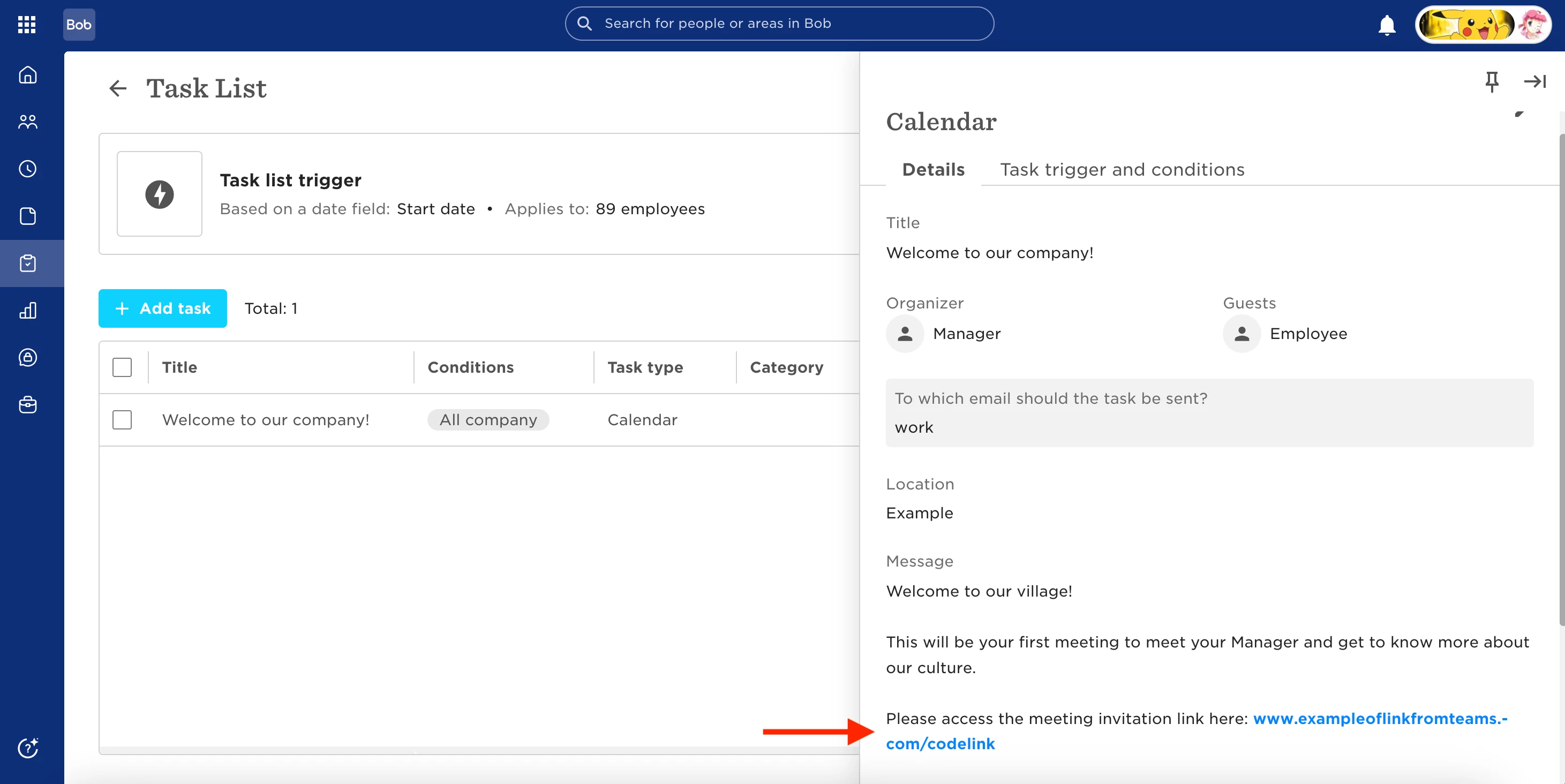
When the invitation is sent, the Teams link will be included in the meeting details.
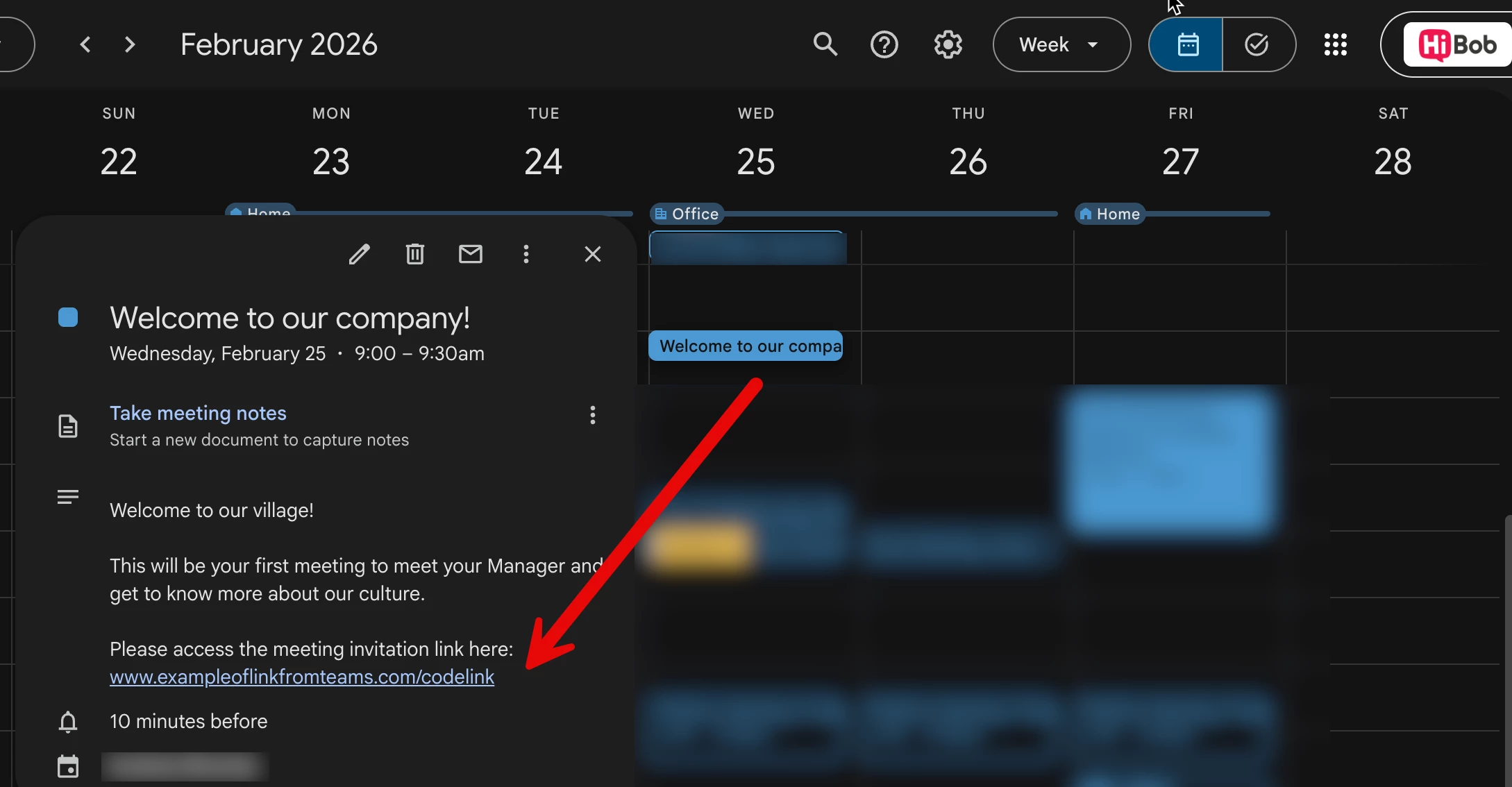
If you have the Outlook Calendar integration connected, the invitation will automatically appear in the recipient’s calendar, and the Teams link will be visible in the event description.
If Outlook isn’t connected, recipients will receive an email with a .ics file attached. After opening the file and adding the event to their calendar, they’ll see the Teams link in the event details.
This setup lets you continue using Microsoft Teams for secure meetings while making sure participants get the correct link as part of the onboarding process.