


General tasks can only be assigned to employees who have an active profile in Bob. If you need a task notification to reach people outside of Bob, you can use a group as an additional recipient.
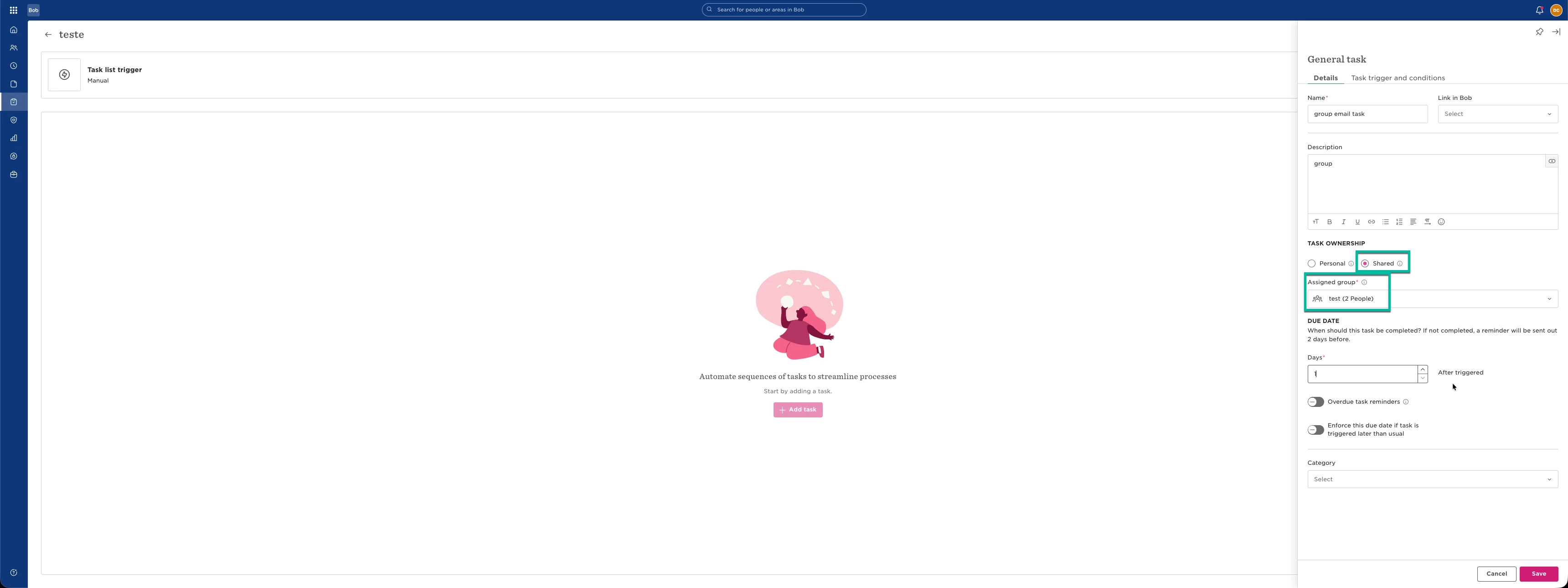
If you're using a distribution list such as finance-team@example-company.com, here's how it works:
Add the group email address in the Group email field.
Bob will send the notification directly to that email address.
Everyone included in that distribution list will receive the email, based on how the email group is configured outside of Bob.
When adding employee recipients:
The employees selected in the group are treated as additional recipients.
The notification is sent to:
Everyone included in the group email address, and
Any employees selected in the Bob group.
If the group doesn’t include an email, then it will send to each work email inside the group
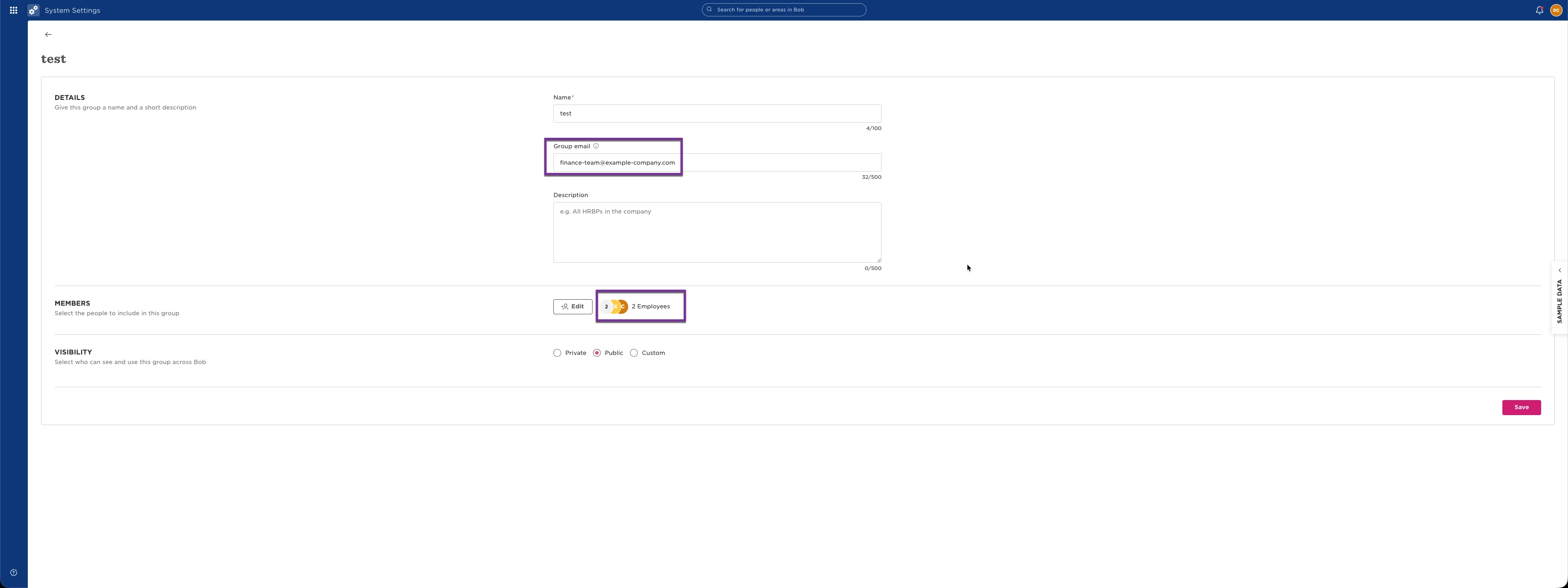
For example:
Group email
Selected employee
Result
finance-team@example-company.com
Employee A (not part of the distribution list)
All members of the finance distribution list receive the email, plus
Employee A
finance-team@example-company.com
Employee B (already part of the distribution list)
Employee B may receive the email twice: once through the distribution list and once as a direct recipient
No group email selected
Employee A & B
Both Employee A & B will receive the email on their own work email
Because finance-team@example-company.com is already a distribution list, you do not need to identify every individual recipient within that email group for the email to reach them. The distribution list itself controls who receives the message.
Keep in mind that when creating a group in Bob, at least one employee must be included in the group. If the selected employee is already part of the external distribution list, duplicate notifications may occur.
If avoiding duplicate emails is important, consider using an employee who is not already included in the distribution list, or use an email task instead if it better suits your process.