

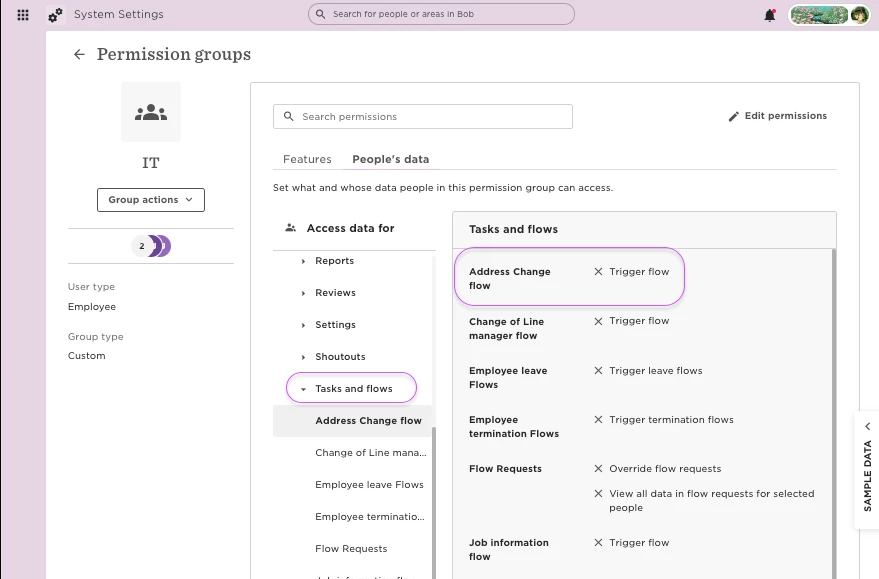
Permissions to trigger flows in Bob are managed under the People’s data tab » Tasks and flows in Permission groups. For someone to activate (trigger) a flow, they must have the relevant permission for that flow (in one of their groups).
Step 1: Grant a group permission to trigger a flow
-
As a Bob Admin, go to System settings > Account > Permission groups
-
Select (or create) the permission group you want to update
-
Click Edit permissions and open the People’s data tab
-
Under Tasks and flows, check the box for the flow(s) you want members of this group to be able to activate
Step 2: Ensure category and field permissions
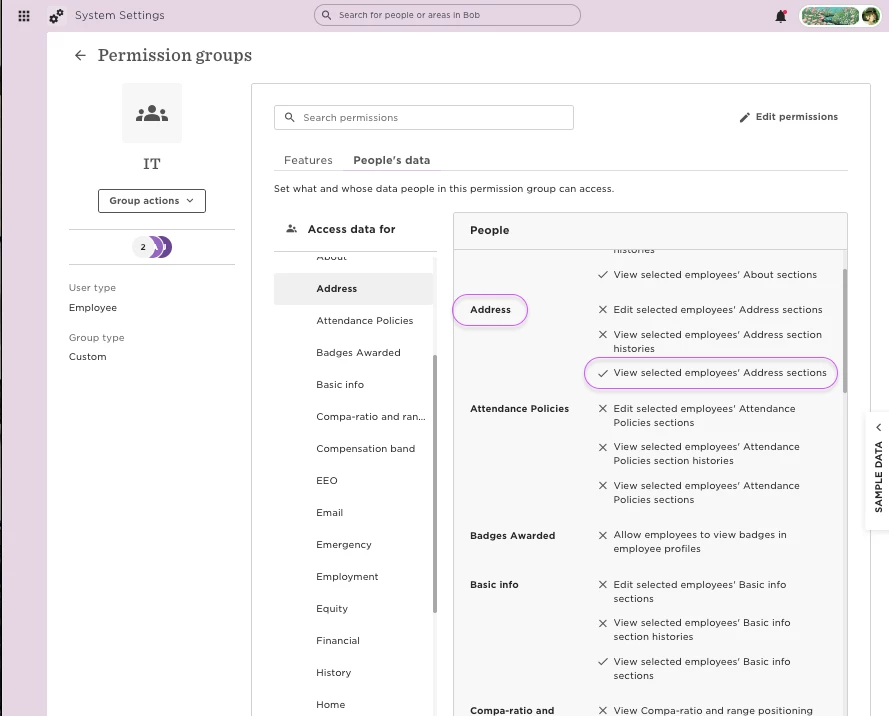
In addition to the “Trigger flow” permission, users must have view access for all categories or fields included in the flow. Otherwise, the flow will fail or block them from updating.
-
Still in the People’s data tab, go to the relevant category (e.g. Address)
-
Expand the category and check View
Step 3: Make sure the permission group applies to the right employees
If someone needs to trigger a flow for another employee, the permission group granting them the “Trigger flow” right must also apply to that employee.
This is set under People’s data » Access data for in the permission group.
Step 4: Test triggering the flow
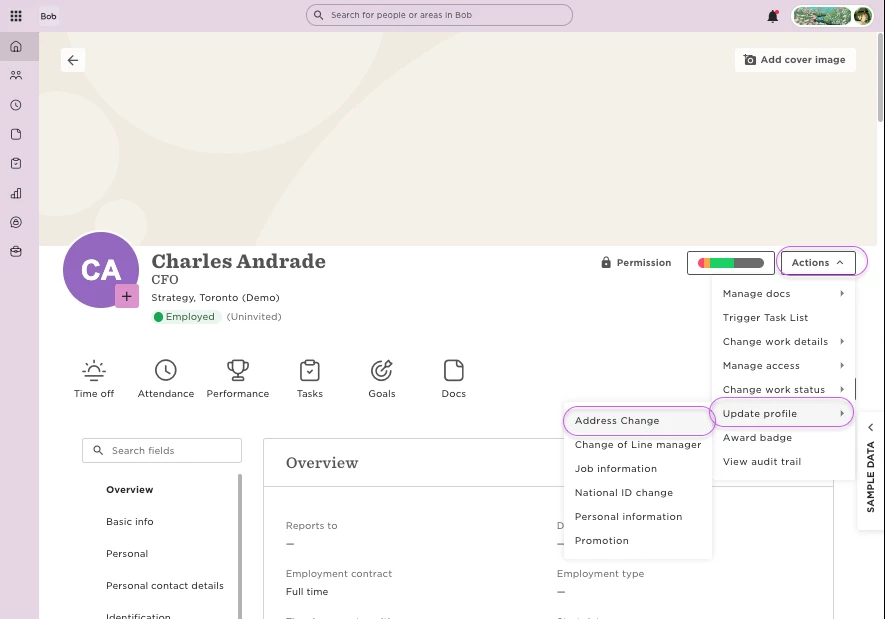
Once permissions are set, users in the group will see the flow in Actions > Update profile within an employee’s profile.
To confirm, log in as a member of the group and check that the flow option is visible from their point of view.
Self-service flows
If employees should trigger a flow on their own profile (for example, an Address Change), add the flow to the All people – own data group.
For more details, see: