

Give approvers the permissions they need to update information in a People Data Update request and resubmit it within the same flow.
Being assigned as an approver alone is not enough. The user also needs the relevant flow permissions and access to the People’s Data categories included in the flow.
For example, an employee might submit an equipment request with some fields left empty for their manager to complete. With the appropriate permissions, the manager can select Edit Request, populate those fields, and Resubmit the request.
Step 1: Open the Relevant Permission Group
Go to Settings > Account > Permission Groups.
Open an existing group that includes the approver, such as Managers, or create a dedicated permission group.
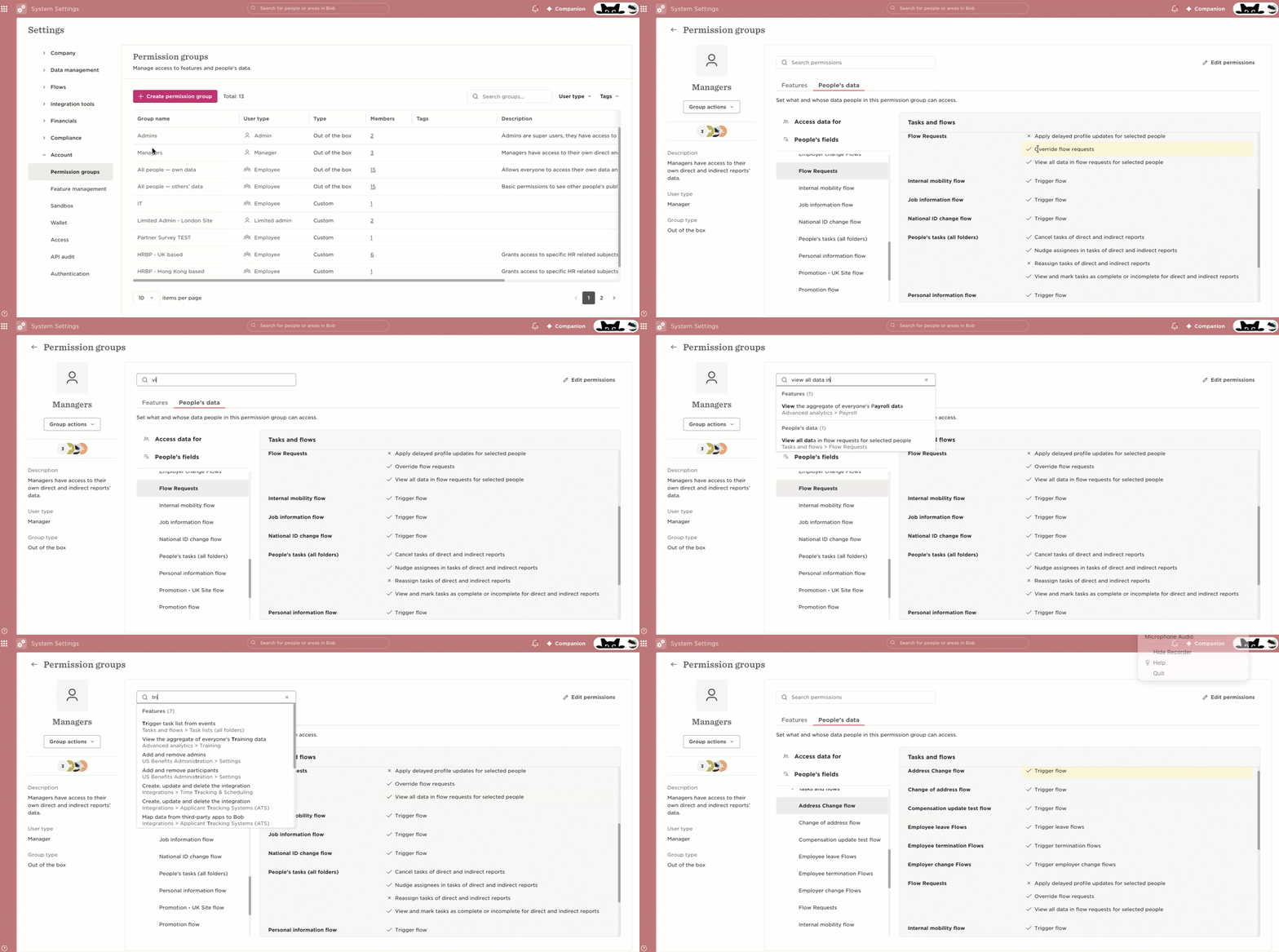
Step 2: Configure the Flow Permissions
Enable the following permissions for the relevant employee scope:
- Override Flow Requests
- View All Data in Flow Requests
Also ensure the group has permission to trigger the relevant flow. Trigger permission alone does not provide the ability to edit and resubmit requests.
Step 3: Review the Categories Included in the Flow
Open the relevant People Data Update flow and check which People’s Data categories it includes.
Step 4: Grant Access to the Relevant Categories
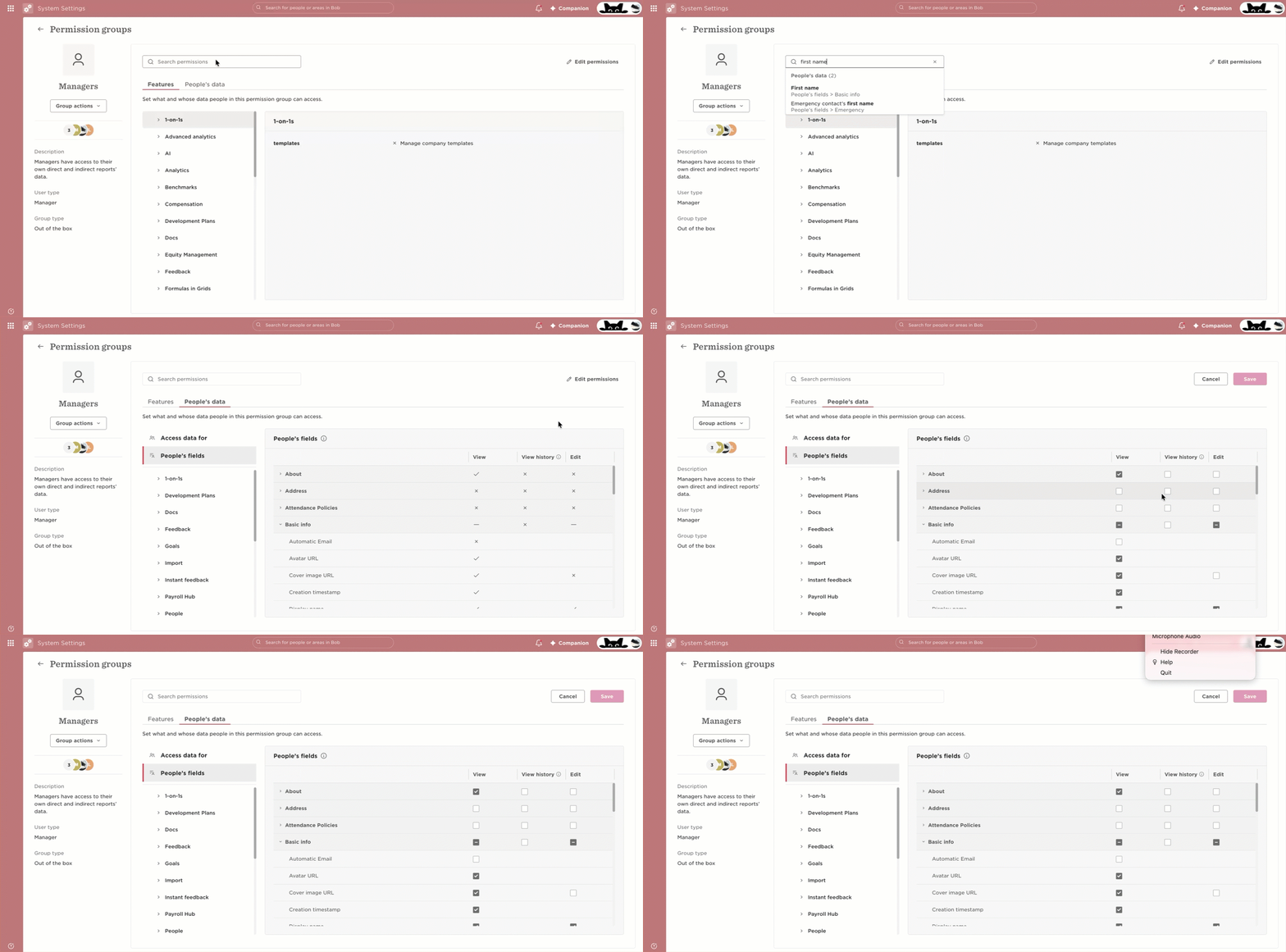
Return to the permission group and review its People’s Data permissions.
Grant View access to all categories included in the flow, within the appropriate employee scope.
Step 5: Test as the Approver
Open a pending request as the approver and confirm that they can:
- Select Edit Request.
- Complete the additional fields.
- Select Resubmit.
This configuration allows the approver to complete information within the existing request, helping keep the process in a single flow.