
The employees on leave may receive the Employee Lifecycle Feedback form to fill. However, this can only be possible if they are still “Active” in the platform.
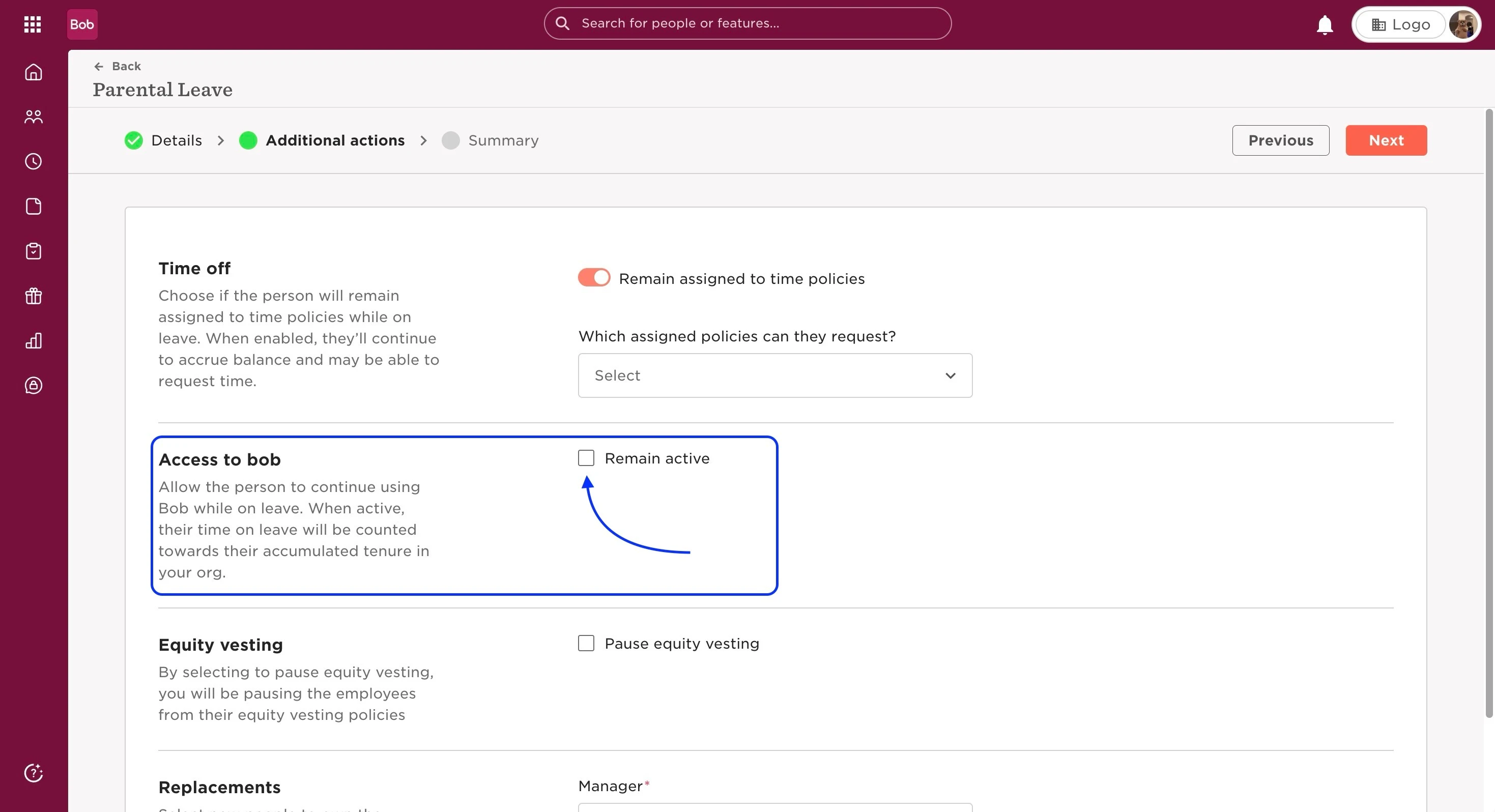
For this to happen, they need to have been selected to Remain active on the platform while on leave (this is done via the Leave flow when adding the leave).
If the employee does not have this enabled, then they will NOT get the form and have access to it. The admin will need to re-invite the employee in order for them to regain access and have the form to fill in the form.
This can be done by:
- On Bob’s homepage, go into the employee’s profile
- In the Lifecycle category table, delete the row with the current leave that is keeping the employee “Inactive” (you can find here instructions to Update an employee profile)
- Then, go back to the top right of the employee profile, and in the Actions dropdown menu, click on Change work status > Place on leave
- Select the type of leave they are in (Parental, Maternity, etc.) and the Leave flow you want to use
- In the flow’s Details, add again the dates and requested information, and press Next
- Here, in the Additional actions section, you’ll find the Access to bob where you can tick the box to “Remain active”
- After checking all other details, click Next for the Summary, and then Done.
Last edited on June 30th, 2024