


If an employee was granted Admin permissions after the Sandbox environment was created, they may not be able to log in to Sandbox right away.
Sandbox works as a snapshot of your production environment at a specific point in time. If the employee became an Admin after the Sandbox was created, their updated permissions will not sync to the existing Sandbox environment.
First, verify whether the affected Admin can access Sandbox using the Open Sandbox option.
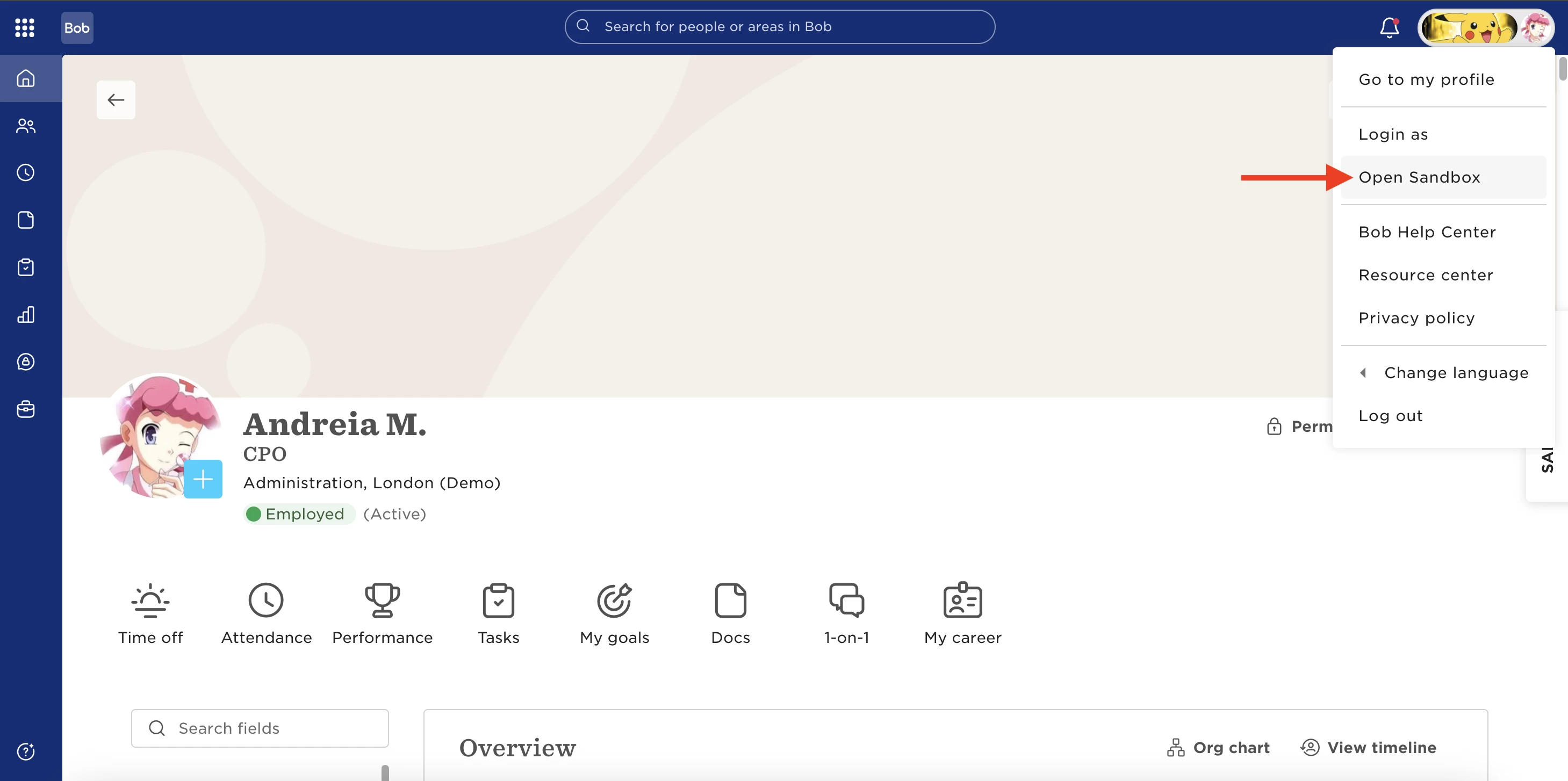
Also, make sure the employee is added to the Admin permission group within Sandbox. Once added, test whether they can log in using Open Sandbox again.
If the issue continues, use one of the following options:
Option 1: Refresh the Sandbox (Recommended)
Refreshing Sandbox syncs it with your current production environment, including updated permissions.
In your production environment:
-
Select the waffle menu.
-
Go to System Settings > Account > Sandbox.
-
Open the Actions menu.
-
Select Refresh Sandbox.
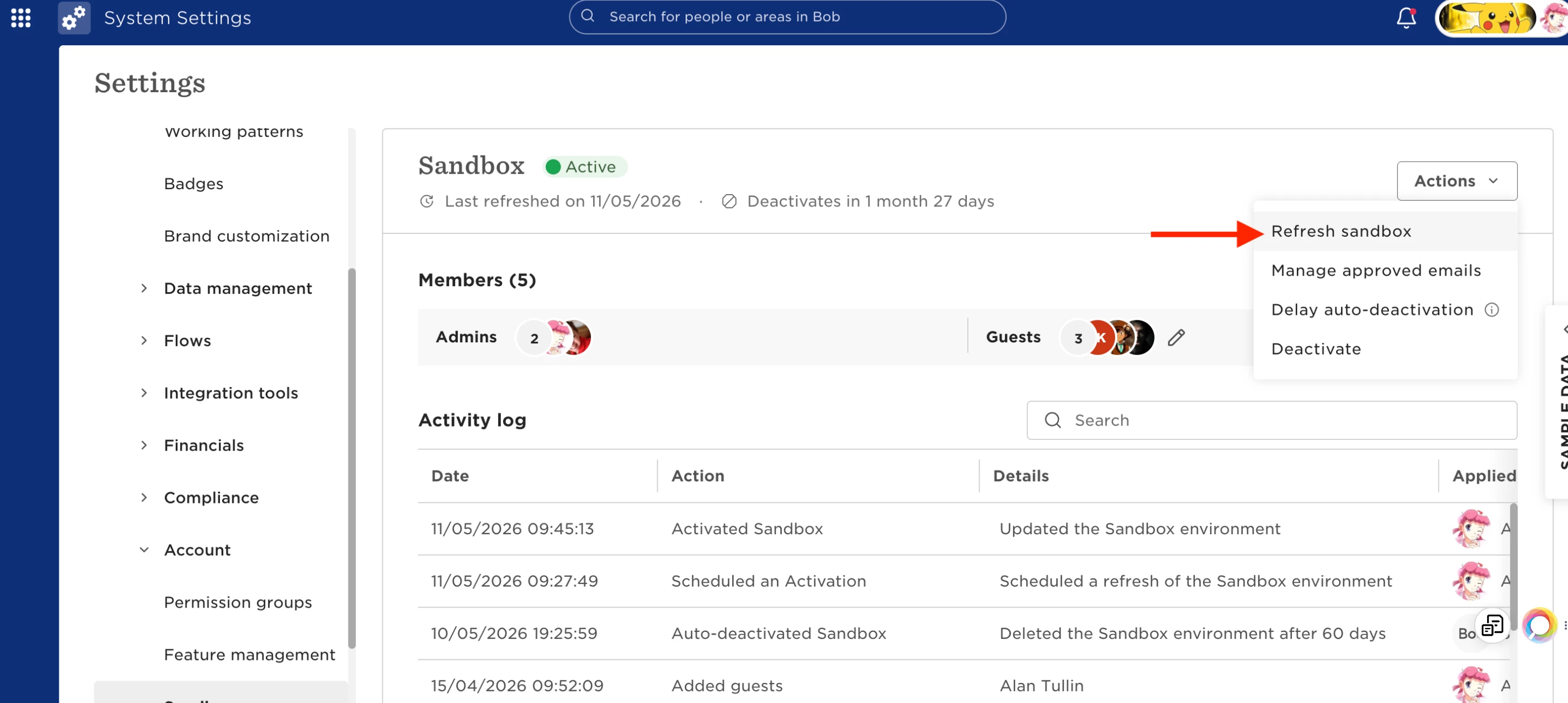
Please note that refreshing Sandbox resets it to match your current live environment. Any Sandbox-specific configurations, settings, or test data will be removed during the refresh.
Option 2: Manually Invite the Employee to Sandbox
If you want to keep your existing Sandbox configuration, you can manually invite the employee into Sandbox. Before sending the invitation, make sure the employee’s work email is included in the Sandbox approved email list:
-
In Sandbox, go to System Settings > Account > Sandbox.
-
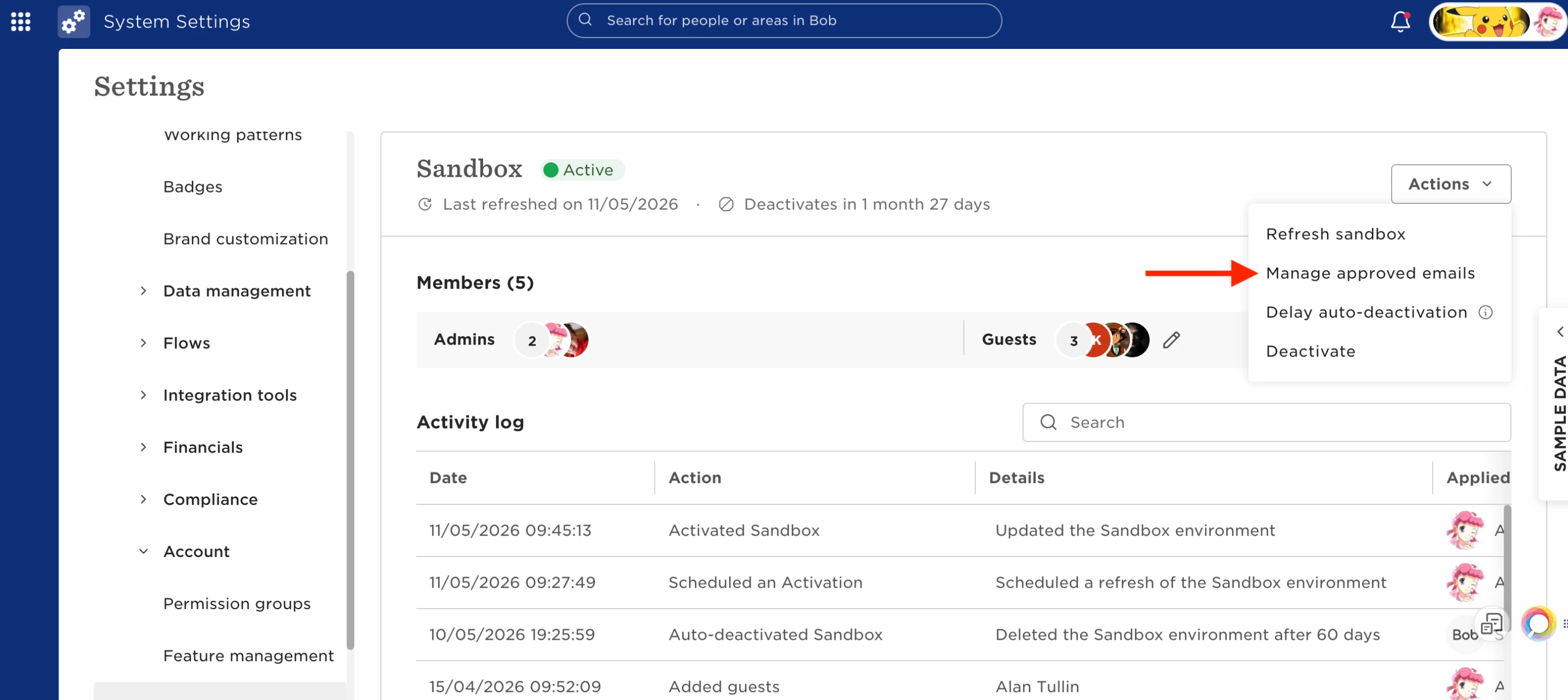
Open the Actions menu.
-
Select Manage approved emails.
-
Add the employee’s email (which should be the same email from their Bob profile)
Once this part is done:
-
Open the employee’s profile in Sandbox.
-
Select Actions > Manage Access > Invite employee.
-
Verify the employee is added to the Admin permission group in Sandbox.
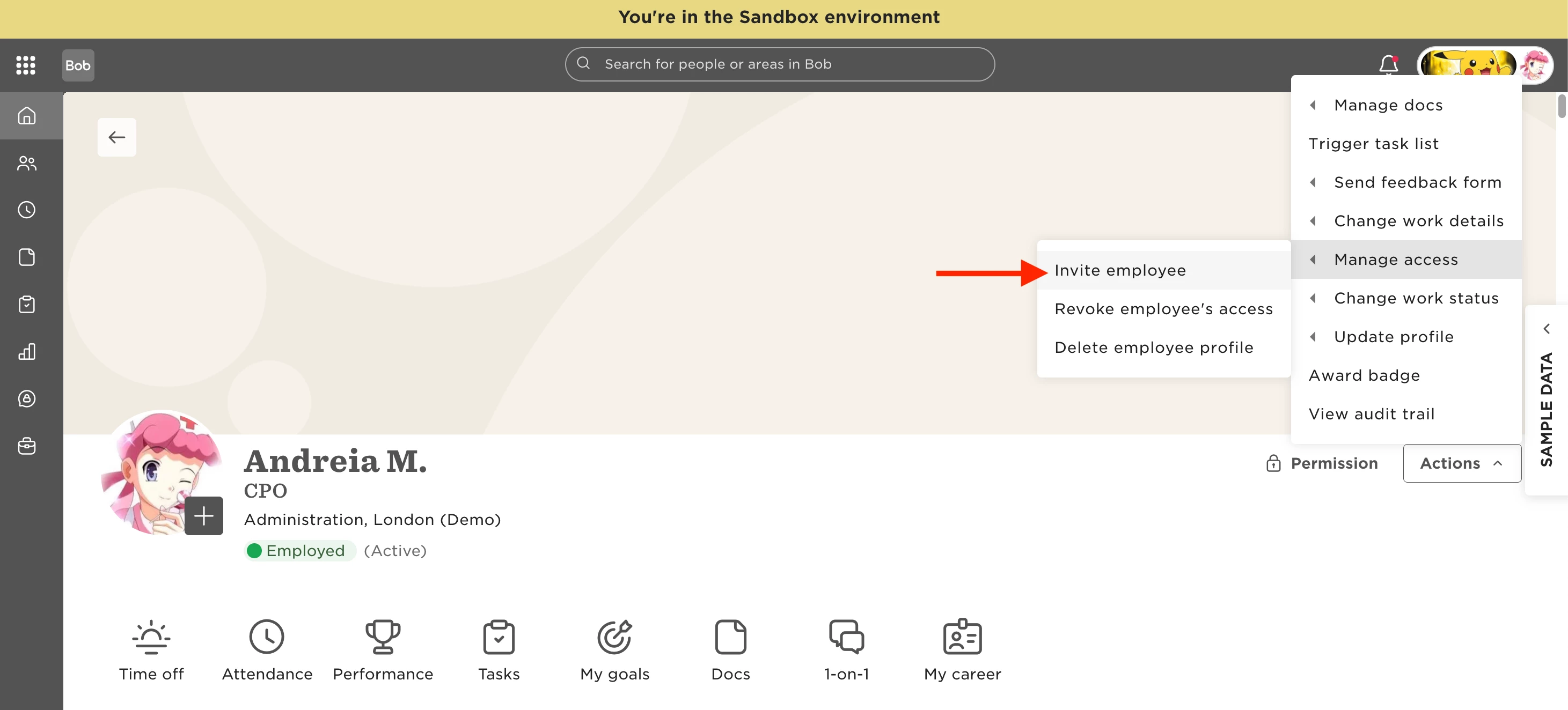
The employee will receive an email invitation with a link to access Sandbox.