Bob provides a variety of reports to help you analyze people data, payroll, compliance, and system activity.
This guide explains each report type, its purpose, and when to use it, including links to the relevant Help Center articles for step-by-step instructions.
1. History Reports
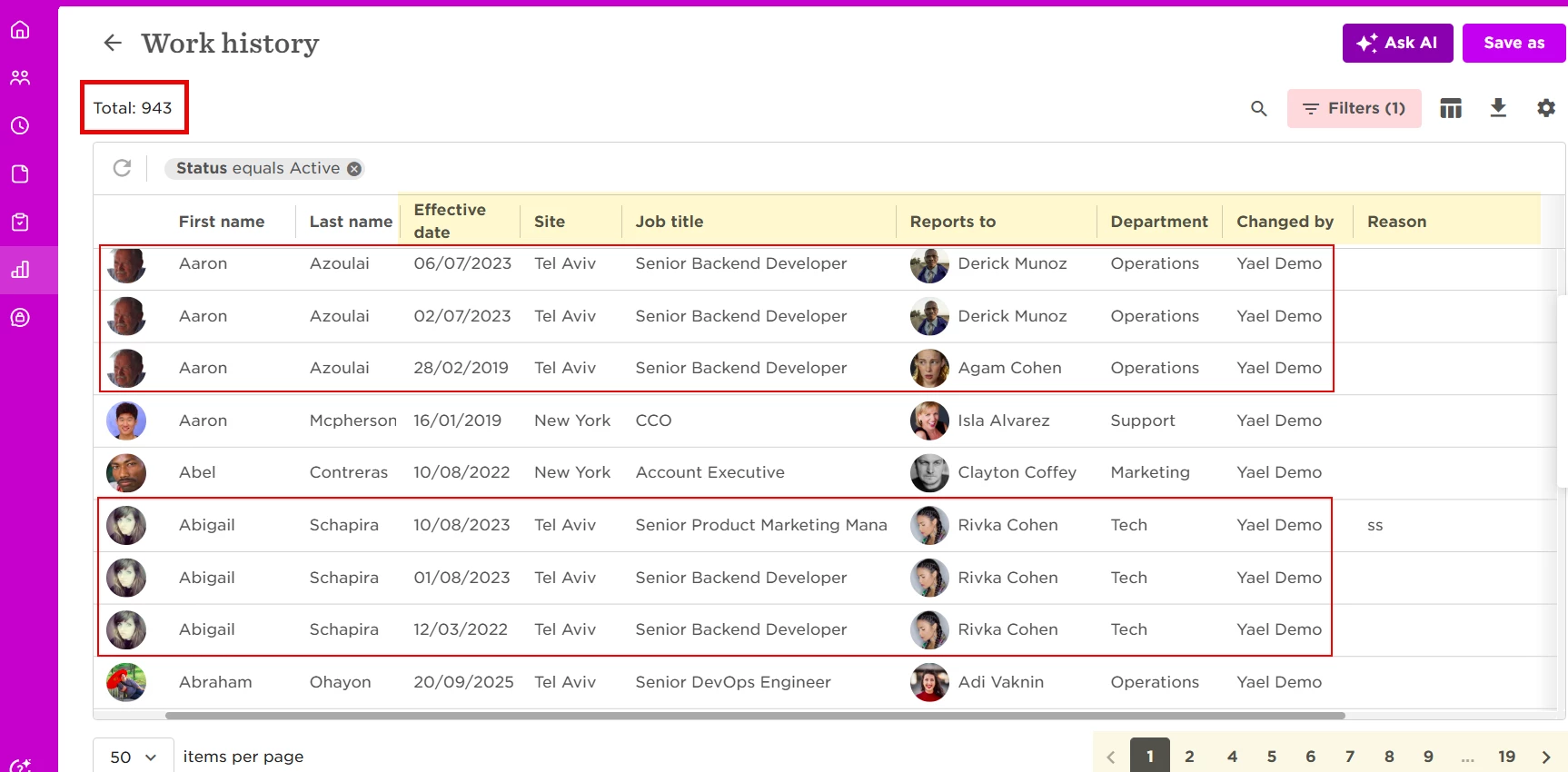
Tables: Address, Deduction, Employment, Entitlement, Lifecycle, Salary, Variable Pay, Work
Purpose: Aggregates historical data of the tables they represent, so you can see all relevant changes to employee information within that category.
When to use: Best for reviewing an employee’s full employment or compensation history in one place.
📊 Example: A Work History report shows every change to an employee’s Work table over time in a separate row (e.g., Job title, Site, Reports to).
2. Multi-Current & Custom Table Reports
Tables: Actual Payment, Children, Right to Work (Work Eligibility), Training, Custom Tables
Purpose: Multi-current tables capture records across multiple dates. These reports cover Bob’s default multi-current tables and custom tables you’ve created.
Since there’s no single report that combines single- and multi-current tables, these are needed to extract that data.
When to use: Use when you need to report on multiple simultaneous records, like trainings, dependents, or right-to-work validations.
🔗 Employee data reports
3. Out-of-the-Box Reports
Examples: General Report, Joiners, Leavers, Demographic Data
Purpose: Predefined reports with fixed columns to display current employee data. A General Report acts like Bob’s People Directory.
When to use: Quick access to common HR data like joiners, leavers, or demographics.
🔗 People directory overview
As of September 2025, you can create general reports using AI!
For details, please see: How to create a general report using AI
4. Point-in-Time Reports
Purpose: Displays employee data from a specific date in the past or future. This helps you (and clients) understand how data looked on that date.
When to use: Ideal for analyzing headcount or employee information at a specific historical or future date (e.g., payroll cutoff).
5. Total Compensation & Calculated Fields
Purpose: Aggregates all payroll data (excluding the multi-current Actual Payment table). Includes calculated fields:
- OTE (Overtime Earnings)
- OT and Compensation Mix (ratio between base salary and variable pay out of total OTE)
When to use: Best for payroll and compensation benchmarking, especially when comparing base vs. variable pay.
📊 Example: An employee with $60,000 base salary and $15,000 bonus will show 80% fixed vs. 20% variable in Compensation Mix.
6. Changes Report
Purpose: Based on the effective date, this report is used to track changes that should be reported (e.g., to payroll carriers).
- Tracks every field selected as columns.
- Highlights changed fields in yellow.
- Does not show the previous value.
- The only report that shows retro changes (past-dated updates).
📊 Example of a retro change:
On Sep 20, 2025, an employee’s job title was updated twice:
- Past data effective Sep 11, 2019 → changed to DevOps Engineer.
- Effective Sep 20, 2025 → changed to Senior DevOps Engineer.
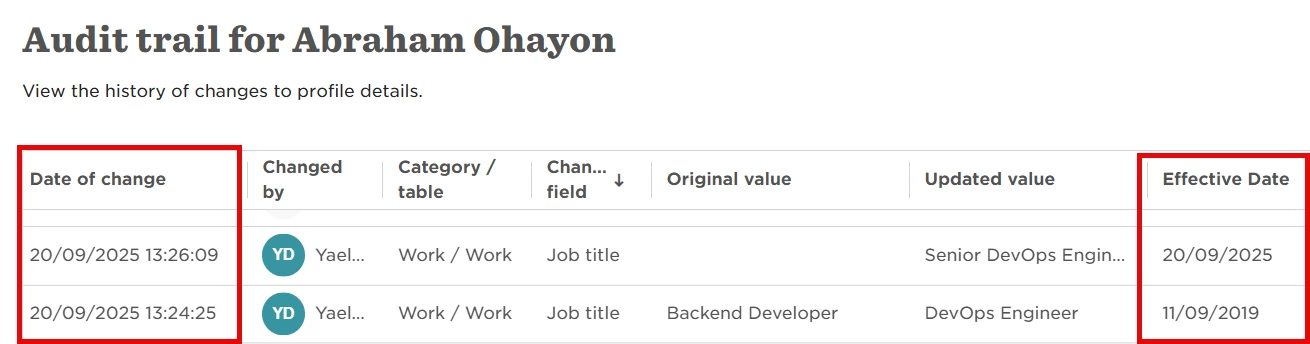
Employee’s Audit trail
Both changes appear in the September 2025 changes report: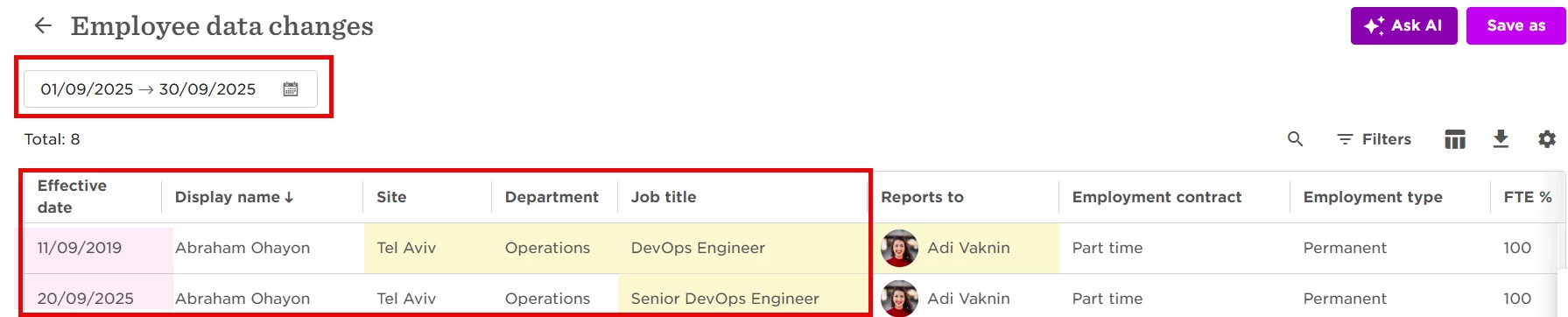
View in the Employee Data Changes report
Important note:
- Adding a new employee counts as a “change” (initial values show in yellow).
- Future edits to regular fields will also be highlighted in yellow.
When to use: Best for payroll reporting or reviewing historical changes over a defined period.
7. Audit Report
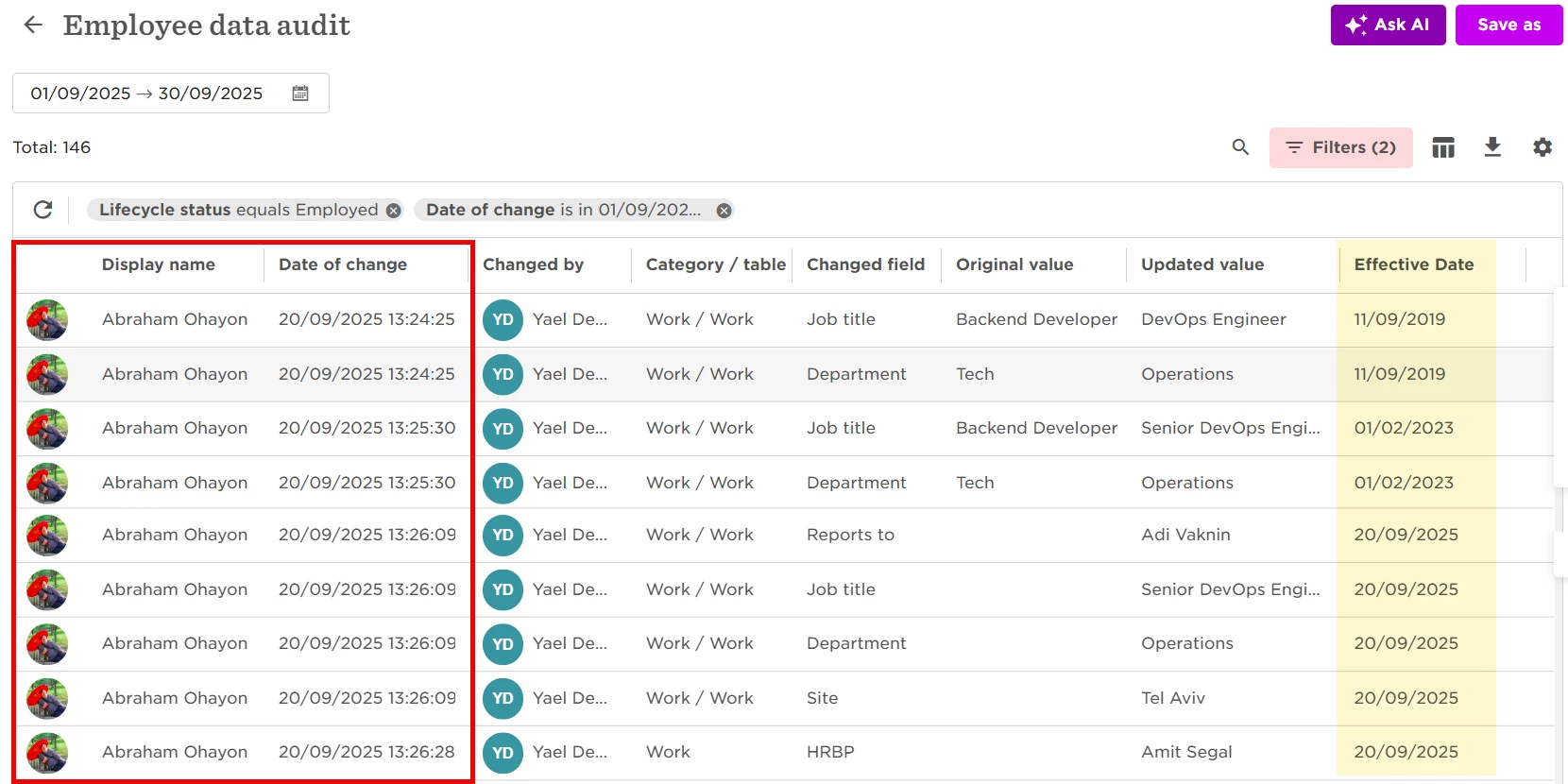
Purpose: Based on the change date, this report shows:
- Who (system or user) initiated a change
- When it was made
- The previous and new values
It reflects what you see in the audit trail within employee profiles.
When to use: Best for compliance checks or investigating specific changes.
📌 This is how the previous example would be displayed in an Audit report:
8. Changes Tracking Report
Purpose: Combines audit and changes report functionality. You can:
- Select specific fields to track (e.g., Job title)
- Add additional data not part of the changes
- Include previous values alongside the new ones
When to use: Use when you need detailed, field-level change tracking with context.
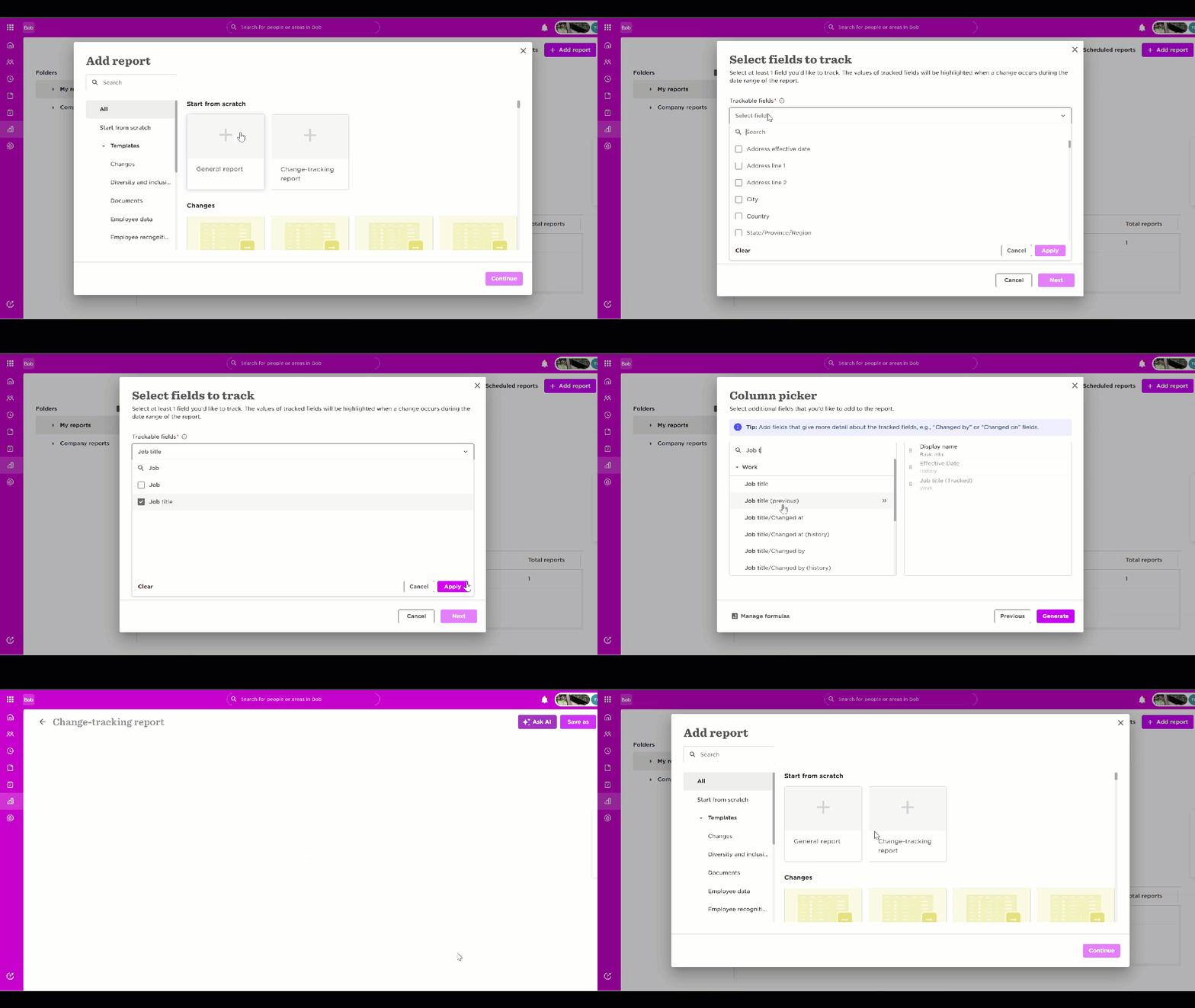
🔗 Create Change-tracking reports
9. Feature-Related Reports
| Feature | Examples | Purpose | When to use | HC link |
| Time | Time Off | View TO policy settings and audit | For TO tracking and planning | |
| Equity | Equity Grants | Track equity awards and vesting | For monitoring stock grants and vesting schedules | — |
| Docs | eSign Status | Track all eSign requests | For monitoring signature requests status | |
| Tasks | Task Lists report | See all task lists triggered for each employee | For checking if a list was triggered, when and how |
10. Account & Security Reports
| Report | Purpose | When to use | HC link |
| Employee Fields | Lists all field attributes (default/custom, archived status, Field IDs, etc.) and changes (Original name/category). | Use when auditing all account fields and IDs | |
| Support Access Log | Shows who from Bob’s CX team logged into the account and when | For auditing CX team support access | |
| Support Consent | Shows which company user granted Bob CX team access and when | To confirm when access consent was given | |
| Exports | Shows all reports downloaded, by whom | Useful in potential data breach checks | |
| System Logins | Tracks who logged into Bob, when, and how | For investigating unusual activity or permissions errors | |
| Permissions Group | Shows which permission groups each employee belongs to | For auditing access by group | |
| Permissions Matrix | Shows which permissions are open/closed in each group | For compliance or role-based audits |