

Want to see how much your employees’ salaries have changed over time? You can build a change-tracking report in Bob to calculate the percentage difference between previous and current base salaries.
Here’s how to set it up:
-
Go to Analytics > Reports
-
Click + Add report and choose Change-tracking report
-
Under Trackable fields, select Base salary, then click Apply and go Next
-
In the Columns section, make sure Base salary (previous) is included
-
Click + Add column and choose Formula
-
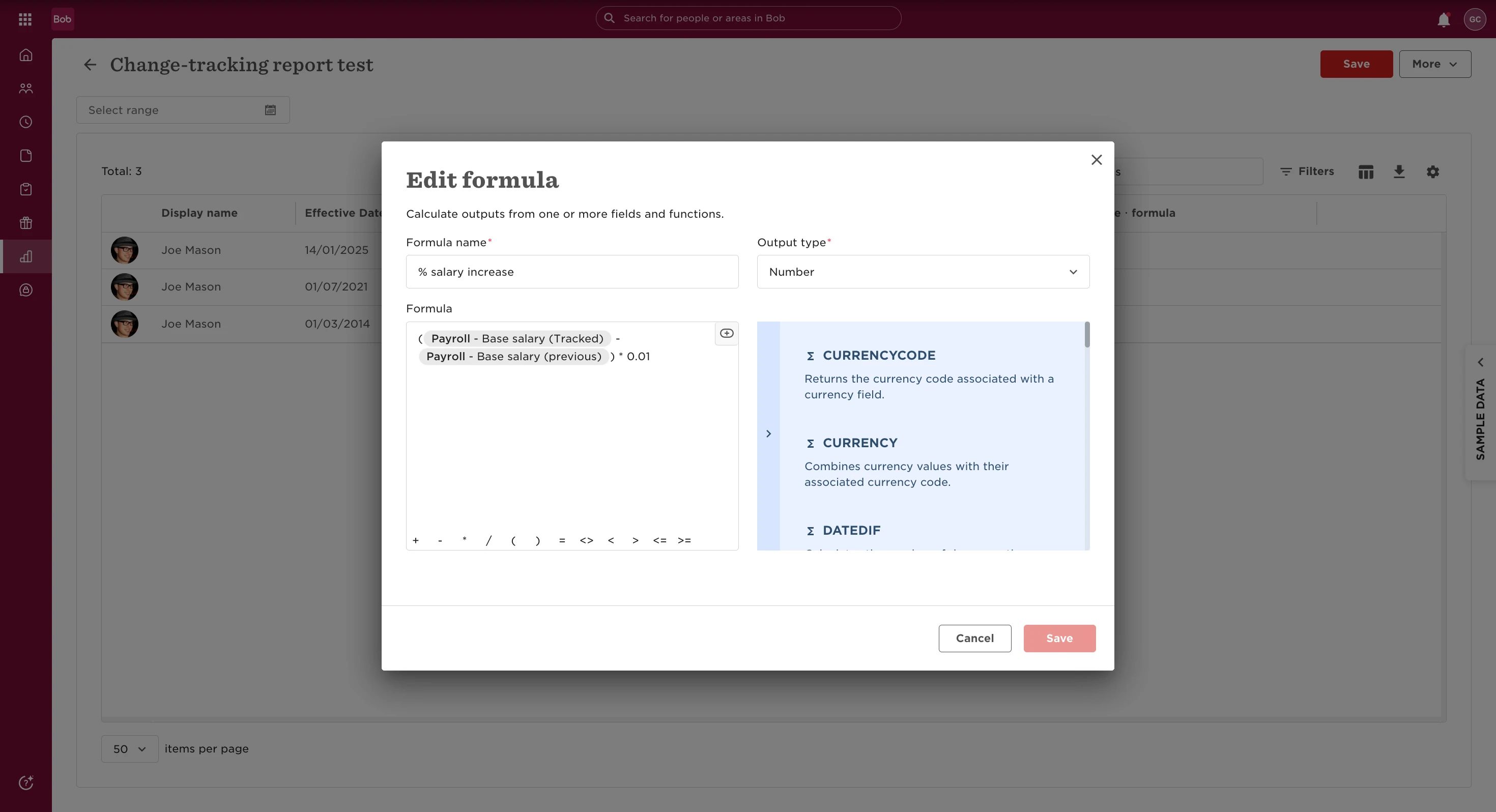
Create a formula with the following logic to calculate percentage change:
-
Name your formula (e.g., “% Salary Change”) and click Save
-
Search for the formula name you just saved, and add it to your report
-
Your final report will now include the percentage change column:
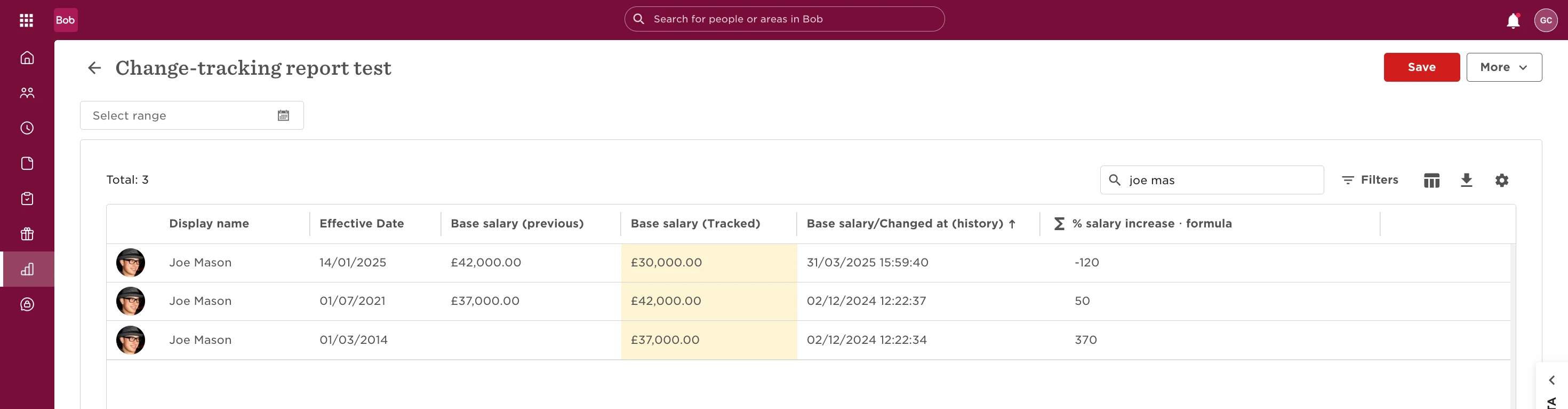
That’s it! You now have a dynamic report showing how employee salaries have shifted over time.