
If you need to report on employees who were active at any point during a specific period (for example, during 2025), you can use a combination of groups and a formula to capture this.
This approach ensures employees are included if they were active at any point in the timeframe, even if they started before, during, or were terminated within it.
Start by creating two groups to narrow down the population.
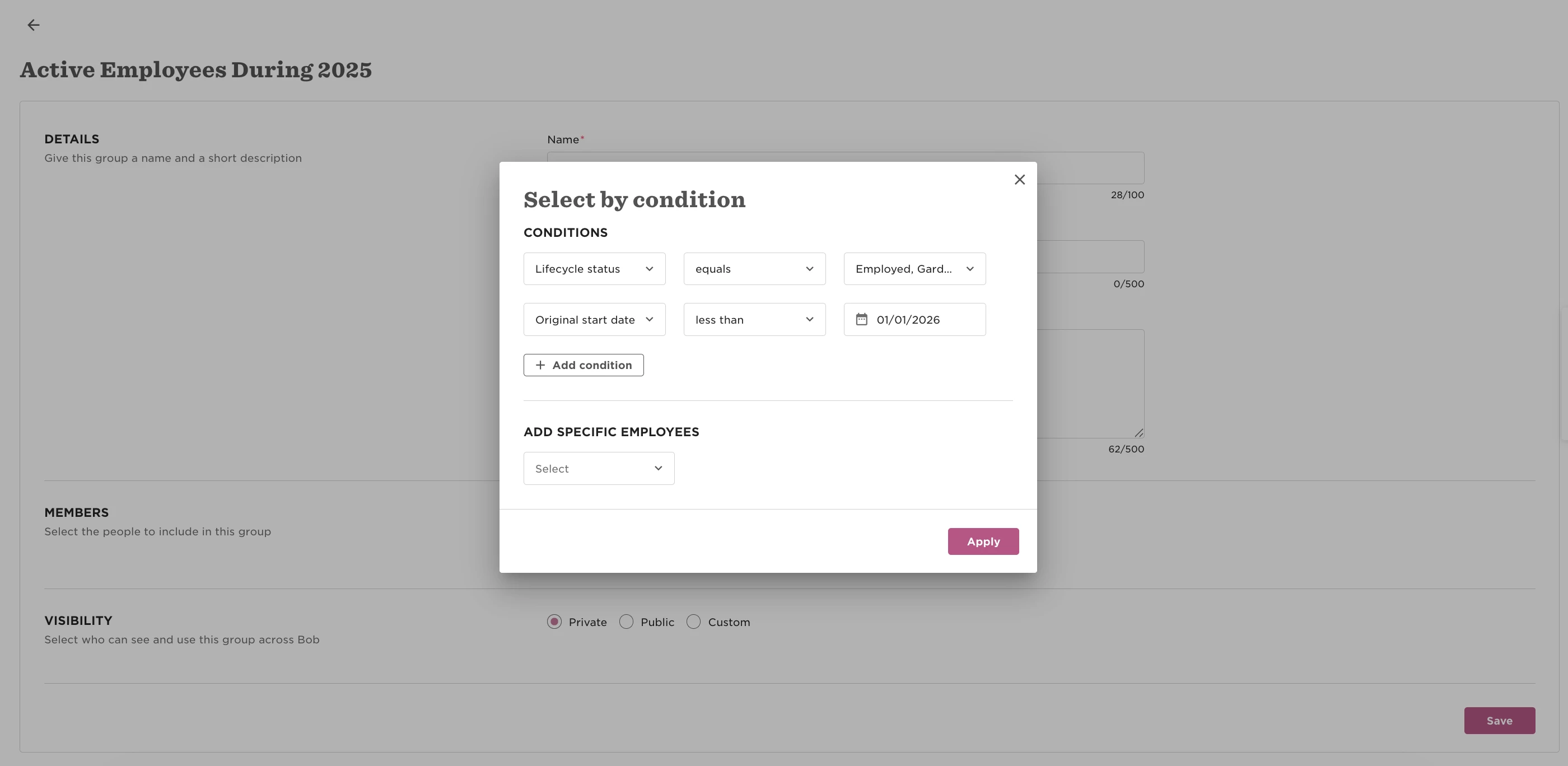
1. Go to System Settings > Data management > Groups and create a group for active employees:
- Include lifecycle statuses like Employed, Leave, Parental leave, Garden leave
- Set Original start date to before the end of the timeframe (e.g., before 01/01/2026)
1. Active Employees Group
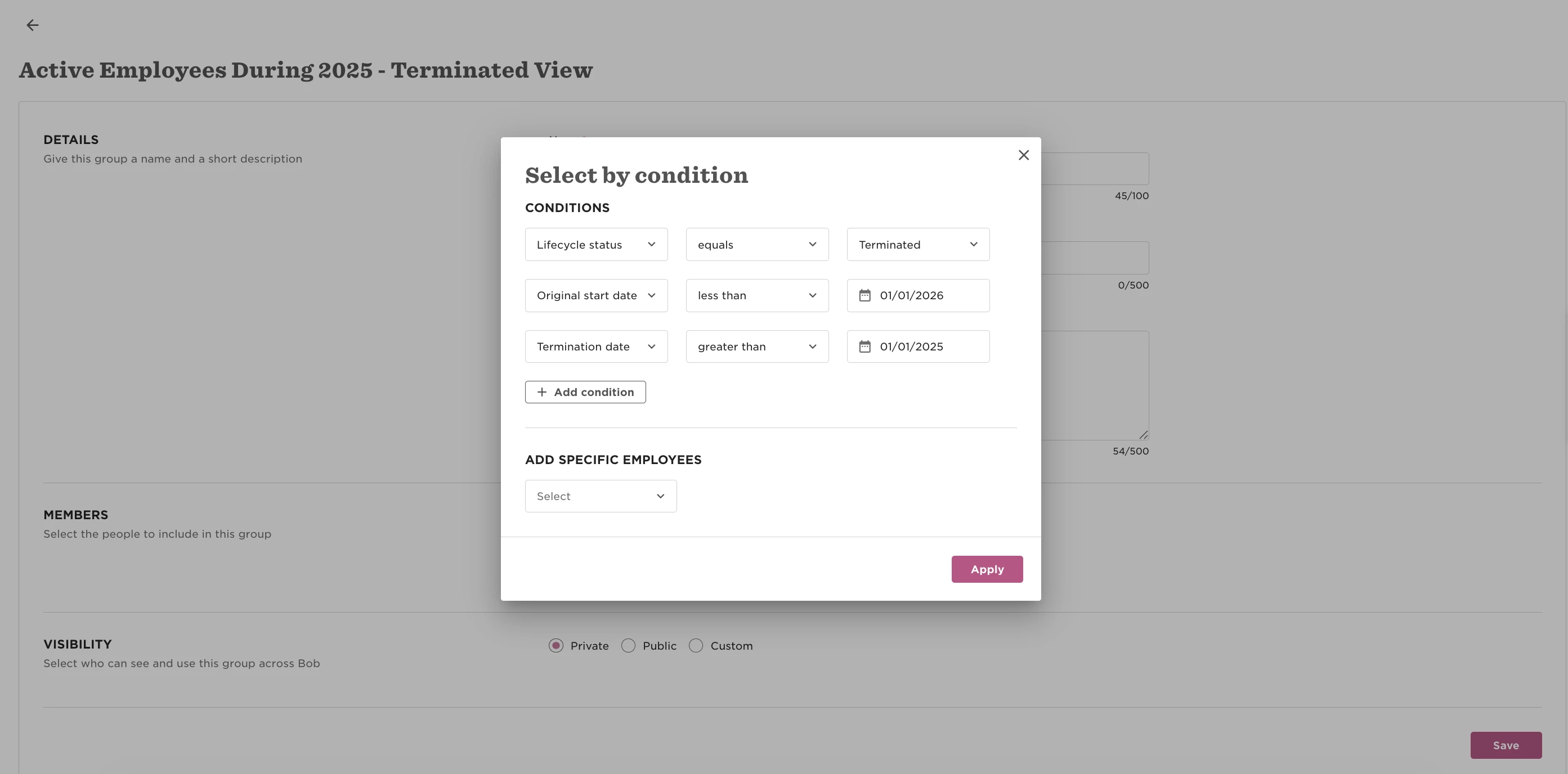
Then create a second group for terminated employees:
- Set Lifecycle status to Terminated
- Set Original start date to before the end of the timeframe
- Set Termination date to fall within the timeframe (e.g., after 01/01/2025)
2. Terminated Employees Group
Next, create your report.
1. Go to Analytics > Reports > Add report and select a General report. Add the columns you need.
Then apply filters:
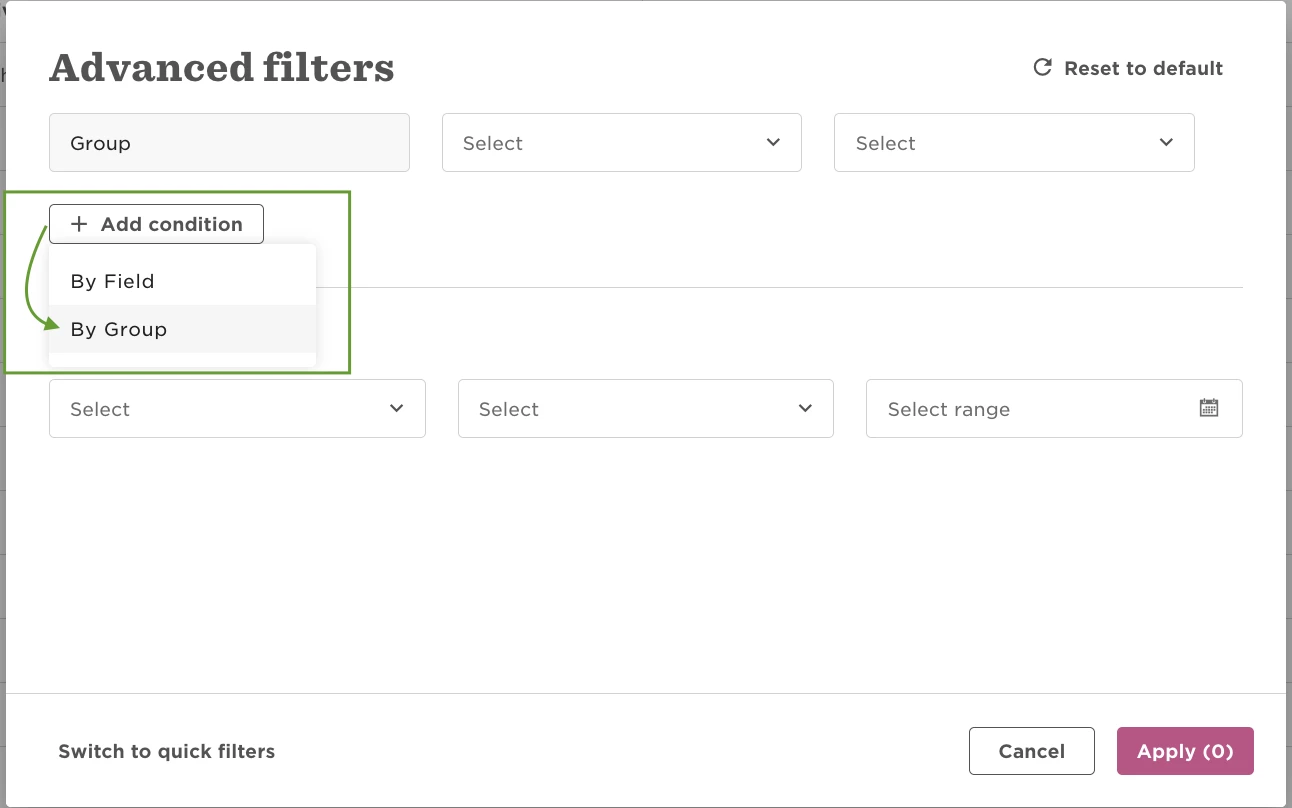
- Open Filters
- Switch to Advanced filters
- Add a condition: By group
- Select both groups you created
Now add the formula column.
- Open the Column picker
- Select Manage formulas
- Click Add formula
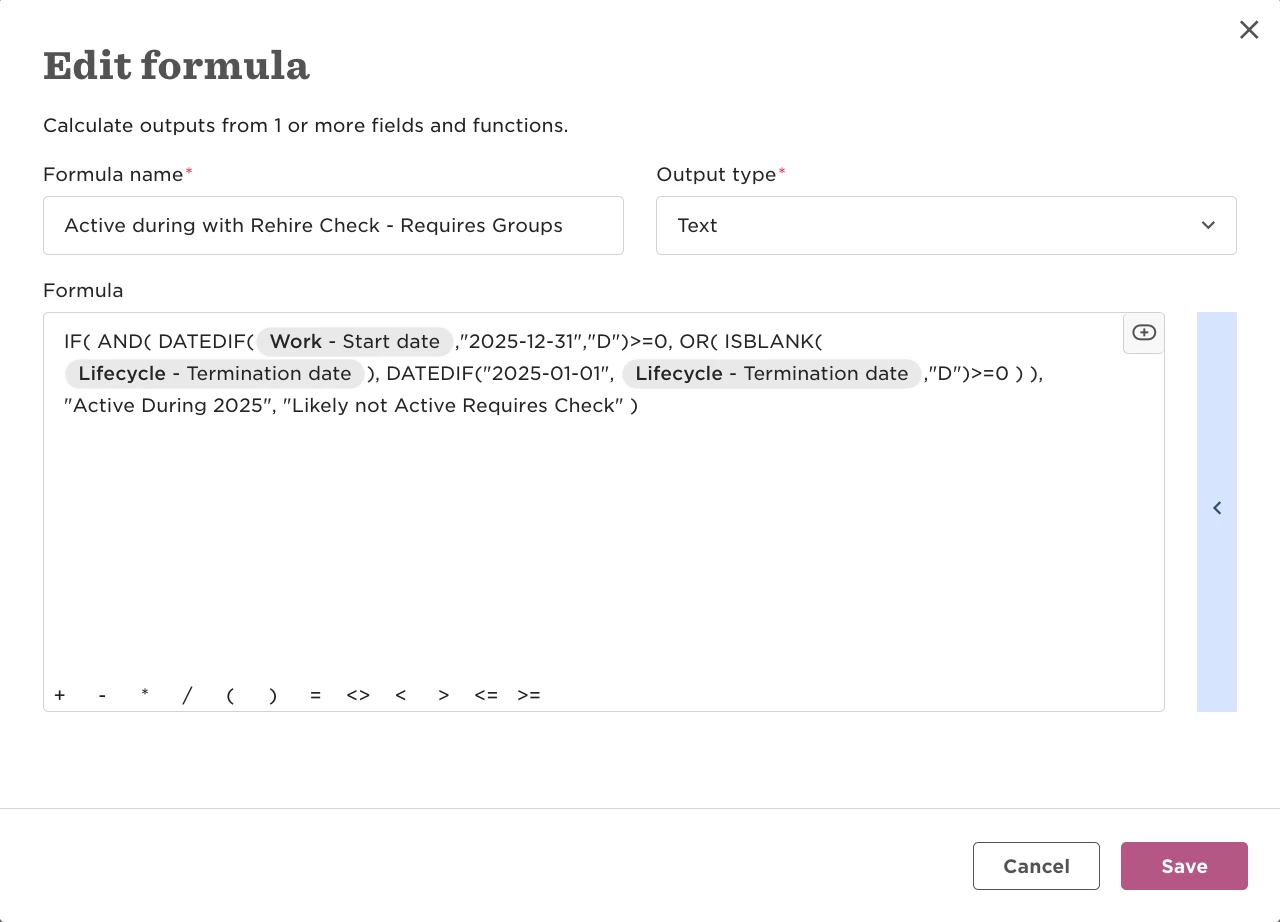
This formula classifies employees based on whether their employment overlaps with the selected timeframe.
3. Who’s Active Formula - Requires Group Filter
It identifies:
1. Active during the period (2025)
- Started on or before the end of the period (31/12/2025)
- And either: Has no termination date, or Was terminated on or after the start of the period (01/01/2025)
2. Likely not Active - Requires check
- These are edge cases where the system can’t clearly determine activity during the timeframe based on the current record alone
In practice, this usually means:
- The employee has multiple employment periods (for example, terminated and later rehired)
- The relevant activity doesn’t fully appear in the current record
- The formula can’t confidently confirm overlap with the timeframe
Because of this limitation, these employees need a quick manual review.
Important:
This formula is only reliable when used together with the group filters above.
Without the group filter, the dataset isn’t properly narrowed down, and the results won’t accurately reflect employees active during the timeframe.
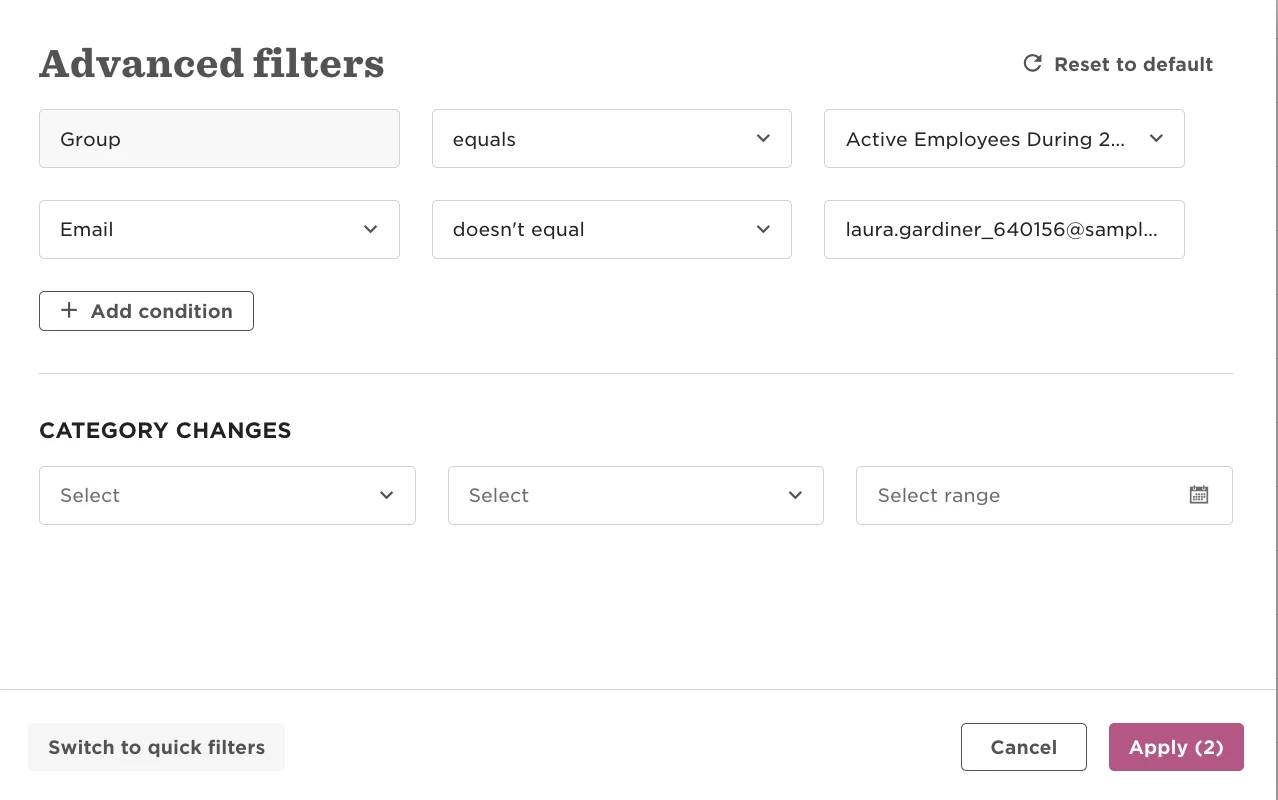
After reviewing any edge cases, you can further refine your results (for example, using filters to exclude specific emails) to finalise your list.
4. Email Does not Equal
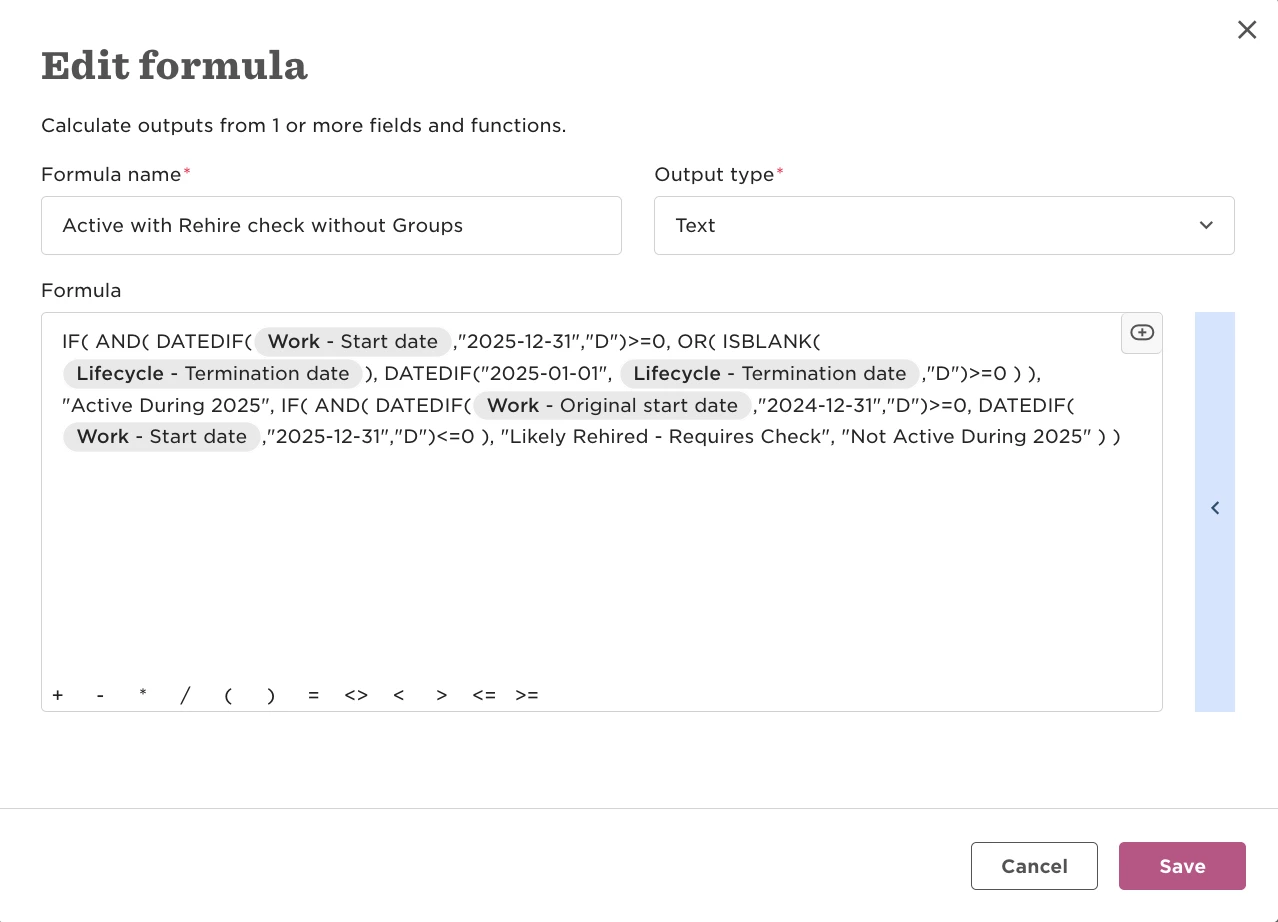
If you prefer not to use groups, you can use an alternative formula that handles everything in one report.
This version classifies employees into:
- Active during period (clear overlap with the timeframe)
- Likely not Active – requires check (possible multiple employment periods affecting accuracy)
- Not active during period (no overlap with the timeframe)
This approach avoids the group filter dependency but may require more manual cleanup.
It can be a good option when you’re working with a smaller timeframe and don’t want to create dedicated groups just for the use case.
5. Who’s Active Formula Without Group Filter