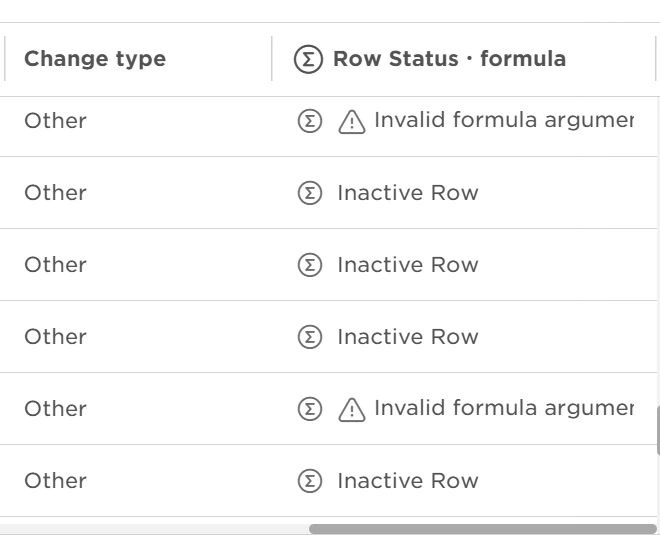

History reports show all records over time but don’t indicate which row is currently active.
These reports include tables like Employment, Work, Salary, Variable pay, and any report that uses Effective date and End date fields. They’re typically used to review changes over time, for example, tracking job title or salary updates across different periods.
To identify the active row, you can add a formula column:
- Open your report
- Go to the Column picker
- Select Manage formulas
- Click Add formula
Use the row’s date fields (Effective date and End Effective date) to determine status:
- No end date (or a future end date) → Active
- Past end date → Inactive
This adds a clear indicator to each row so you can quickly distinguish current vs historical data.
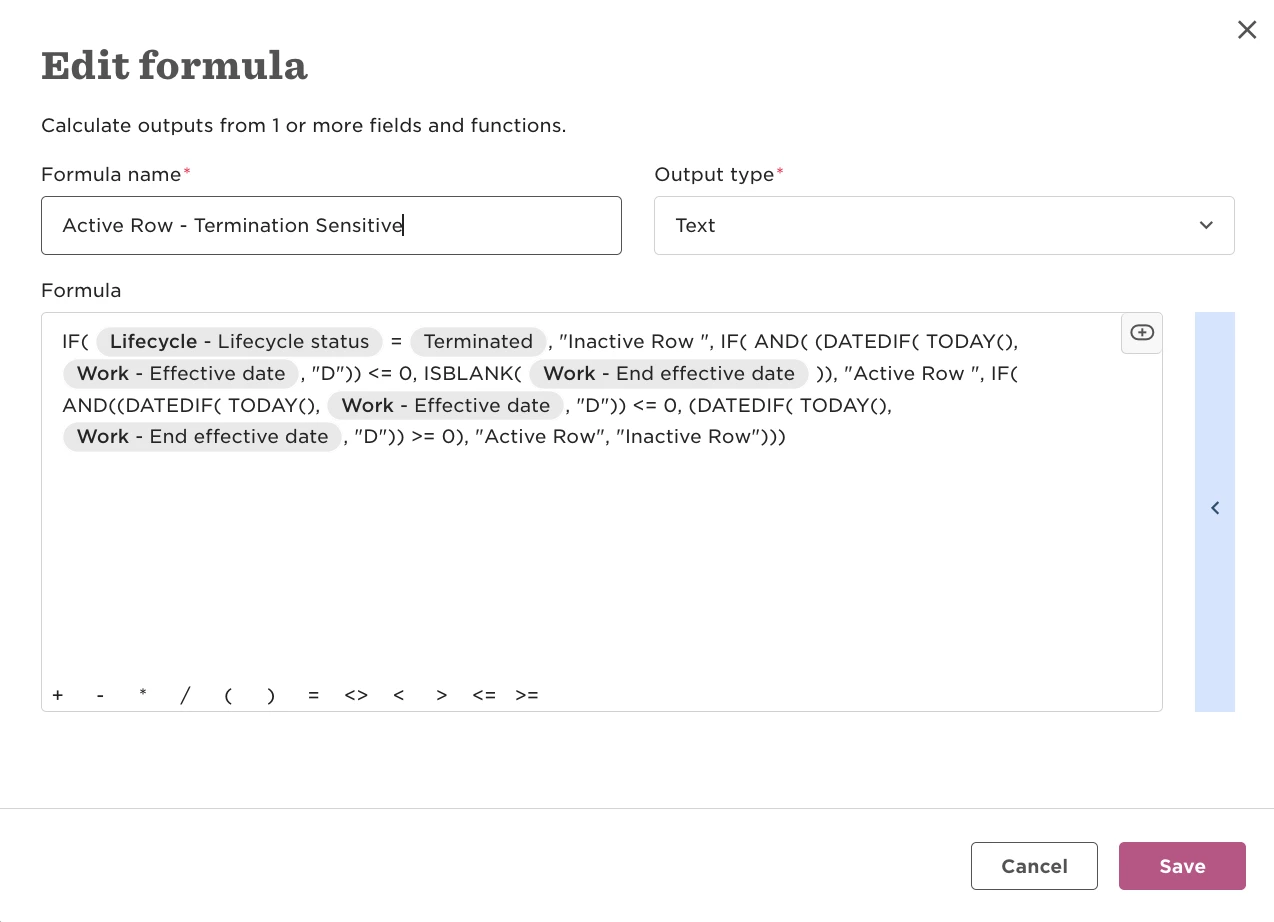
The formula answers this question:
Is this record currently active or inactive, based on its effective dates compared to today and considering that if the employee is terminated, the row is no longer active?
Check Active Row - Termination Sensitive
This approach also works for custom table reports, as long as the table includes date-based fields.