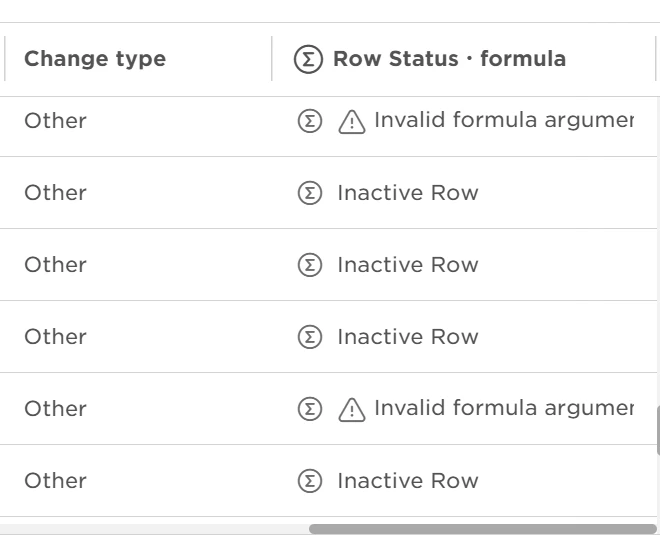

Out-of-the-box tables and custom tables can contain multiple records for the same employee. You can use a calculated column to identify which record is currently active and filter for it in reports.
For example, you might use this for:
- Employment or Work history
- Lifecycle or Salary history
- Custom tables that track current and historical records
For both out-of-the-box and custom tables, you'll need to create a calculated column that uses date fields to return an Active or Inactive status.
The difference is how those date fields are set up:
- Bob's out-of-the-box tables, such as Lifecycle, Employment, Work, and Salary, typically already include Effective date and End effective date fields. You can use these existing fields when creating the calculated column.
- Custom tables don't have the same effective-date structure automatically. You'll first need to add fields representing the start and end dates of each record, then use those fields when creating the calculated column.
Use a Calculated Column to Identify Active Records
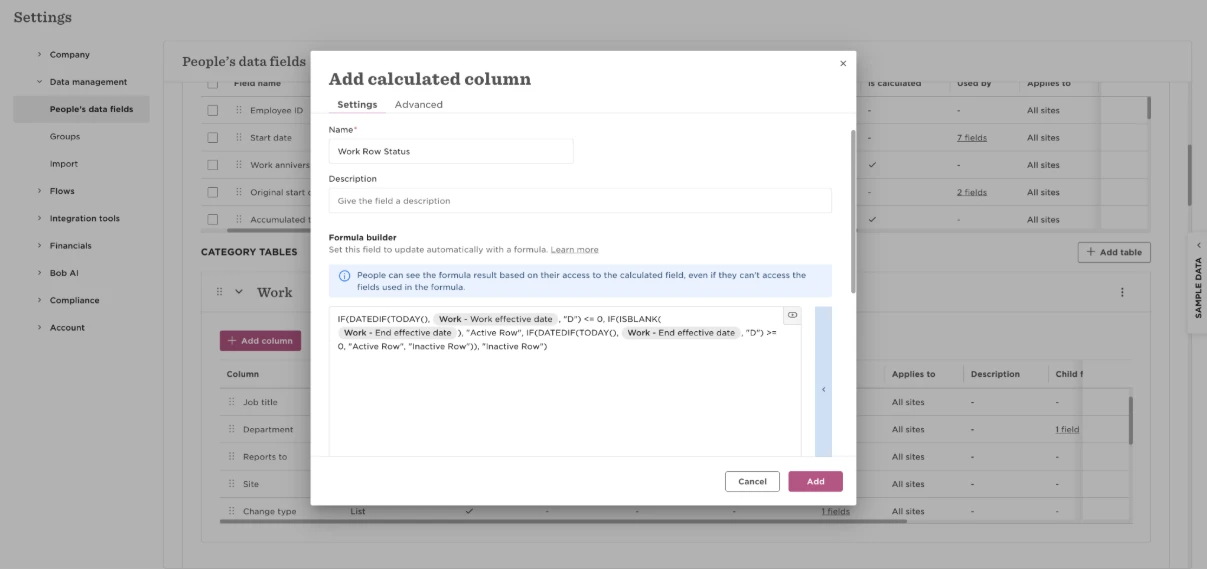
Create a calculated column using the relevant start and end date fields for your table.
Use the row's dates to determine its status:
- The start date has been reached and there is no end date → Active
- The start date has been reached and the end date is in the future → Active
- The end date has passed → Inactive
- The start date is in the future → Inactive
Where relevant, you can also include the employee's termination status in the calculation so records for terminated employees aren't considered active.
Example using out-of-the-box table:
Another example using a custom table:
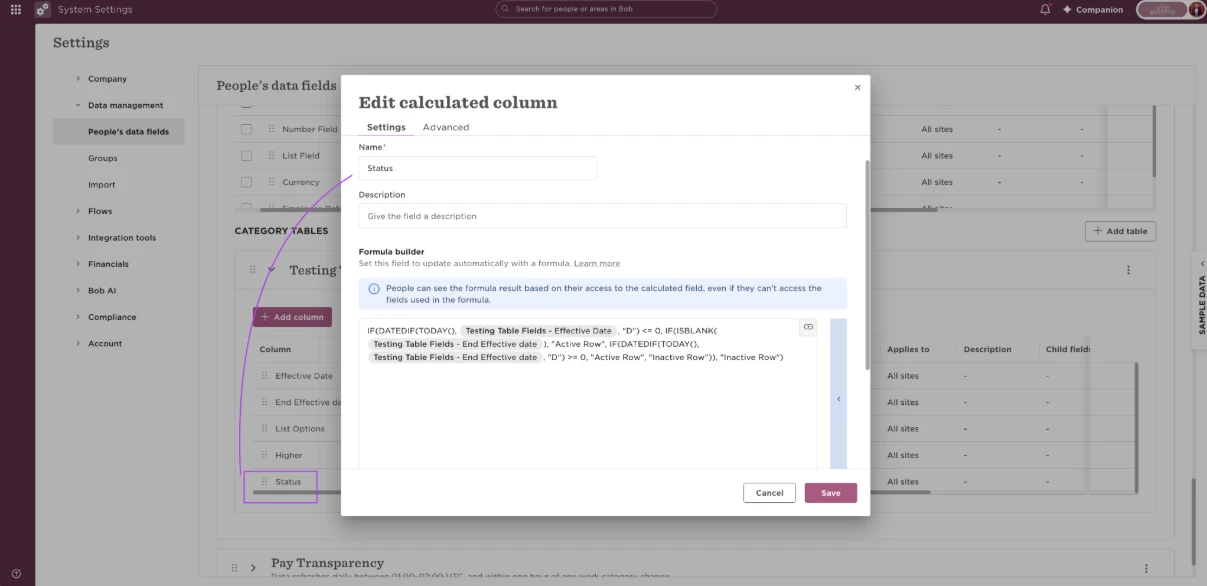
For custom tables, this recreates an Active/Inactive status similar to the active-record behavior of Bob's out-of-the-box effective-dated tables. Custom tables won't display the green active-row indicator, but the calculated column provides an explicit status instead.
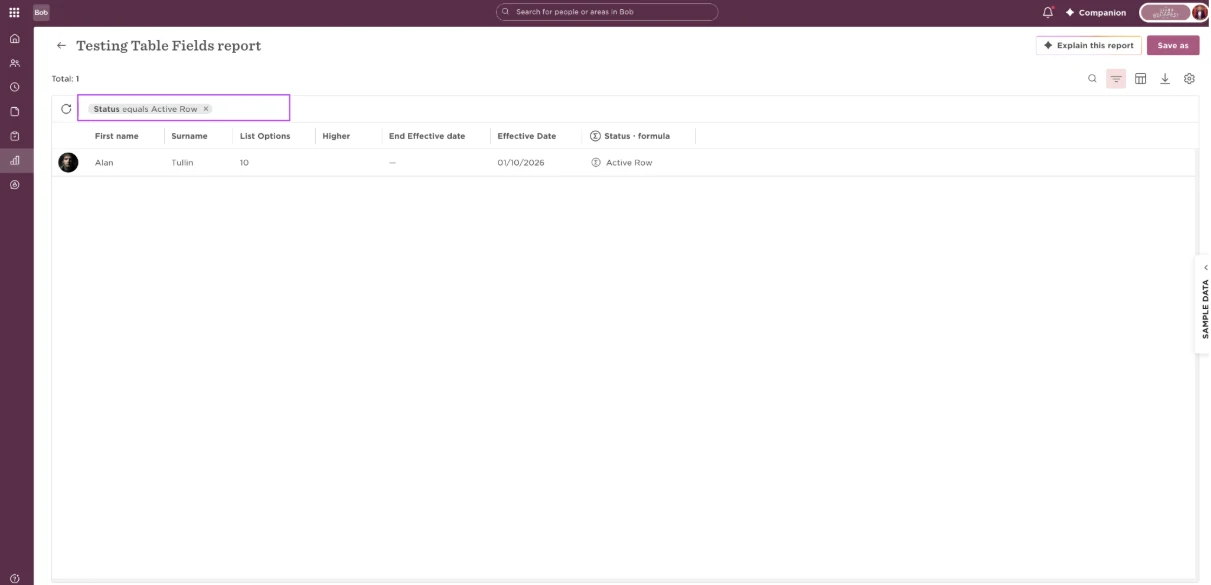
Because the Active/Inactive status is a calculated column, you can also use it as a report filter. For example, filter the report to Status = Active Row to return only current records while keeping the full history in the table.
This can be useful for a custom IT equipment table where you want to keep an employee's laptop history in one place while reporting only on their current laptop.
Reporting on Custom Tables
Each custom table automatically generates a dedicated report with the same name.
Go to Analytics > Reports > + Add report, search for the custom table's name, and select the matching report.
Use this dedicated report to report on the custom table's fields. Employees only appear in the report when they have at least one populated field in the table.
If You Only Need to Display the Status in a Report
If you don't need to create a calculated column and only want to display whether a row is Active or Inactive within a specific report, you can use a report formula instead.
For out-of-the-box tables, the Effective date and End effective date fields are already available, so you can use them directly in the formula.
Open the report, go to the Column picker, select Manage formulas, and add a formula using these date fields.
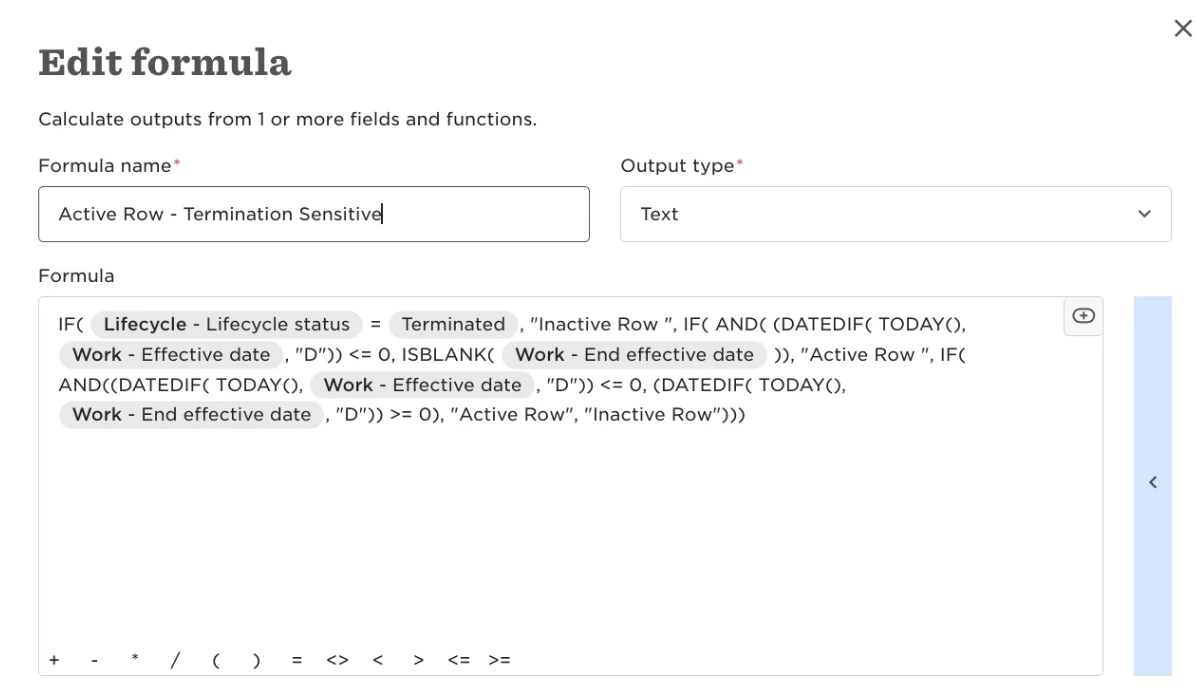
A report formula displays the Active/Inactive status in that report, but unlike a calculated column, you can't use the result as a report filter.
If you need to filter for active records, create a calculated column instead.