

When recording salaries in Bob, it’s important to understand the salary fields and how automated calculations work in reports and dashboards. Misunderstandings in setup are often the reason people see incorrect annual or monthly salary values in reports.
This article explains the key fields you need to enter, how automated salary columns work, and some examples to clarify common issues.
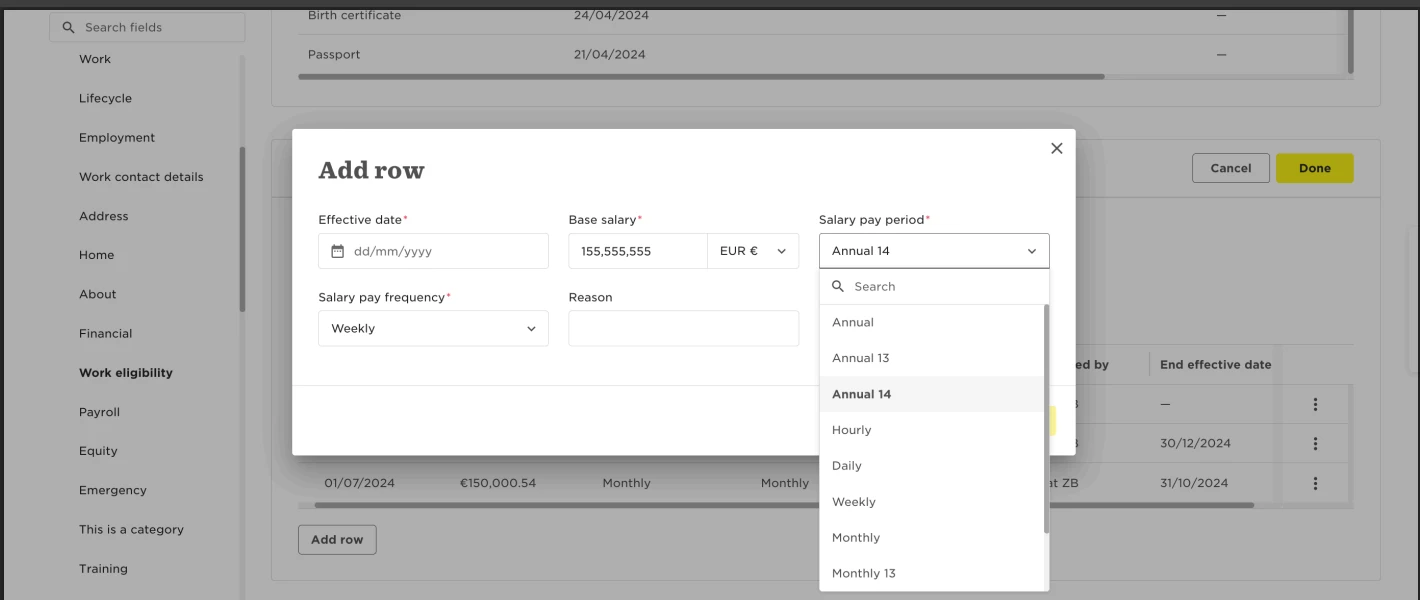
Key fields when entering salaries
When adding or editing an employee’s salary in Bob, you must enter, among other details:
1. Salary pay period
This defines the time period the entered salary corresponds to. Options include:
-
Annual, Annual 13, Annual 14
-
Monthly, Monthly 13, Monthly 14
-
Quarterly, Weekly, Daily, Hourly
2. Salary pay frequency
This defines how often the salary is paid to the employee. Options include:
-
Monthly
-
Weekly
-
Every two weeks
-
Twice a month
-
Four weekly
-
Pro rata
Automated salary columns in Reports & Dashboards
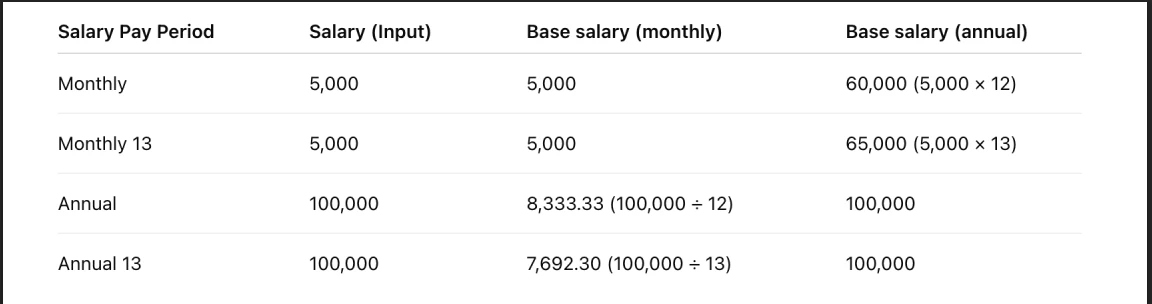
When you run reports or view dashboards in Bob, you’ll find automated fields that help standardize salaries for comparison. Their calculations depend on each employee's salary pay period.
-
Base salary (annual): Automatically calculates an employee’s annual salary when their salary pay period is not annual.
-
Base salary (monthly): Automatically calculates an employee’s monthly salary when their salary pay period is not monthly.
How the calculations work:
Common Challenge: “Why am I seeing the wrong annual salary?”
This usually happens because the salary pay period wasn’t set correctly.
For example:
If someone’s salary is recorded as Monthly when it should be Annual, the automated Base salary (annual) column may appear inflated or incorrect.
Always check whether the number of salary periods (12, 13, 14) matches how the organization pays employees.
Suggested Help Center page: View an employee’s payroll data