
Scheduled reports send data according to the report owner's permissions. If the owner loses permissions or leaves the company, for example, you may need to transfer ownership to someone else.
There are two ways to change the owner of scheduled reports.
Create new schedules under a new owner
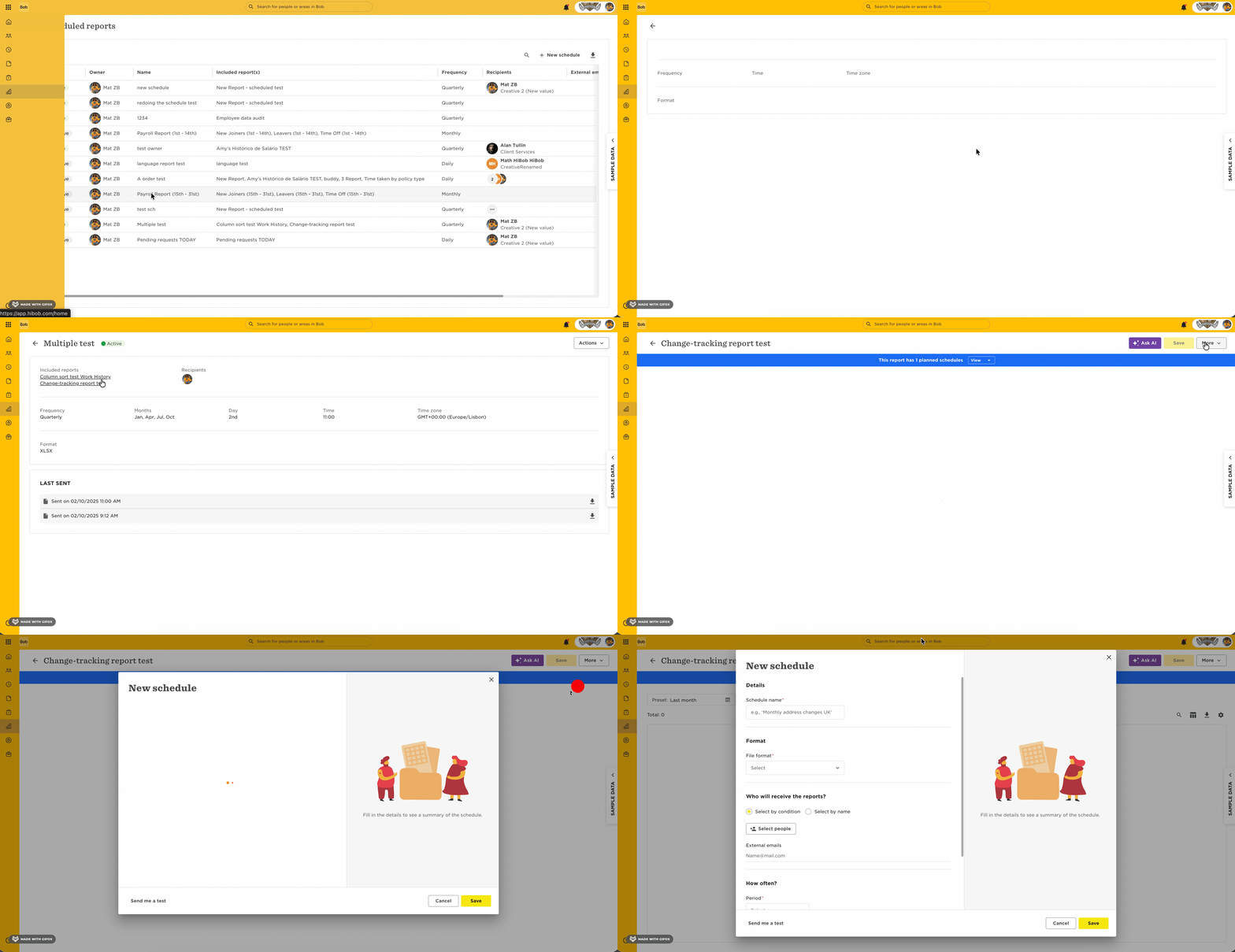
The new owner can create new schedules from the existing saved reports:
- Go to Analytics > Reports > Scheduled reports.
- Open the relevant schedule.
- Open a report included in the schedule.
- Select Actions > Schedule and create a new schedule. The new schedule will be under your ownership.
- Repeat steps 3–4 for any other reports included in the original schedule.
- Repeat the process for any other scheduled reports you need to transfer.
- Delete the former schedule or schedules.
Transfer ownership during termination
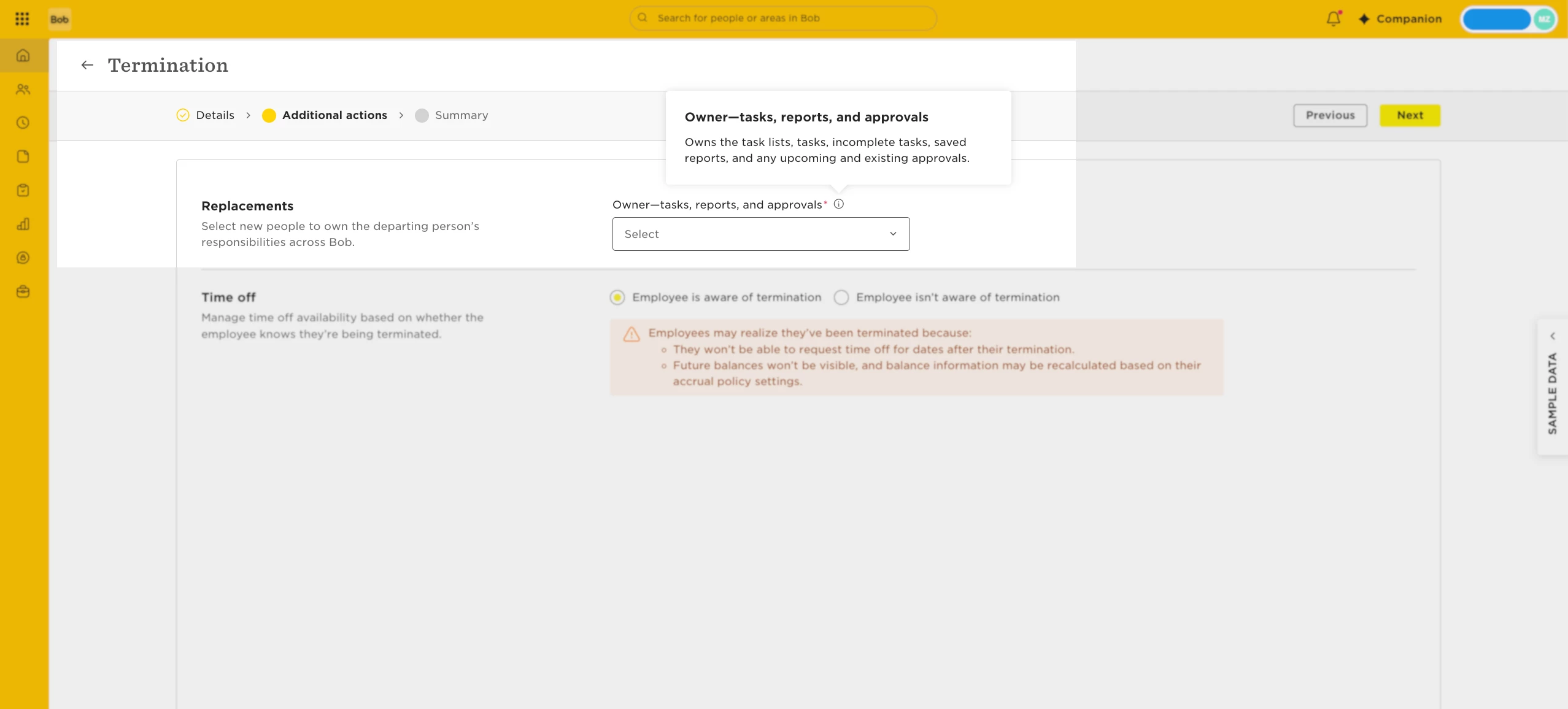
When an employee is terminated, ownership of their reports can be transferred to someone else as part of the termination flow.
- If the current owner is about to be terminated: Transfer their reports to the new owner during the termination flow.
- If the current owner has already been terminated: One option is to delete and redo their termination so you can transfer the reports during the termination flow.
- If the current owner isn't being terminated: You can use this as a workaround to transfer report ownership, then delete the termination row from their Lifecycle table. Keep in mind that this may trigger task lists, and the termination will be recorded in the audit trail. If this workaround isn't suitable, use the first method and create new schedules under the new owner instead.