


Need to hide someone in Bob, but keep them accessible to managers or admins? Here’s how.
Sometimes, you might need to hide an employee’s profile from the wider company, maybe they’re on leave, in a confidential role, or in a sensitive transition. Bob makes it easy to restrict visibility for all employees, while keeping access open for admins, direct managers, and others with permission.
Here's what to do:
-
Go to permission groups
Head to System settings > Account > Permission groups. -
Edit the "All people – others' data" group
This group controls who can view other employees. Click into it.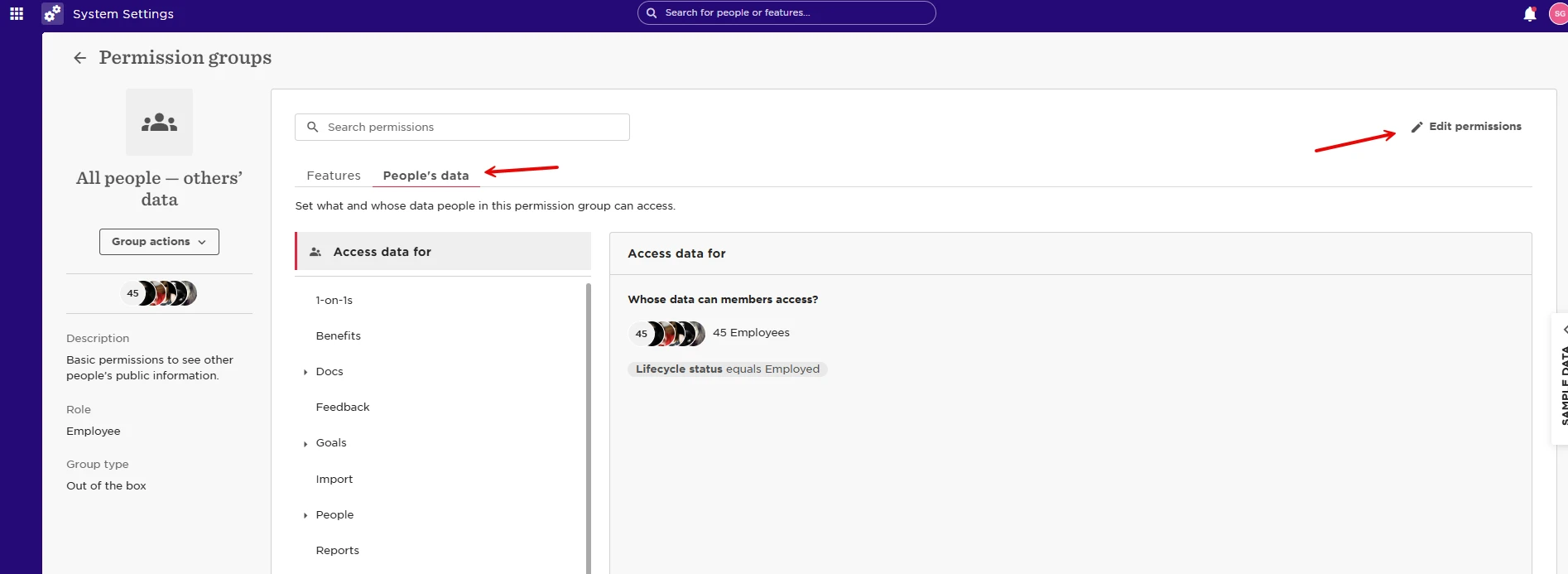
-
Exclude the employee
In the People's data section, add a condition to exclude the employee using a unique identifier like their email address, employee ID, or username.
Tip: Make sure the identifier is accurate so the filter works as expected.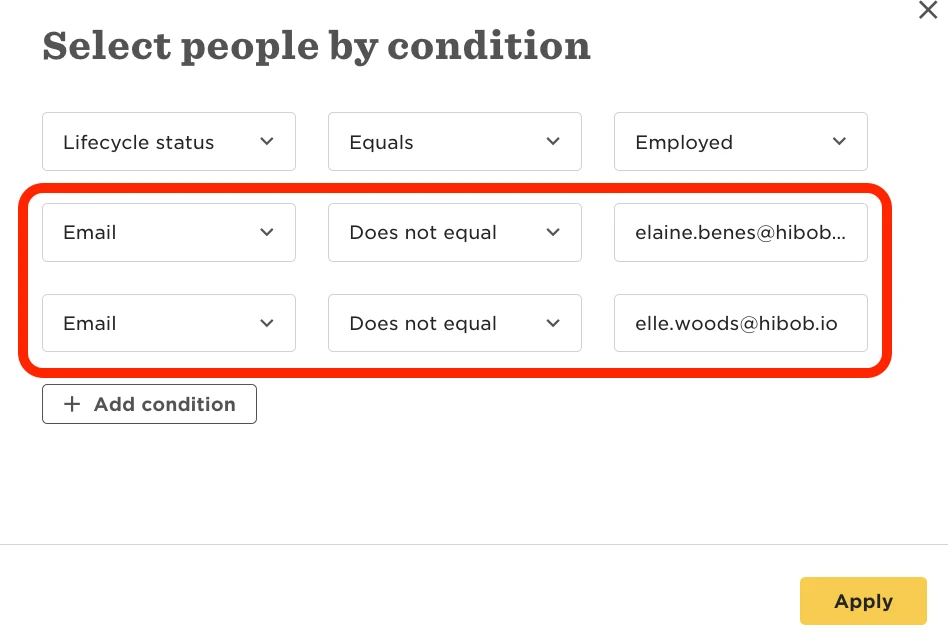
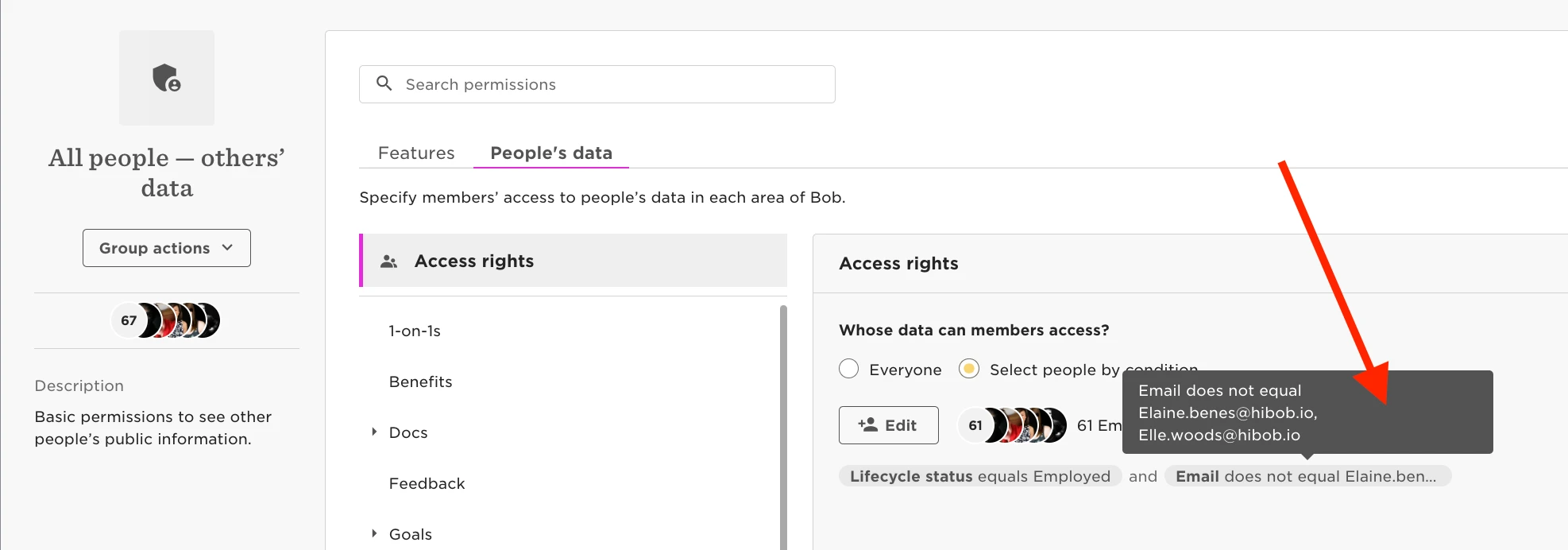
-
What changes for other users
Once excluded, this person won’t show up in:-
The Org Chart
-
The People Directory
-
The Time Off Calendar
-
Any search results in Bob
💡 Important: Admins, direct managers, and anyone with specific permissions will still see the employee.
-
A few things to keep in mind
-
Managers still have access
Direct and indirect managers will continue to see the employee’s data, even if they’re hidden from everyone else. That’s baked into how Bob permissions work. -
Check other permission groups
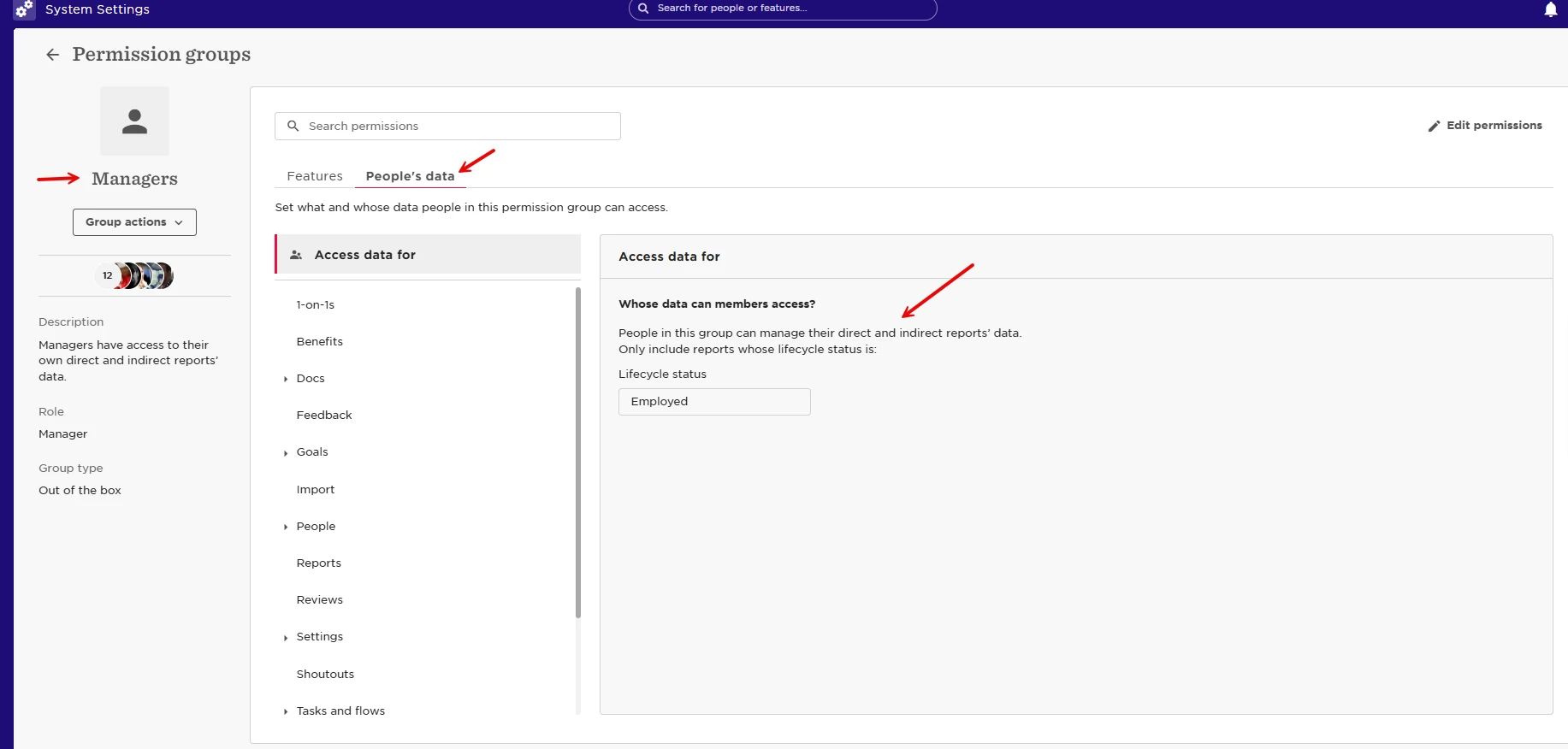
If the employee is part of other groups (like a department or special project), you’ll need to make sure those groups don’t override the visibility rules. Review each one and tweak as needed
Hiding employees can help:
-
Protect privacy for sensitive roles or leaves
-
Keep things clean by removing inactive folks from views
-
Limit access to confidential info while still giving admins full visibility