As an Admin, you can easily remove someone from a permission group.
Whether they’re switching roles, moving teams, or no longer need certain access.
Here’s how to do it in just a few clicks. To remove a user:
-
Go to System settings
From the left menu in Bob, open System settings. -
Navigate to Account > Permission groups
This is where all your permission groups live. -
Select the group
Click the group that includes the person you want to remove. -
Click Group actions > Edit details
In the top left of the screen, open the Group actions dropdown and select Edit details.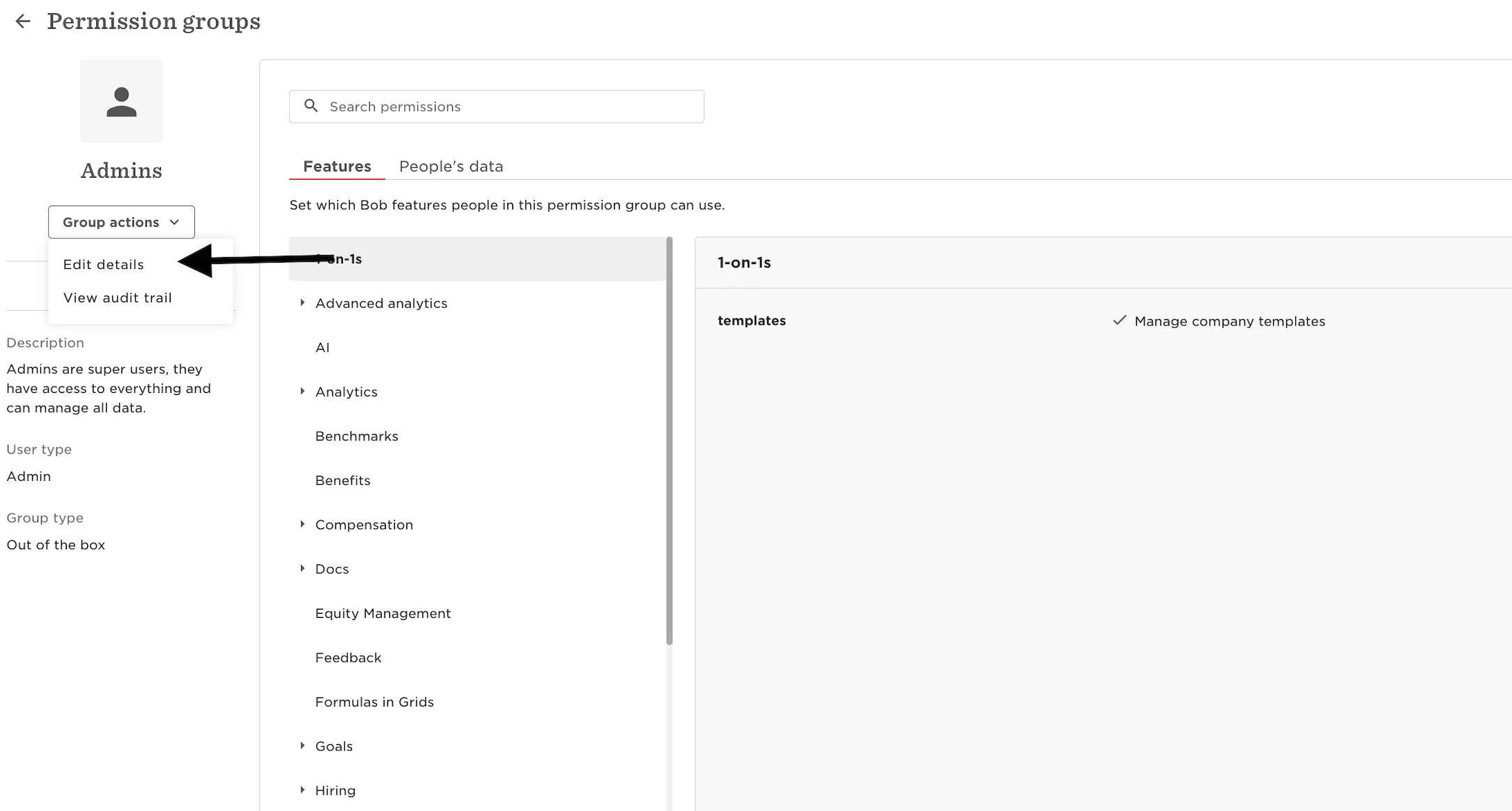
-
Click Edit under Members
In the pop-up window, click Edit next to the Members section.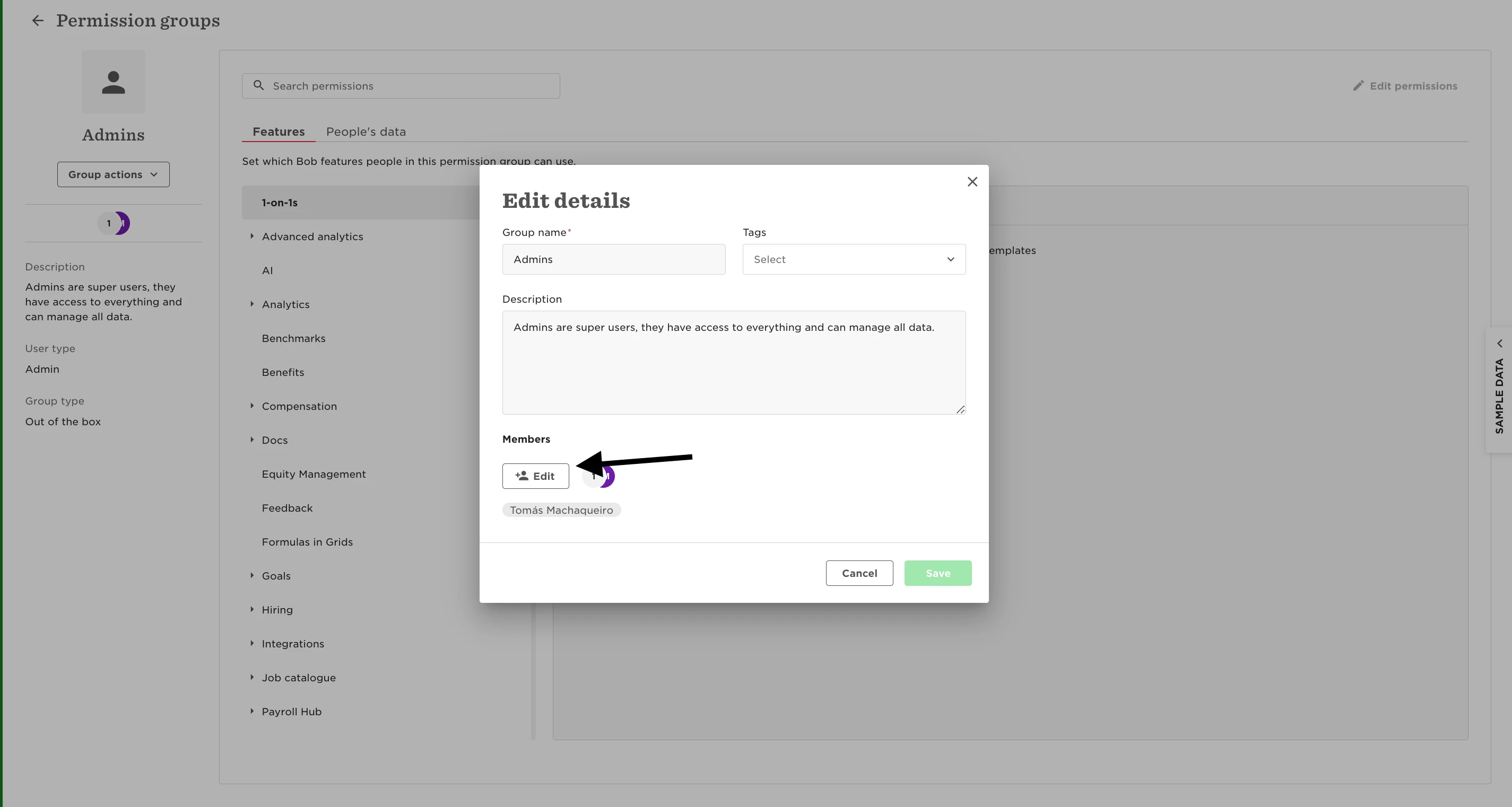
-
Remove the employee
Deselect or delete their name from the list. Hit Save to confirm.
Once removed, the employee immediately loses any access or visibility tied to that group. You can always return to this section to re-add them or add them to a different group.