

How to filter terminated employees on the Org chart and time off sections.

  • August 9, 2023
  • 7 replies
  • 494 views

Paula Fernandes
Bobber

This is a case that happens when an employee is being given permissions to view terminated employees, but they don't have permissions to view the Lifecycle category.

If employees have permissions to view the profile of terminated employees, it is expected that they will be seeing these people in different areas of Bob - such as the People's time calendar and the Org Chart.

However, when they don't have permissions over the Lifecycle category, they won't have the option to filter employees according to the Lifecycle status - meaning that they can't filter out the terminated employees from those areas of Bob.

What you need to do to solve this, is first decide if the employee who is seeing the terminated employees should have permissions to view the Lifecycle category (so they can filter out these employees), OR if they shouldn't be seeing terminated employees at all.

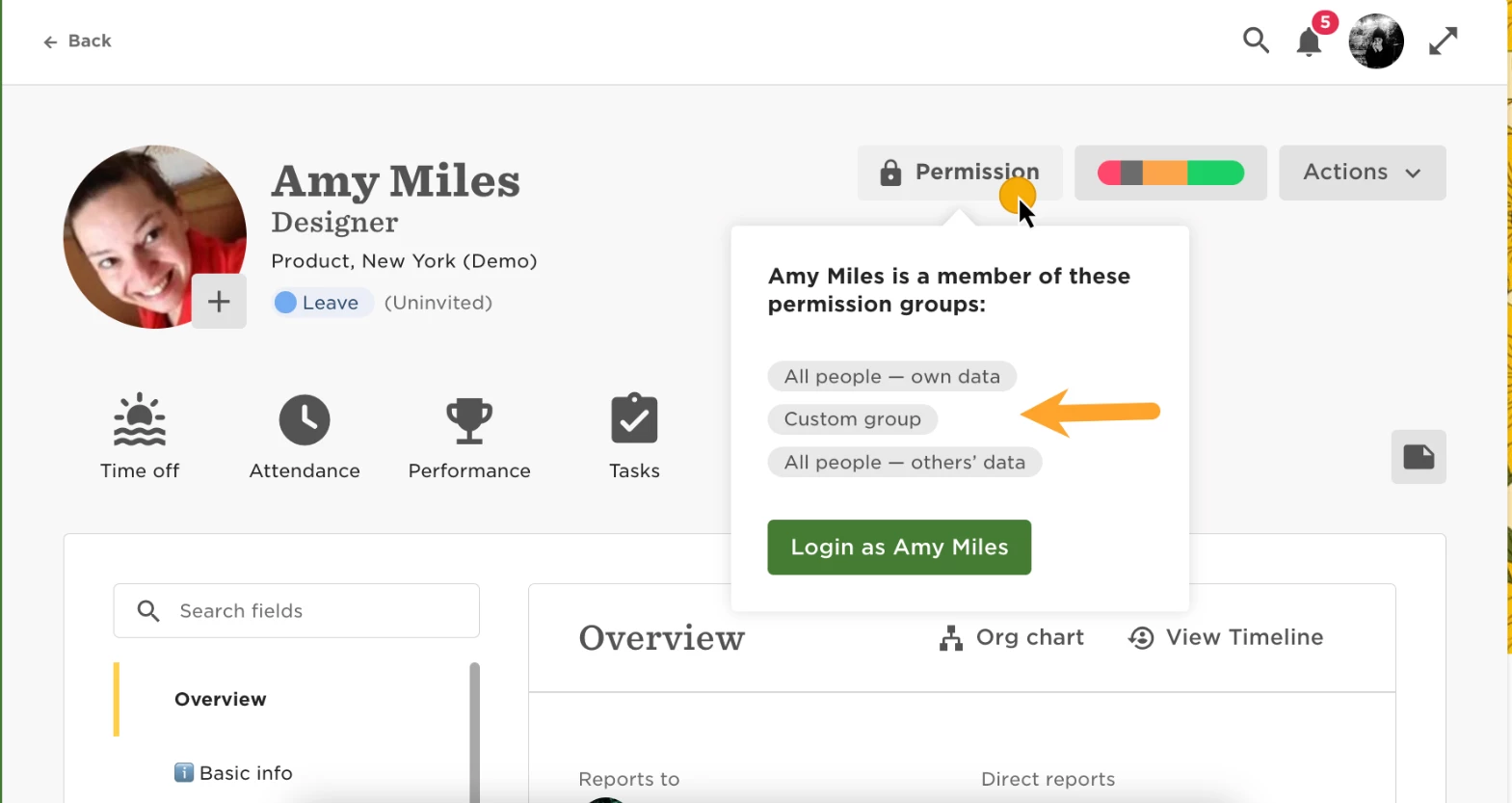
1. If they shouldn't be seeing terminated employees, you will need to change their permissions. In order to do that, go to the employee's profile and check the permission groups they are included in:
 

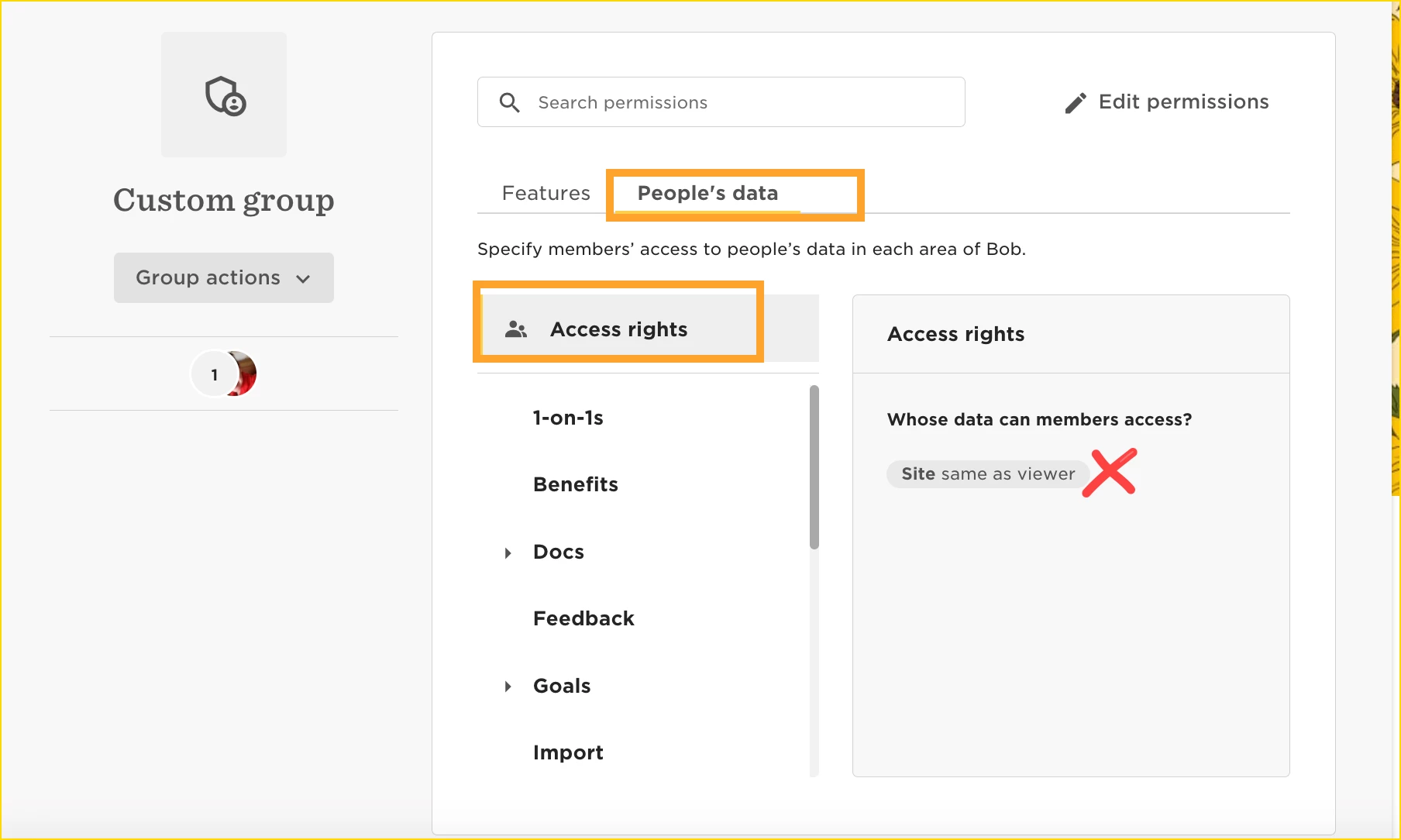
On the different permission groups, check, under People's data > Access rights, the conditions that are applied. Most likely you will find a group that doesn't state which Lifecycle statuses these employees should be able to see, or if you find a Lifecycle condition, this will probably include the "Terminated" status. 
If there is no Lifecycle filter, please add one with the Lifecycles that the person should be able to see (for example, ""Lifecycle status equals Employed""). If there is already a Lifecycle condition, then remove the "Terminated" lifecycle).
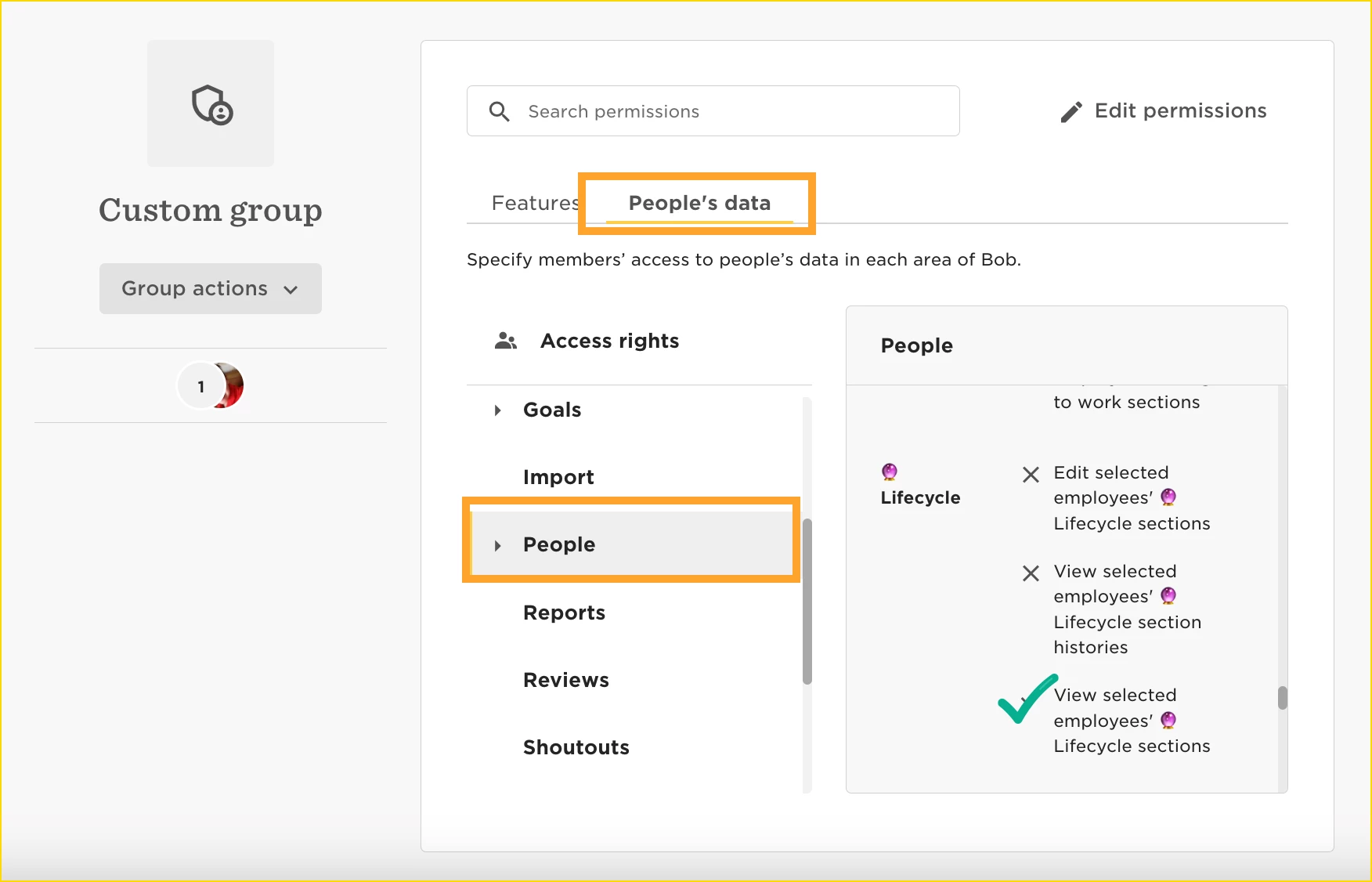
2. If on the other hand, you want this employee to be able to view the profile of terminated employees, but also have the Lifecycle filter (so they are able to filter them out of the Org Chart, People's time off calendar, Directory, etc), then you will need to give them permissions to view the Lifecycle category. Just be aware that the Lifecycle category might contain sensitive data (like termination reason, for example).
Choosing options 1 or 2 will solve the issue, since with option 1 employees won't be able to see the terminated employees any more on the different areas of Bob, and with option 2 they will be able to see them in different areas of Bob but will have the filter available to filter them out.


7 replies

Hi,
@Paula Fernandes Is there another way to allow those employees to filter out terminated employees without granting them access to the entire lifecycle category?
We need those employees to have access to terminated employees, but with only very limited information and definitely not the lifecycle information.

Thank you in advance.

Best,


  • July 4, 2024

Hi @Paula Fernandes,

I would also like to use the feature the same as per @Mihaela Stočko comment above.

Please can you provide an update on this?

Many thanks. 


Maital Terdiman
Bobber

Hi @Mihaela Stočko and @Paz Kaur 

This is a feature request that I will add you both to 🤓


  • July 8, 2024

Hi @Mihaela Stočko and @Paz Kaur 

This is a feature request that I will add you both to 🤓

Thank you! 


Hi @Paula Fernandes and @Maital Terdiman  jumping on the above thread as wondering if there is a way around this for task list. For example we have an Offboarding task list but some tasks are to be completed after an employees termination date by different owners but as they don’t have access to terminated employees it just shows up as an Unknown (Inactive) so they can’t see who the person this task relates to is there any way around this that the task list owner can just see the employee’s name in the task list but no other information?

Thanks 


Jessica Lane
Bobber

Hi @Emma Fitzpatrick 👋🏻


In this scenario, the owners of the task list/task would need access to view the ‘Terminated’ lifecycle status in the relevant permission group in order to see the employee name. 

Otherwise they will see ‘Unknown (Inactive)’ once the employee goes from ‘Employed’ status to ‘Terminated’ status as you mentioned. 😅


In People's Time Off → Calendar, terminated employees continue to appear in the Employees list for managers. Our Managers permission group explicitly excludes the Terminated lifecycle status. HR users can remove terminated employees using the Lifecycle Status quick filter, but managers are not given the Lifecycle Status filter. How can we configure People's Time Off so managers only see employees with the permitted lifecycle statuses, or enable the Lifecycle Status filter for managers?

Managers are getting frustrated as they can see all of the terminated emplotees in the calendar - they arent even greyed out