


If someone in your org needs permission to add new people to Bob, you’ll need to update their permission group settings.
Tip: If this permission is only for one person, create a dedicated permission group so you don’t grant access to others by mistake.
Here’s how to do it:
-
Go to the waffle menu (top-left corner of Bob).
-
Click System settings > Permission groups.
-
Choose the group the employee belongs to.
-
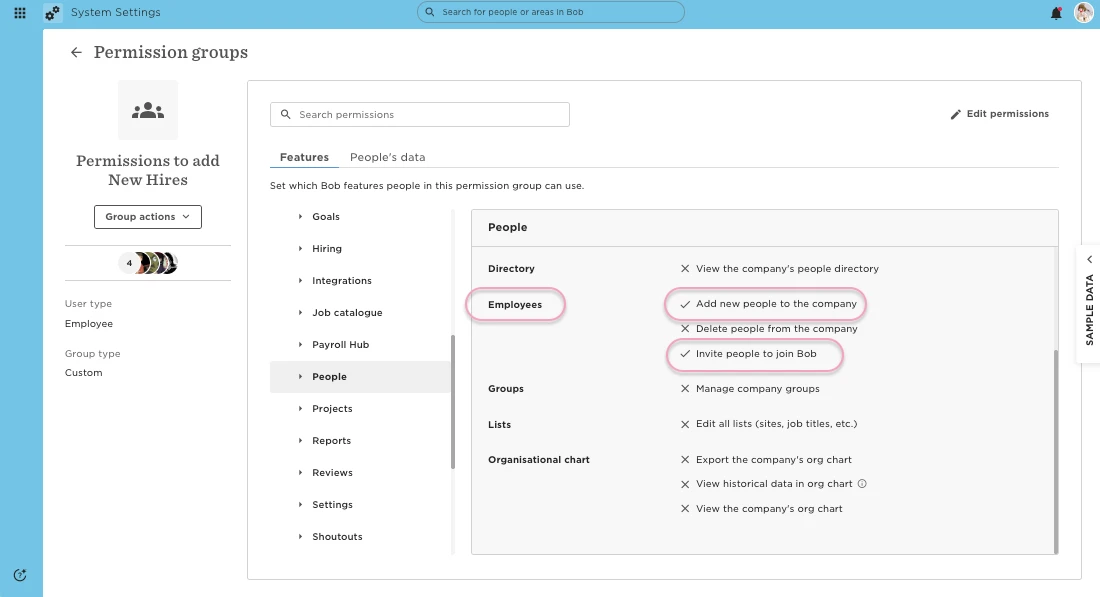
Go to Features > People > Employees, then enable:
-
Add new people to the company – lets them click Add new in the People Directory.
-
Invite people to join Bob – allows them to trigger the onboarding invitation email.
-
Depending on what you want them to manage in the New Hire flow, you can also open these optional permissions:
Docs
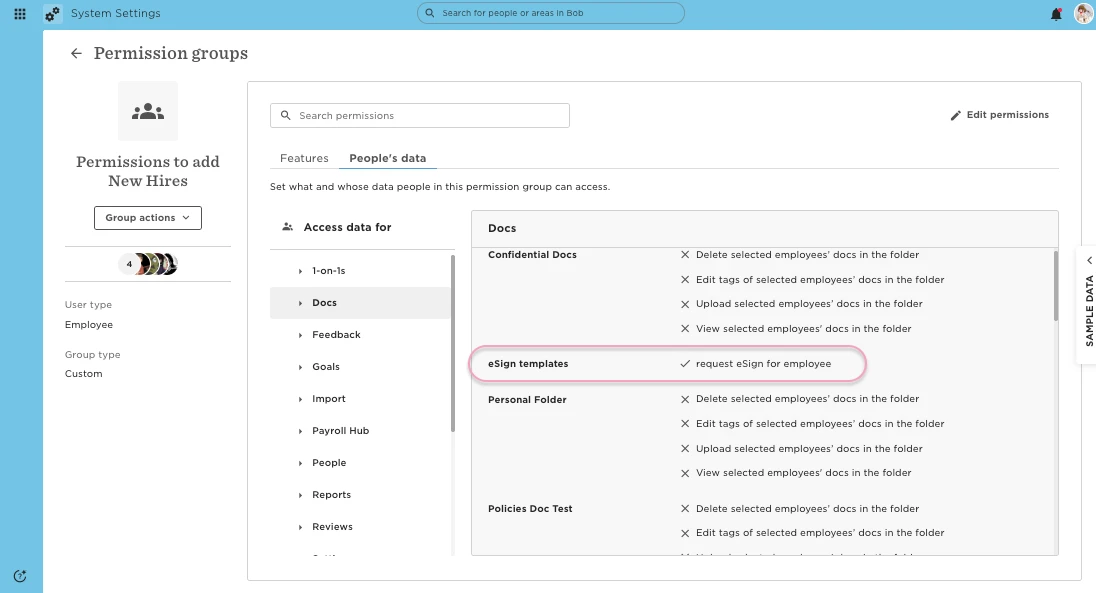
Docs in the New Hire flow support both Read and approve and eSign requests. The person running the wizard must have permission to create the request and to view or upload documents in the destination folder.
-
Go to People’s data > Docs.
-
Ensure they have access to the relevant destination folder (for example, Shared Docs).
-
To enable or disable the Docs toggle in the New Hire flow, grant Manage employee folders permission.
Time Off
-
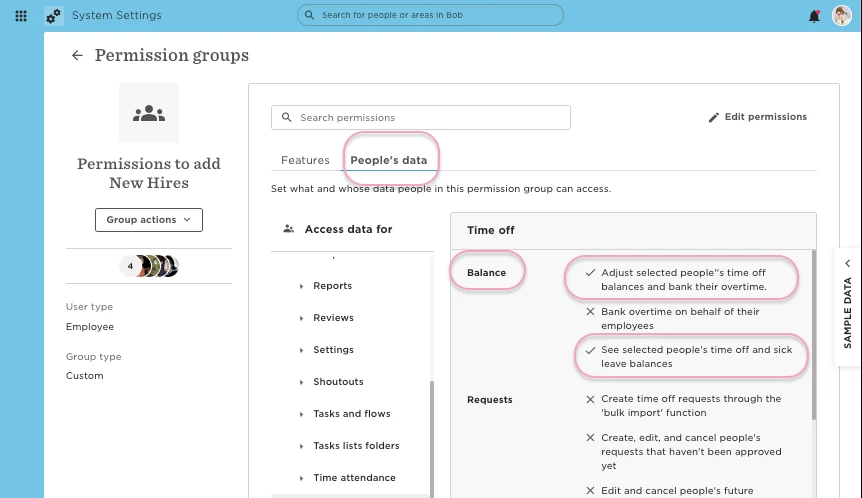
Go to People’s data > Time off.
Task Lists
-
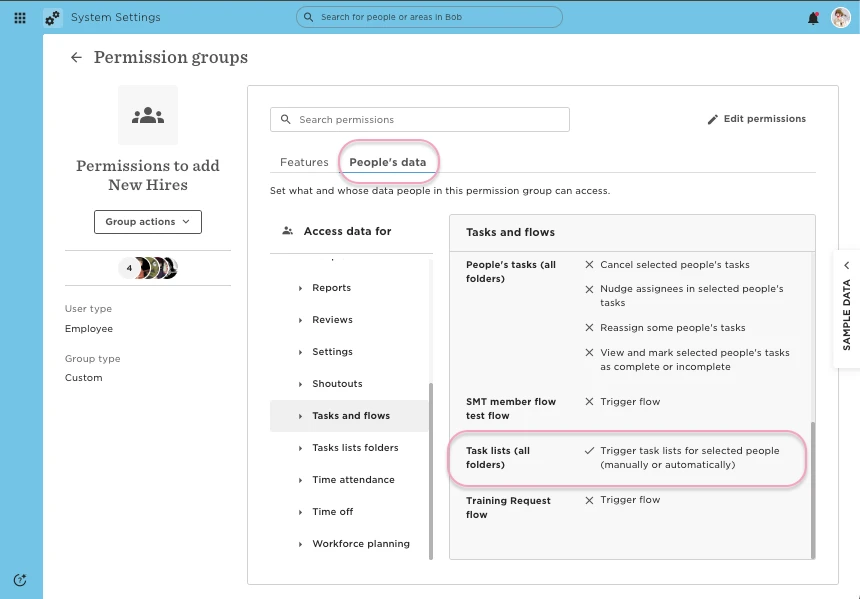
Go to People’s data > Tasks and flows.
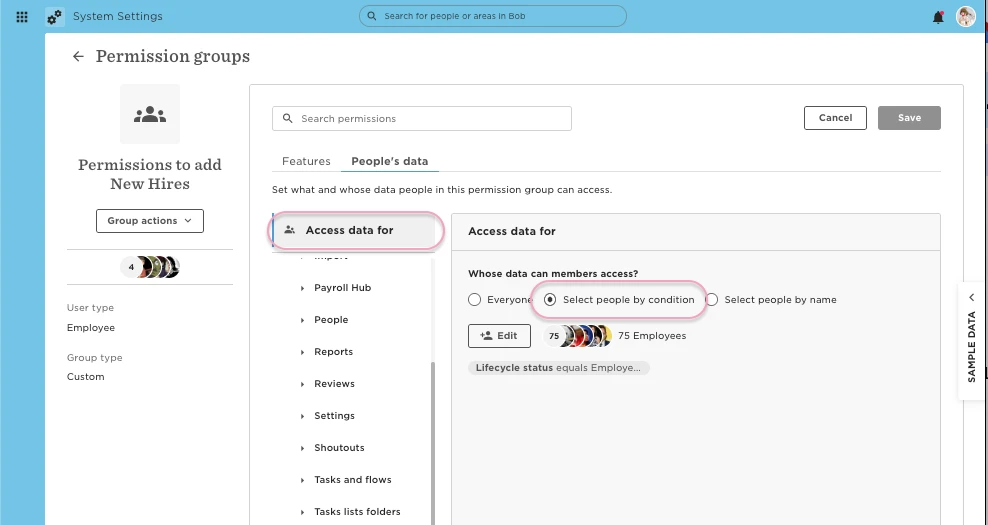
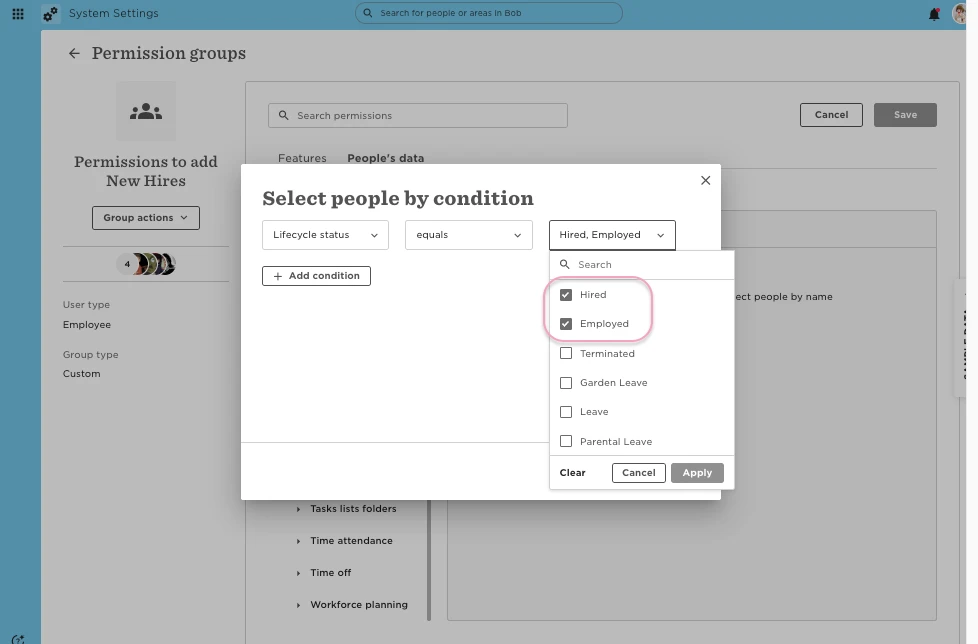
Lastly, make sure they have Access rights for people in Lifecycle status:
-
Hired – required for pre-boarding.
-
Employed – useful if the hire starts on Day 1 or later.
Note: These permissions apply beyond the New Hire flow—they’ll have access wherever those features exist.