


In HiBob, the second-level manager field is system-calculated. It automatically reflects the manager of an employee’s direct manager and cannot be edited manually. This keeps the management chain consistent across the platform.
If you need to assign a secondary manager - someone outside the reporting line who still requires oversight (for example, a project lead approving leave requests or a dotted-line manager needing payroll visibility), you can set this up with a custom reference field and a conditional permissions group.
Step 1: Create the Secondary Manager field
-
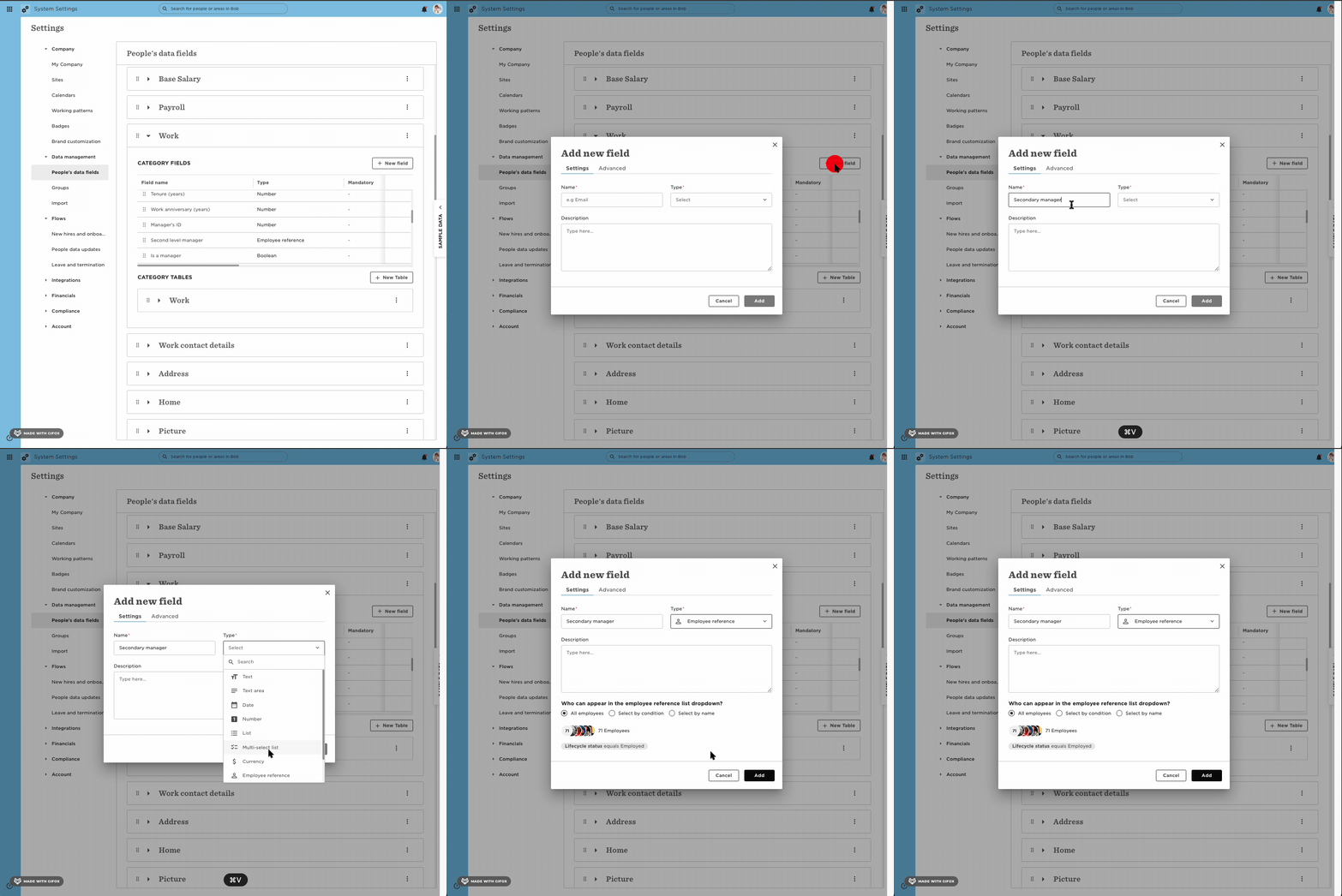
Go to Settings > People’s data fields.
-
Under the Work category, click + New field.
-
Name the field (e.g., Secondary Manager).
-
Set the field type to Employee reference.
Step 2: Build a conditional permissions group
-
Go to Settings > Permissions & roles.
-
Click Add group to create a new permissions group.
-
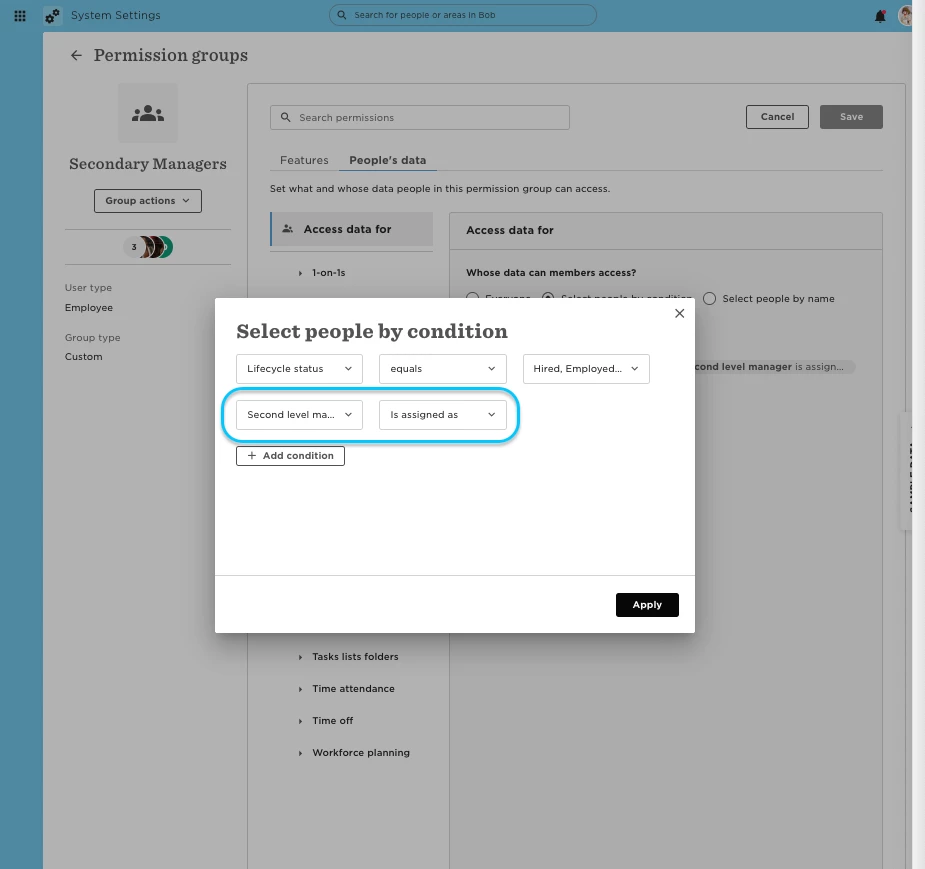
Add a condition:
-
Field: Secondary Manager
-
Condition: Is assigned as
-
This ensures anyone assigned in the Secondary Manager field automatically becomes part of this group.
Step 3: Configure access
In the permissions group, choose which data secondary managers can access. For example, you might allow them to:
-
View or edit time off requests
-
Access payroll information
-
Manage goals and objectives
Adjust permissions to fit your organization’s needs.
Step 4: Assign the Secondary Manager
-
Open an employee’s profile (or update in bulk via Excel).
-
Scroll to the Secondary Manager field.
-
Select the additional manager.
✅ Once assigned, the secondary manager automatically inherits the permissions you set—while the employee’s default manager remains unchanged for org charts and reporting.