


The ‘Managers’ permission group is dynamic and system-managed. You can’t manually add or remove members. Instead, Bob automatically includes any employee who has at least one direct report.
To ensure someone is added to this group, simply assign them as a manager in the system. Here’s how:
-
Go to the employee profile of the person who should report to the manager
-
Click Actions > Change Work Details
-
Select Change Reports to
-
Choose the appropriate manager
-
Set the Effective date to today (or earlier)
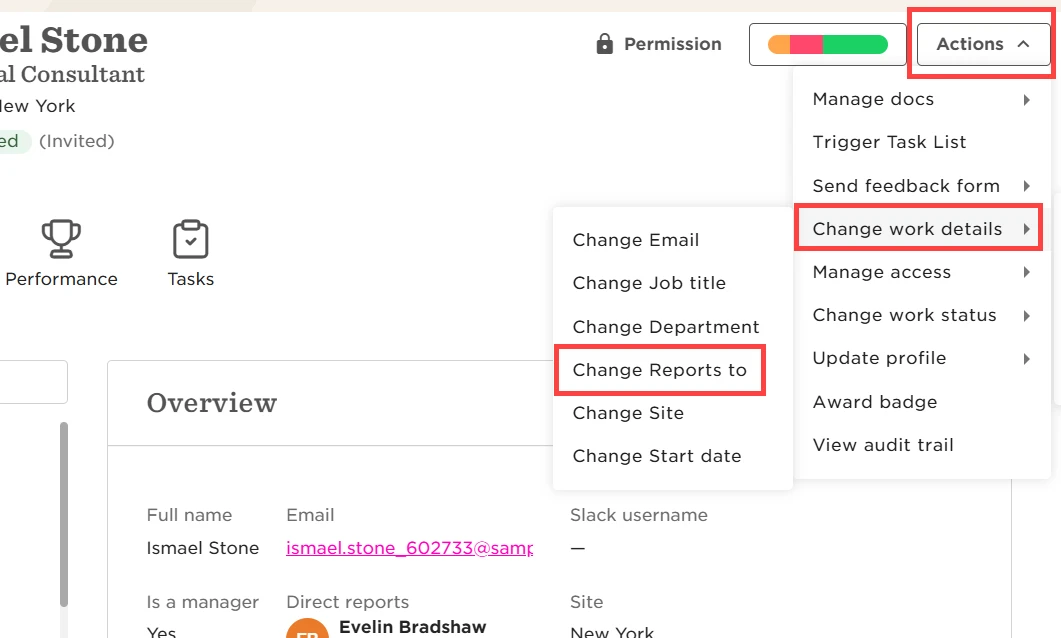
Once this change is applied, the selected manager will be automatically added to the Managers group and granted visibility into their Direct and Indirect reports' data (e.g., salary, time off).
About the Managers Group
-
Who’s included?
Any employee with at least one direct report -
How is it managed?
Automatically by Bob, based on reporting relationships -
What can they access?
Data for their direct and indirect reports, according to the permissions granted in the group -
What if they view someone outside their team?
They’ll see data according to the permissions granted in the ‘All people – others' data’ group
Notes on Out-of-the-Box Permission Groups
-
You cannot delete or duplicate these groups, but you can edit their permissions
-
Only active employees can be added to the Admins group (manually)
-
Admins have full access—these permissions cannot be edited
-
You can adjust permissions for:
-
Managers
-
All people – own data
-
All people – others' data
-
To view or edit these groups:
Go to System Settings > Account > Permission groups, then click the group name.
For more, see View and edit permission groups.