When adding embedded videos to a Learning course, the default embed code might not match the size you need. You can easily adjust the video display by editing the embed code.
Here’s how to resize an embedded video:
-
Go to Bob Products > Learning > Manage learning
-
Click + Create course and select the option that fits your course setup
-
In the Curriculum step, add an Embedded content lesson
-
Copy the embed code from the external source and paste it into the box
-
Edit the code by adjusting the
iframewidth and height values -
Save your changes
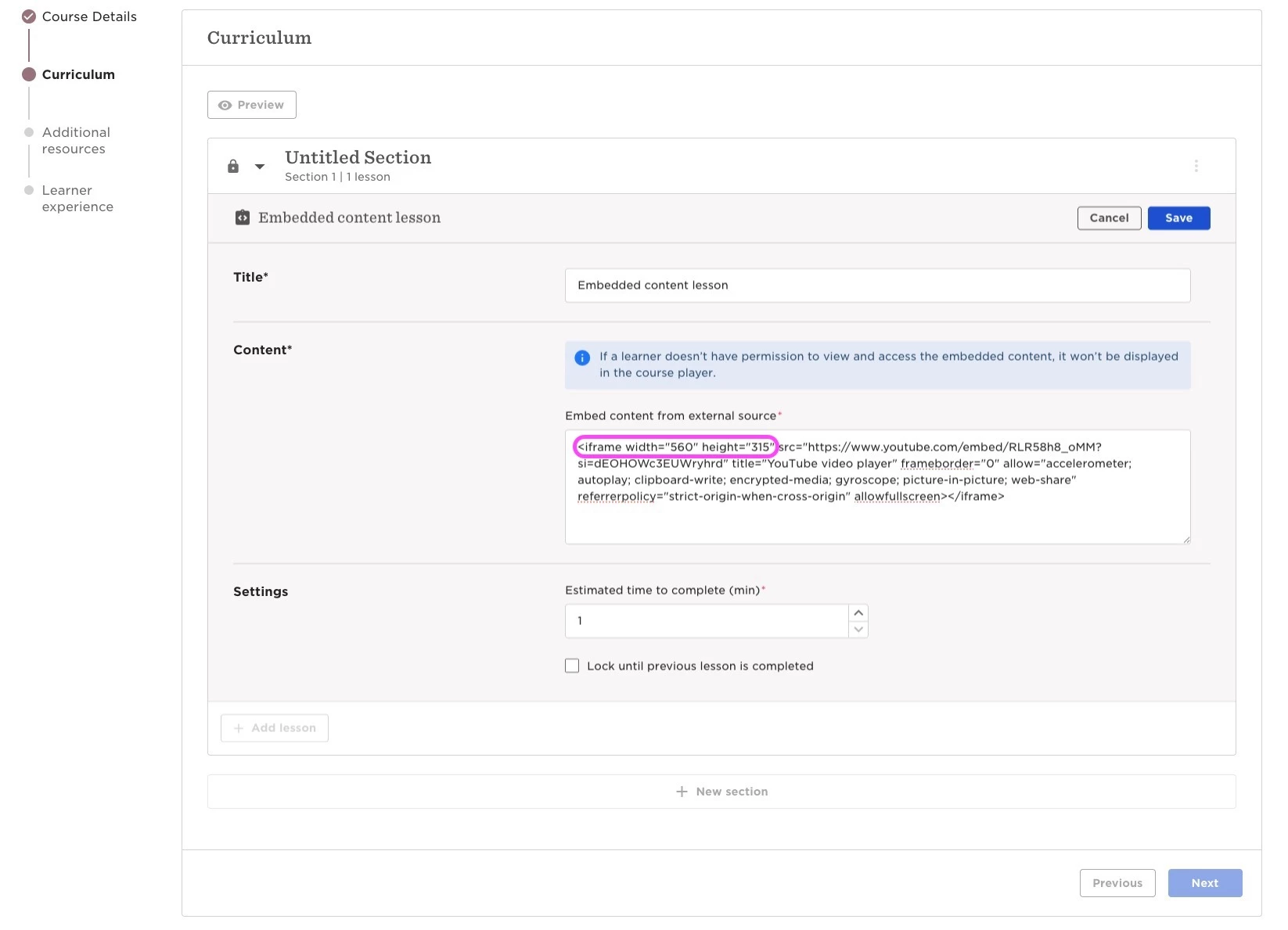
Example:
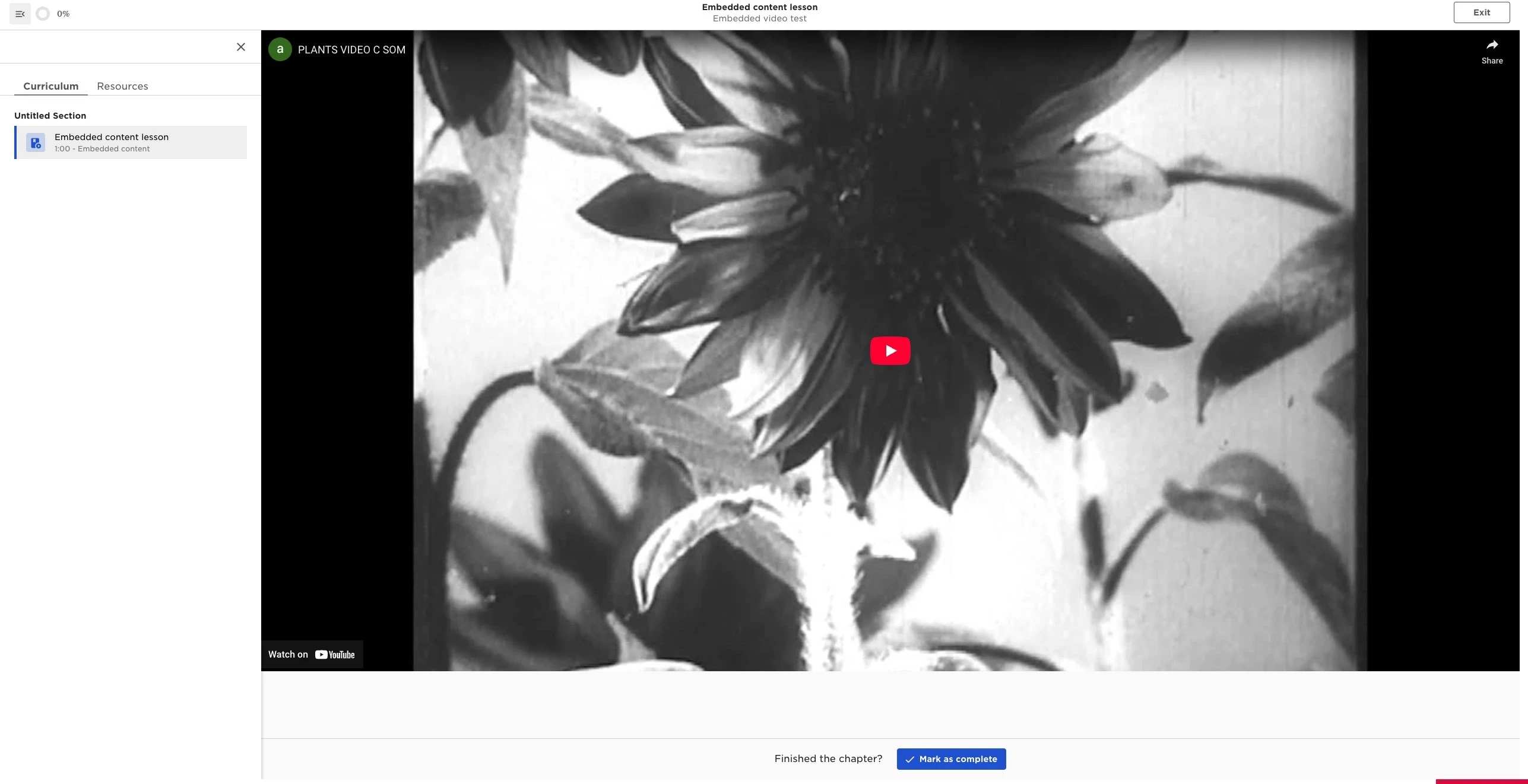
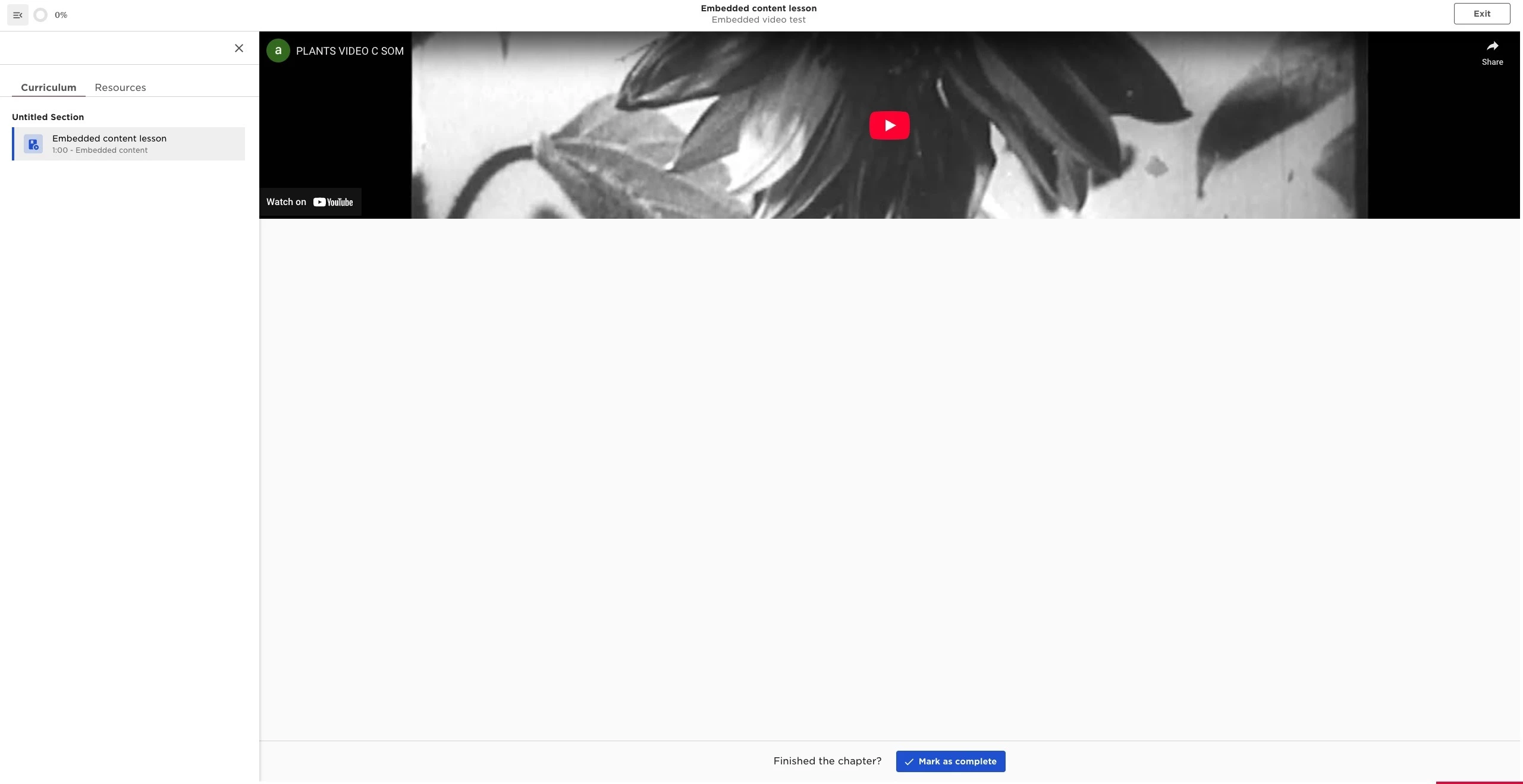
This allows you to control how videos are displayed in your course so they fit the look and feel you want.