
Before creating a new job profile, ensure that all relevant information is available in the Job Content Library. This ensures consistency and helps you build accurate, scalable job profiles.
When setting up job content, two fields are mandatory:
Job role
Job level
Job family and job family group are optional, but highly recommended. They help create more precise job profiles and become especially important for larger organizations.
Add job roles, job families, and job family groups
You can add values manually:
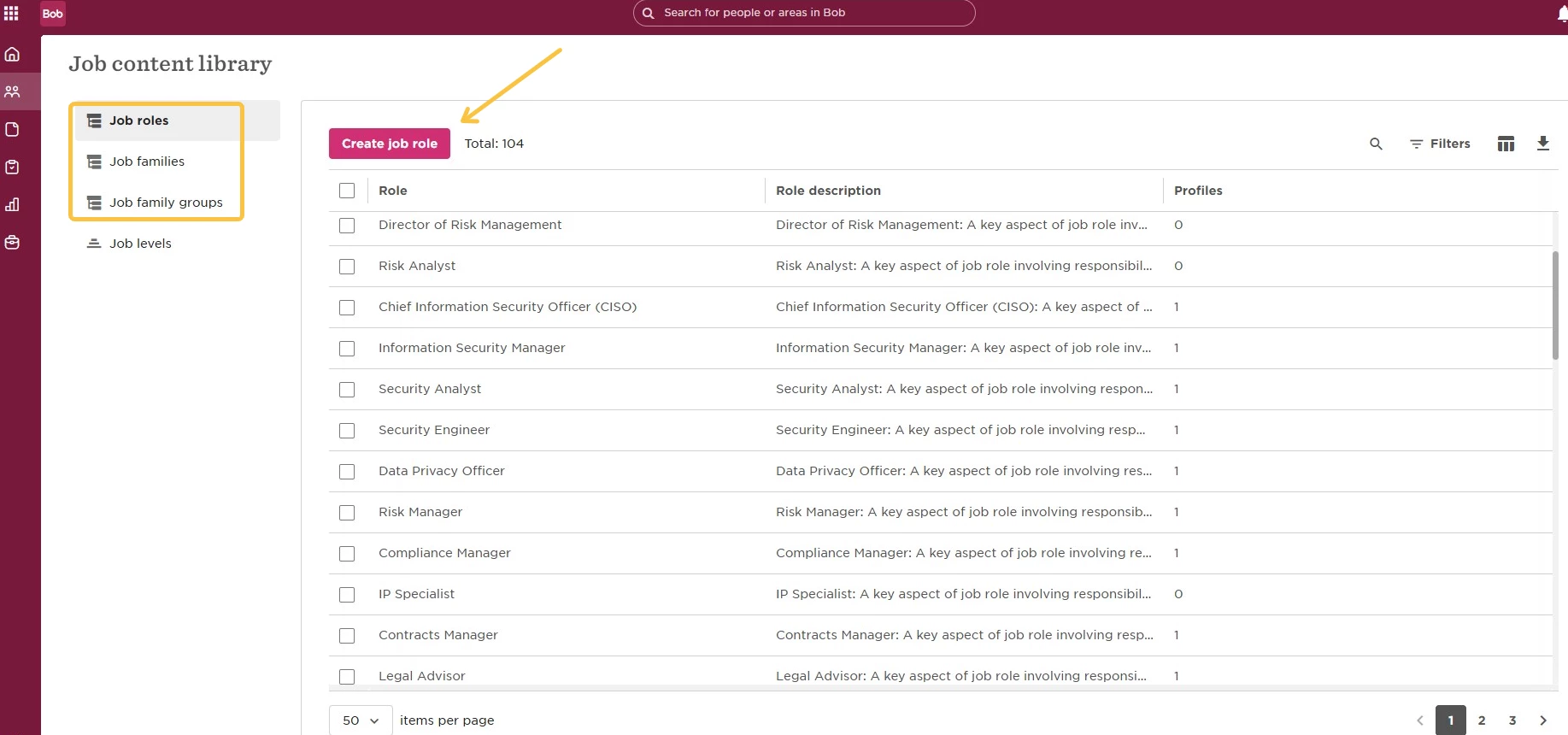
(1) Navigate to Bob > Org > Job content library
(2) Select Job roles, Job families, or Job family groups
(3) Click Add new
Alternatively, you can use an import:
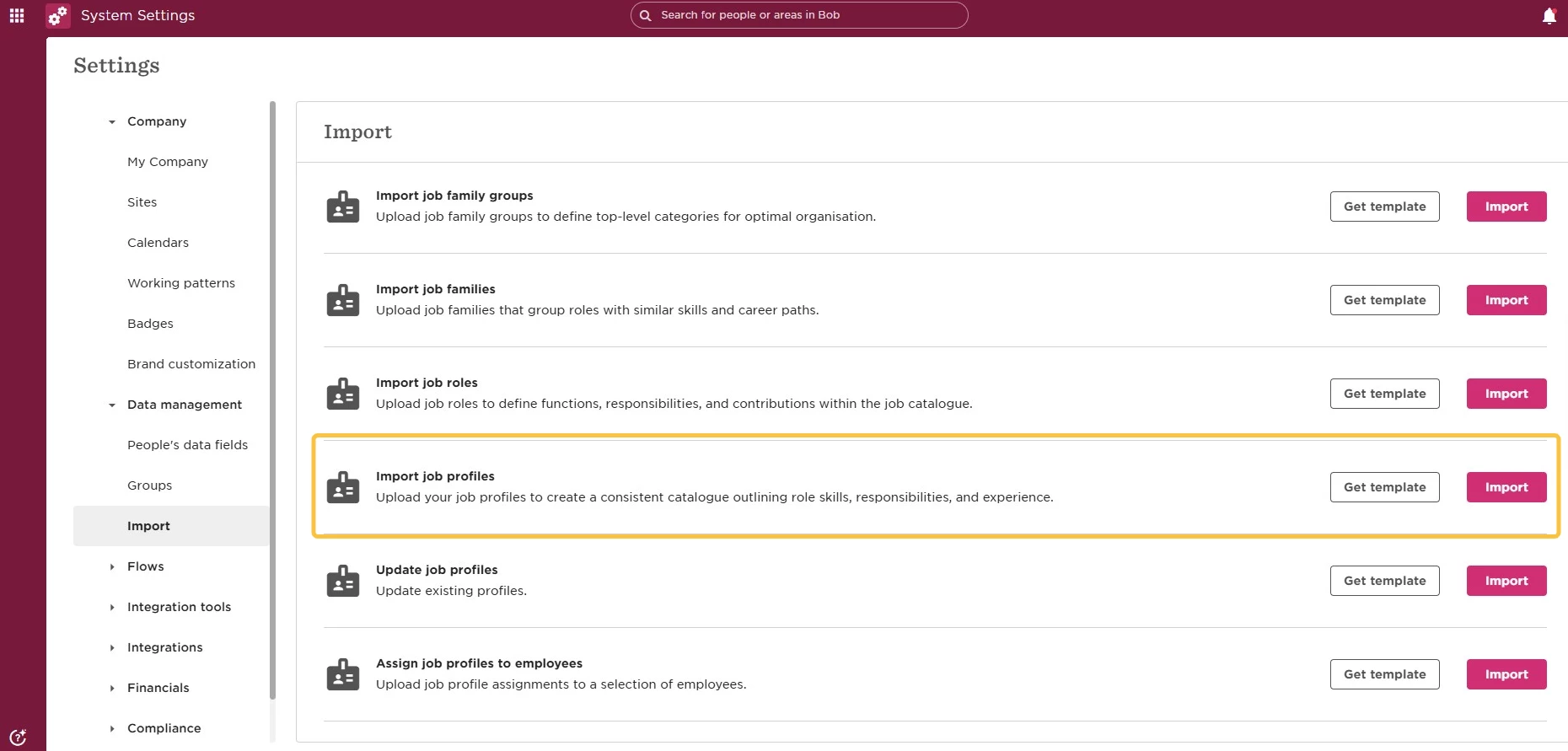
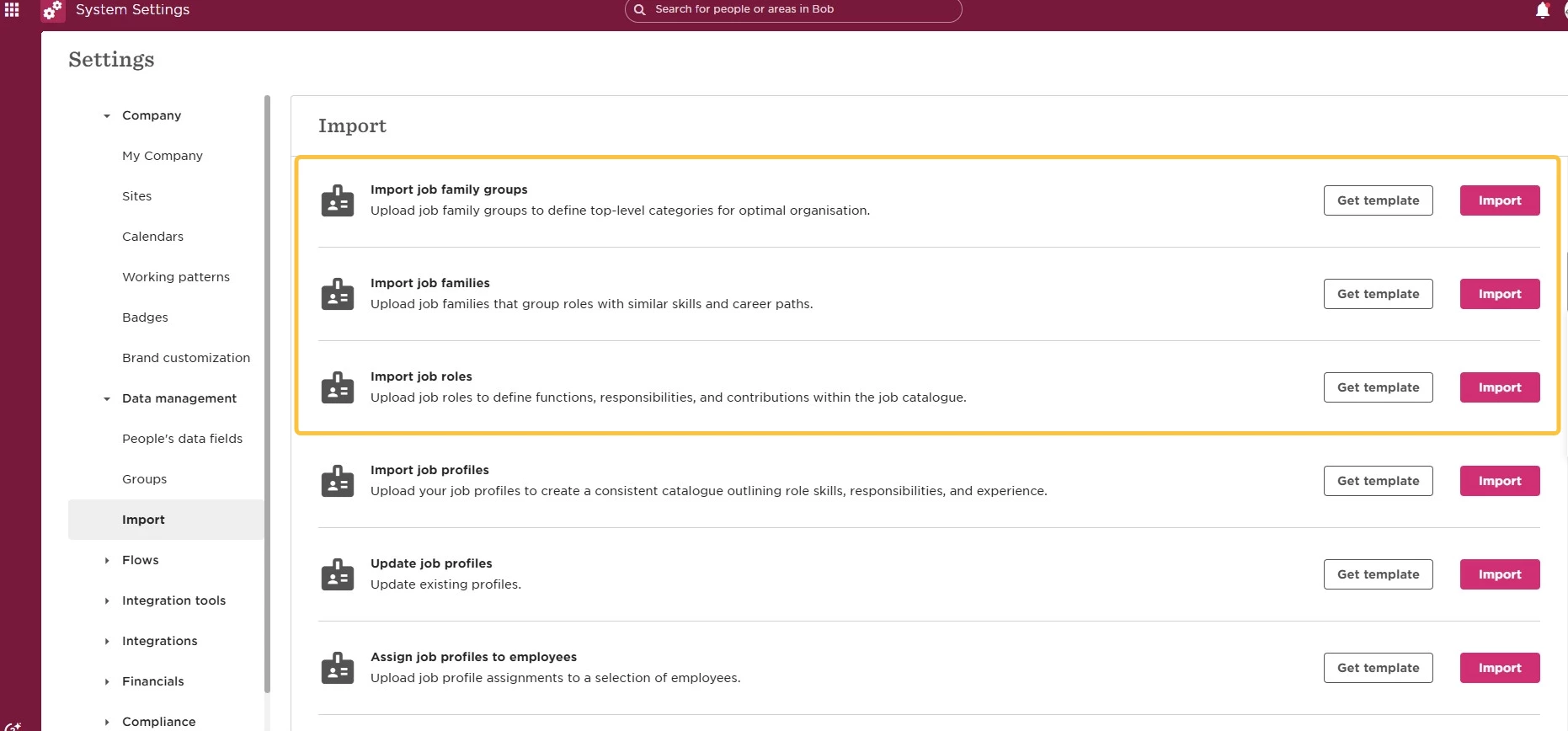
(1) Navigate to Settings > Data management > Import
(2) Select Import job roles, Import job families, or Import job family groups
(3) Download the template
Do not modify the template structure:
Don’t change column names
Don’t add or remove columns
Don’t change the column order
(4) Upload the completed file
Define job levels
To define job levels:
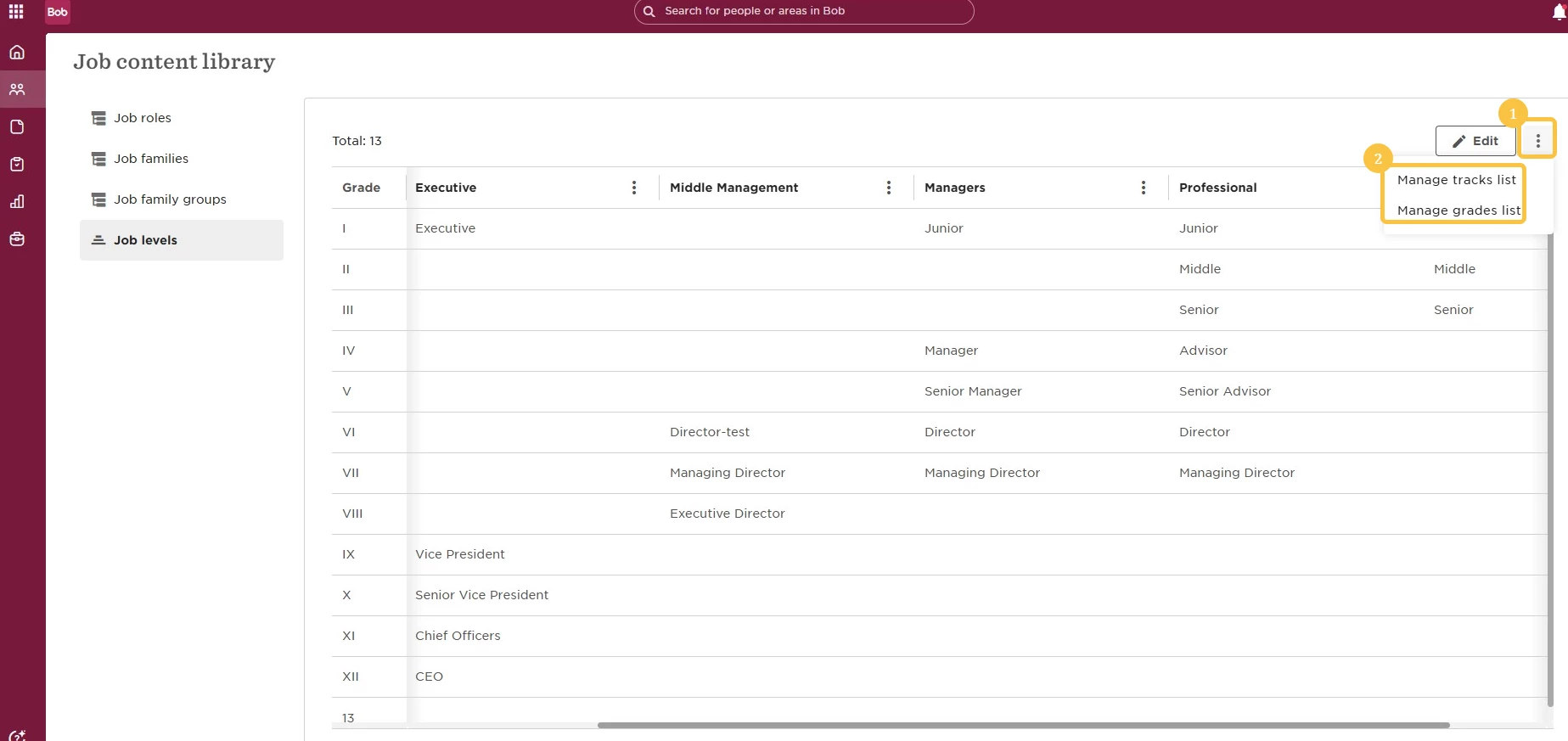
Navigate to Bob > Org > Job content library > Job levels
Job levels are structured as a matrix:
The top row represents the tracks
The left column represents the grades
The values inside the table define the job levels
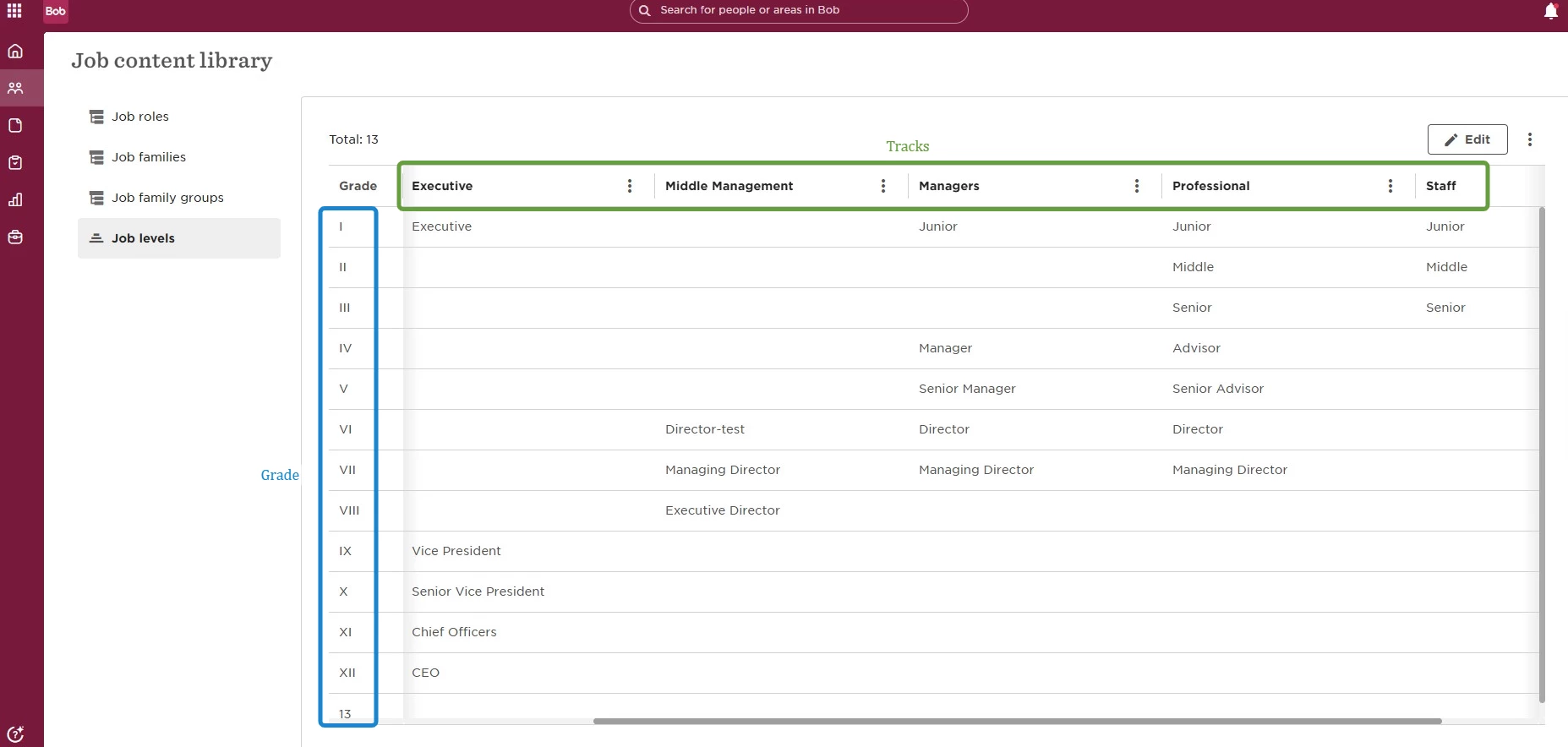
This setup helps you define precise job levels, visualize horizontal growth opportunities, clarify roles and responsibilities, and create more accurate promotion definitions
To add or edit tracks or grades, click the three-dot menu above the table and choose the relevant option. From there, you can also change the order of tracks or grades.
Create job profiles
Once all information is updated in the Job content library, you can create job profiles.
Create a job profile manually:
(1) Navigate to Bob > Org > Job profiles
(2) Click Create job profile
Or create job profiles using an import:
(1) Navigate to Settings > Data management > Import
(2) Select Import job profiles
(3) Download the template and fill it in exactly as it appears in the Job content library
(4) Make sure names match precisely, including uppercase and lowercase letters