

If you see “Unknown Error” when adding a Jira instance in Bob, check the connection details, API token type, and Jira account permissions.
This guidance applies to Bob’s integration with Jira Cloud. The error message alone does not identify the cause. A scoped API token or missing Jira permissions can prevent the connection, even if the credentials work for another API request.
- Check the connection details in Bob.
Go to Bob products → Marketplace → Jira → Connect → Add instance and review the following:
- Domain: Enter the full Jira domain, such as example.atlassian.net. Check for spelling errors and include .atlassian.net.
- Jira user: Enter the email address of the Atlassian account that generated the API token. This can be different from the email address you use to sign in to Bob.
- API token: Use a token generated by that same Atlassian account.
A shared email address can be used if it belongs to an actual Jira user account with the required access. A distribution list or group email address on its own is not sufficient. You can use an existing Jira account or create a dedicated account for the integration.
- Make sure the API token was created without scopes.
Bob’s Jira integration currently does not support scoped API tokens. If your token has scopes, create a new token without scopes, enter it in Bob, and try connecting again. See Atlassian’s API token guide for instructions. - Ask your Jira administrator to check the connecting account’s access.
The integration uses the permissions of the Jira account that generated the token. Having Admin permissions in Bob does not grant that account access in Jira.
Your Jira administrator should confirm that the account has access to the correct Jira site and Jira Software, plus these permissions:- Browse users and groups — a global permission.
- Browse projects — for the relevant project.
- Create issues — for the relevant project.
If you use Jira Service Management, also check that the account has the relevant product access and permission to access and view the service desk and create requests.
If the error response mentions missing permission USER_PICKER, ask your Jira administrator to grant Browse users and groups:
- In Jira, open Settings → System → Global permissions.
- Under Grant permission, select Browse users and groups.
- Select a group containing the Atlassian account that generated the integration’s API token.
- Click Add, then retry the connection in Bob.
- If the error continues, capture the detailed response.
Your browser’s developer tools may show a more specific error than the message displayed in Bob:- Right-click the Bob page and select Inspect.
- Open the Network tab, then try adding the Jira instance again.
- Select the request associated with the failed connection and open its Response orPreview tab.
- Capture the error response and any related errors in the Console tab.
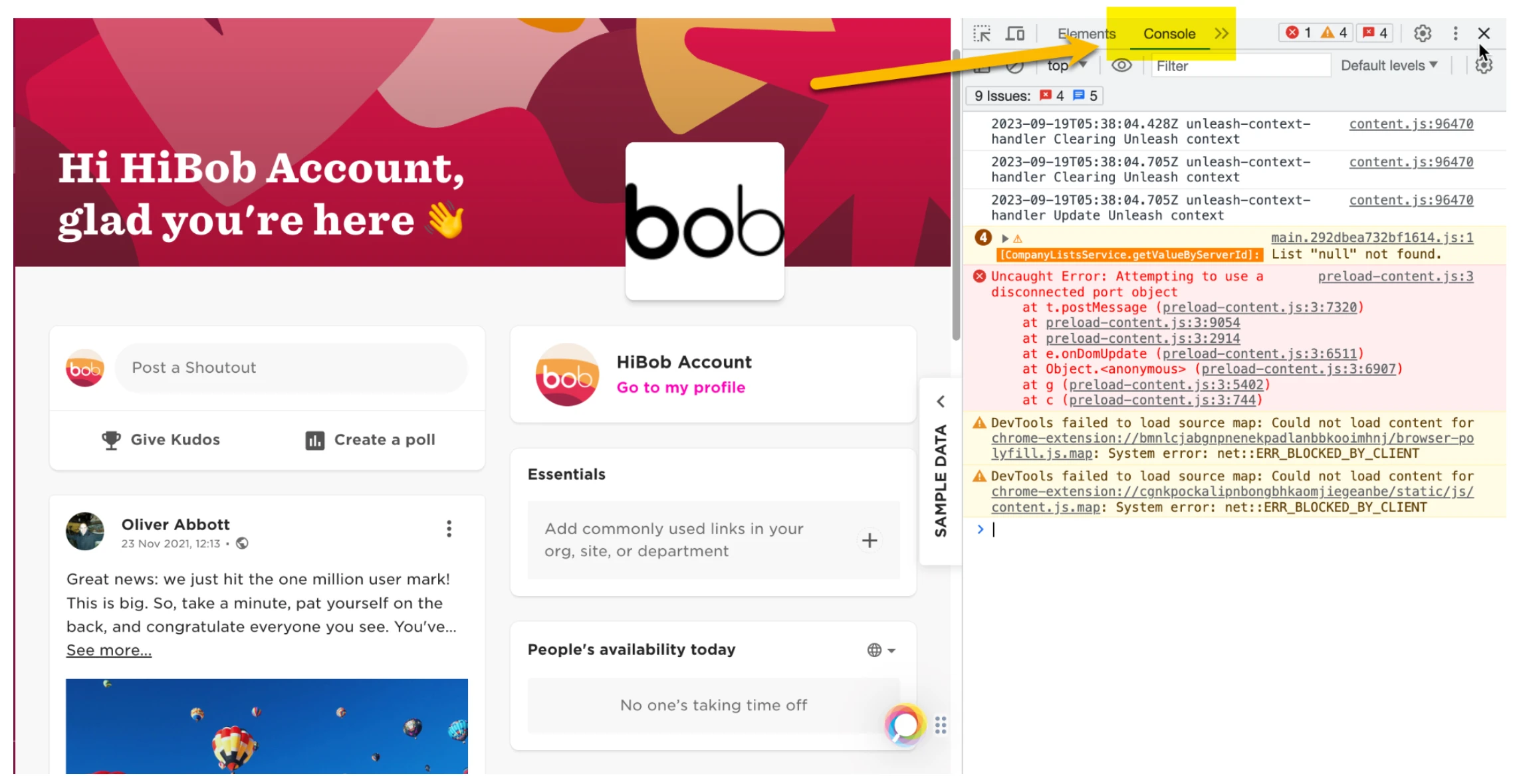
Contact the Customer Experience Team with the screenshots, the date and time of the attempt including the time zone, whether you are using Production or Sandbox, and the checks you have completed. Hide API tokens, authorization headers, and other credentials before sharing screenshots.
For the complete setup requirements, see Jira integration.