

If an employee sync fails because usageLocation contains an invalid value, check that the mapped Bob field contains a two-letter country code.
In the Microsoft Entra ID integration, open Synced records and click Details for the affected employee. You may see the following:
- Summary: Failed to create user due to: Request_BadRequest - Invalid value specified for property 'usageLocation' of resource 'User'.
- Error cause: Field usageLocation contains invalid value
- Suggested action: Make sure the employees {0} contain valid values. Trigger employee re-sync by editing one of the fields. Contact Bob support if problem persists.
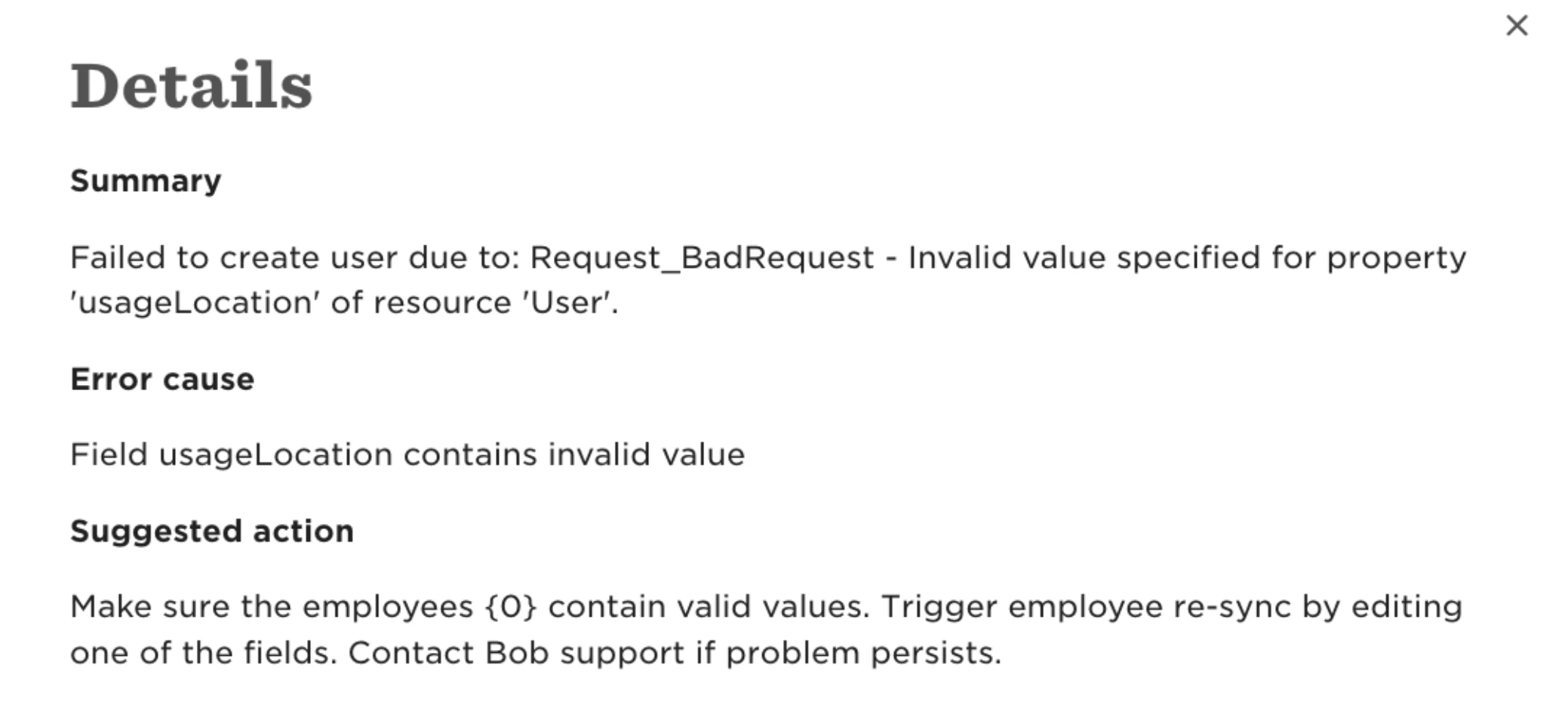
The Summary and Error cause identify Usage location as the field to check. Microsoft Entra ID requires a two-letter ISO country code, such as US, DE, or PT. A full country name, such as Portugal, does not meet this requirement.
Usage location is already supported as a mapping option in Bob’s Microsoft Entra ID integration. If the mapped Bob field supplies a full country name, use a custom field containing the required code:
- Create a custom field in Bob to store the two-letter country code.
- Populate the field for the employees you want to sync. For example, enter PT for an employee whose Usage location should be Portugal.
- In the integration’s data mapping, map the custom field to Usage location.
- Run a manual sync for one affected employee, then review Synced records to check the result.
If the sync still fails, check Details for the latest error. Contact the Customer Experience Team with the detailed error and one affected employee example if you need further help.
For more information, see Microsoft Entra ID identity management integration.