
Firstly you will need to open up Bob, go to settings > integrations > provisioning > OKTA.
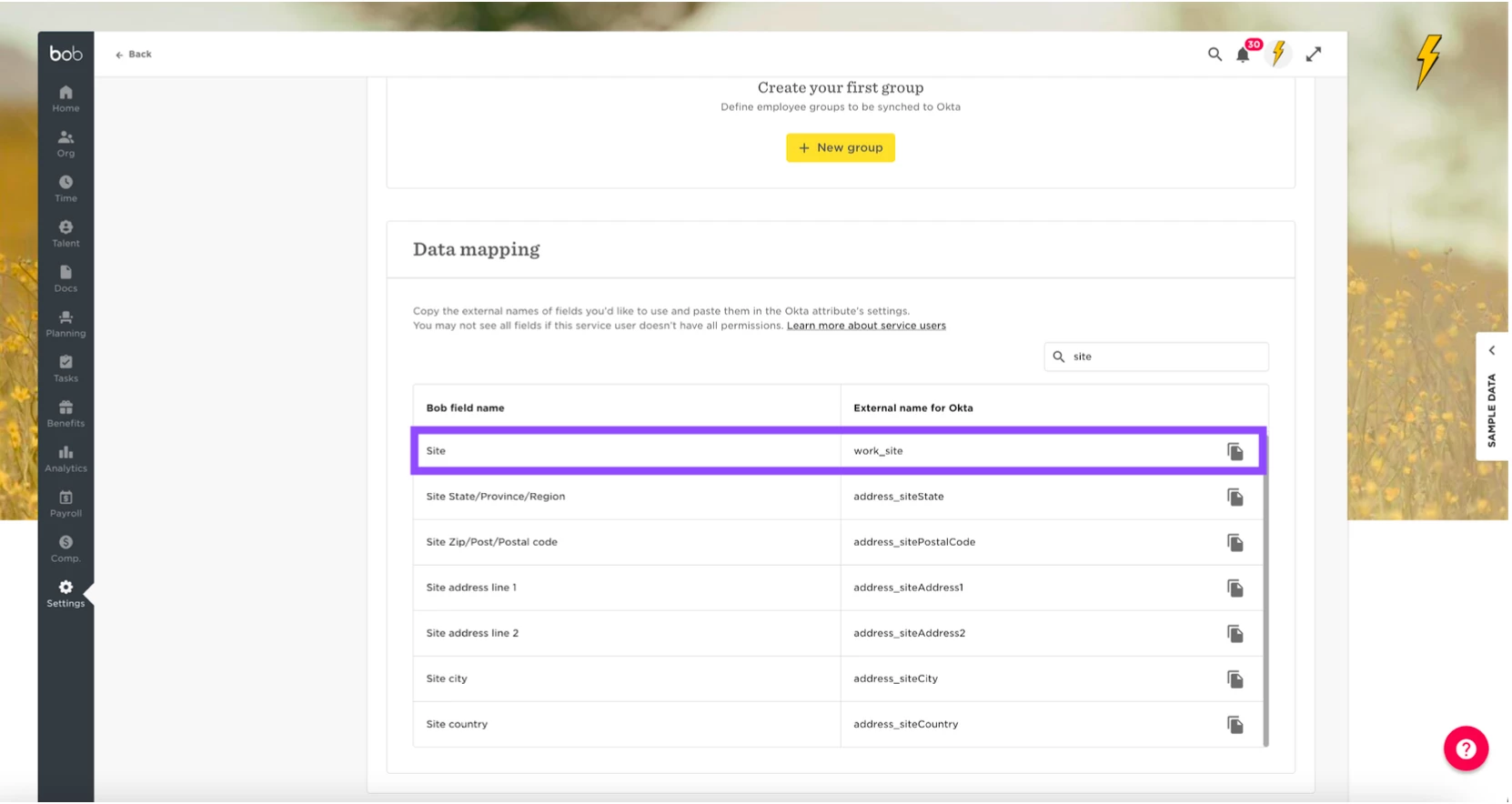
Then scroll down to the mappings and locate the field you would like to map:
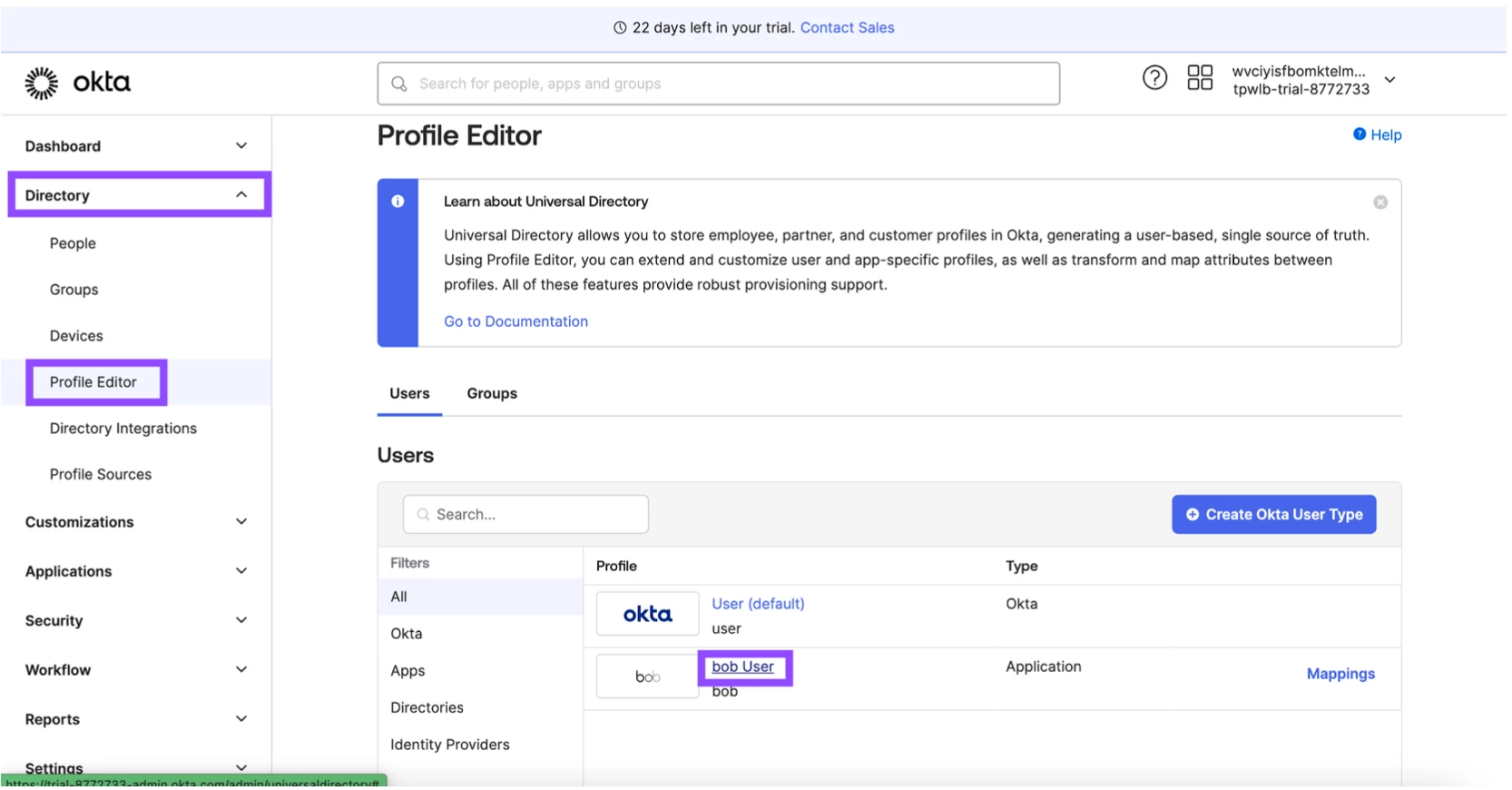
Then go ahead and open your Admin OKTA and go to Directory > Profile Editor > Bob User:
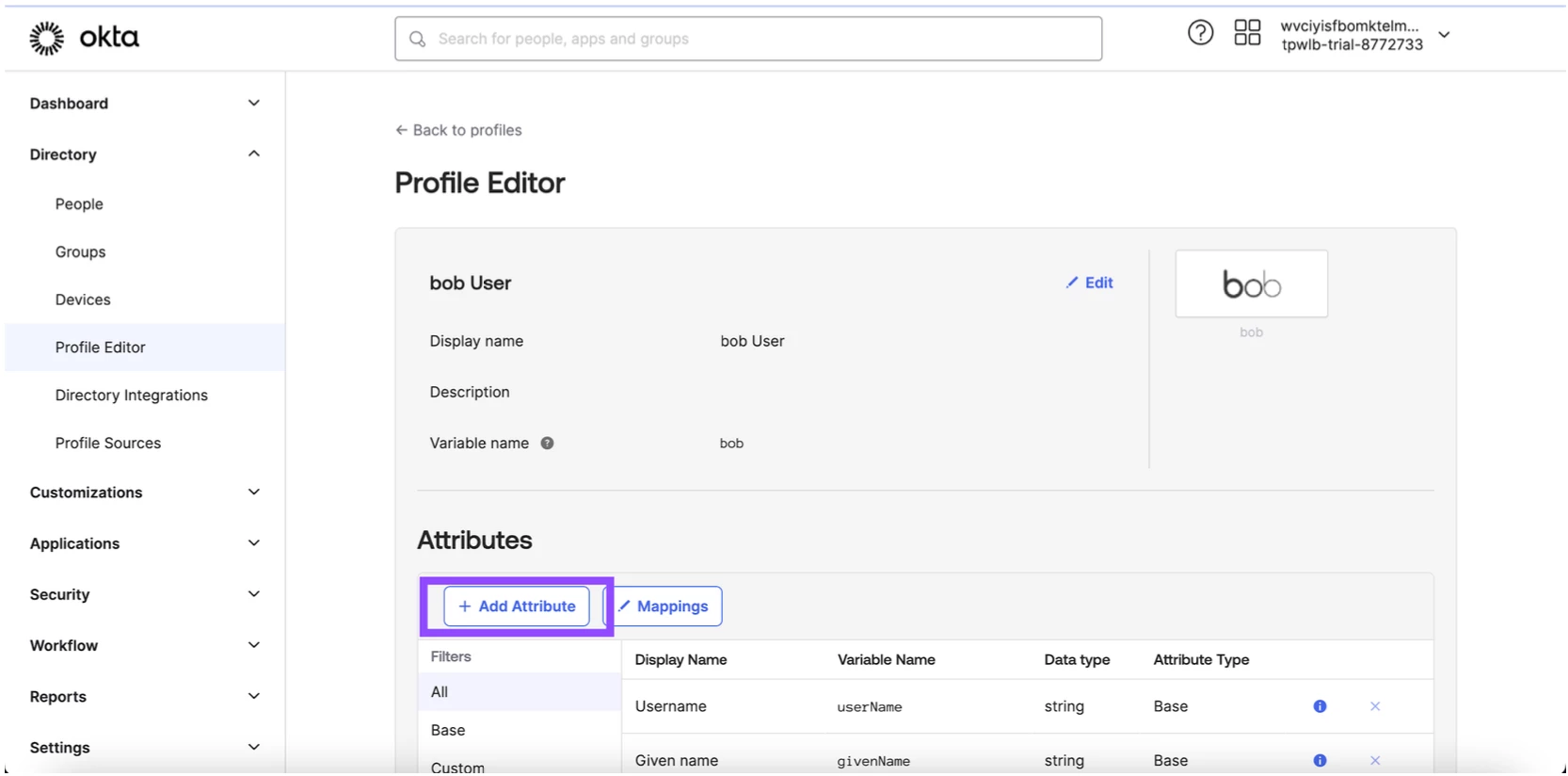
Select Add attribute:
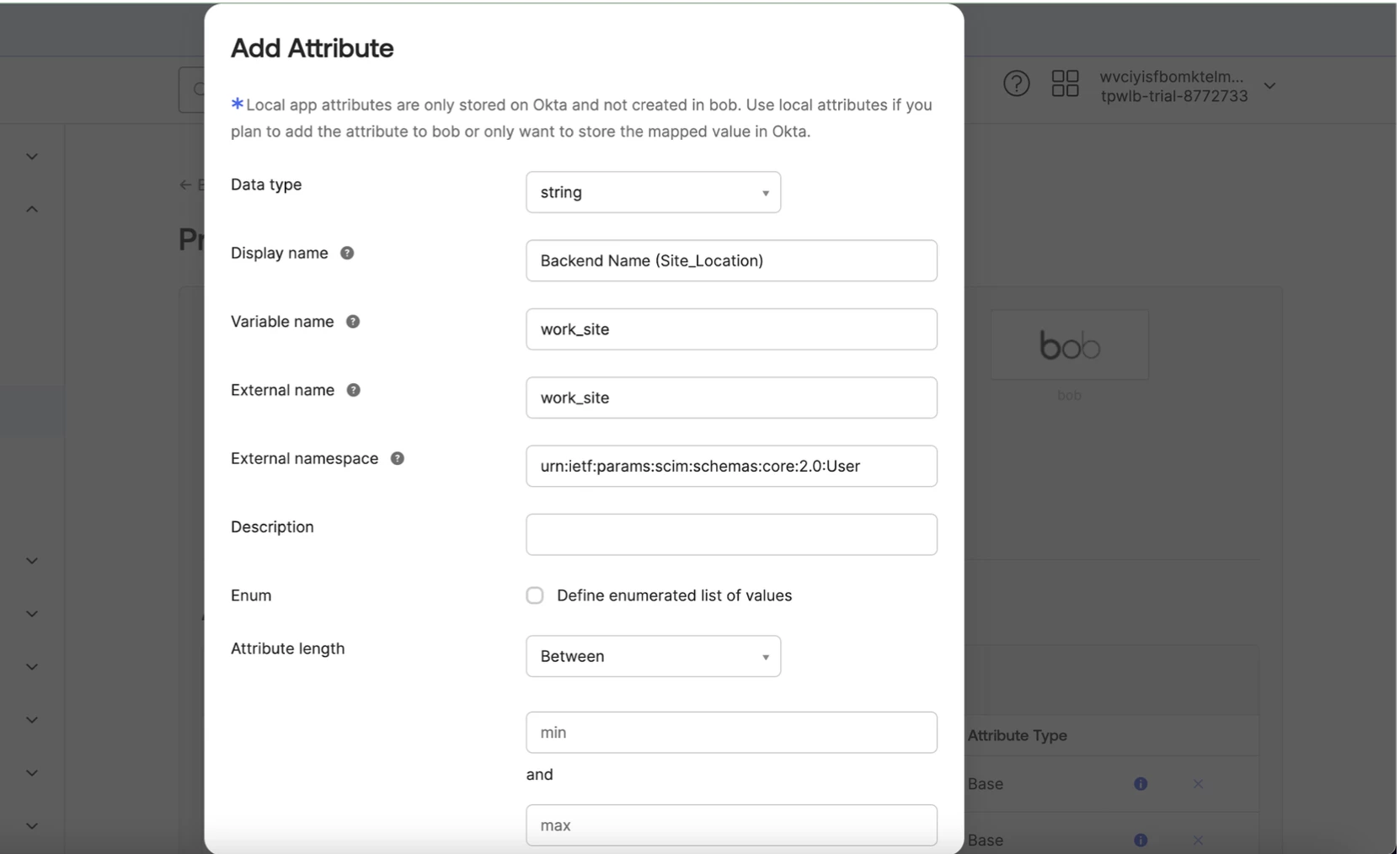
Then we will need to fill in the details for the field we are adding.
Here is how it will look: Go to Bob and copy that external name for field you are mapping:
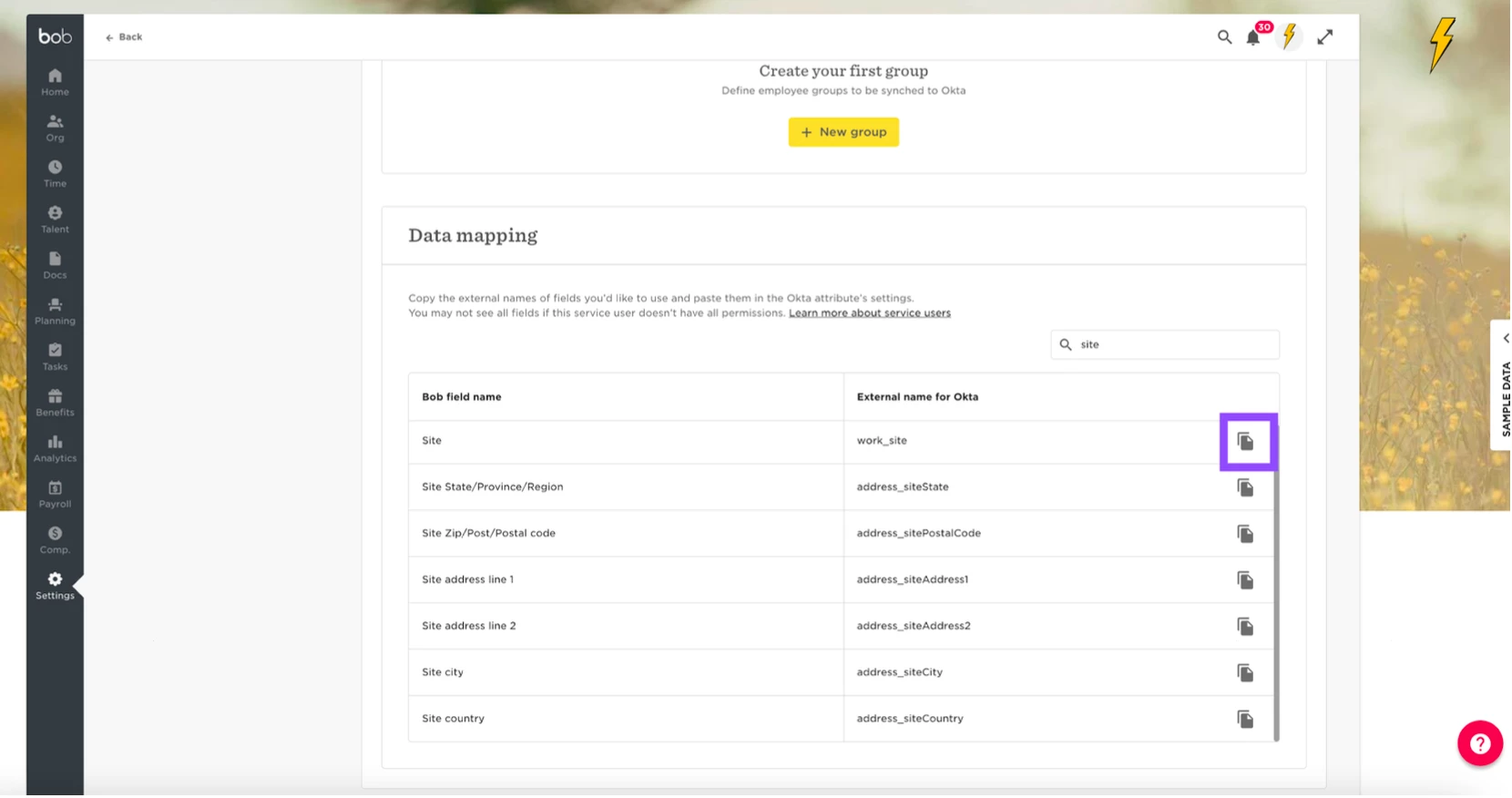
Then copy this into the External name.
Then use this in the external namespace urn:ietf:params:scim:schemas:core:2.0:User
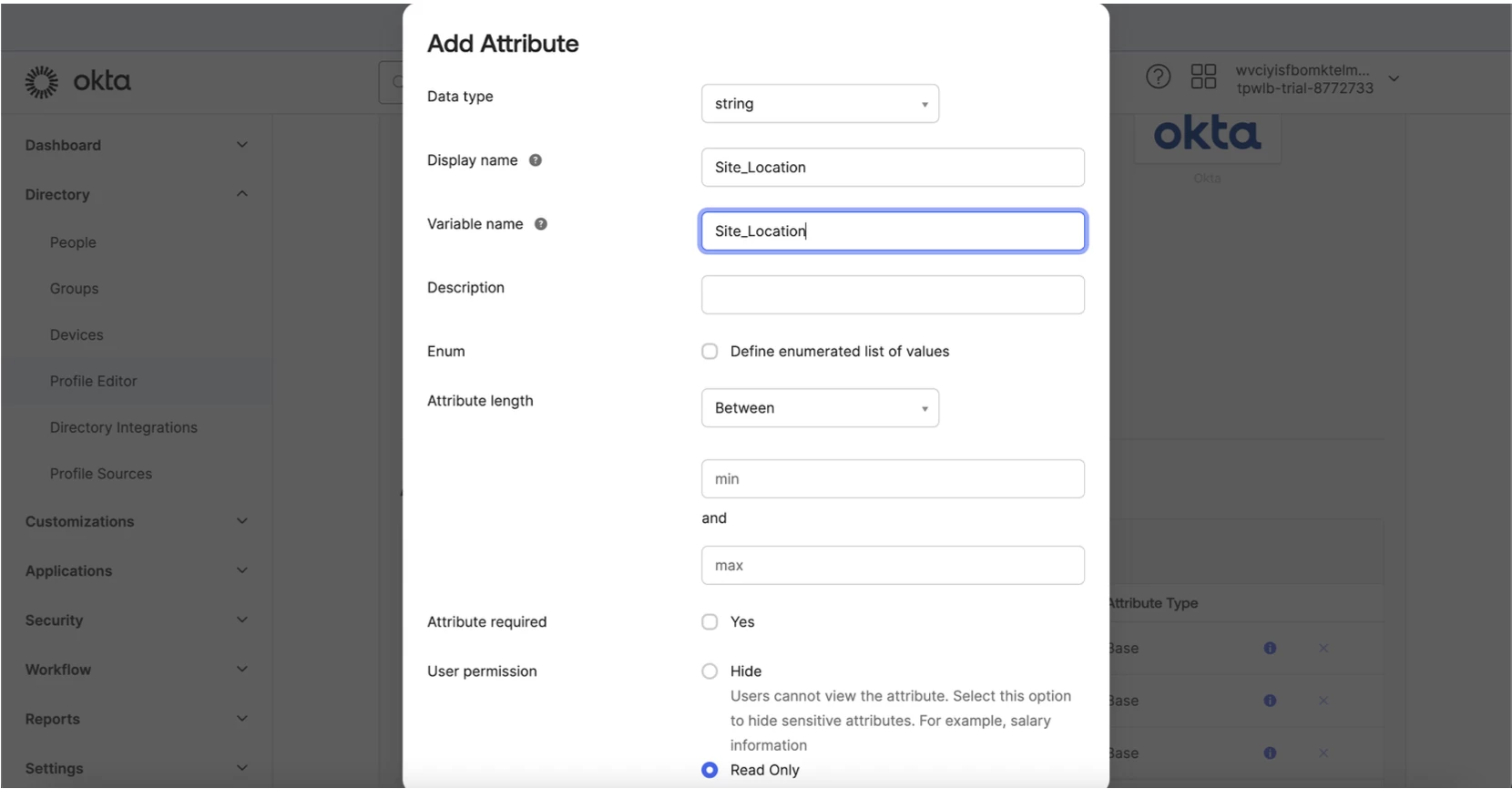
The display name will be what is shown on the backend you can call this what you please for example I used Site_Location as an example:
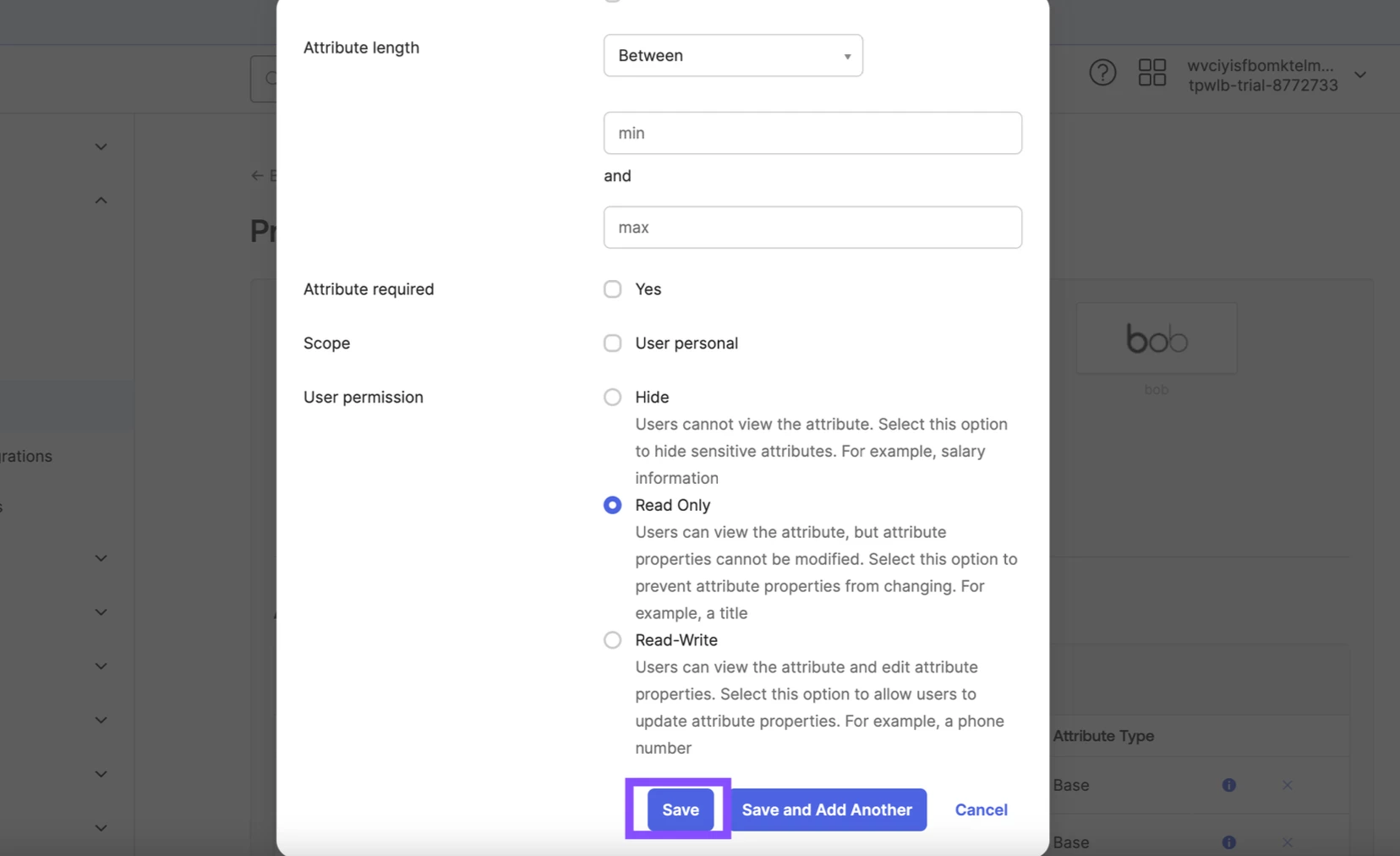
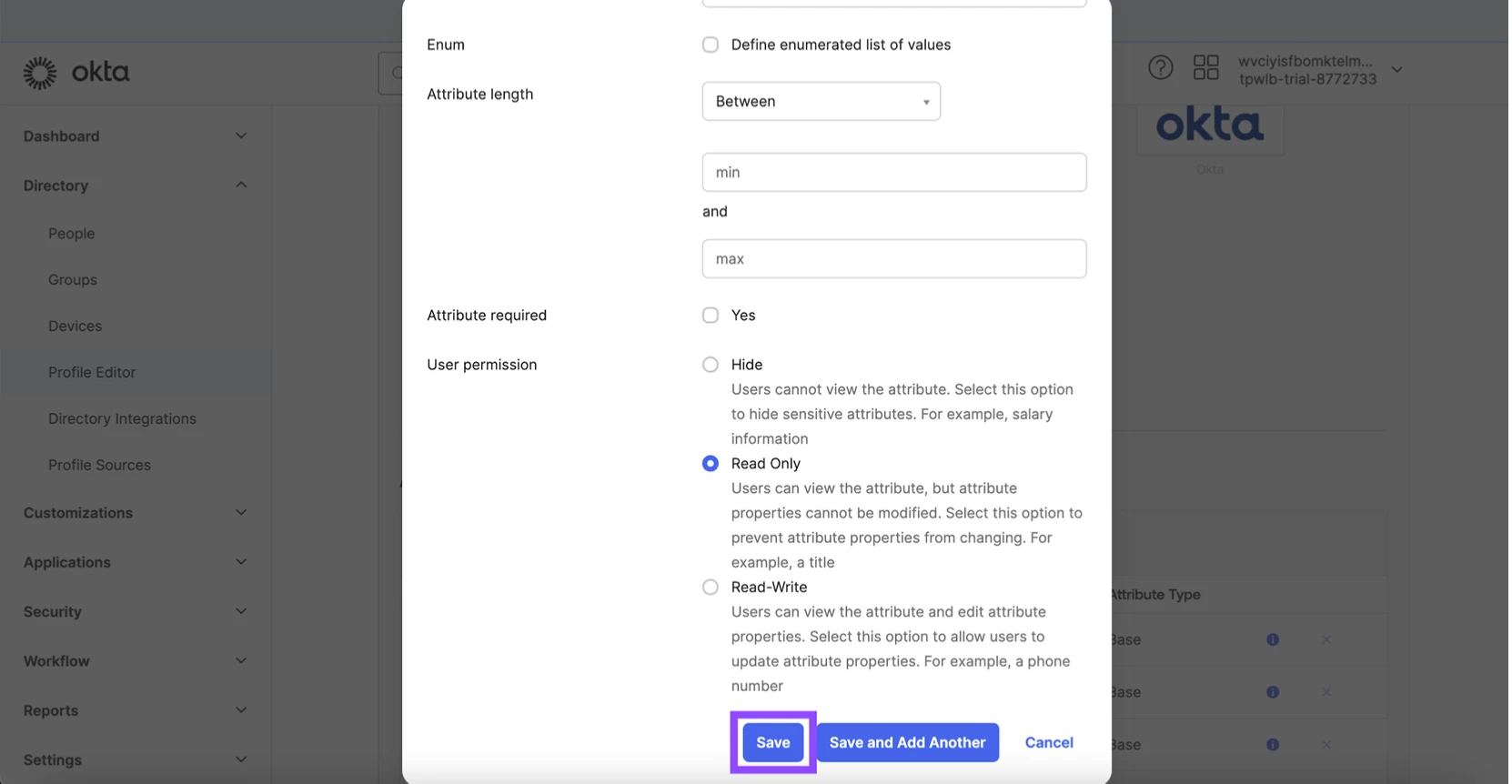
Then once this is done go to the bottom and click save:
Now that is completed we will need to create the value in Okta. If you have done this already then this is great, but I will share with you the steps:
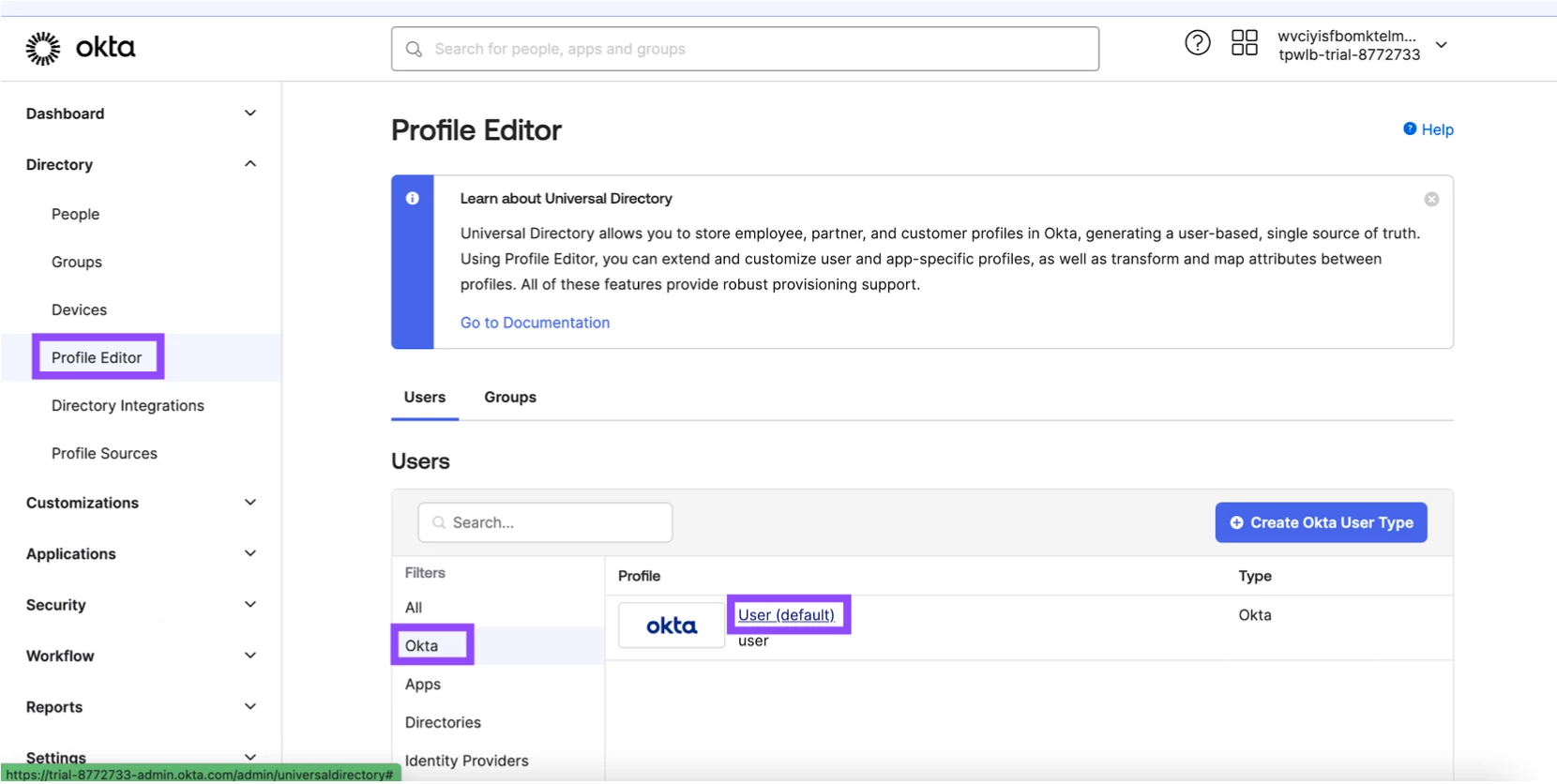
Go back to the directory > profile editor > okta > user:
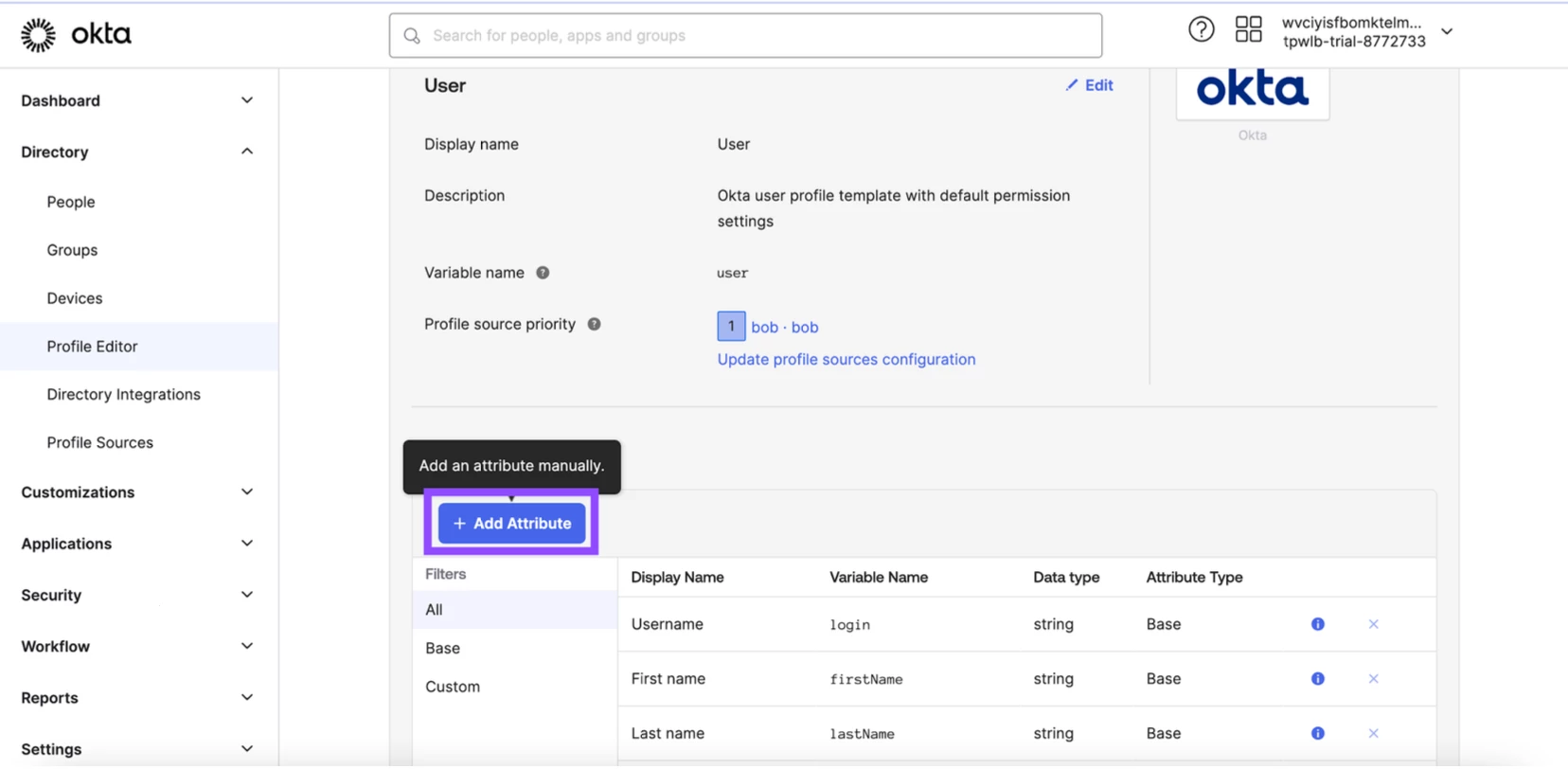
Then click add attribute:
Enter the display and variable name as you wish:
Then go to the bottom and click save:
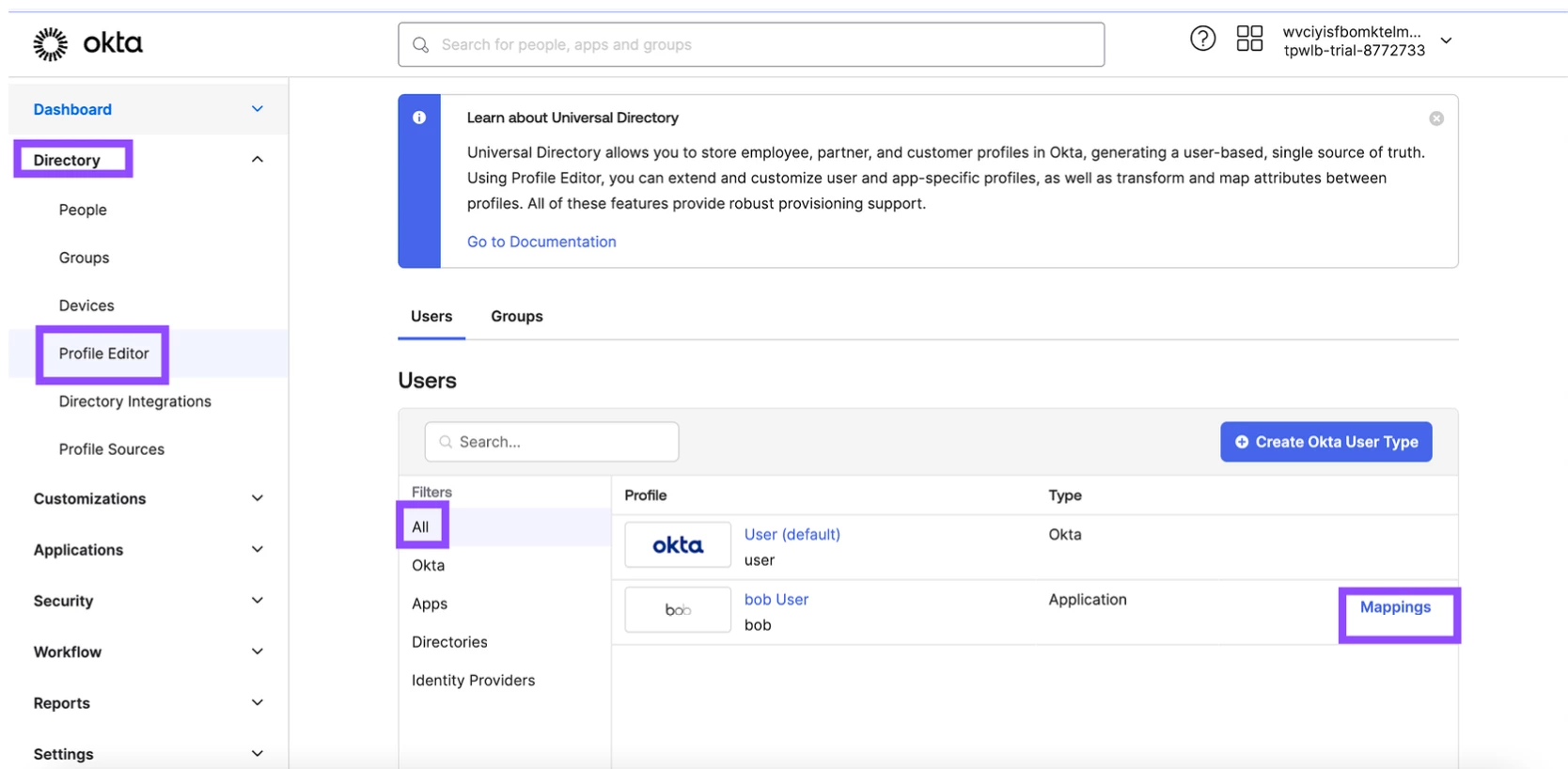
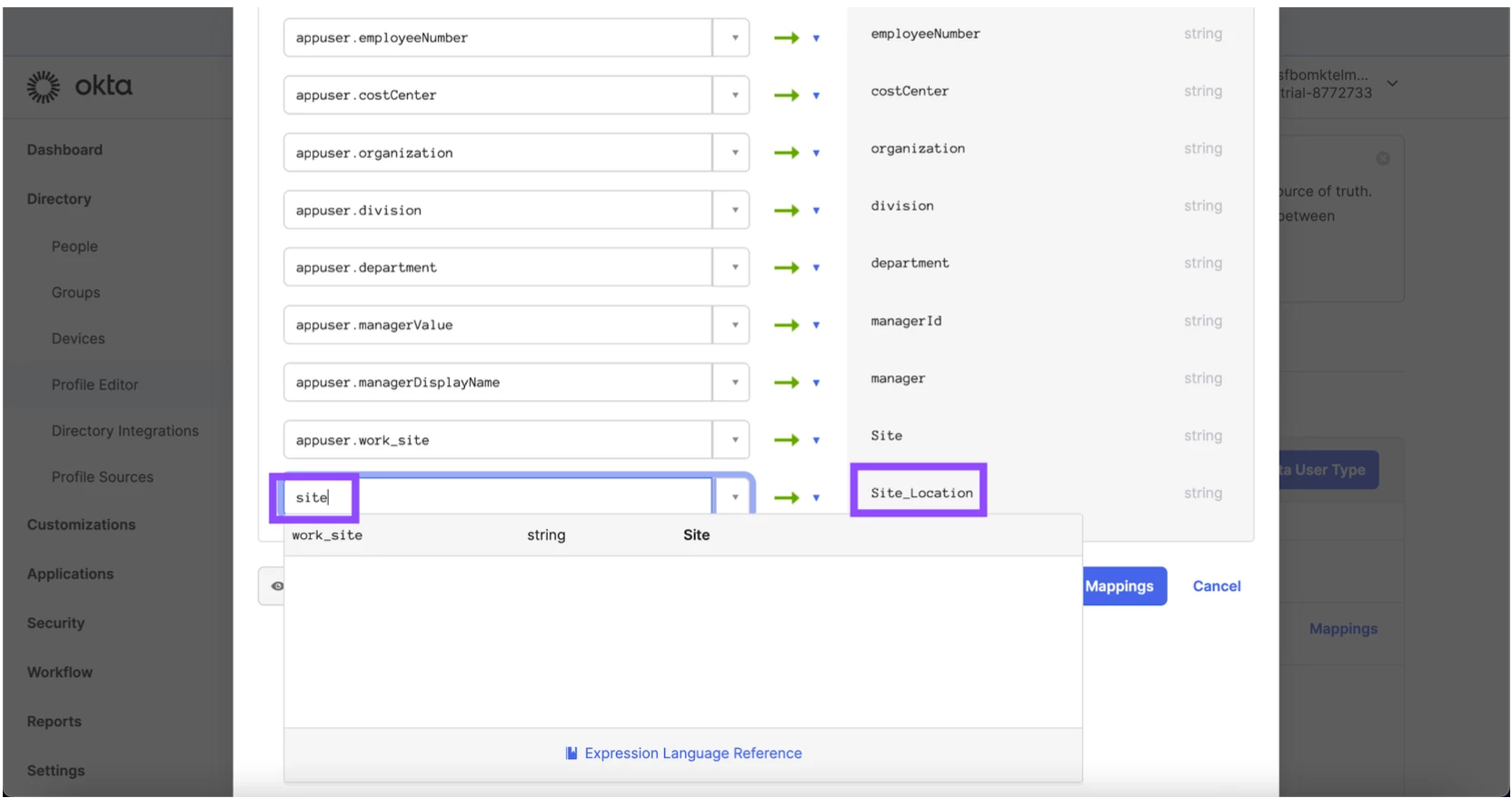
Finally we will need to go to directory > profile editor > all > Bob mappings:
Bob to Okta User then scroll to the bottom:
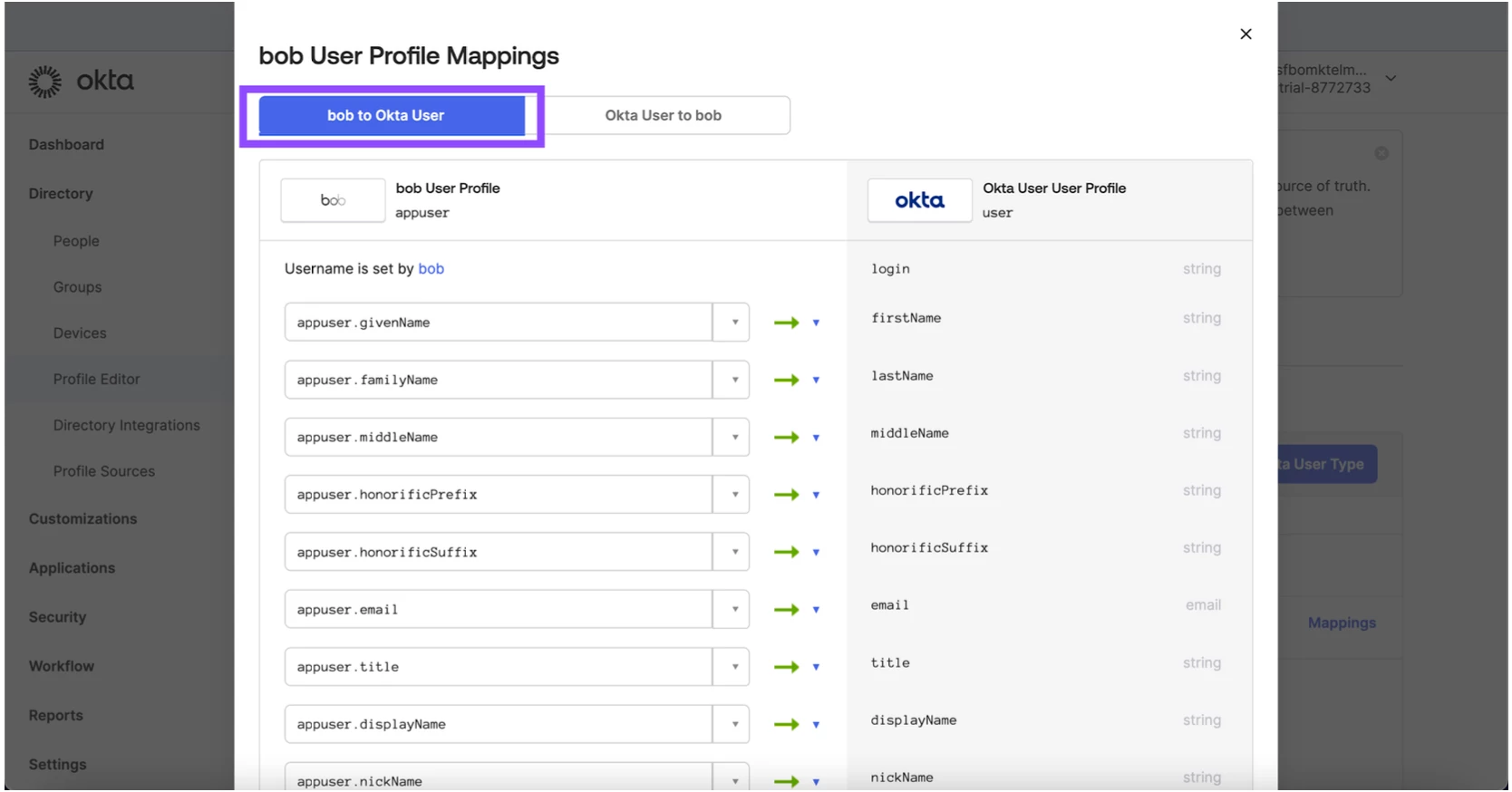
Then scroll to the bottom to find the new field mapping. Search for site and you will be able to map this together:
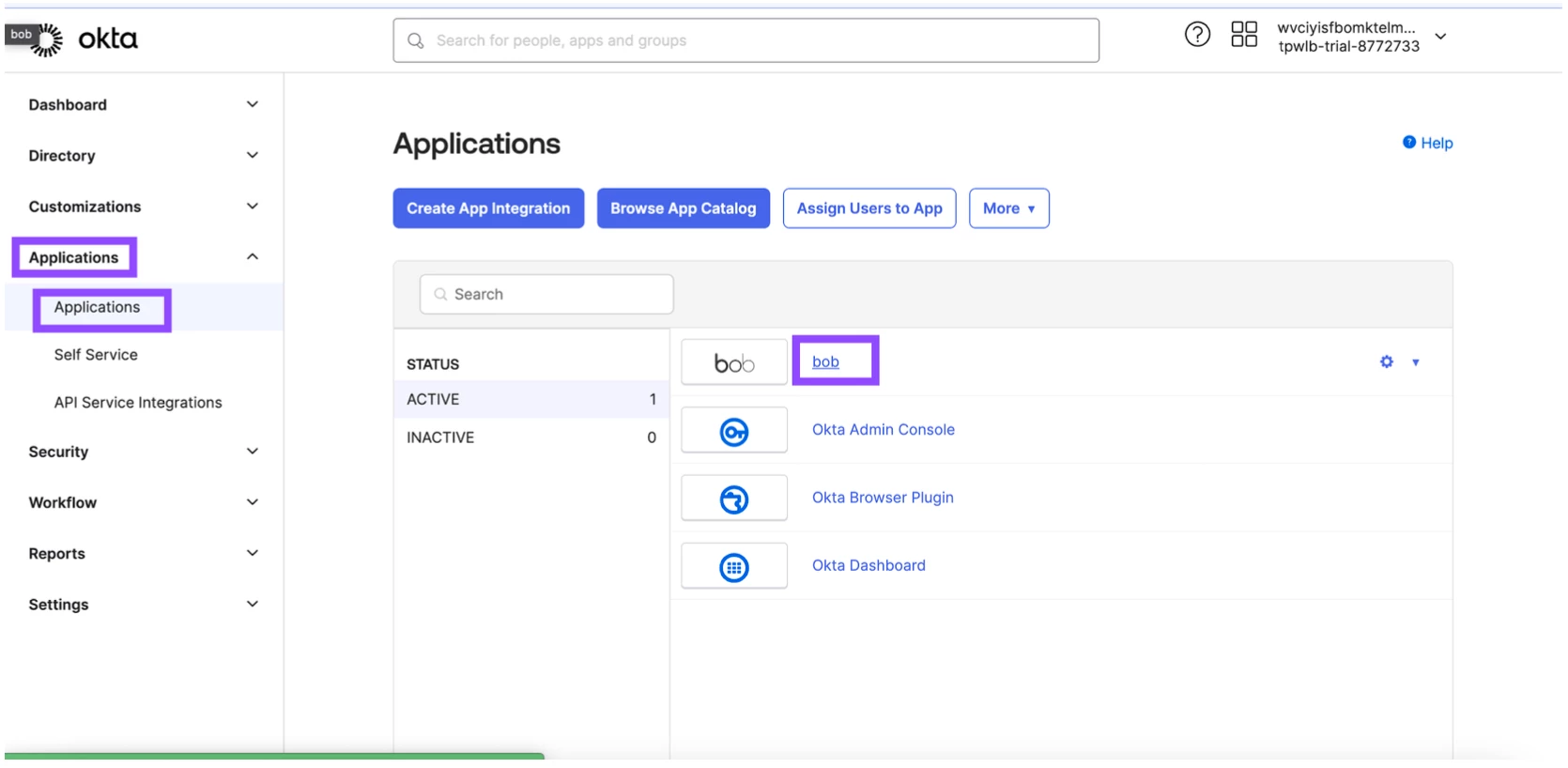
If you require to do a re-sync you can do this by going to Applications > Applications > Bob:
Then click import > import now:
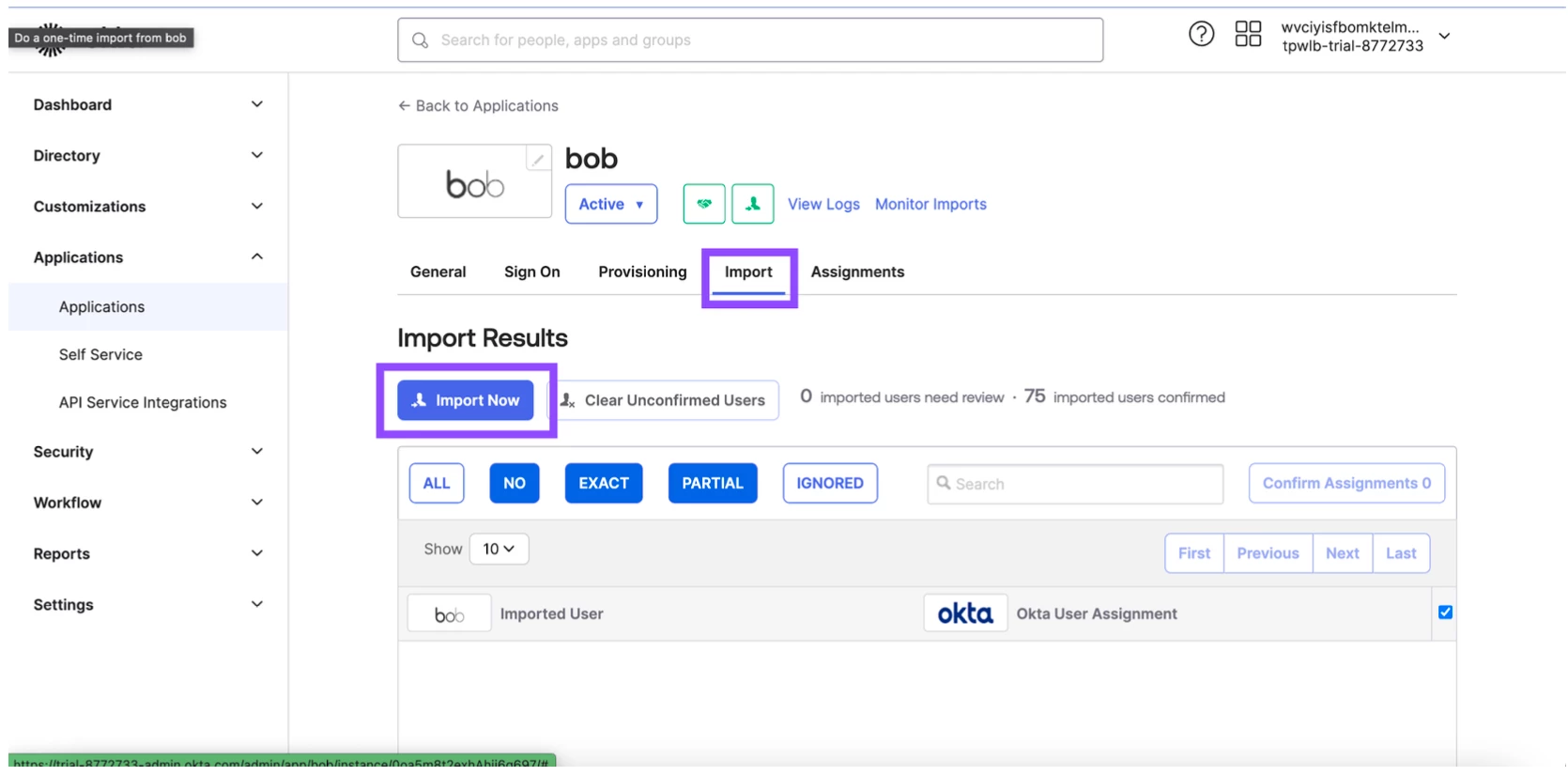
This will import all users and the values for the field into OKTA.