


If you see a “Need admin approval” message when logging in via SSO, it usually means Microsoft Entra ID SSO hasn’t been granted the required permissions.
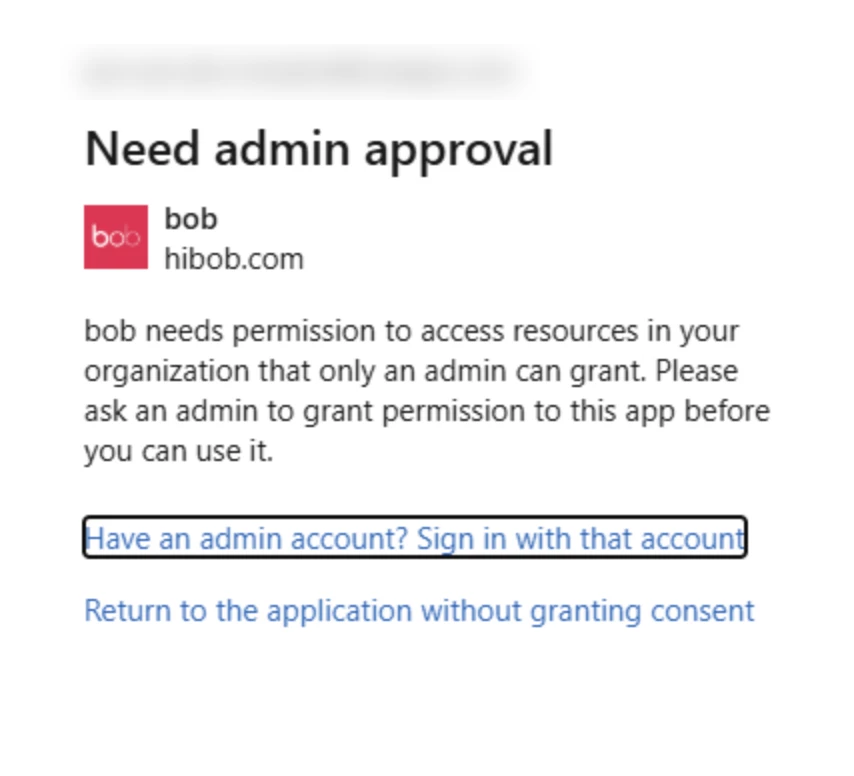
If you are using Microsoft Entra ID
This typically happens when consent hasn’t yet been granted by a Microsoft Entra ID admin. To resolve this, an Entra ID admin needs to approve access for the organization.
You can follow the full setup guide here:
Before you begin:
- The process must be completed by a Microsoft Entra ID admin.
- The admin must sign out of Bob before starting.
- The Entra ID admin does not need to have a Bob account.
In Bob:
- Go to the login page: app.hibob.com/login
- Select Connect with Microsoft
- Make sure you’re signed out of Bob before doing this.
- Enter the Microsoft Entra ID admin email and click Log in.
- You’ll be redirected to Microsoft Entra ID.
In Microsoft Entra ID:
- Go to Applications > Bob > Security > Permissions.
- Select Grant admin consent for your organization.
- Two Bob enterprise applications are created automatically in Entra ID: one for web logins and one for mobile logins.
- Click Accept.
- Assign the relevant users or groups to both the web and mobile Bob enterprise applications.
Once completed, users will be redirected to the Microsoft Entra ID portal when logging in.
If you’re NOT using Microsoft Entra ID
If you’re using a different identity provider (IdP) through a custom SAML SSO configuration, this message may appear if users try to log in using Microsoft option.
In this case, ask users to enter their work email address directly into the email field on the login page instead of selecting the Microsoft login option. This will route them through the correct SSO configuration.