


You’ll usually see this error when the Jira project key has changed, the API token has expired, or the permissions for the user who created the token have changed.

Before updating anything, confirm that the project key still exists in your Jira instance.
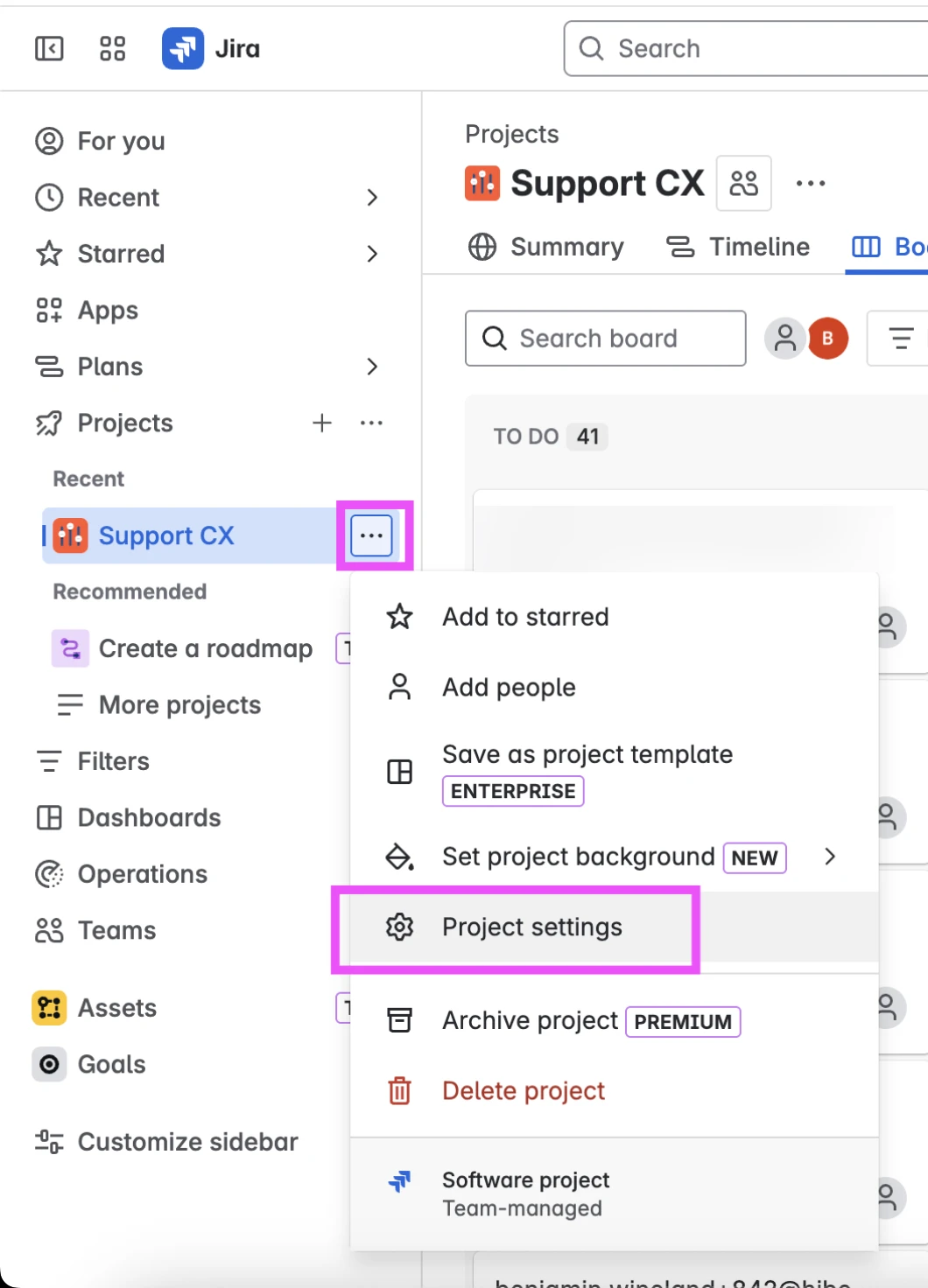
To check the project key in Jira:
- In Jira, go to the relevant project.
- Click the three-dot menu on the right side of the project.
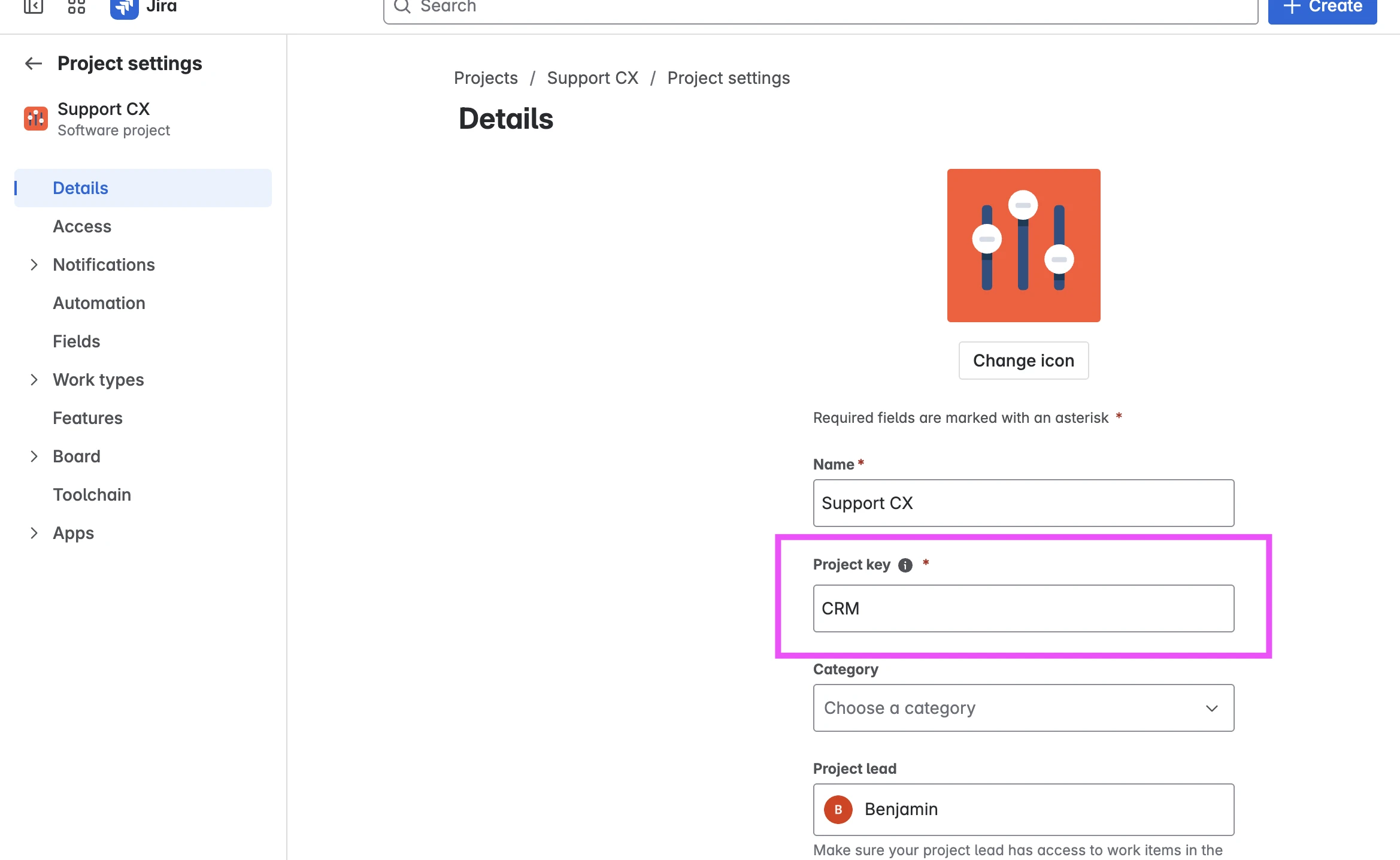
- Go to Settings > Details.
- Confirm that the project key matches the one used in the integration.
If the project key is correct, try updating the Jira API token instead of deleting and rebuilding the integration.
To update the API token in HiBob:
- Log in to HiBob as an admin.
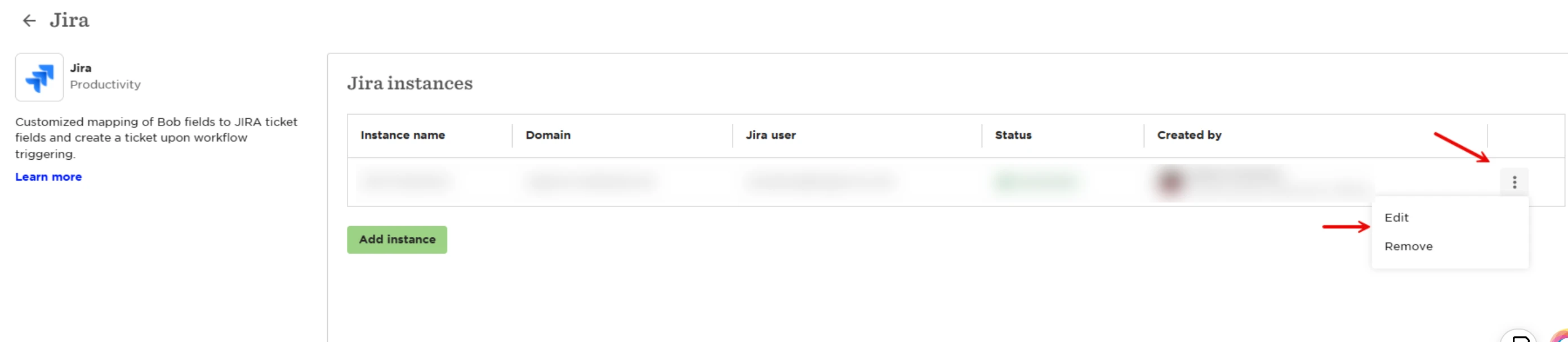
- Open the Jira integration.
- Find the project and select the 3 dots > Click Edit.
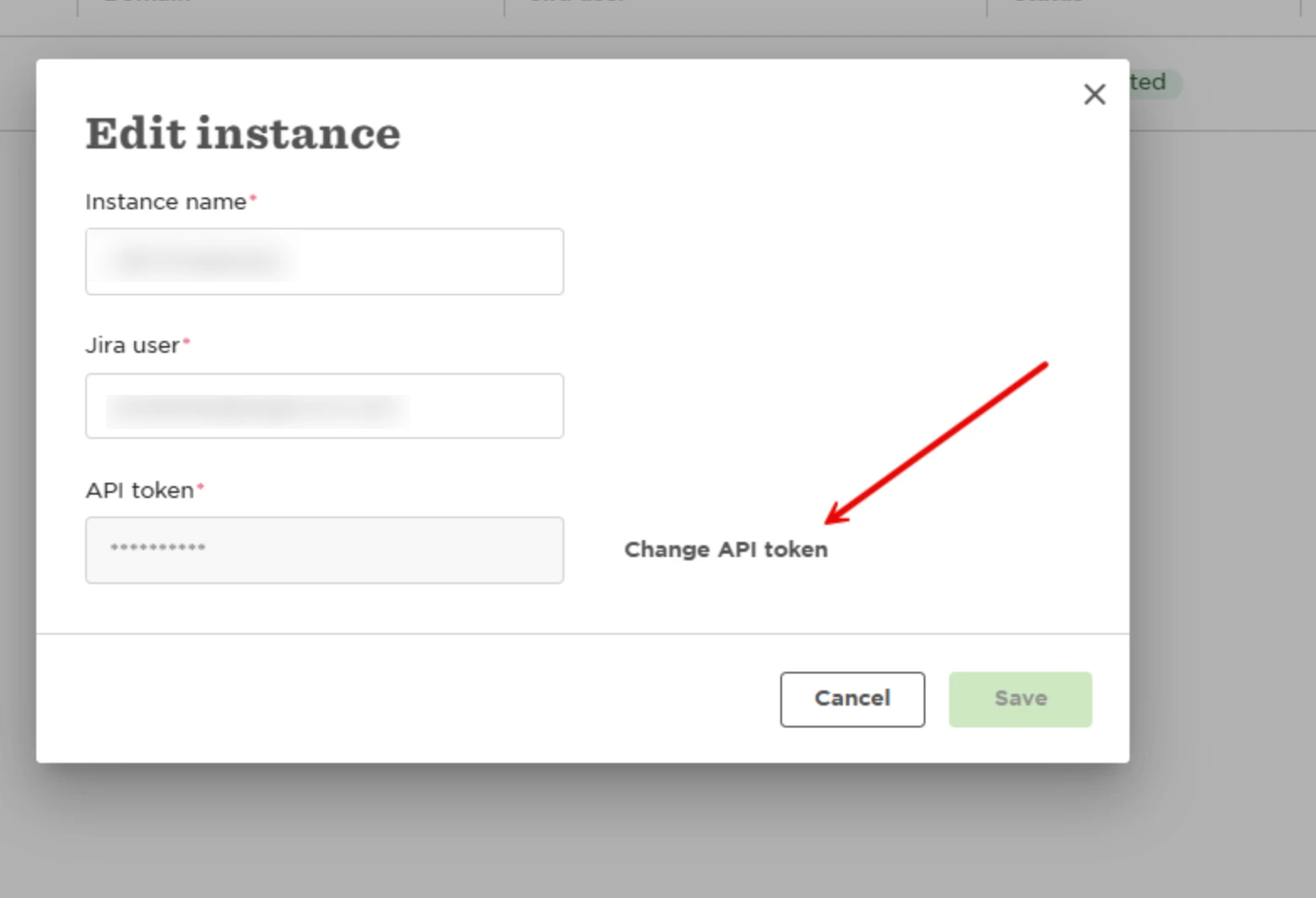
- Select Change API token.
- Paste the new token and save your changes.
Once you do this, the old token is removed and replaced with the new one.
A few things are important when creating the new token:
- Create it from the same Atlassian account that was originally used to set up the HiBob integration.
- Set the token lifetime to one year instead of the default 7-day expiration.
- Create an unscoped API token, since scoped tokens aren’t supported for HiBob integrations.
- Make sure the account has the required permissions:
Site access
Jira Software access
USER_PICKER
CREATE_ISSUES
After you update the token with the correct configuration, the integration should start working again without needing to be rebuilt.