


If you want to control how the mailNickname is created in your Microsoft Entra ID integration, you can customize the mapping in Bob instead of relying on the default format.
By default, the mailNickname mapping uses the employee’s First name and Last name (legal name) fields with the 'Text and field' option.
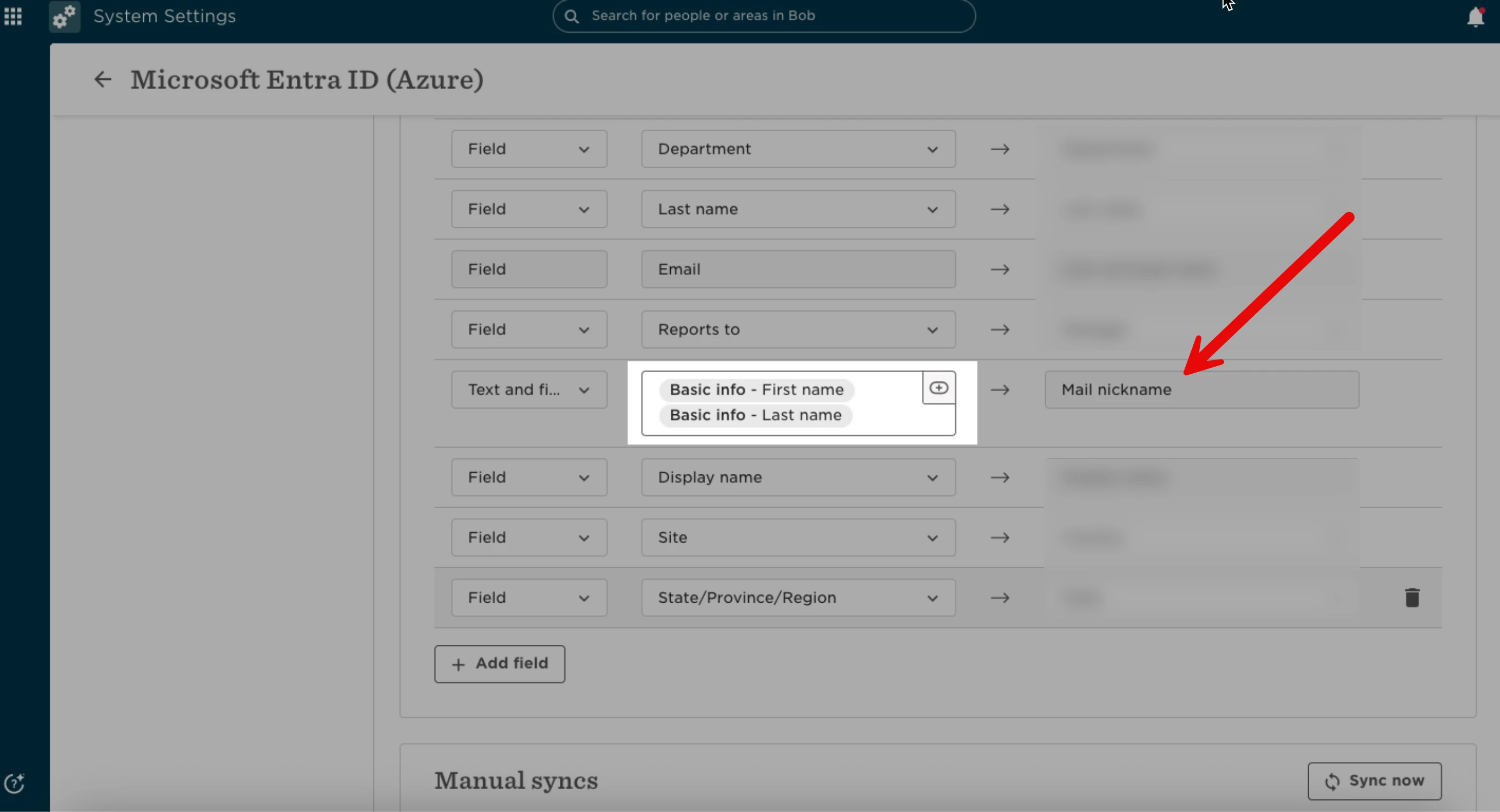
If you prefer to use display names or a different format altogether, you can adjust the mapping to better match your company’s naming conventions and help avoid duplication issues.
Here’s how to set it up:
1. Create a custom text field in Bob to store your preferred mail nickname format.
2. Add this field to your new hire onboarding flows so it’s populated from day one.
3. Go to your Microsoft Entra ID integration settings in Bob and update the attribute mapping so your custom field is mapped to the mailNickname attribute
(Alternatively, you can map the Display name field directly to the mailNickname attribute if that better fits your setup).
If you need a specific format (for example, firstname.lastname or firstname-lastname), you can define it in your custom field using separators like a period (.) or hyphen (-) to align with your company’s requirements.
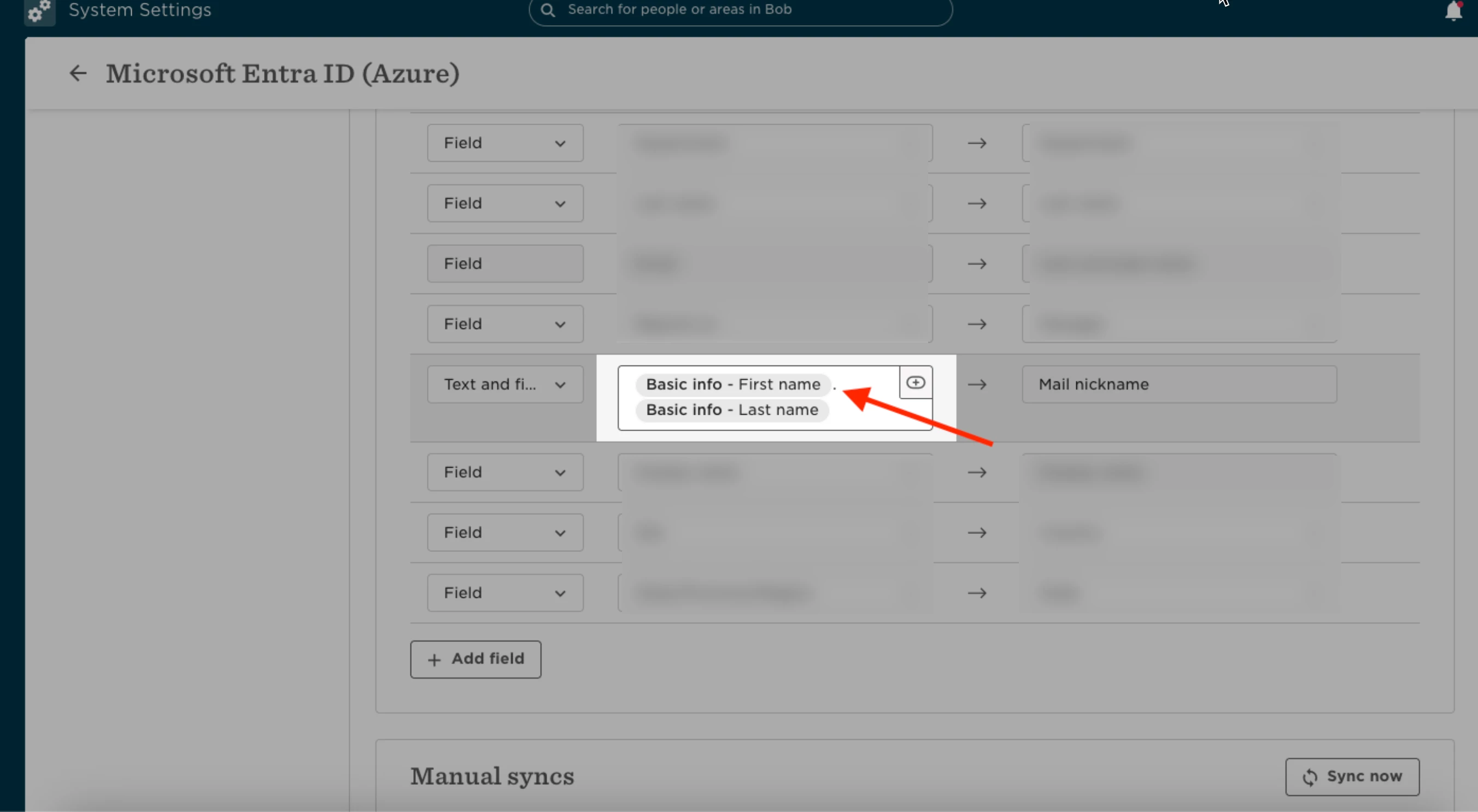
Once updated, new synced employees will follow the customized format you defined.