

If your provisioning integration (like NetSuite, Entra ID, or Google Workspace) fails to sync, here’s how to find the exact reason directly in Bob.
When a sync fails, many admins download the report from the Manual syncs section. While this report confirms whether records were created, updated, or failed, it doesn’t always include the detailed reason for the failure.
To see the full error message, you’ll need to check the synced records section instead.
Here’s how:
1. Go to System Settings > Integrations and open your relevant provisioning integration (for example, Google Workspace, NetSuite, or Entra ID).
2. Scroll to the Manual syncs section to see the sync history and status.
3. Scroll down to the Synced records section at the bottom of the page.
4. Look for rows where the Operation status shows Failure.
5. Click the three dots (⋯) at the end of the relevant row.
6. Select the option to view more details.
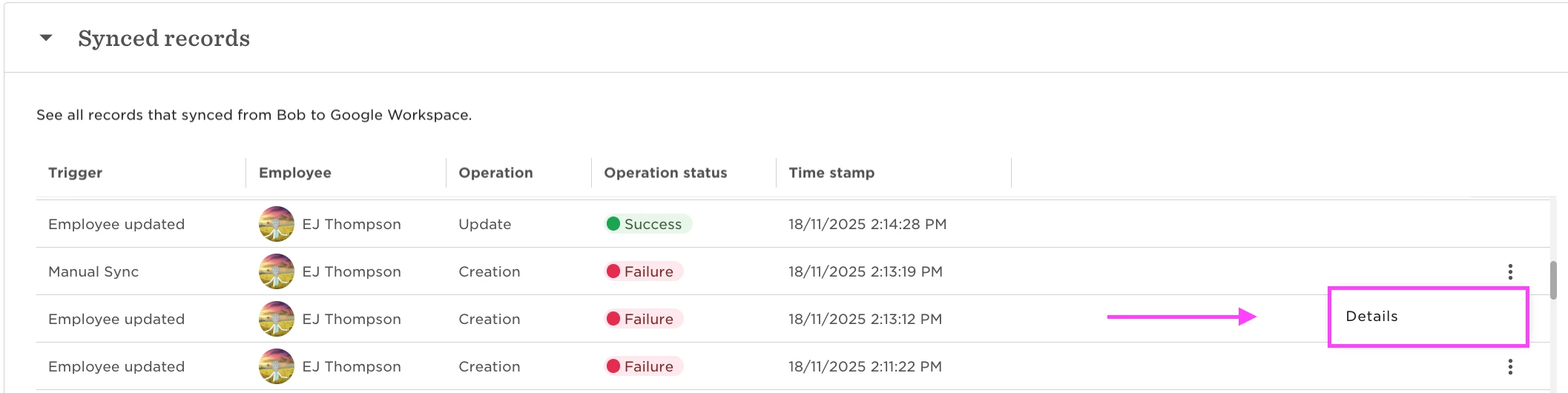
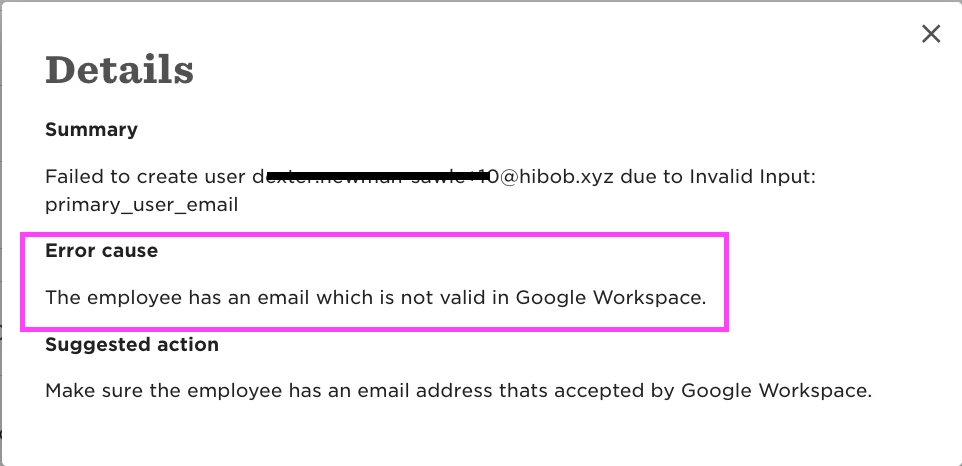
This view provides the detailed error message returned by the external system. In most cases, this message explains exactly why the sync failed—such as a missing required field, permission issue, duplicate value, or validation error.
Checking this detailed message first can help you quickly identify whether the issue is related to data in Bob, field mapping, or configuration on the external system side.
If the error message isn’t clear or you’re unsure how to resolve it, you can then open a support ticket and include the exact failure message to speed up the investigation.