

If the Employer field in an employee’s profile is greyed out, you can update it using a flow or the new Import tool in Bob.
The Employer field can’t be edited directly from the employee’s profile.
For employer changes effective from today onwards, you can use the relevant flow. If you need to add an employer with an effective date in the past, use the new Import tool.
First, make sure the new Import experience is enabled:
-
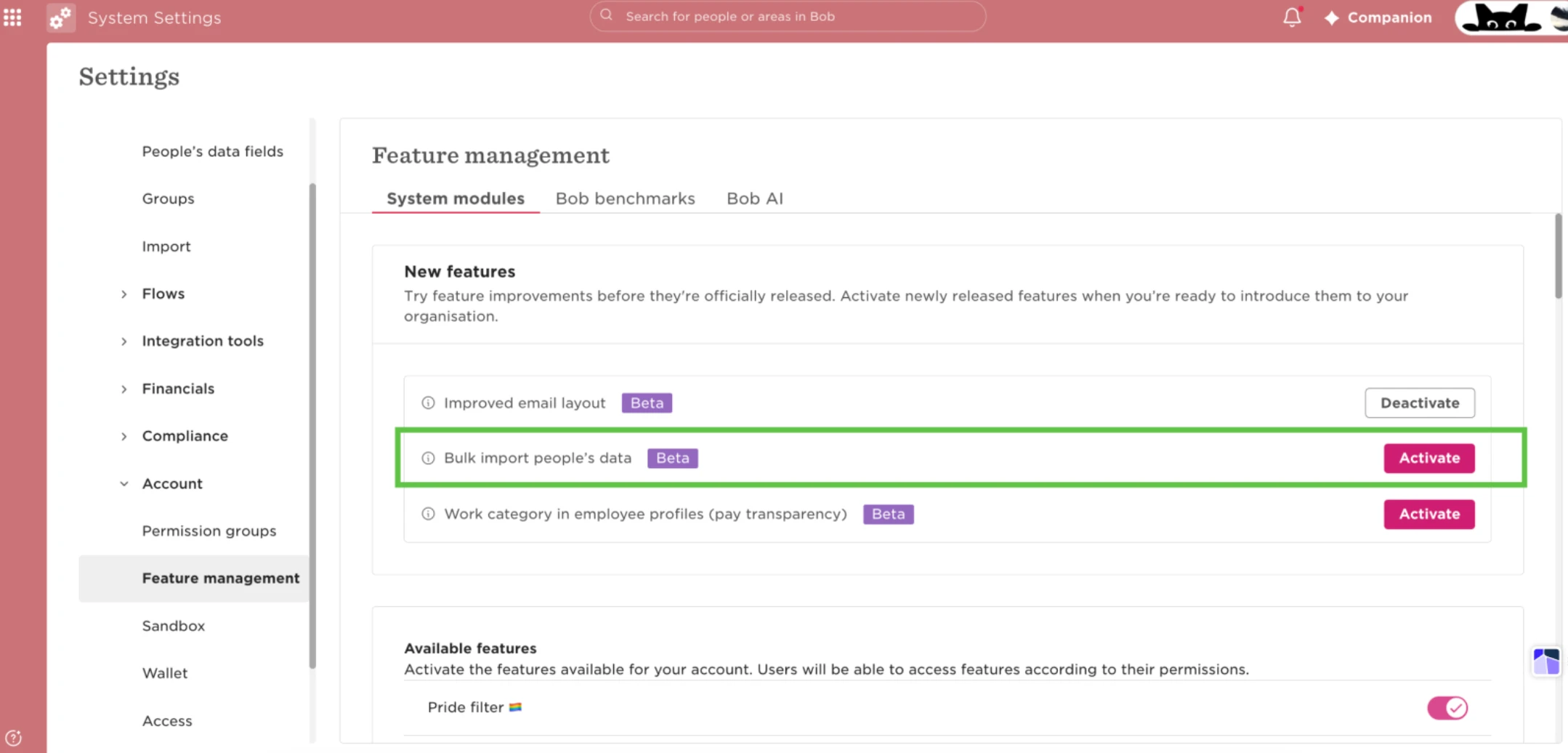
Go to Settings > Account > Feature management.
-
Locate the new Import feature and make sure it’s enabled.
Once enabled:
-
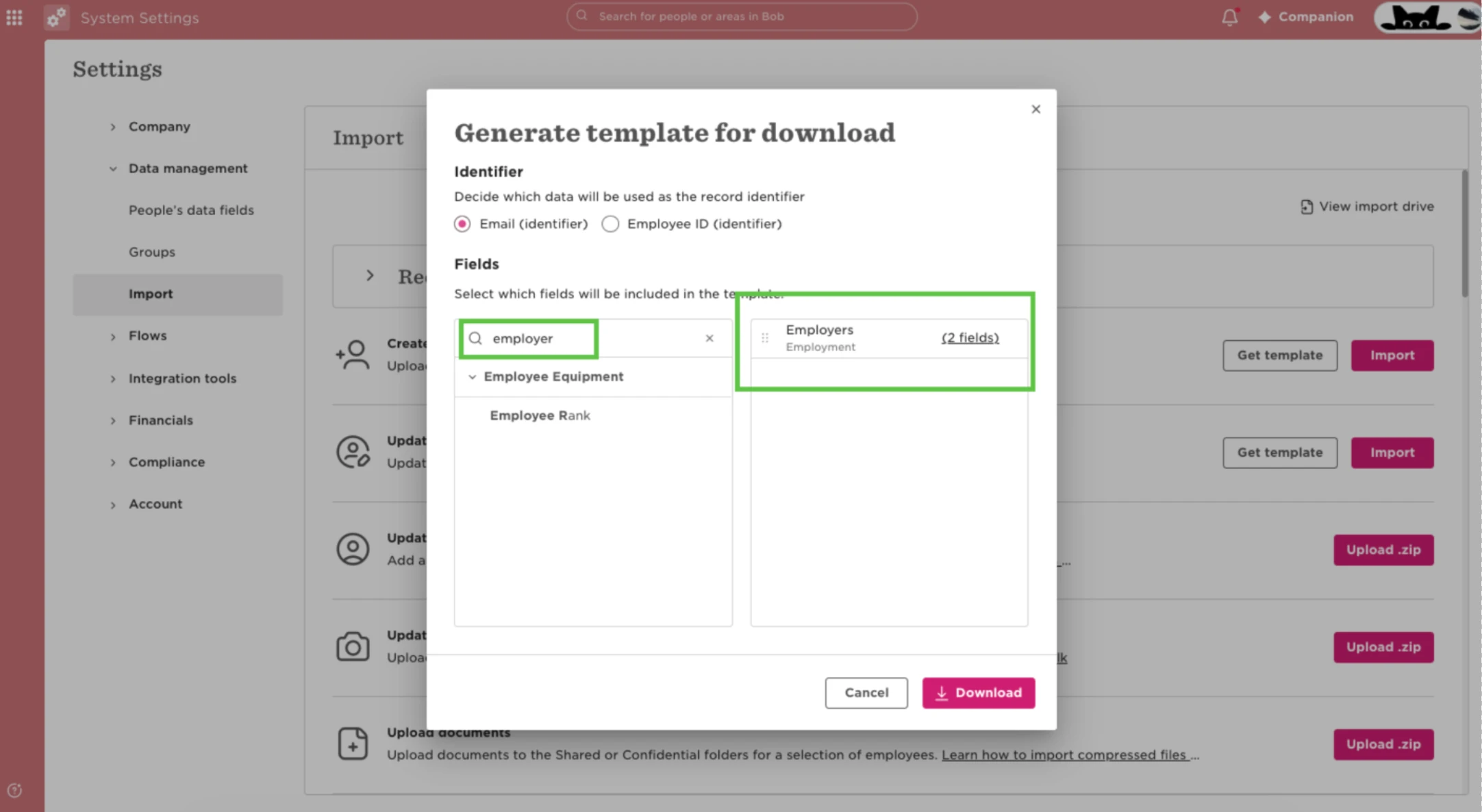
Go to Settings > Data management > Import.
-
Select Update people data.
Choose the option to download a template.
-
When selecting the fields to include, search for Employer and add it to the template.
-
Download the template.
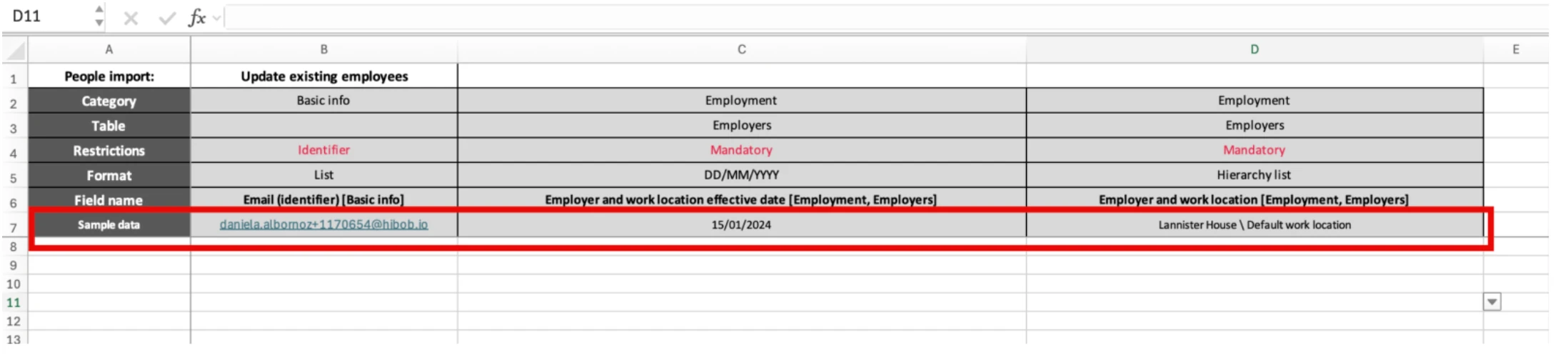
Add the relevant employee information, including their work email address, the Employer, and the required effective date.
-
Make sure the Employer name exactly matches the Employer already configured in Bob.
-
Return to Settings > Data management > Import and upload the completed file.
-
Review the validation results. If Bob flags any errors or unrecognized values, correct them before completing the import.
-
Complete the import.
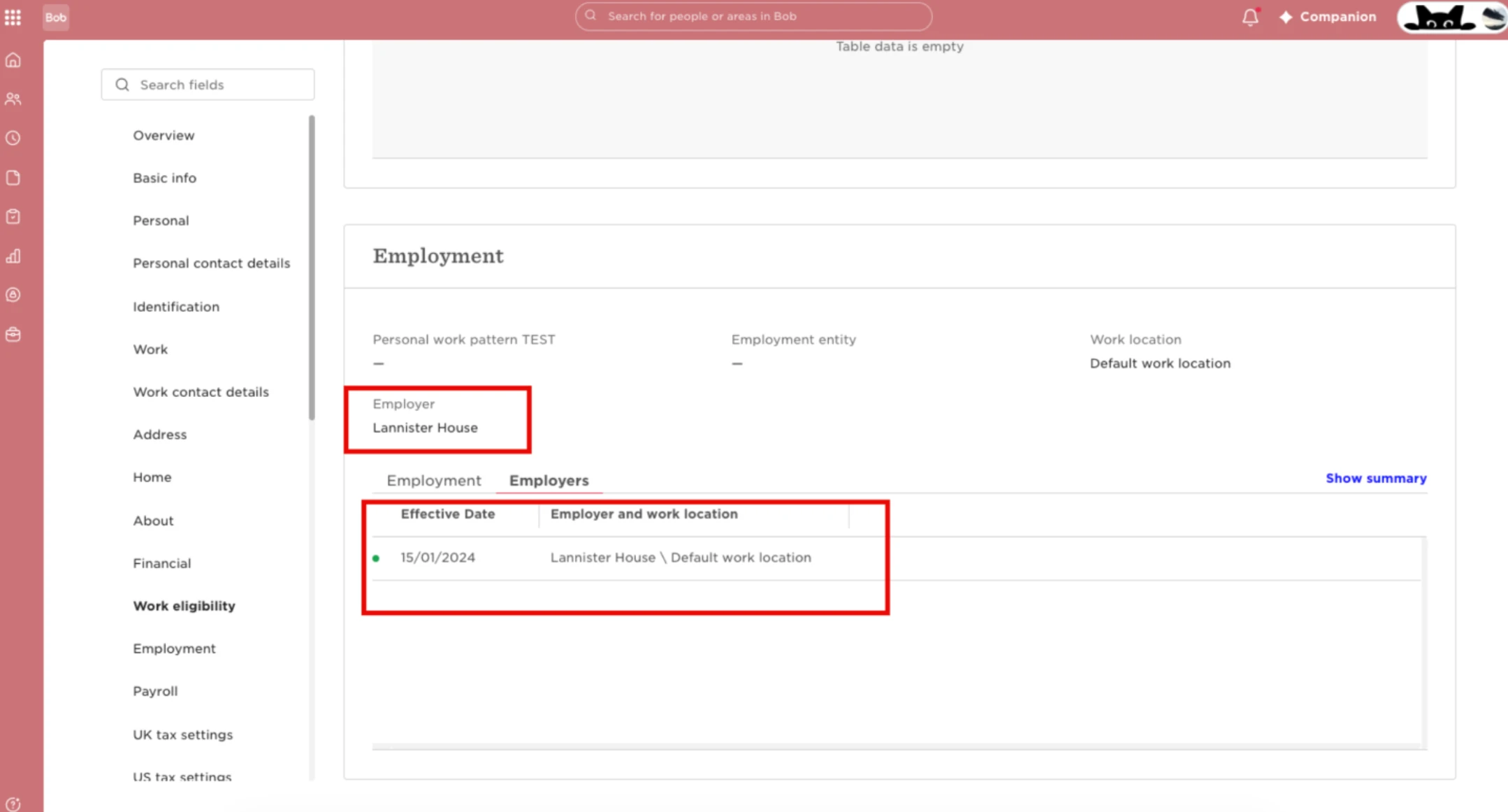
After the import is complete, refresh the employee’s profile and check the Employer information. The new Employer entry and its effective date should now appear.
Good to know: The Employer must already exist in Bob before you import it. Using the new Import tool also allows you to add historical Employer information, while a flow only allows an effective date from today onwards.