How to delete data in bulk (excluding tables without historical data (effective dates) and historical fields)?
If you want to delete data in bulk, just follow the next steps:
Regular individual fields:
-
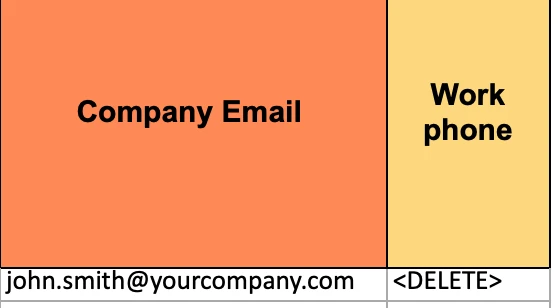
Create an excel sheet with 2 columns:
a) Employee email
b) The field you want to delete data from -
Under the second column insert: <DELETE>

- Save the file and upload it through Settings > Imports > Go to people Import > Update people
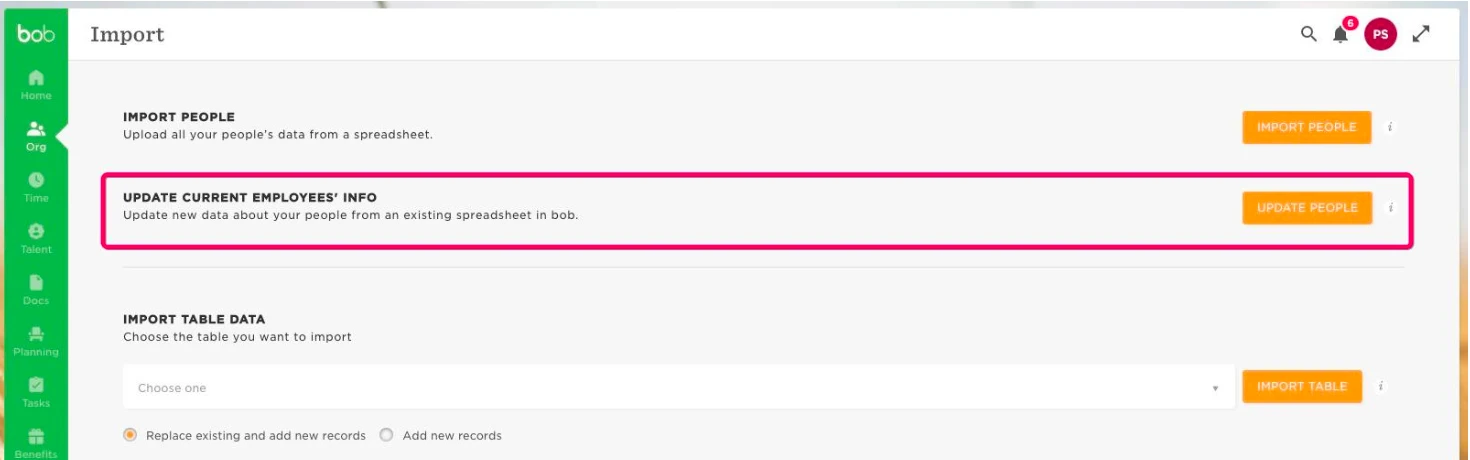
Historical Tables (example using the employment table)
-
Go to Analytics > Reports > Add new > Report >Use a template > Employment History report to obtain the template data.
-
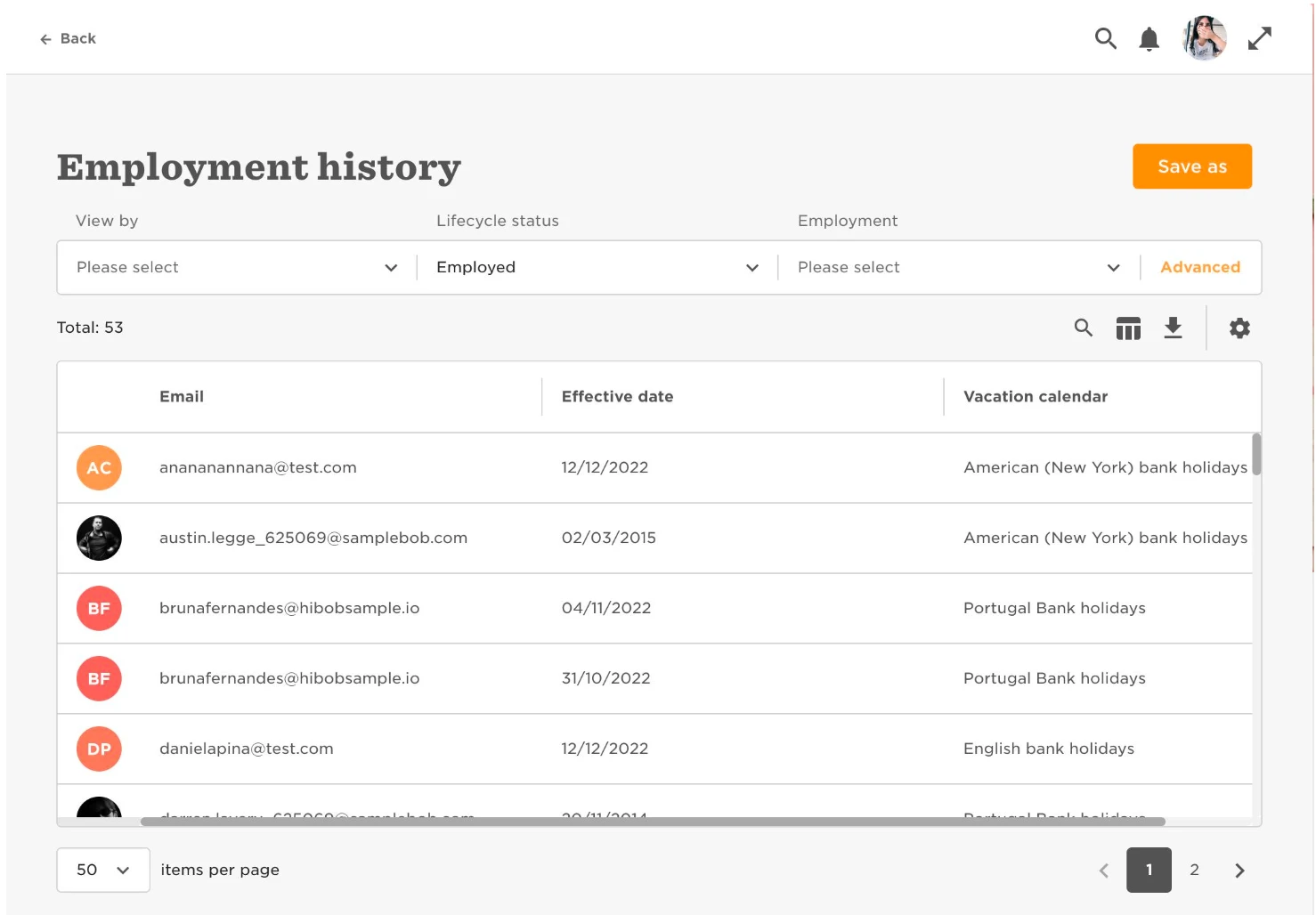
Use the column picker so you only include the fields Email, Effective date and the fields you want to delete. Below we’re deleting the “Vacation calendar” field:
-
The important thing here is: if there are employees you don't want to update to "Site calendar" then you should filter them out of this report otherwise, this will be updated for them too. To filter the people you want to update, use the advanced filters provided.
-
Now go ahead and download the excel report.
-
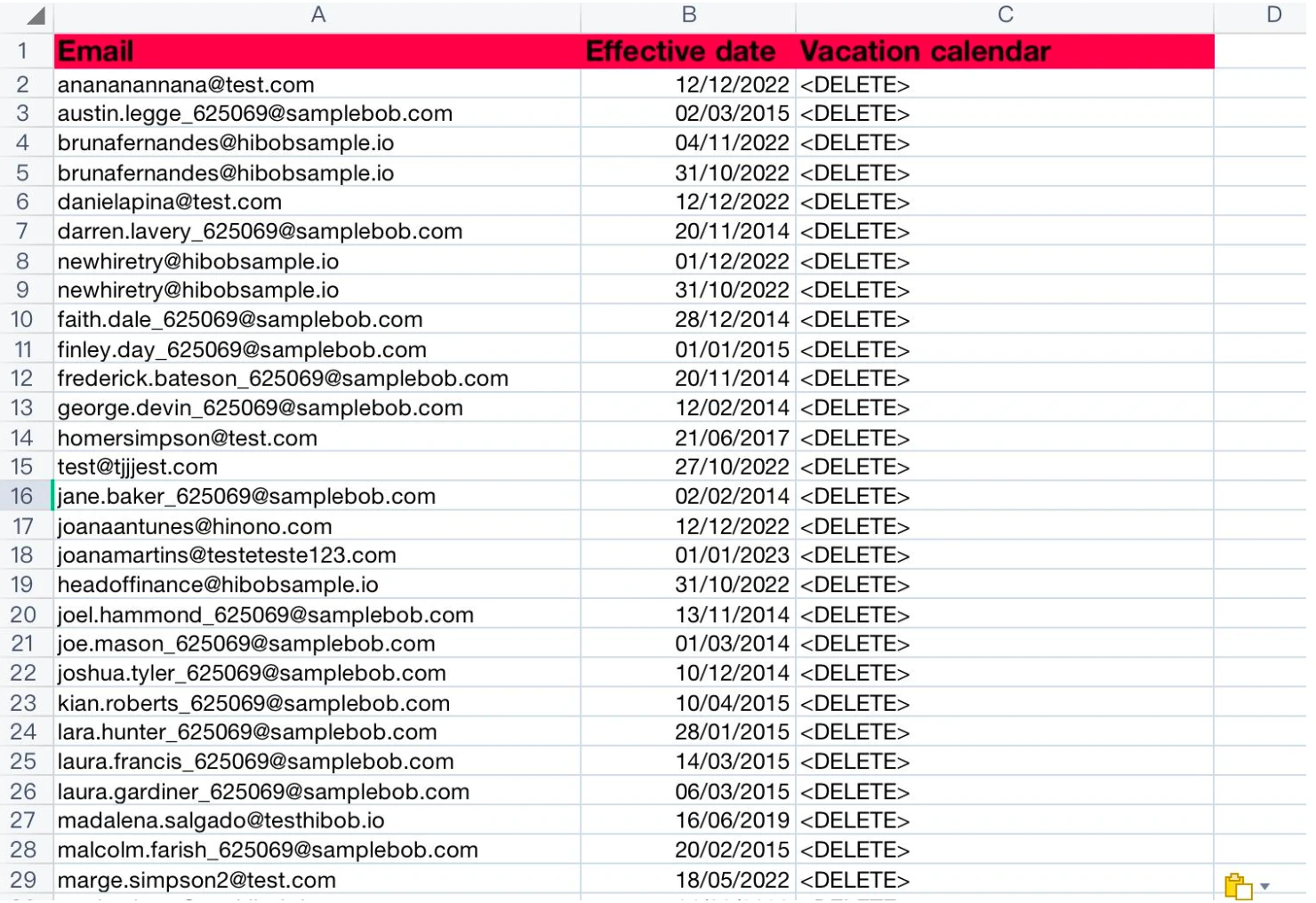
To ensure these employees' calendar changes to "Site calendar" you will need to fill the Vacation calendar column to "<DELETE>" as shown below:
-
Ensure to keep the effective date unchanged. By using the delete option the current calendar for the employees will be deleted and then replaced by the default "Site calendar" option.
-
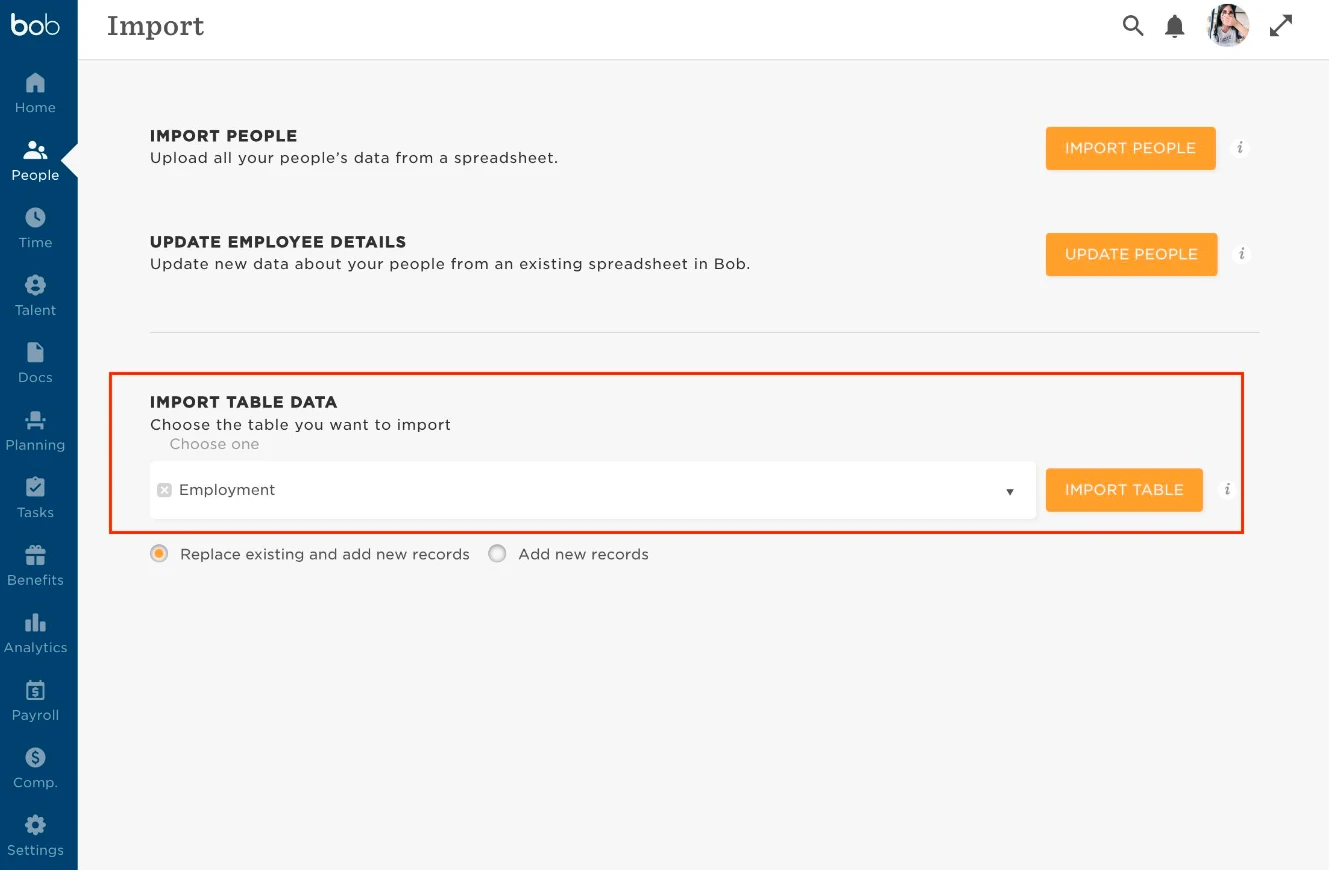
You can perform the import by going to Settings > Import > Go to people import > Choose Employment in the drop down table > Then use the template you have created with the dowloaded report data, with the Vacation calender column filled with <DELETE>.
This can work for multiple fields as well, as long as you have in the first column the employee email.
Here is the help center article with more information.